Support »
Pololu 3pi Robot User’s Guide
View document on multiple pages.
You can also view this document as a printable PDF.
- 1. Introduction
- 2. Contacting Pololu
- 3. Important Safety Warning and Handling Precautions
- 4. Getting Started with Your 3pi Robot
- 5. How Your 3pi Works
- 6. Programming Your 3pi
- 7. Example Project #1: Line Following
- 8. Example Project #2: Maze Solving
- 9. Pin Assignment Tables
- 10. Expansion Information
- 11. Related Resources
- 12. Revision History and Errata
1. Introduction
Note: Starting with serial number 0J5840, 3pi robots are shipping with the newer ATmega328P microcontroller instead of the ATmega168. The serial number is located on a white bar code sticker on the bottom of the 3pi PCB. The ATmega328 is essentially a drop-in replacement for the ATmega168 with twice the memory (32 KB flash, 2 KB RAM, and 1 KB of EEPROM), so the 3pi code written for the ATmega168 should work with minimal modification on the ATmega328 (the Pololu AVR Library now supports the ATmega328P).
The Pololu 3pi robot is a small, high-performance, autonomous robot designed to excel in line-following and line-maze-solving competitions. Powered by four AAA batteries (not included) and a unique power system that runs the motors at a regulated 9.25 V, 3pi is capable of speeds up to 100 cm/second while making precise turns and spins that don’t vary with the battery voltage. This results in highly consistent and repeatable performance of well-tuned code even as the batteries run low. The robot comes fully assembled with two micro metal gearmotors, five reflectance sensors, an 8×2 character LCD, a buzzer, three user pushbuttons, and more, all connected to a user-programmable AVR microcontroller. The 3pi measures approximately 3.7 inches (9.5 cm) in diameter and weighs 2.9 oz (83 g) without batteries.
The 3pi is based on an Atmel ATmega168 or ATmega328 microcontroller, henceforth referred to as the “ATmegaxx8”, running at 20 MHz. ATmega168-based 3pi robots feature 16 KB of flash program memory and 1 KB RAM, and 512 bytes of persistent EEPROM memory; ATmega328-based 3pi robots feature 32 KB of flash program memory, 2 KB RAM, and 1 KB of persistent EEPROM memory. The use of the ATmegaxx8 microcontroller makes the 3pi compatible with the popular Arduino development platform. Free C and C++ development tools are also available, and an extensive set of libraries make it a breeze to interface with all of the integrated hardware. Sample programs are available to show how to use the various 3pi components, as well as how to perform more complex behaviors such as line following and maze solving.
Please note that an external AVR ISP programmer, such as our USB AVR Programmer v2.1 is required to program the 3pi robot.
For a Spanish version of this document, please see Pololu 3pi Robot Guia Usuario (3MB pdf) (provided by customer Jaume B.).
2. Contacting Pololu
You can check the 3pi product page for additional information, including pictures, videos, example code, and other resources.
We would be delighted to hear from you about any of your projects and about your experience with the 3pi robot. You can contact us directly or post on our forum. Tell us what we did well, what we could improve, what you would like to see in the future, or share your code with other 3pi users.
3. Important Safety Warning and Handling Precautions
The 3pi robot is not intended for young children! Younger users should use this product only under adult supervision. By using this product, you agree not to hold Pololu liable for any injury or damage related to the use or to the performance of this product. This product is not designed for, and should not be used in, applications where the malfunction of the product could cause injury or damage. Please take note of these additional precautions:
- Do not attempt to program your 3pi if its batteries are drained or uncharged. Losing power during programming could permanently disable your 3pi. If you have purchased rechargeable batteries for use with the 3pi, do not assume they come fully charged; charge them before you first use them. The 3pi has the ability to monitor its battery voltage; the example line-following and maze-solving programs we provide show how to use this feature, and you should include it in your programs so you can know when its time to recharge or replace your batteries.
- The 3pi robot is intended for use indoors on relatively flat, smooth surfaces. Avoid running your 3pi on surfaces that might scrape or damage the underside of your robot’s PCB as it drives around.
- Avoid placing the robot so that the underside of the PCB makes contact with conductive materials (e.g. do not place the 3pi in a bin filled with metal parts). This could inadvertently short out the batteries and damage your robot, even with the 3pi turned off. Shorting various pads or components together could also damage your 3pi.
- Since the PCB and its components are exposed, take standard precautions to protect your 3pi robot from ESD (electrostatic discharge), which could damage the on-board electronics. When picking up the 3pi, you should first touch a safe part of the robot such as the wheels, motors, batteries, or the edges of the PCB. If you first touch components on the PCB, you risk discharging through them. When handing the 3pi to another person, first touch their hand with your hand to equalize any charge imbalance between you so that you don’t discharge through the 3pi as the exchange is made.
- If you remove the LCD, take care to replace it in the right orientation such that it is over the rear battery back. It is possible to put the LCD in backwards or offset; doing so could damage the LCD or the 3pi.
4. Getting Started with Your 3pi Robot
Getting started with your 3pi can be as simple as taking it out of the box, adding batteries, and turning it on. The 3pi ships with a demo program that will give you a brief tour of its features.
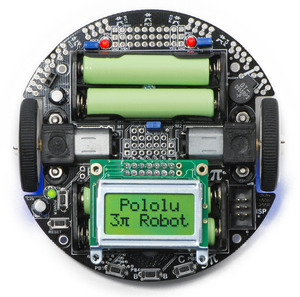
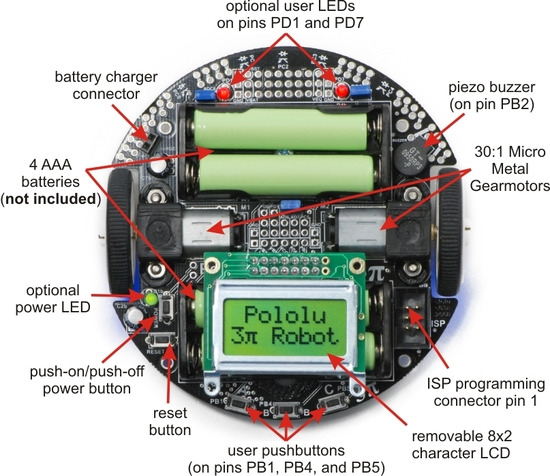 |
General features of the Pololu 3pi robot, top view. |
|---|
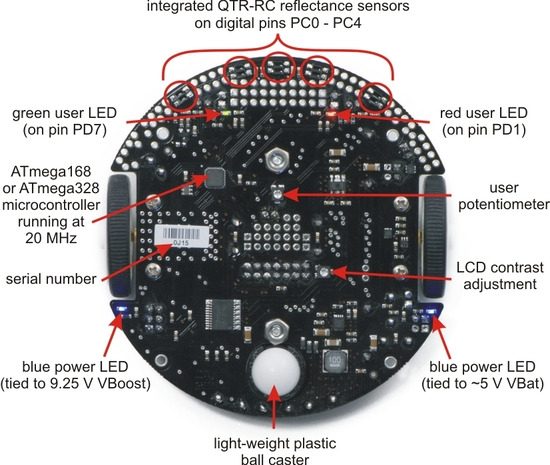 |
Labeled bottom view of the Pololu 3pi robot. |
|---|
The following subsections will give you all the information you need to get your 3pi up and running!
4.a. What You Will Need
The following materials are necessary for getting started with your 3pi:
- 4 AAA batteries. Any AAA cells will work, but we recommend NiMH batteries, which are rechargeable and can be purchased from Pololu or at a local store. If you use rechargeable batteries, you will also need a battery charger. Battery chargers designed to connect to external series battery packs, such as the iMAX-B6AC, may be used with the 3pi’s battery charger port.
- AVR ISP programmer with 6-pin connector. The 3pi features an ATmega328P microcontroller, which requires an external programmer such as the Pololu USB AVR Programmer v2.1 or Atmel’s AVRISP series. The 3pi has a standard 6-pin programming connector, so your programmer will need to have a 6-pin ISP cable for connecting to the target device. (You will also need whatever cable your programmer requires to connect to a computer.
- A desktop or laptop computer. You will need a personal computer for developing your code and loading it onto the 3pi. The 3pi can be programmed on Windows, Mac, and Linux operating systems, but Pololu support for Macs is limited.
You might find the following materials useful in creating an environment for your robot to explore:
- Several large sheets of white posterboard (available at crafts or office supply stores) or dry-erase whiteboard stock (commonly available at home/construction supply stores).
- Light-colored masking tape for joining multiple sheets together.
- 3/4" black electrical tape to create lines for your robot to follow.
4.b. Powering Up Your 3pi
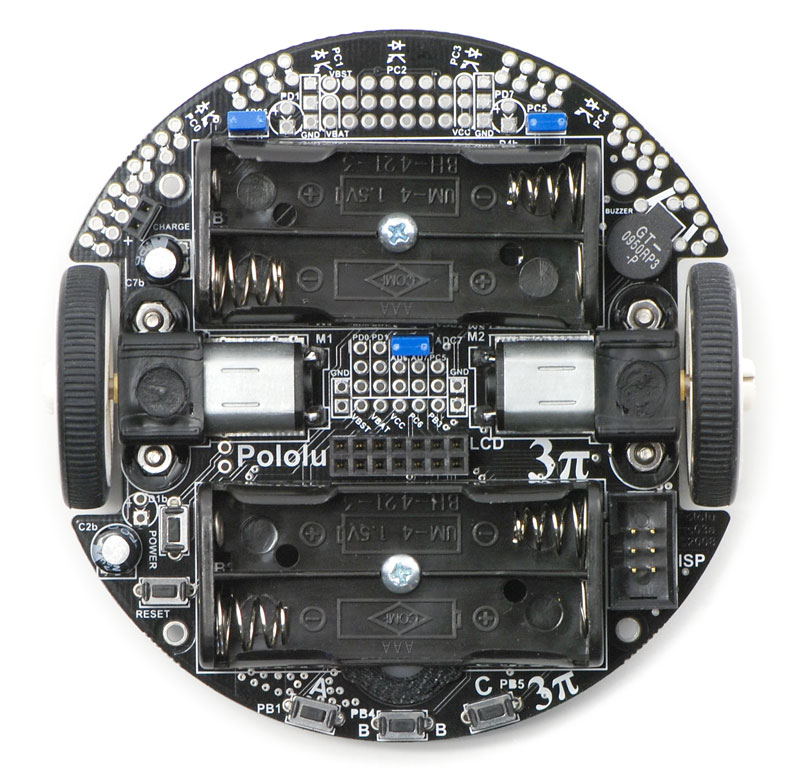 |
The first step in using your new 3pi robot is to insert four AAA batteries into the battery holders. To do this you will need to remove the LCD. Pay attention to the LCD’s orientation as you will want to plug it back in this way when you are done. With the LCD removed your 3pi should look like the picture to the right.
Once the batteries are in place, you should return the LCD to its position over the rear battery holder. Make sure each male LCD header pin goes into a corresponding female socket.
Next, push the power button (located on the left side of the rear battery pack) to turn on your 3pi. You should see the two blue power LEDs on the underside of the 3pi light, and the 3pi should begin running its preloaded demo program. You can simply push the power button again to turn the 3pi off, and you can push the reset button (located just below the power button) to reset the program the robot is running.
4.c. Using the Preloaded Demo Program
Your 3pi comes preloaded with a program that demonstrates most of its features and allows you to test that it is working correctly. When you first turn on your 3pi, you will hear a beep and see the words “Pololu 3pi Robot”, then “Demo Program” appear, indicating that you are running the demo program. If you hear a beep but do not see any text on the LCD, you may need to adjust the contrast potentiometer on the underside of the board. When the program has started successfully, press the B button to proceed to the main menu. Press C or A to scroll forward or backward through the menu, and press B to make a selection or to exit one of the demos. There are seven demos accessible from the menu:
- Battery: This demo displays the battery voltage in millivolts, which should be above 5000 (5.0 Volts) for a fully-charged set of batteries. Removing the jumper marked ADC6 will separate the battery voltage measurement circuit from the analog input, causing the number displayed to drop to some low value.
- LEDs: Blinks the red and green user LEDs on the underside of the board. If you have soldered in the optional user LEDs, they will also blink.
- Trimpot: Displays the position of the user trimmer potentiometer, which is located on the underside of the board, as a number between 0 and 1023. While displaying the value, this demo also blinks the LEDs and plays a note whose frequency is a function of the current reading. It is easiest to turn the trimpot using a 2mm flat-head screwdriver.
- Sensors: Show the current readings of the IR sensors using a bar graph. Bigger bars mean lower reflectance. Placing a reflective object such as your finger under one of the sensors will cause the corresponding reading to drop visibly on the graph. This demo also displays “C” to indicate that button C has an effect—press C and the IR emitters will be turned off. In indoor lighting conditions away from bright incandescent or halogen lights, all of the sensors should return entirely black readings with IR off. Removing the jumper marked PC5 disables control of the emitters, causing them to always be on.
- Motors: Hold down A or C to run the motor on the corresponding side, or hold down both buttons to run both motors simultaneously. The motors will gradually ramp up to speed; in your own programs, you can switch them on much more suddenly. Tap A or C to switch the corresponding motor to reverse (the button letter becomes lowercase if pressing it will drive the corresponding motor in reverse).
- Music: Plays an adaptation of J. S. Bach’s Fugue in D Minor for microcontroller and buzzer, while scrolling a text display. This demonstrates the ability of the 3pi to play music in the background.
- Timer: A simple stopwatch. Press C to start or stop the stopwatch and A to reset. The stopwatch continues to count while you are exploring the other demos.
Note: If the 3pi receives any serial data while the demo program is waiting for a button press from the user, it will switch into serial slave mode. See Section 10.a for more information.
The source code for the demo program is included with the Pololu AVR C/C++ Library described in Section 6, in the folder examples\atmega328p\3pi-demo-program.
4.d. Included Accessories
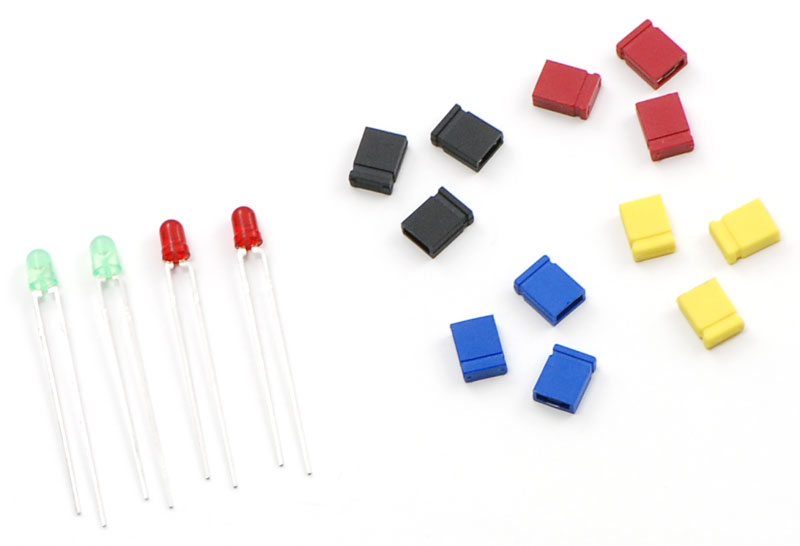 |
The 3pi robot ships with two through-hole red LEDs and two through-hole green LEDs. There are connection points for three optional LEDs on your 3pi: one next to the power button to indicate when the 3pi is on and two user-controllable LED ports near the front edge of the robot. Using these LEDs is completely optional as the 3pi will function just fine without them. You can customize your 3pi by choosing your desired combination of red and green LEDs, or you can even use your own LEDs if you want more color/brightness options.
Note that you should only add LEDs if you are comfortable soldering, and you should take care to avoid desoldering any of the components near the through-hole LED pads. LEDs are polarized, so be sure to solder them such that the longer lead connects to the pad marked with the +. Before you solder them in you can press-fit them in place and check to make sure they light as expected. Once soldered in place, carefully trim off the excess portion of the LED leads.
Your 3pi also ships with three shorting blocks of each color: blue, red, yellow, black. This means you can customize your 3pi by selecting the shorting block color you most prefer, or you can use a mixture of colors!
5. How Your 3pi Works
5.a. Batteries
Introduction to Batteries
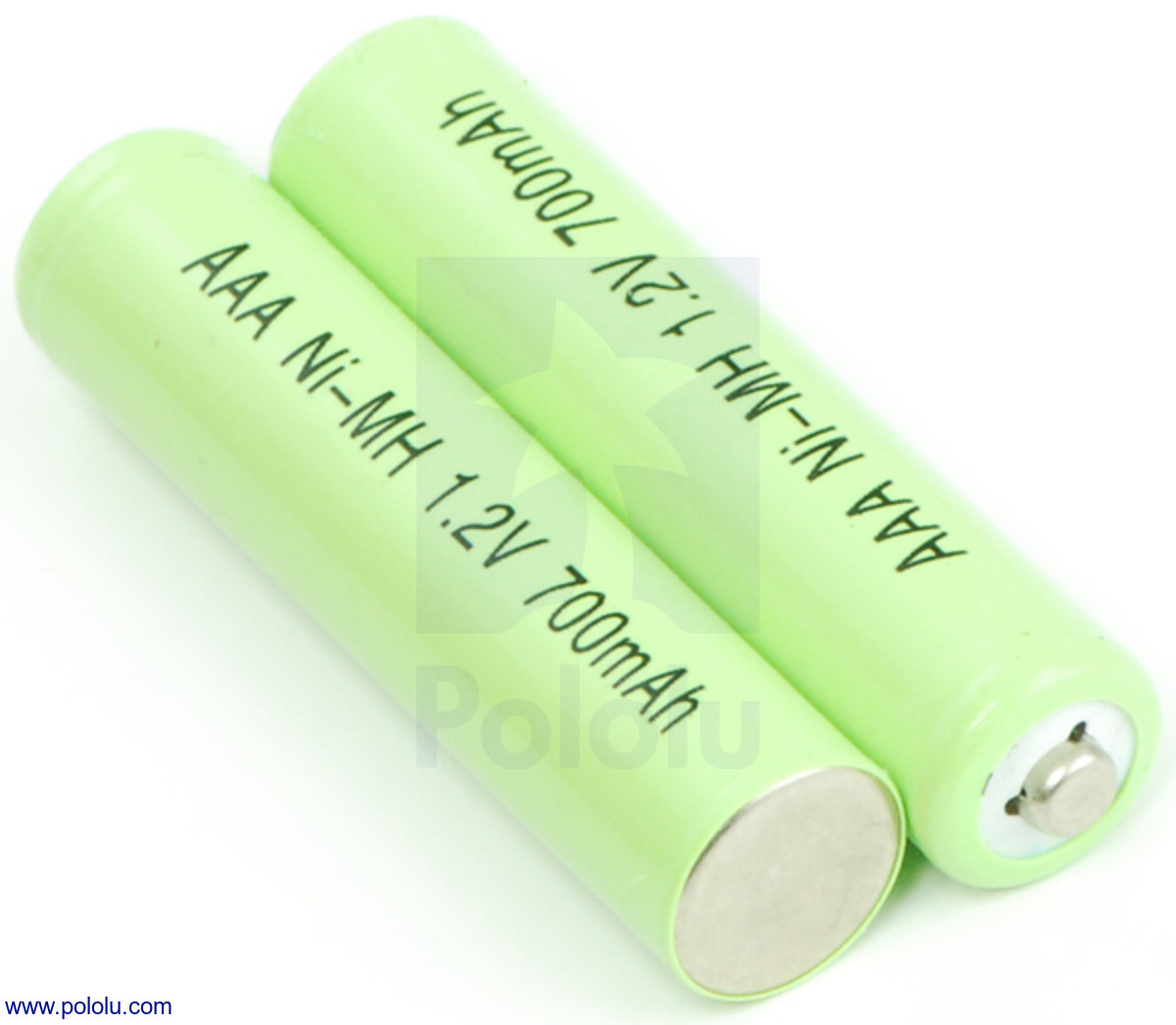 |
Two rechargeable AAA Ni-MH batteries. |
|---|
The power system on the 3pi begins with the batteries, so it is important to understand how your batteries work. A battery contains a carefully controlled chemical reaction that pulls electrons in from the positive (+) terminal and pushes them out of the negative (-) terminal. The most common type is the alkaline battery, which is based on a reaction between zinc and manganese through a potassium hydroxide solution. Once alkaline batteries are completely discharged, they cannot be reused. For the 3pi, we recommend rechargeable nickel-metal-hydride (NiMH) batteries, which can be recharged over and over. NiMH batteries are based on a different chemical reaction from alkaline batteries, but you don’t need to know anything about the chemical details to use a battery: everything you need to know about it is measured with a few simple numbers. The first is the strength with which the electrons are pushed, which we measure in volts (V), the units of electric potential. An NiMH battery has a voltage of about 1.2 V. To understand how much power you can get out of a battery, you also need to know how many electrons the battery can push per second – this is the electric current, measured in amps (A). A current of 1 A corresponds to about 6×10¹⁸ electrons flowing out one side and in to the other each second, which is such a huge number that it’s easier to talk about it just in terms of amps. 1 A is also a typical current that a medium-sized motor might use, and it’s a current that will put a significant strain on small (AAA) batteries.
For any battery, if you attempt to draw more and more current, the voltage produced by the battery will drop, eventually dropping all the way to zero at the short circuit current: the current that flows if you connect one side directly to the other with a thick wire. (Don’t try this! The wire might overheat and melt, and the battery could explode.) The following graph shows a good model of how the voltage on a typical battery drops as the current goes up:
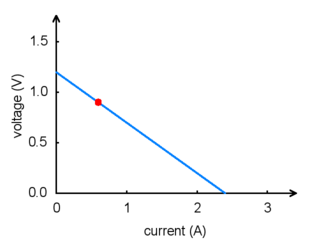 |
Battery voltage vs. current. |
|---|
The power put out by a battery is measured by multiplying the volts by the amps, giving a measurement in watts (W). For example, at the point marked in the graph, we have a voltage of 0.9 V and a current of 0.6 A, this means that the power output is 0.54 W. If you want more power, you need to add more batteries, and there are two ways to do it: parallel and series configurations. When batteries are connected in parallel, with all of their positive terminals tied together and all of their negative terminals tied together, the voltage stays the same, but the maximum current output is multiplied by the number of batteries. When they are connected in series, with the positive terminal of one connected to the negative terminal of the next, the maximum current stays the same while the voltage multiplies. Either way, the maximum power output will be multiplied by the number of batteries. Think about two people using two buckets to lift water from a lake to higher ground. If they stand next to each other (working in parallel), they will be able to lift the water to the same height as before, while delivering twice the amount of water. If one of them stands uphill from the other, they can work together (in series) to lift the water twice as high, but at the same rate as a single person.
In practice, we only connect batteries in series. This is because different batteries will always have slightly different voltages, and if they are connected in parallel, the stronger battery will deliver current to the weaker battery, wasting power even when there is nothing else in the circuit. If we want more current, we can use bigger batteries: AAA, AA, C, and D batteries of the same type all have the same voltage, but they can put out very different amounts of current.
The total amount of energy in any battery is limited by the chemical reaction: once the chemicals are exhausted, the battery will stop producing power. This happens gradually: the voltage and current produced by a battery will steadily drop until the energy runs out, as shown in the graph below:
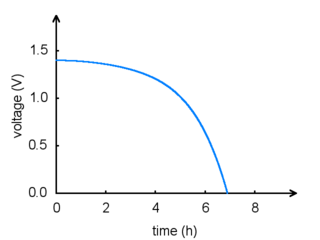 |
Battery voltage vs. time. |
|---|
A rough measure of the amount of energy stored in a battery is given by its milliamp-hour (mAH) rating, which specifies how long the battery will last at a given discharge rate. The mAH rating is the discharge rate multiplied by how long the battery lasts: if you draw current at a rate of 200 mA (0.2 A), and the battery lasts for 3 hours, you would call it a 600 mAH battery. If you discharge the same battery at 600 mA, you would get about an hour of operation (however, battery capacity tends to decline with faster discharge rates, so you might only get 50 minutes).
Note: If you have purchased rechargeable batteries for the 3pi, you should fully charge them before you first use them. You should never attempt to program your 3pi if its batteries are drained or uncharged. Losing power during programming could permanently disable your 3pi.
5.b. Power management
Battery voltage drops as the batteries are used up, but many electrical components require a specific voltage. A special kind of component called a voltage regulator helps out by converting the battery voltage to a constant, specified voltage. For a long time, 5 V has been the most common regulated voltage used in digital electronics; this is also called TTL level. The microcontroller and most of the circuitry in the 3pi operate at 5 V, so voltage regulation is essential. There are two basic types of voltage regulators:
- Linear regulators use a simple feedback circuit to vary how much energy is passed through and how much is discarded. The regulator produces a lower output voltage by dumping unneeded energy. This wasteful, inefficient approach makes linear regulators poor choices for applications that have a large difference between the input and output voltages, or for applications that require a lot of current. For example, 15 V batteries regulated down to 5 V with a linear regulator will lose two-thirds of their energy in the linear regulator. This energy becomes heat, so linear regulators often need large heat sinks, and they generally don’t work well with high-power applications.
- Switching regulators turn power on and off at a high frequency, filtering the output to produce a stable supply at the desired voltage. By carefully redirecting the flow of electricity, switching regulators can be much more efficient than linear regulators, especially for high-current applications and large changes in voltage. Also, switching regulators can convert low voltages into higher voltages! A key component of a switching regulator is the inductor, which stores energy and smooths out current; on the 3pi, the inductor is the gray block near the ball caster labeled “100”. A desktop computer power supply also uses switching regulators: peek through the vent in the back of your computer and look for a donut-shaped piece with a coil of thick copper wire wrapped around it – that’s the inductor.
The power management subsystem built into the 3pi is shown in this block diagram:
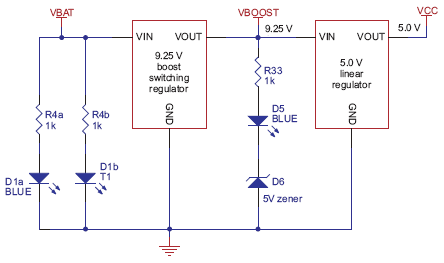 |
The voltage of 4 x AAA cells can vary between 3.5 – 5.5 V (and even to 6 V if alkalines are used). This means it’s not possible simply to regulate the voltage up or down to get 5 V. Instead, in the 3pi, a switching regulator first boosts the battery voltage up to 9.25 V (Vboost), and a linear regulator regulates Vboost back down to 5 V (VCC). Vboost powers the motors and the IR LEDs in the line sensors, while VCC is used for the microcontroller and all digital signals.
Using Vboost for the motors and sensors gives the 3pi three unique performance advantages over typical robots, which use battery power directly:
- First, a higher voltage means more power for the motors, without requiring more current and a larger motor driver.
- Second, since the voltage is regulated, the motors will run the same speed as the batteries drop from 5.5 down to 3.5 V. You can take advantage of this when programming your 3pi, for example by calibrating a 90° turn based on the amount of time that it takes.
- Third, at 9.25 V, all five of the IR LEDs can be powered in series so that they consume the lowest possible amount of power. (Note that you can switch the LEDs on and off to save even more power.)
One other interesting thing about this power system is that instead of gradually running out of power like most robots, the 3pi will operate at maximum performance until it suddenly shuts off. This can take you by surprise, so you might want your 3pi to monitor its battery voltage.
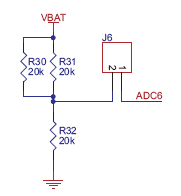 |
A simple circuit for monitoring battery voltage is built in to the 3pi. Three resistors, shown in the circuit at right, comprise a voltage divider that outputs a voltage equal to two-thirds of the battery voltage, which will always be safely below the main microcontroller’s maximum analog input voltage of 5 V. For example, at a battery voltage of 4.8 V, the battery voltage monitor port ADC6 will be at a level of 3.2 V. Using 10-bit analog-to-digital conversion, where 5 V is read as a value of 1023, 3.2 V is read as a value of 655. To convert it back to the actual battery voltage, multiply this number by 5000 mV×3/2 and divide by 1023. This is handled conveniently by the read_battery_millivolts_3pi() function (provided in the Pololu AVR Library; see Section 6 for more information), which averages ten samples and returns the battery voltage in mV:
unsigned int read_battery_millivolts_3pi()
{
	return readAverage(6,10)*5000L*3/2/1023;
}
5.c. Motors and Gearboxes
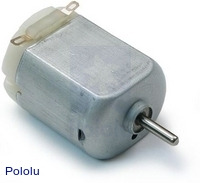 |
A typical small brushed DC motor, with no gearbox. |
|---|
A motor is a machine that converts electrical energy to motion. There are many different kinds of motors, but the most important for low-cost robotics is the brushed DC motor, which is the type used on the 3pi. A brushed DC motor typically has permanent magnets on the outside and several electromagnetic coils mounted on the motor shaft (armature). The “brushes” are sliding pieces of metal that switch the power from one coil to the next as the shaft turns so that magnetic attraction between the coil and the magnets continuously pulls the motor in the same direction.
The primary values that describe a running motor are its speed, measured in rpm, and its torque, measured in kg·cm or oz·in (pronounced “ounce-inches”). The units for torque show the dependence on both force and distance; for example, a motor that produces 6 oz·in of torque can product a force of 6 oz. with a 1-inch lever arm, 3 oz. with a 2-inch lever, and so on. Multiplying the torque and speed (measured at the same time) give us the power delivered by a motor. We see, therefore, that a motor with twice the speed and half the torque as another has the same power output.
Every motor has a maximum speed (when no force is applied) and a maximum torque (when the motor is completely stopped). We call these the free-running speed and the stall torque. Naturally, a motor uses the least current when no force is applied to it, and the current drawn from the batteries goes up until it stalls, so the free-running current and stall current are also important parameters characterizing the motor. The stall current is usually much higher than the free-running current, as shown in the graph below:
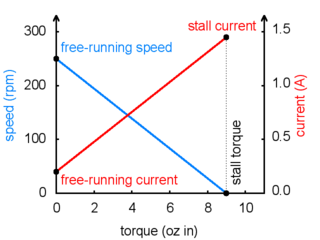 |
Motor operation: current and speed vs. torque. |
|---|
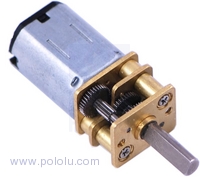 |
The 30:1 gearmotor used on the 3pi. |
|---|
The free-running speed of a small DC motor is usually many thousands of rotations per minute (rpm), much higher than the speed we want the wheels of a robot to turn. A gearbox is a system of gears that converts the high-speed, low-torque output of the motor into a lower-speed, higher-torque output that is a much better suited for driving a robot. The gear ratio used on the 3pi is 30:1, which means that for every 30 turns of the motor shaft, the output shaft turns once. This reduces the speed by a factor of 30, and (ideally) increases the torque by a factor of 30. The resulting parameters of the 3pi motors are summarized in this table:
| Gear ratio: | 30:1 |
|---|---|
| Free-running speed: | 700 rpm |
| Free-running current: | 60 mA |
| Stall torque: | 6 oz·in |
| Stall current: | 540 mA |
The two wheels of the 3pi each have a radius of 0.67 in, which means that the maximum force it can produce with two motors when driving forward is 2×6/0.67 = 18 oz. The 3pi weighs about 7 oz with batteries, so the motors are strong enough to lift the 3pi up a vertical slope or accelerate it at 2 g (twice the acceleration of gravity). The actual performance is limited by the friction of the tires: on a steep enough slope, the wheels will slip before they stall – in practice, this happens when the slope is around 30-40°.
Driving a motor with speed and direction control
One nice thing about a DC motor is that you can change the direction of rotation by switching the polarity of the applied voltage. If you have a loose battery and motor, you can see this for yourself by making connections one way and then turning the battery around to make the motor spin in reverse. Of course, you don’t want to take the batteries out of your 3pi and reverse them every time it needs to back up – instead, a special arrangement of four switches, called an H-bridge, allows the motor to spin either backwards or forwards. Here is a diagram that shows how the H-bridge works:
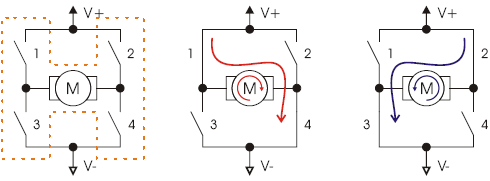 |
If switches 1 and 4 are closed (the center picture), current flows through the motor from left to right, and the motor spins forward. Closing switches 2 and 3 causes the current to reverse direction and the motor to spin backward. An H-bridge can be constructed with mechanical switches, but most robots, including the 3pi, use transistors to switch the current electronically. The H-bridges for both motors on the 3pi are all built into a single motor driver chip, the TB6612FNG, and output ports of the main microcontroller operate the switches through this chip. Here is a table showing how output ports PD5 and PD6 on the microcontroller control the transistors of motor M1:
| PD5 | PD6 | 1 | 2 | 3 | 4 | M1 |
|---|---|---|---|---|---|---|
| 0 | 0 | off | off | off | off | off (coast) |
| 0 | 1 | off | on | on | off | forward |
| 1 | 0 | on | off | off | on | reverse |
| 1 | 1 | off | off | on | on | off (brake) |
Motor M2 is controlled through the same logic by ports PD3 and PB3:
| PD3 | PB3 | 1 | 2 | 3 | 4 | M2 |
|---|---|---|---|---|---|---|
| 0 | 0 | off | off | off | off | off (coast) |
| 0 | 1 | off | on | on | off | forward |
| 1 | 0 | on | off | off | on | reverse |
| 1 | 1 | off | off | on | on | off (brake) |
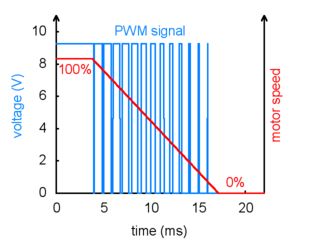 |
PWM speed control, showing gradual deceleration. |
|---|
Speed control is achieved by rapidly switching the motor between two states in the table. Suppose we keep PD6 high (at 5 V, also called a logical “1”) and have PD5 alternate quickly between low (0 V or “0”) and high. The motor driver will switch between the “forward” and “brake” states, causing M1 to turn forward at a reduced speed. For example, if PD6 is high two thirds of the time (a 67% duty cycle), then M1 will turn at approximately 67% of its full speed. Since the motor voltage is a series of pulses of varying width, this method of speed control is called pulse-width modulation (PWM). An example series of PWM pulses is shown in the graph at right: as the size of the pulses decreases from 100% duty cycle down to 0%, the motor speed decreases from full speed down to a stop.
In the 3pi, speed control is accomplished using special PWM outputs of the main microcontroller that are linked to the internal timers Timer0 and Timer2. This means that you can set the PWM duty cycle of the two motors once, and the hardware will continue to produce the PWM signal, in the background, without any further attention.
The set_motors() function in the Pololu AVR Library (see Section 6 for more information) lets you set the duty cycle, and it uses 8-bit precision: a value of 255 corresponds to 100% duty cycle. For example, to get 67% on M1 and 33% on M2, you would call
set_motors(171,84);
To get a slowly decreasing PWM sequence like the one shown in the graph, you would need to write a loop that gradually decreases the motor speed over time.
Turning with a differential drive
The 3pi has an independent motor and wheel on each side, which enables a method of locomotion called differential drive. It is also known as a “tank drive” since this is how a tank drives. It is completely unlike the steering system of automobile, which uses a single drive motor and steerable front wheels. Turning with a differential drive is accomplished by running the two motors at different speeds. In the previous set_motors() example, the left wheel will spin faster than the right, driving the robot forward and to the right. The difference in speeds determines how sharp the turn will be, and spinning in place can be accomplished by running one motor forward and one backward. Spinning is an especially effective maneuver for a round robot, and you won’t have to worry about parallel parking!
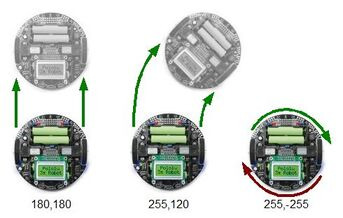 |
The 3pi demonstrating the effects of various motor settings. |
|---|
5.d. Digital inputs and sensors
The microcontroller at the heart of the 3pi, an Atmel AVR mega168 or mega328, has a number of pins which can be configured as digital inputs: they are read by your program as a 1 or a 0 depending on whether the voltage is high (above about 3 V) or low (below about 1.5 V). Here is the circuit for one of the pushbutton inputs:
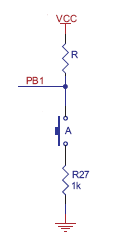 |
Normally, the pull-up resistor R (20-50 k) brings the voltage on the input pin to 5 V, so it reads as a 1, but pressing the button connects the input to ground (0 V) through a 1 k resistor, which is much lower than the value of R. This brings the input voltage very close to 0 V, so the pin reads as a 0. Without the pull-up resistor, the input would be “floating” when the button is not pressed, and the value read could be affected by residual voltage on the line, interference from nearby electrical signals, or even distant lightning. Don’t leave an input floating unless you have a good reason. Since the pull-up resistors are important, they are included within the AVR – the resistor R in the picture represents this internal pull-up, not a discrete part on the 3pi circuit board.
A more complicated use for the digital inputs is in the reflectance sensors. Here is the circuit for the 3pi’s leftmost reflectance sensor, which is connected to pin PC0:
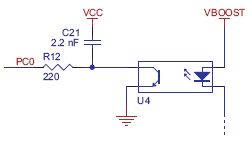 |
The sensing element of the reflectance sensor is the phototransistor shown in the left half of U4, which is connected in series with capacitor C21. A separate connection leads through resistor R12 to pin PC0. This circuit takes advantage of the fact the digital inputs of the AVR can be reconfigured as digital outputs on the fly. A digital output presents a voltage of 5 V or 0 V, depending on whether it is set to a 1 or a 0 by your program. The way it works is that the pin is set to an output and driven high (5 V) to charge the output node. The pin is then set to an input, and the voltage falls as current flows through the phototransistor. Here is an oscilloscope trace showing the voltage on the capacitor (yellow) dropping as current flows through the phototransistor, and the resulting digital input value of pin PC0 (blue):
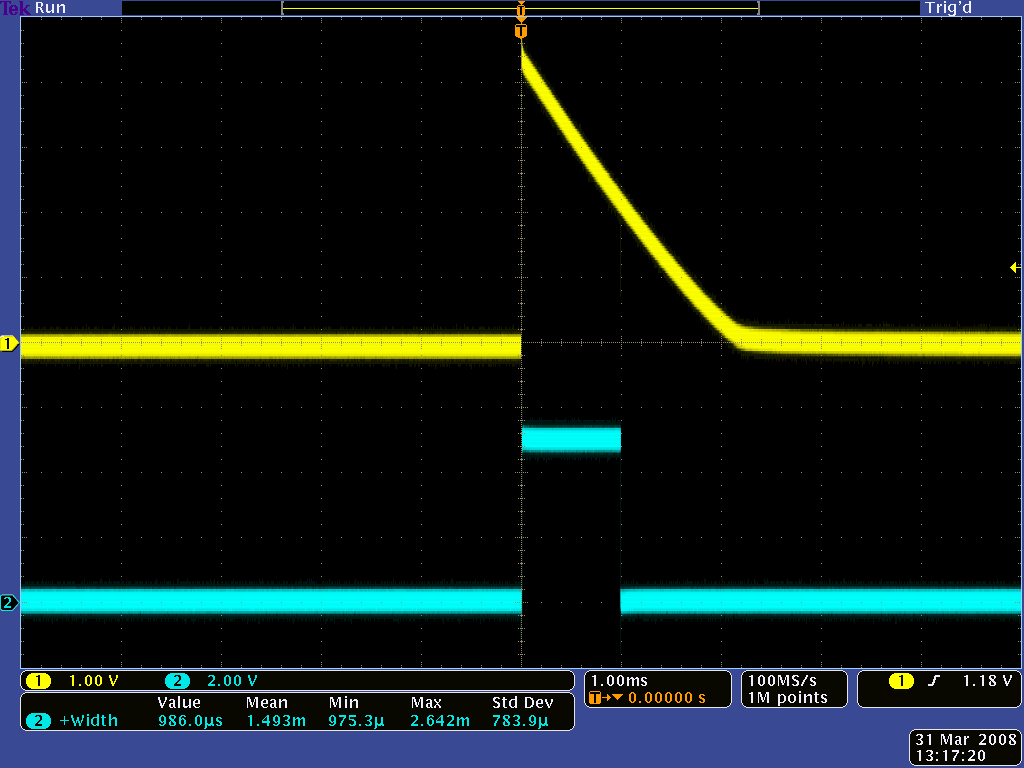 |
The rate of current flow through the phototransistor depends on the light level, so that when the robot is over a bright white surface, the value returns to 0 much more quickly than when it is over a black surface. The trace shown above was taken when the sensor was on the edge between a black surface and a white one – this is what it looks like on pure white:
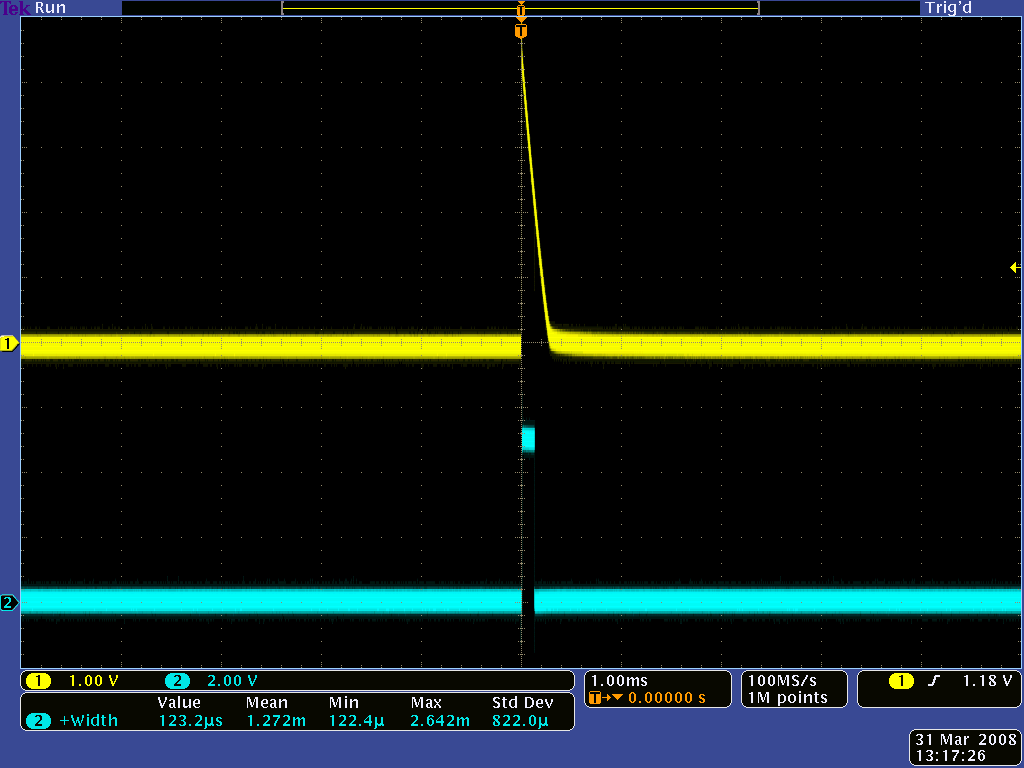 |
The length of time that the digital input stays at 1 is very short when over white, and very long when over black. The function read_line_sensors() in the Pololu AVR Library switches the port as described above and returns the time for each of the five sensors. Here is a simplified version of the code that reads the sensors:
time = 0;
last_time = TCNT2;
while (time < _maxValue)
{
	// Keep track of the total time.
	// This implicity casts the difference to unsigned char, so
	// we don't add negative values.
	unsigned char delta_time = TCNT2 - last_time;
	time += delta_time;
	last_time += delta_time;

	// continue immediately if there is no change
	if (PINC == last_c)
		continue;

	// save the last observed values
	last_c = PINC;

	// figure out which pins changed
	for (i = 0; i < _numSensors; i++)
	{
		if (sensor_values[i] == 0 && !(*_register[i] & _bitmask[i]))
			sensor_values[i] = time;
	}
}
This piece of code is found in the file src\PololuQTRSensors\PololuQTRSensors.cpp. The code makes use of timer TCNT2, which is a special register in the AVR that we have configured to count up continuously, incrementing every 0.4 μs. Basically, the code waits until one of the sensors changes value, counting up the elapsed time in the variable time. (It is important to use a separate variable for the elapsed time since the timer TCNT2 periodically overflows, dropping back to zero.) Upon detecting a transition from a 1 to a 0 on one of the sensors (by measuring a change in the input port PINC), the code determines which sensor changed and records the time in the array sensor_values[i]. After the time limit _maxValue is reached (this is set to 2000 by default on the 3pi, corresponding to 800 μs), the loop ends, and the time values are returned.
5.e. 3pi Simplified Schematic Diagram
A full understanding of how your 3pi works cannot be achieved without first understanding its schematic diagram:
 |
You can download a pdf version of the schematic here (481k pdf).
6. Programming Your 3pi
To do more with your 3pi than explore the demo program or use it as a serial slave to a master device, you will need to program it, which requires a computer and an external AVR ISP programmer like our USB AVR programmer v2.1. Your programmer’s user’s guide should have all the information you need to get started programming AVRs like the one on the 3pi. If you are using our USB AVR Programmer v2 or v2.1, you can find it’s user’s guide here. You might also check out our original Pololu AVR Programming Quick Start Guide for tutorials on how to get started programming your 3pi in Windows, Linux, and Mac OS X, but it was written for our older USB AVR Programmer, and much of it is now out of date.
Warning: Do not attempt to program your 3pi if its batteries are drained or uncharged (make sure you charge any new rechargeable batteries fully before you first use them). Losing power during programming could permanently disable your 3pi.
7. Example Project #1: Line Following
7.a. About Line Following
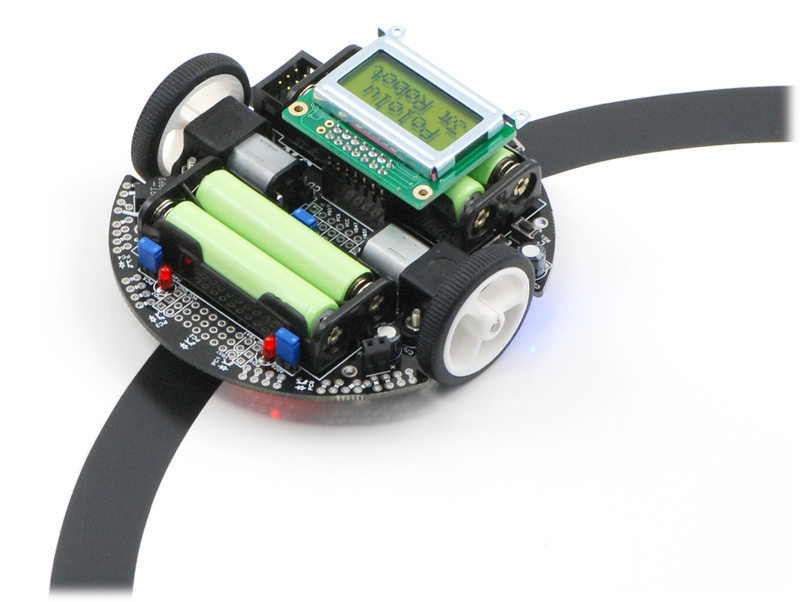 |
Pololu 3pi robot on a 3/4" black line. |
|---|
Now that you have learned how to compile a simple program for the 3pi, it’s time to teach your robot do something more complicated. In this example project, we’ll show you how to make your 3pi follow a black line on a white background, by coordinating its sensors and motors. Line following is a great introduction to robot programming, and it makes a great contest: it’s easy to build a line-following course, the rules are simple to understand, and it’s not hard to program your 3pi to follow a line. Optimizing your program to make your 3pi zoom down the line at the highest speed possible, however, is a challenge that can introduce you to some advanced programming concepts.
A great looking line following course can be constructed for a few dollars in a couple of hours at home. For information on building your own course, see our tutorial on Building Line Following and Line Maze Courses.
7.b. A Simple Line-Following Algorithm for 3pi
A simple line following program for the 3pi is available in the folder examples\atmegaxx8\3pi-linefollower.
Note: An Arduino-compatible version of this sample program can be downloaded as part of the Pololu Arduino Libraries (see Section 5.g).
The source code demonstrates a variety of different features of the 3pi, including the line sensors, motors, LCD, battery voltage monitor, and buzzer. The program has two phases.
The first phase of the program is the initialization and calibration phase, which is handled by the function intitialize(). This function is called once, at the beginning of the main() function, before anything else happens, and it takes care of the following steps:
- Calling pololu_3pi_init(2000) to set up the 3pi, with the sensor timeout set to 2000×0.4 us = 800 us. This means that the sensor values will vary from 0 (completely white) to 2000 (completely black), where a value of 2000 indicates that the sensor’s capacitor took at least 800 us to discharge.
- Displaying the battery voltage returned by the read_battery_millivolts() function. It is important to monitor battery voltage so that your robot does not surprisingly run out of batteries and shut down during the middle of a competition or during programming. For more information, see Section 2 of the command reference.
- Calibrating the sensors. This is accomplished by turning the 3pi to the right and left on the line while calling the calibrate_line_sensors() function. The minimum and maximum values read during this time are stored in RAM. This allows the read_line_sensors_calibrated() function to return values that are adjusted to range from 0 to 1000 for each sensor, even if some of your sensors respond differently than the others. The read_line() function used later in the code also depends on having calibrated values. For more information, see Section 19 of the command reference.
- Displaying the calibrated line sensor values in a bar graph. This demonstrates the use of the lcd_load_custom_character() function together with print_character() to make it easy to see whether the line sensors are working properly before starting the robot. For more information on this and other LCD commands, see Section 5 of the command reference.
- Waiting for the user to press a button. It’s very important for your robot not to start driving until you want it to start, or it could unexpectedly drive off of a table or out of your hands when you are trying to program it. We use the button_is_pressed() function to wait for you to press the B button while displaying the battery voltage or sensor readings. For more information on button commands, see Section 9 of the command reference.
In the second phase of the program, your 3pi will take a sensor reading and set the motor speed appropriately based on the reading. The general idea is that if the robot is off on either side, it should turn to get back on, but if it’s on the line, it should try to drive straight ahead. The following steps occur inside of a while(1) loop, which will continue repeating over and over until the robot is turned off or reset.
- The function read_line() is called. This takes a sensor reading and returns an estimate of the robot’s position with respect to the line, as a number between 0 and 4000. A value of 0 means that the line is to the left of sensor 0, value of 1000 means that the line is directly under sensor 1, 2000 means that the line is directly under sensor 2, and so on.
- The value returned by read_line() is divided into three possible cases:
- 0–1000: the robot is far to the right of the line. In this case, to turn sharply left, we set the right motor speed to 100 and the left motor speed to 0. Note that the maximum speed of the motors is 255, so we are driving the right motor at only about 40% power here.
- 1000–3000: the robot is approximately centered on the line. In this case, we set both motors to speed 100, to drive straight ahead.
- 3000–4000: the robot is far to the left of the line. In this case, we turn sharply to the right by setting the right motor speed to 0 and the left motor speed to 100.
- Depending on which motors are activated, the corresponding LEDs are turned on for a more interesting display. This can also help with debugging.
To open the program in Atmel Studio, you may go to examples\atmegaxx8\3pi-linefollower and simply double-click on 3pi-linefollower.cproj. Compile the program, load it onto your 3pi, and try it out. You should find that your robot is able to follow the curves of your line course without ever completely losing the line. However, its motors are moving at a speed of at most 100 out of the maximum possible of 255, and the algorithm causes a lot of unnecessary shaking on the curves. At this point, you might want to work on trying to adjust and improve this algorithm, before moving on to the next section. Some ideas for improvement are:
- Increase the maximum possible speed.
- Add more intermediate cases, with intermediate speed settings, to make the motion less jerky.
- Give your robot a memory: have its maximum speed increase after it has been on the line consistently for a few cycles.
You might also want to:
- Measure the speed of your loop, using timing functions from Section 17 of the command reference to time a few thousand cycles or by blinking the LEDs on and off every 1000 cycles.
- Display sensor readings on the LCD. Since writing to the LCD takes a significant amount of time, you should do this at most few times per second.
- Incorporate the buzzer into your program. You might want your 3pi to play music while it is driving or make informational beeps that depend on what it is doing. See Section 3 of the command reference for more information on using the buzzer; for music, you’ll want to use the PLAY_CHECK option to avoid disrupting your sensor readings.
The entire source code to this simple line following program is presented below, for your reference.
/*
 * 3pi-linefollower - demo code for the Pololu 3pi Robot
 *
 * This code will follow a black line on a white background, using a
 * very simple algorithm.  It demonstrates auto-calibration and use of
 * the 3pi IR sensors, motor control, bar graphs using custom
 * characters, and music playback, making it a good starting point for
 * developing your own more competitive line follower.
 *
 * http://www.pololu.com/docs/0J21
 * http://www.pololu.com
 * http://forum.pololu.com
 *
 */

// The 3pi include file must be at the beginning of any program that
// uses the Pololu AVR library and 3pi.
#include <pololu/3pi.h>

// This include file allows data to be stored in program space.  The
// ATmegaxx8 has 16x more program space than RAM, so large
// pieces of static data should be stored in program space.
#include <avr/pgmspace.h>

// Introductory messages.  The "PROGMEM" identifier causes the data to
// go into program space.
const char welcome_line1[] PROGMEM = " Pololu";
const char welcome_line2[] PROGMEM = "3\xf7 Robot";
const char demo_name_line1[] PROGMEM = "Line";
const char demo_name_line2[] PROGMEM = "follower";

// A couple of simple tunes, stored in program space.
const char welcome[] PROGMEM = ">g32>>c32";
const char go[] PROGMEM = "L16 cdegreg4";

// Data for generating the characters used in load_custom_characters
// and display_readings.  By reading levels[] starting at various
// offsets, we can generate all of the 7 extra characters needed for a
// bargraph.  This is also stored in program space.
const char levels[] PROGMEM = {
	0b00000,
	0b00000,
	0b00000,
	0b00000,
	0b00000,
	0b00000,
	0b00000,
	0b11111,
	0b11111,
	0b11111,
	0b11111,
	0b11111,
	0b11111,
	0b11111
};

// This function loads custom characters into the LCD.  Up to 8
// characters can be loaded; we use them for 7 levels of a bar graph.
void load_custom_characters()
{
	lcd_load_custom_character(levels+0,0); // no offset, e.g. one bar
	lcd_load_custom_character(levels+1,1); // two bars
	lcd_load_custom_character(levels+2,2); // etc...
	lcd_load_custom_character(levels+3,3);
	lcd_load_custom_character(levels+4,4);
	lcd_load_custom_character(levels+5,5);
	lcd_load_custom_character(levels+6,6);
	clear(); // the LCD must be cleared for the characters to take effect
}

// This function displays the sensor readings using a bar graph.
void display_readings(const unsigned int *calibrated_values)
{
	unsigned char i;

	for(i=0;i<5;i++) {
		// Initialize the array of characters that we will use for the
		// graph.  Using the space, an extra copy of the one-bar
		// character, and character 255 (a full black box), we get 10
		// characters in the array.
		const char display_characters[10] = {' ',0,0,1,2,3,4,5,6,255};

		// The variable c will have values from 0 to 9, since
		// calibrated values are in the range of 0 to 1000, and
		// 1000/101 is 9 with integer math.
		char c = display_characters[calibrated_values[i]/101];

		// Display the bar graph character.
		print_character(c);
	}
}

// Initializes the 3pi, displays a welcome message, calibrates, and
// plays the initial music.
void initialize()
{
	unsigned int counter; // used as a simple timer
	unsigned int sensors[5]; // an array to hold sensor values

	// This must be called at the beginning of 3pi code, to set up the
	// sensors.  We use a value of 2000 for the timeout, which
	// corresponds to 2000*0.4 us = 0.8 ms on our 20 MHz processor.
	pololu_3pi_init(2000);
	load_custom_characters(); // load the custom characters

	// Play welcome music and display a message
	print_from_program_space(welcome_line1);
	lcd_goto_xy(0,1);
	print_from_program_space(welcome_line2);
	play_from_program_space(welcome);
	delay_ms(1000);

	clear();
	print_from_program_space(demo_name_line1);
	lcd_goto_xy(0,1);
	print_from_program_space(demo_name_line2);
	delay_ms(1000);

	// Display battery voltage and wait for button press
	while(!button_is_pressed(BUTTON_B))
	{
		int bat = read_battery_millivolts();

		clear();
		print_long(bat);
		print("mV");
		lcd_goto_xy(0,1);
		print("Press B");

		delay_ms(100);
	}

	// Always wait for the button to be released so that 3pi doesn't
	// start moving until your hand is away from it.
	wait_for_button_release(BUTTON_B);
	delay_ms(1000);

	// Auto-calibration: turn right and left while calibrating the
	// sensors.
	for(counter=0;counter<80;counter++)
	{
		if(counter < 20 || counter >= 60)
			set_motors(40,-40);
		else
			set_motors(-40,40);

		// This function records a set of sensor readings and keeps
		// track of the minimum and maximum values encountered.  The
		// IR_EMITTERS_ON argument means that the IR LEDs will be
		// turned on during the reading, which is usually what you
		// want.
		calibrate_line_sensors(IR_EMITTERS_ON);

		// Since our counter runs to 80, the total delay will be
		// 80*20 = 1600 ms.
		delay_ms(20);
	}
	set_motors(0,0);

	// Display calibrated values as a bar graph.
	while(!button_is_pressed(BUTTON_B))
	{
		// Read the sensor values and get the position measurement.
		unsigned int position = read_line(sensors,IR_EMITTERS_ON);

		// Display the position measurement, which will go from 0
		// (when the leftmost sensor is over the line) to 4000 (when
		// the rightmost sensor is over the line) on the 3pi, along
		// with a bar graph of the sensor readings.  This allows you
		// to make sure the robot is ready to go.
		clear();
		print_long(position);
		lcd_goto_xy(0,1);
		display_readings(sensors);

		delay_ms(100);
	}
	wait_for_button_release(BUTTON_B);

	clear();

	print("Go!");

	// Play music and wait for it to finish before we start driving.
	play_from_program_space(go);
	while(is_playing());
}

// This is the main function, where the code starts.  All C programs
// must have a main() function defined somewhere.
int main()
{
	unsigned int sensors[5]; // an array to hold sensor values

	// set up the 3pi
	initialize();

	// This is the "main loop" - it will run forever.
	while(1)
	{
		// Get the position of the line.  Note that we *must* provide
		// the "sensors" argument to read_line() here, even though we
		// are not interested in the individual sensor readings.
		unsigned int position = read_line(sensors,IR_EMITTERS_ON);

		if(position < 1000)
		{
			// We are far to the right of the line: turn left.

			// Set the right motor to 100 and the left motor to zero,
			// to do a sharp turn to the left.  Note that the maximum
			// value of either motor speed is 255, so we are driving
			// it at just about 40% of the max.
			set_motors(0,100);

			// Just for fun, indicate the direction we are turning on
			// the LEDs.
			left_led(1);
			right_led(0);
		}
		else if(position < 3000)
		{
			// We are somewhat close to being centered on the line:
			// drive straight.
			set_motors(100,100);
			left_led(1);
			right_led(1);
		}
		else
		{
			// We are far to the left of the line: turn right.
			set_motors(100,0);
			left_led(0);
			right_led(1);
		}
	}

	// This part of the code is never reached.  A robot should
	// never reach the end of its program, or unpredictable behavior
	// will result as random code starts getting executed.  If you
	// really want to stop all actions at some point, set your motors
	// to 0,0 and run the following command to loop forever:
	//
	// while(1);
}
7.c. Advanced Line Following with 3pi: PID Control
A more advanced line following program for the 3pi is available in the folder examples\atmegaxx8\3pi-linefollower-pid.
Note: An Arduino-compatible version of this sample program can be downloaded as part of the Pololu Arduino Libraries (see Section 5.g).
The technique used in this example program, known as PID control, addresses some of the problems that you might have noticed with the previous example, and it should allow you to greatly increase your robot’s line following speed. Most importantly, PID control uses continuous functions to compute the motor speeds, so that the jerkiness of the previous example can be replaced by a smooth response. PID stands for Proportional, Integral, Derivative; these are the three input values used in a simple formula to compute the speed that your robot should turn left or right.
- The proportional value is approximately proportional to your robot’s position with respect to the line. That is, if your robot is precisely centered on the line, we expect a proportional value of exactly 0. If it is to the left of the line, the proportional term will be a positive number, and to the right of the line, it will be negative. This is computed from the result returned by read_line() simply by subtracting 2000.
- The integral value records the history of your robot’s motion: it is a sum of all of the values of the proportional term that were recorded since the robot started running.
- The derivative is the rate of change of the proportional value. We compute it in this example as the difference of the last two proportional values.
Here is the section of code that computes the PID input values:
		// Get the position of the line.  Note that we *must* provide
		// the "sensors" argument to read_line() here, even though we
		// are not interested in the individual sensor readings.
		unsigned int position = read_line(sensors,IR_EMITTERS_ON);

		// The "proportional" term should be 0 when we are on the line.
		int proportional = ((int)position) - 2000;

		// Compute the derivative (change) and integral (sum) of the
		// position.
		int derivative = proportional - last_proportional;
		integral += proportional;

		// Remember the last position.
		last_proportional = proportional;
Note that we cast the variable position to an int type in the formula for proportional. An unsigned int can only store positive values, so the expression position-2000, without casting, would lead to a negative overflow. In this particular case, it actually wouldn’t affect the results, but it is always a good idea to use casting to avoid unexpected behavior.
Each of these input values provides a different kind of information. The next step is a simple formula that combines all of the values into one variable, which is then used to determine the motor speeds:
		// Compute the difference between the two motor power settings,
		// m1 - m2.  If this is a positive number the robot will turn
		// to the right.  If it is a negative number, the robot will
		// turn to the left, and the magnitude of the number determines
		// the sharpness of the turn.
		int power_difference = proportional/20 + integral/10000 + derivative*3/2;

		// Compute the actual motor settings.  We never set either motor
		// to a negative value.
		const int max = 60;
		if(power_difference > max)
			power_difference = max;
		if(power_difference < -max)
			power_difference = -max;

		if(power_difference < 0)
			set_motors(max+power_difference, max);
		else
			set_motors(max, max-power_difference);
The values 1/20, 1/10000, and 3/2 represent adjustable parameters that determine how your 3pi will react to the line. The particular values chosen for this example were somewhat arbitrarily picked, and while they work sufficiently for typical line following, there is plenty of room to improve them. In general, increasing these PID parameters will make power_difference larger, causing stronger reactions, while decreasing them will make the reactions weaker. It’s up to you to think about the different values and experiment with your robot to determine what effect each parameter has. This example gives the motors a maximum speed of 100, which is a safe initial value. Once you have adjusted the parameters to work well at a speed of 100, try increasing the speed. You’ll probably need to readjust the parameters as the maximum speed increases. By gradually increasing the maximum speed and tuning the parameters, see if you can get your 3pi to run as fast as possible! We have been able to run 3pis with a maximum speed of 255 on courses with 6"-radius curves, all by finding the right PID parameters.
Please see Section 2 of the 3pi robot videos gallery for videos of 3pi line followers using tuned PID and higher maximum speeds.
8. Example Project #2: Maze Solving
8.a. Solving a Line Maze
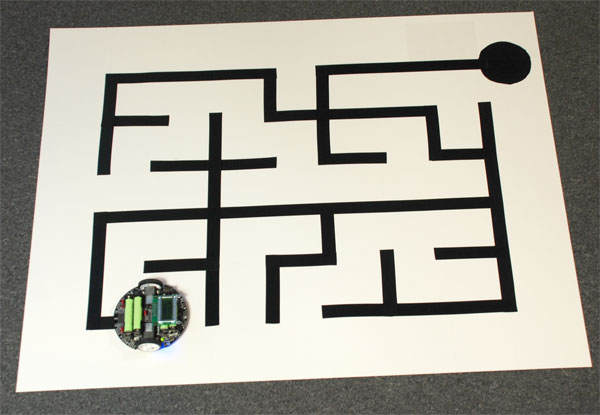 |
The next step up from simple line following is to teach your 3pi to navigate paths with sharp turns, dead ends, and intersections. Make a complicated network of intersecting black lines, add a circle to represent the goal, and you have a line maze, which is a challenging environment for a robot to explore. In a line maze contest, robots travel as quickly as possible along the lines from a designated start to the goal, keeping track of the intersections that they pass along the way. Robots are given several chances to run the maze, so that they can follow the fastest possible path after learning about all of the dead ends.
The mazes that we will teach you to solve in this tutorial have one special feature: they have no loops. That is, there is no way to re-visit any point on the maze without retracing your steps. Solving this type of maze is much easier than solving a looped maze, since a simple strategy allows you to explore the entire maze. We’ll talk about that strategy in the next section.
We also usually construct our mazes using only straight lines drawn on a regular grid, but this is mostly just to make the course easy to reproduce – the maze-solving strategy described in this tutorial does not require these features.
For information on building your own course, see our tutorial on Building Line Following and Line Maze Courses.
An additional resource for understanding simple, non-looped maze solving is this presentation (505k pdf) written by customer (and robotics professor) R. Vannoy. It doesn’t include any code, but it goes over some important concepts and contains a number of visuals to help illustrate the important points.
8.b. Working with Multiple C Files in Atmel Studio
The C source code for an example line maze solver is available in the folder examples\atmegaxx8\3pi-mazesolver.
Note: An Arduino-compatible version of this sample program can be downloaded as part of the Pololu Arduino Libraries (see Section 5.g) The Arduino sample sketch is all contained within a single file.
This program is much more complicated than the examples you have seen so far, so we have split it up into multiple files. Using multiple files makes it easier for you to keep track of your code. For example, the file turn.c contains only a single function, used to make turns at the intersections:
#include <pololu/3pi.h>

// Turns according to the parameter dir, which should be 'L', 'R', 'S'
// (straight), or 'B' (back).
void turn(char dir)
{
	switch(dir)
	{
	case 'L':
		// Turn left.
		set_motors(-80,80);
		delay_ms(200);
		break;
	case 'R':
		// Turn right.
		set_motors(80,-80);
		delay_ms(200);
		break;
	case 'B':
		// Turn around.
		set_motors(80,-80);
		delay_ms(400);
		break;
	case 'S':
		// Don't do anything!
		break;
	}
}
The first line of the file, like any C file that you will be writing for the 3pi, contains an include command that gives you access to the functions in the Pololu AVR Library. Within turn(), we then use the library functions delay_ms() and set_motors() to perform left turns, right turns, and U-turns. Straight “turns” are also handled by this function, though they don’t require us to take any action. The motor speeds and the timings for the turns are parameters that needed to be adjusted for the 3pi; as you work on making your maze solver faster, these are some of the numbers that you might need to adjust.
To access this function from other C files, we need a “header file”, which is called turn.h. The header file just contains a single line:
void turn(char dir);
This line declares the turn() function without actually including a copy of its code. To access the declaration, each C file that needs to call turn() adds the following line:
#include "turn.h"
Note the double-quotes being used instead of angle brackets. This signifies to the C compiler that the header file is in the project directory, rather than being a system header file like 3pi.h. Always remember to put the code for your functions in the C file instead of the header file! If you do it the other way, you will be making a separate copy of the code in each file that includes the header.
The file follow-segment.c also contains a single function, follow_segment(), which will drive 3pi straight along a line segment until it reaches an intersection or the end of the line. This is almost the same as the line following code discussed in Section 7, but with extra checks for intersections and the ends of lines. Here is the function:
void follow_segment()
{
	int last_proportional = 0;
	long integral=0;

	while(1)
	{
		// Normally, we will be following a line.  The code below is
		// similar to the 3pi-linefollower-pid example, but the maximum
		// speed is turned down to 60 for reliability.

		// Get the position of the line.
		unsigned int sensors[5];
		unsigned int position = read_line(sensors,IR_EMITTERS_ON);

		// The "proportional" term should be 0 when we are on the line.
		int proportional = ((int)position) - 2000;

		// Compute the derivative (change) and integral (sum) of the
		// position.
		int derivative = proportional - last_proportional;
		integral += proportional;

		// Remember the last position.
		last_proportional = proportional;

		// Compute the difference between the two motor power settings,
		// m1 - m2.  If this is a positive number the robot will turn
		// to the left.  If it is a negative number, the robot will
		// turn to the right, and the magnitude of the number determines
		// the sharpness of the turn.
		int power_difference = proportional/20 + integral/10000 + derivative*3/2;

		// Compute the actual motor settings.  We never set either motor
		// to a negative value.
		const int max = 60; // the maximum speed
		if(power_difference > max)
			power_difference = max;
		if(power_difference < -max)
			power_difference = -max;

		if(power_difference < 0)
			set_motors(max+power_difference,max);
		else
			set_motors(max,max-power_difference);

		// We use the inner three sensors (1, 2, and 3) for
		// determining whether there is a line straight ahead, and the
		// sensors 0 and 4 for detecting lines going to the left and
		// right.

		if(sensors[1] < 100 && sensors[2] < 100 && sensors[3] < 100)
		{
			// There is no line visible ahead, and we didn't see any
			// intersection.  Must be a dead end.
			return;
		}
		else if(sensors[0] > 200 || sensors[4] > 200)
		{
			// Found an intersection.
			return;
		}

	}
}
Between the PID code and the intersection detection, there are now about six more parameters that could be adjusted. We’ve picked values here that allow 3pi to solve the maze at a safe, controlled speed; try increasing the speed and you will quickly run in to lots of problems that you’ll have to handle with more complicated code.
Putting the C files and header files into your project is easy with Atmel Studio. On the right side of your screen, in the “Solution Explorer” pane, you should see a list of files in your project. Right click on the name of your project and you will have the option to add files to the list. When you build your project, Atmel Studio will automatically compile all C files in the project together to produce a single hex file.
8.c. Left Hand on the Wall
The basic strategy for solving a non-looped maze is called “left hand on the wall”. Imagine walking through a real labyrinth – a human-sized maze built with stone walls – while keeping your left hand on the wall at all times. You’ll turn left whenever possible and only turn right at an intersection if there is no other exit. Sometimes, when you reach a dead end, you’ll turn 180 degrees to the right and start walking back the way you came. Eventually, as long as there are no loops, your hand will travel along each length of wall in the entire labyrinth exactly once, and you’ll find your way back to the entrance. If there is a room somewhere in the labyrinth with a monster or some treasure, you’ll find that on the way, since you’ll travel down every hallway exactly twice. We use this simple, reliable strategy in our 3pi maze solving example:
// This function decides which way to turn during the learning phase of
// maze solving.  It uses the variables found_left, found_straight, and
// found_right, which indicate whether there is an exit in each of the
// three directions, applying the "left hand on the wall" strategy.
char select_turn(unsigned char found_left, unsigned char found_straight,
  unsigned char found_right)
{
	// Make a decision about how to turn.  The following code
	// implements a left-hand-on-the-wall strategy, where we always
	// turn as far to the left as possible.
	if(found_left)
		return 'L';
	else if(found_straight)
		return 'S';
	else if(found_right)
		return 'R';
	else
		return 'B';
}
The values returned by select_turn() correspond to the values used by turn(), so these functions will work nicely together in our main loop.
8.d. The Main Loop(s)
The strategy of our program is expressed in the file maze-solve.c. Most importantly, we want to keep track of the path that we have followed, so we define an array storing up to 100; these will be the same characters used in the turn() function. We also need to keep track of the current path length so that we know where to put the characters in the array.
char path[100] = "";
unsigned char path_length = 0; // the length of the path
Our “main loop” is found in the function maze_solve(), which is called after calibration, from main.c. This function actually includes two main loops – a first one that handles solving the maze, and a second that replays the solution for the fastest possible time. In fact, the second loop is actually a loop within a loop, since we want to be able to replay the solution many times. Here’s an outline of the code:
// This function is called once, from main.c.
void maze_solve()
{
	while(1)
	{
		// FIRST MAIN LOOP BODY
		// (when we find the goal, we use break; to get out of this)
	}

	// Now enter an infinite loop - we can re-run the maze as many
	// times as we want to.
	while(1)
	{
		// Beep to show that we finished the maze.
		// Wait for the user to press a button...

		int i;
		for(i=0;i<path_length;i++)
		{
			// SECOND MAIN LOOP BODY
		}

		// Follow the last segment up to the finish.
		follow_segment();

		// Now we should be at the finish!  Restart the loop.
	}
}
The first main loop needs to drive down a segment of the course, decide how to turn, and record the turn in the path variable. To pass the correct arguments to select_turn(), we need to carefully examine the intersection as we cross it. Note that there is a special exception for finding the end of the maze. The following code works pretty well, at least at the slow speeds that we’re using:
		// FIRST MAIN LOOP BODY
		follow_segment();

		// Drive straight a bit.  This helps us in case we entered the
		// intersection at an angle.
		// Note that we are slowing down - this prevents the robot
		// from tipping forward too much.
		set_motors(50,50);
		delay_ms(50);

		// These variables record whether the robot has seen a line to the
		// left, straight ahead, and right, whil examining the current
		// intersection.
		unsigned char found_left=0;
		unsigned char found_straight=0;
		unsigned char found_right=0;

		// Now read the sensors and check the intersection type.
		unsigned int sensors[5];
		read_line(sensors,IR_EMITTERS_ON);

		// Check for left and right exits.
		if(sensors[0] > 100)
			found_left = 1;
		if(sensors[4] > 100)
			found_right = 1;

		// Drive straight a bit more - this is enough to line up our
		// wheels with the intersection.
		set_motors(40,40);
		delay_ms(200);

		// Check for a straight exit.
		read_line(sensors,IR_EMITTERS_ON);
		if(sensors[1] > 200 || sensors[2] > 200 || sensors[3] > 200)
			found_straight = 1;

		// Check for the ending spot.
		// If all three middle sensors are on dark black, we have
		// solved the maze.
		if(sensors[1] > 600 && sensors[2] > 600 && sensors[3] > 600)
			break;

		// Intersection identification is complete.
		// If the maze has been solved, we can follow the existing
		// path.  Otherwise, we need to learn the solution.
		unsigned char dir = select_turn(found_left, found_straight, found_right);

		// Make the turn indicated by the path.
		turn(dir);

		// Store the intersection in the path variable.
		path[path_length] = dir;
		path_length ++;

		// You should check to make sure that the path_length does not
		// exceed the bounds of the array.  We'll ignore that in this
		// example.

		// Simplify the learned path.
		simplify_path();

		// Display the path on the LCD.
		display_path();
We’ll discuss the call to simplify_path() in the next section. Before that, let’s take a look at the second main loop, which is very simple. All we do is drive to the next intersection and turn according to our records. After doing the last recorded turn, the robot will be one segment away from the finish, which explains the final follow_segment() call in the outline of maze_solve() above.
			// SECOND MAIN LOOP BODY
			follow_segment();

			// Drive straight while slowing down, as before.
			set_motors(50,50);
			delay_ms(50);
			set_motors(40,40);
			delay_ms(200);

			// Make a turn according to the instruction stored in
			// path[i].
			turn(path[i]);
8.e. Simplifying the Solution
After every turn, the length of the recorded path increases by 1. If your maze, for example, has a long zigzag passageway with no side exits, you’ll see a sequence like ‘RLRLRLRL’ appear on the 3pi’s LCD. There’s no shortcut that would get you through this section of the path faster than just following the left hand on the wall strategy. However, whenever we encounter a dead end, we can simplify the path to something shorter.
Consider the sequence ‘LBL’, where ‘B’ stands for “back” and is the action taken when a dead end is encountered. This is what happens if there is a left turn that branches off of a straight path and leads immediately to a dead end. After turning 90° left, 180°, and 90° left again, the net effect is that the robot is heading in its original direction again. The path can be simplified to a 0° turn: a single ‘S’. The following diagram depicts this scenario, showing the two functionally equivalent paths from start to end:
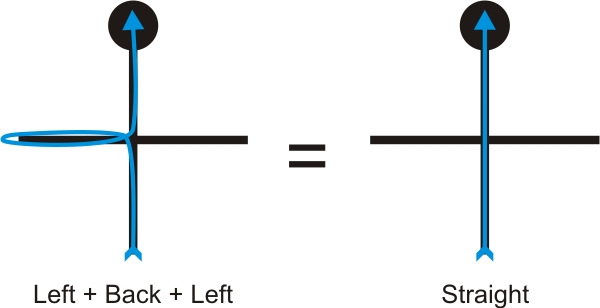 |
Another example is a T-intersection with a dead end on the left: ‘LBS’. The turns are 90° left, 180°, and 0°, for a total of 90° right. The sequence should be replaced with a single ‘R’.
In fact, whenever we have a sequence like ‘xBx’, we can replace all three turns with a turn corresponding to the total angle, eliminating the U-turn and speeding up our solution. Here’s the code to handle this:
// Path simplification.  The strategy is that whenever we encounter a
// sequence xBx, we can simplify it by cutting out the dead end.  For
// example, LBL -> S, because a single S bypasses the dead end
// represented by LBL.
void simplify_path()
{
	// only simplify the path if the second-to-last turn was a 'B'
	if(path_length < 3 || path[path_length-2] != 'B')
		return;

	int total_angle = 0;
	int i;
	for(i=1;i<=3;i++)
	{
		switch(path[path_length-i])
		{
		case 'R':
			total_angle += 90;
			break;
		case 'L':
			total_angle += 270;
			break;
		case 'B':
			total_angle += 180;
			break;
		}
	}

	// Get the angle as a number between 0 and 360 degrees.
	total_angle = total_angle % 360;

	// Replace all of those turns with a single one.
	switch(total_angle)
	{
	case 0:
		path[path_length - 3] = 'S';
		break;
	case 90:
		path[path_length - 3] = 'R';
		break;
	case 180:
		path[path_length - 3] = 'B';
		break;
	case 270:
		path[path_length - 3] = 'L';
		break;
	}

	// The path is now two steps shorter.
	path_length -= 2;
}
One interesting point about this code is that there are some sequences that should never be encountered by a left-turning robot, like ‘RBR’, which would be replaced by ‘S’ according to this code. In a more advanced program, you might want to keep track of inconsistencies like this, since they indicate some kind of a problem that could cause the robot to get lost.
Now let’s step through a slightly more complicated maze, showing how we can simplify the path as we explore it:
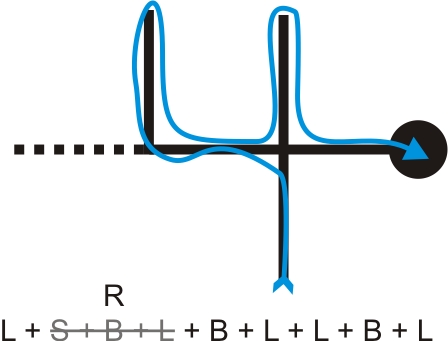
Fully explore the maze using a left-hand-on-the-wall strategy.
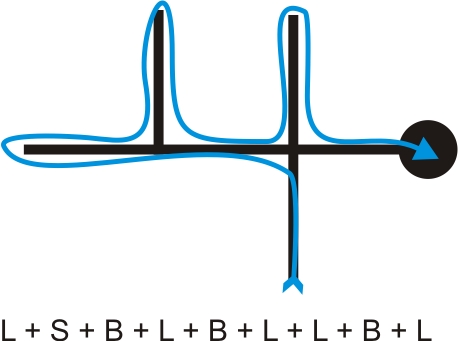 |
The above list of actions is a record of all the steps we took to fully explore the maze while looking for the end, which is marked by the large black circle. Our goal is to now reduce this list to represent the shortest path from start to finish by weeding out all of the dead ends. One option is to perform this pruning when we finish the maze, but the better approach is to perform the pruning as we go to keep our list from growing excessively large and taking up more memory than we have available.
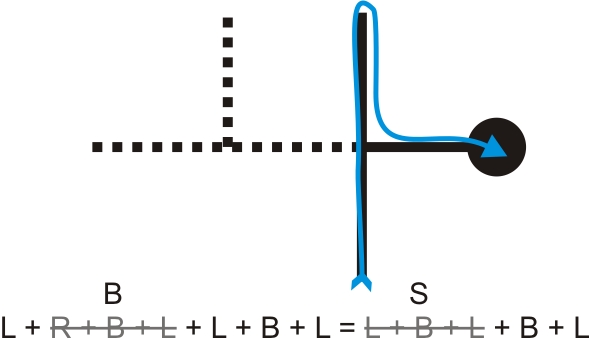
Prune out the first dead end as we identify it.
 |
When we encounter the first intersection after our first “back” action, we know we have reached a dead end that can be removed from our list of actions. In this case, the most recent actions in our list is the sequence ‘SBL’, and the diagram shows that this sequence can be simplified into a single right turn ‘R’.
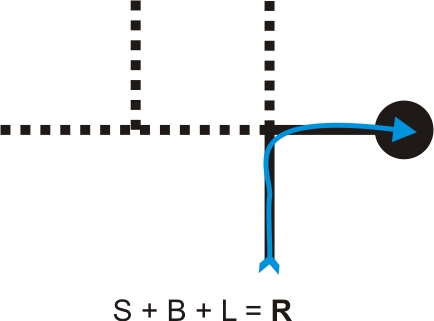
Prune out the rest of this dead-end branch as we back-track.
 |
We next end up with the sequence ‘RBL’, which reduces to a single back ‘B’, and this combines with the next action to produce the sequence ‘LBL’, which reduces to a single straight ‘S’.
Prune out the final dead-end branch to leave us with the shortest path from start to finish.
 |
The last dead end gives us the sequence ‘SBL’, which reduces to a sigle right turn ‘R’. Our action list is now just ‘R’ and represents the shortest path from start to finish.
As we drove the maze, our action list would have looked like the following:
- L
- LS
- LSB
- LSBL => LR (pruning occurs here)
- LRB
- LRBL => LB (pruning occurs here)
- LBL => S (pruning occurs here)
- SB
- SBL => R (pruning occurs here)
8.f. Improving the Maze-Solving Code
We have gone over the most important parts of the code; the other bits and pieces (like the function display_path(), the start-up sequence and calibration, etc.) can be found with everything else in the folder examples\atmegaxx8\3pi-mazesolver. After you have the code working and you understand it well, you should try to improve your robot to be as fast as possible. There are many things you can do to try to make it better:
- Increasing the line-following speed.
- Improving the line-following PID constants.
- Increasing turning speed.
- Identifying situations where the robot has gotten lost.
- Adjusting the speed based on what is coming up; e.g. driving straight through an ‘S’ at full speed.
The following video shows a 3pi prototype—it only has one blue power LED, but it is otherwise functionally identical to the final version—that we programmed to compete in LVBots Challenge 4.0. The code is more advanced (and complicated) than the sample maze-solving code we have just provided. Improvements over the sample program include a higher base running speed with better-tuned line-following PID constants, faster and smoother turns, and increased speed on long straight segments.
When we were trying to improve the 3pi’s maze performance, our first step was to improve its line-following ability by better tuning the PID constants as we slowly increased the robot’s maximum speed, and our second step was to improve the turns to be faster and smoother. Very quickly, however, we noticed that further speed improvement was being limited by the intersections. If the robot was moving too quickly when it hit them, it would invariably screw up somewhere. Going slowly enough to survive the intersections led to unnecessarily slow driving on long straight segments, however.
Our solution was to time the length of every segment the robot encountered during the learning phase. The code would reset the timer at an intersection and then stop it when the 3pi hit the following intersection. As the program stored an array of visited intersections, it also stored the segment times in a parallel array, producing something like:
{ L, S, S, R, L, ... }
{ 3, 3, 6, 5, 8, ... }
The top array gives the action performed at each visited intersection (L = turned left, S = went straight, R = turned right), and the bottom array gives the amount of time spent driving along the segment that directly led to that intersection. The units of the segment times were chosen to provide numbers that can allow the robot to meaningfully differentiate between longer and shorter segments but that never exceed 255 for any segment in the maze. This second restriction means that the values can be stored in an array of unsigned chars (i.e. each segment’s time takes up just one byte of memory), which helps keep memory usage down. The ATmega168 has just 1024 bytes of RAM, so it’s important that applications like this store data in an efficient way that leaves enough room for the stack, which is also stored in RAM. A good rule of thumb is to leave 300 – 400 bytes of RAM available for the stack and data used by the Pololu AVR library (or more if you have some deeply nested functions or functions with a lot of local variables). Note that the ATmega328 has 2048 bytes of RAM, which gives you a bit more room for your data.
Once the 3pi has learned the maze, the maze-driving algorigthm is essentially:
- If the robot is going straight at the next intersection, drive the current segment at high speed; don’t even worry about slowing down until we know we have an intersection coming up that will require a turn.
- Otherwise, drive the current segment at high speed until time T has elapsed, at which point slow back down to normal speed until the next intersection is reached.
The value T is computed from a function that uses the previously measured segment “length”. For short segments, T is negative and the 3pi just drives the entire segment at normal speed. For longer segments, T is positive and causes the 3pi to drive most of the segment at high speed before slowing down just in time to handle the intersection safely. We came up with a function for T on paper and then ran a series of tests to get the various constants right.
Typically, one might use encoders to measure the lengths of the segments. We were able to just use timing on the 3pi, however, because of the 3pi’s power system, which uses a regulated voltage for the motors and produces highly repeatable results. With a more traditional power system, motor speed would decrease as the batteries discharge, and a timing approach like this would potentially produce unreliable results. For example, if you were to use a robot with a more traditional power system, the function you come up with for T when the batteries are freshly charged might work poorly when they are nearly drained.
Tip: Once you start significantly increasing your maze-solving speed, performance becomes dependent on the traction of the tires. Unfortunately, traction decreases over time as the tires pick up dust and dirt from the course. Our fast maze solver needs to have its tires cleaned every few runs or else it starts fishtailing on the turns, which slows it down and can even cause it to mess up. You can see the effects of this on the second (solution) run of the video (the tires hadn’t been cleaned recently). You can easily clean the tires by wiping them with a little rubbing alcohol on a paper towel.
9. Pin Assignment Tables
|
General features of the Pololu 3pi robot, top view. |
|---|
|
Labeled bottom view of the Pololu 3pi robot. |
|---|
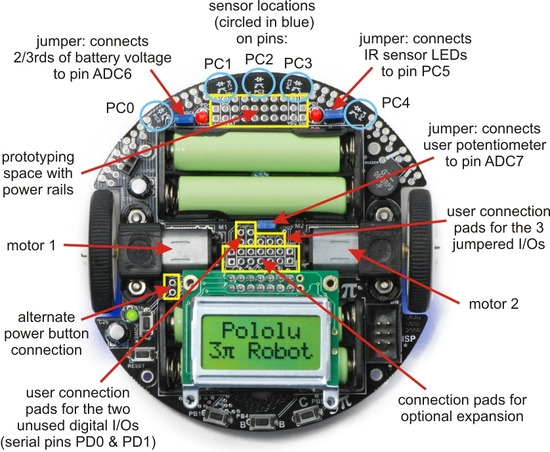 |
Specific features of the Pololu 3pi robot, top view. |
|---|
Pin Assignment Table Sorted by Function
| Function | ATmegaxx8 Pin | Arduino Pin |
|---|---|---|
| free digital I/Os (x3) (remove PC5 jumper to free digital pin 19) | PD0, PD1, PC5 | digital pins 0, 1, 19 |
| free analog inputs (if you remove jumpers, x3) | PC5, ADC6, ADC7 | analog inputs 5 – 7 |
| motor 1 (left motor) control (A and B) | PD5 and PD6 | digital pins 5 and 6 |
| motor 2 (right motor) control (A and B) | PD3 and PB3 | digital pins 3 and 11 |
| QTR-RC reflectance sensors (left to right, x5) | PC0 – PC4 | digital pins 14 – 18 |
| red (left) user LED | PD1 | digital pin 1 |
| green (right) user LED | PD7 | digital pin 7 |
| user pushbuttons (left to right, x3) | PB1, PB4, and PB5 | digital inputs 9, 12, and 13 |
| buzzer | PB2 | digital pin 10 |
| LCD control (RS, R/W, E) | PD2, PB0, and PD4 | digital pins 2, 8, and 4 |
| LCD data (4-bit: DB4 – DB7) | PB1, PB4, PB5, and PD7 | digital pins 9, 12, 13, and 7 |
| reflectance sensor IR LED control (drive low to turn IR LEDs off) | PC5 (through jumper) | digital pin 19 |
| user trimmer potentiometer | ADC7 (through jumper) | analog input 7 |
| 2/3rds of battery voltage | ADC6 (through jumper) | analog input 6 |
| ICSP programming lines (x3) | PB3, PB4, PB5 | digital pins 11, 12, and 13 |
| reset pushbutton | PC6 | reset |
| UART (RX and TX) | PD0 and PD1 | digital pins 0 and 1 |
| I2C/TWI | inaccessable to user | |
| SPI | inaccessable to user | |
Pin Assignment Table Sorted by Pin
| ATmegaxx8 Pin | 3pi Function | Notes/Alternate Functions |
|---|---|---|
| PD0 | free digital I/O | USART input pin (RXD) |
| PD1 | free digital I/O | connected to red user LED (high turns LED on) USART output pin (TXD) |
| PD2 | LCD control line RS | external interrupt 0 (INT0) |
| PD3 | M2 control line | Timer2 PWM output B (OC2B) |
| PD4 | LCD control line E | USART external clock input/output (XCK) Timer0 external counter (T0) |
| PD5 | M1 control line | Timer0 PWM output B (OC0B) |
| PD6 | M1 control line | Timer0 PWM output A (OC0A) |
| PD7 | LCD data line DB7 | connected to green user LED (high turns LED on) |
| PB0 | LCD control line R/W | Timer1 input capture (ICP1) divided system clock output (CLK0) |
| PB1 | LCD data line DB4 | user pushbutton (pressing pulls pin low) Timer1 PWM output A (OC1A) |
| PB2 | buzzer | Timer1 PWM output B (OC1B) |
| PB3 | M2 control line | Timer2 PWM output A (OC2A) ISP programming line |
| PB4 | LCD data line DB5 | user pushbutton (pressing pulls pin low) Caution: also an ISP programming line |
| PB5 | LCD data line DB6 | user pushbutton (pressing pulls pin low) Caution: also an ISP programming line |
| PC0 | QTR-RC reflectance sensor | (drive high for 10 us, then wait for line input to go low) sensor labeled PC0 (leftmost sensor) |
| PC1 | QTR-RC reflectance sensor | (drive high for 10 us, then wait for line input to go low) sensor labeled PC1 |
| PC2 | QTR-RC reflectance sensor | (drive high for 10 us, then wait for line input to go low) sensor labeled PC2 (center sensor) |
| PC3 | QTR-RC reflectance sensor | (drive high for 10 us, then wait for line input to go low) sensor labeled PC3 |
| PC4 | QTR-RC reflectance sensor | (drive high for 10 us, then wait for line input to go low) sensor labeled PC4 (rightmost sensor) |
| PC5 | analog input and digital I/O | jumpered to sensors’ IR LEDs (driving low turns off emitters) ADC input channel 5 (ADC5) |
| ADC6 | dedicated analog input | jumpered to 2/3rds of battery voltage ADC input channel 6 (ADC6) |
| ADC7 | dedicated analog input | jumpered to user trimmer potentiometer ADC input channel 7 (ADC7) |
| reset | reset pushbutton | internally pulled high; active low digital I/O disabled by default |
10. Expansion Information
10.a. Serial slave program
The Pololu AVR library (see Section 6) comes with an example serial slave program for the 3pi in libpololu-avr\examples\atmegaxx8\3pi-serial-slave, and a corresponding serial master program in libpololu-avr\examples\atmegaxx8\3pi-serial-master. This example shows how to use a ring buffer in SERIAL_CHECK mode to continuously receive and interpret a simple set of commands. The commands control various features of the 3pi, making it possible to use the 3pi as a “smart base” controlled by another processor. It is easy to add more commands yourself or adapt the library to work on a different board.
Note that we offer several basic expansion kits on which you can mount such a secondary microcontroller and additional electronics: black with cutouts that let you view the LCD underneath, black without cutouts that replaces the LCD and maximizes prototyping space, red with cutouts, and red without cutouts.
|
|
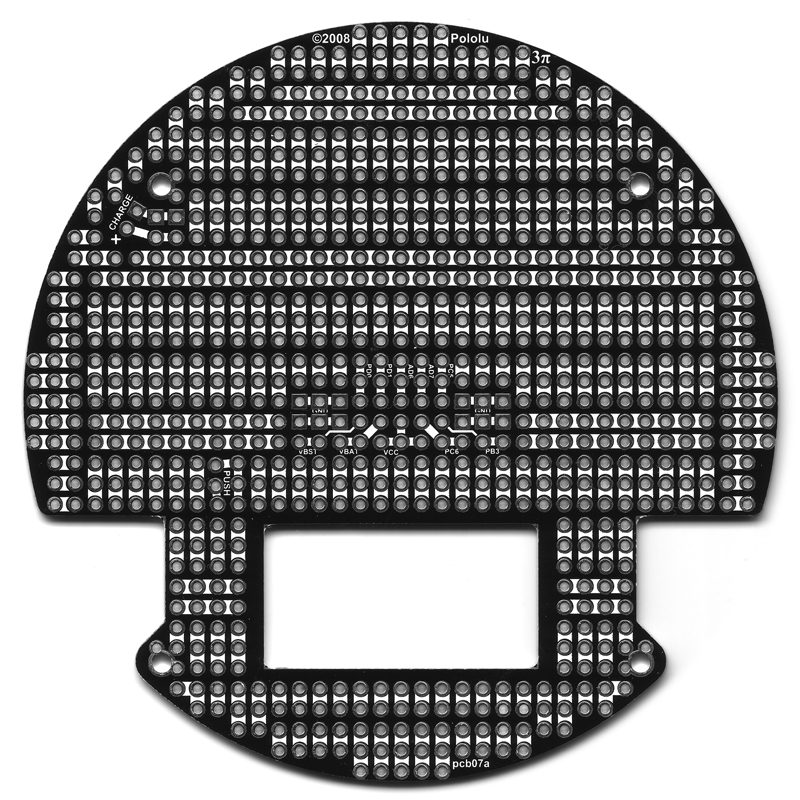

|
|
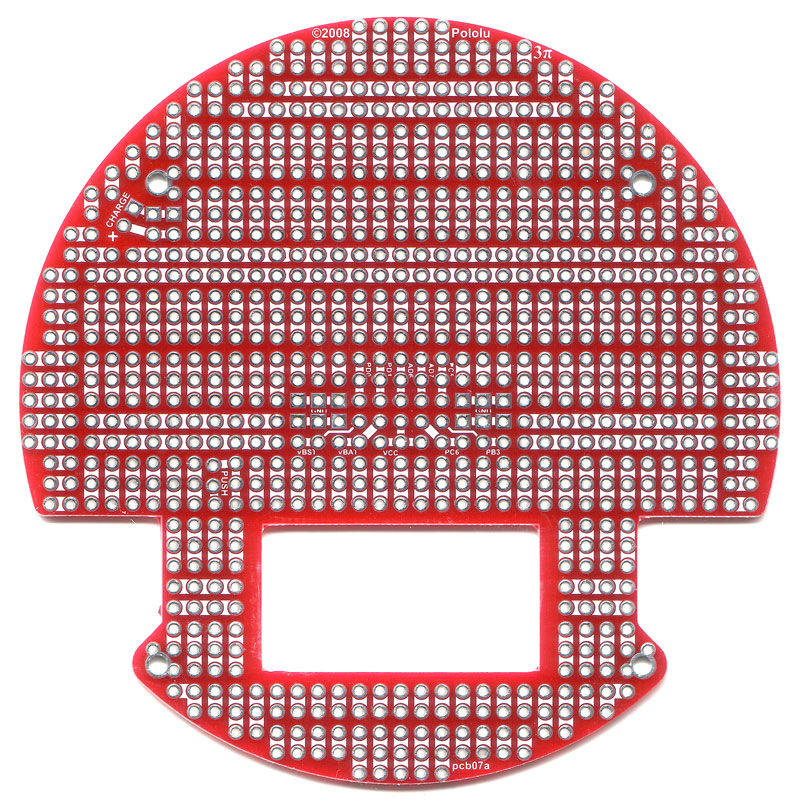
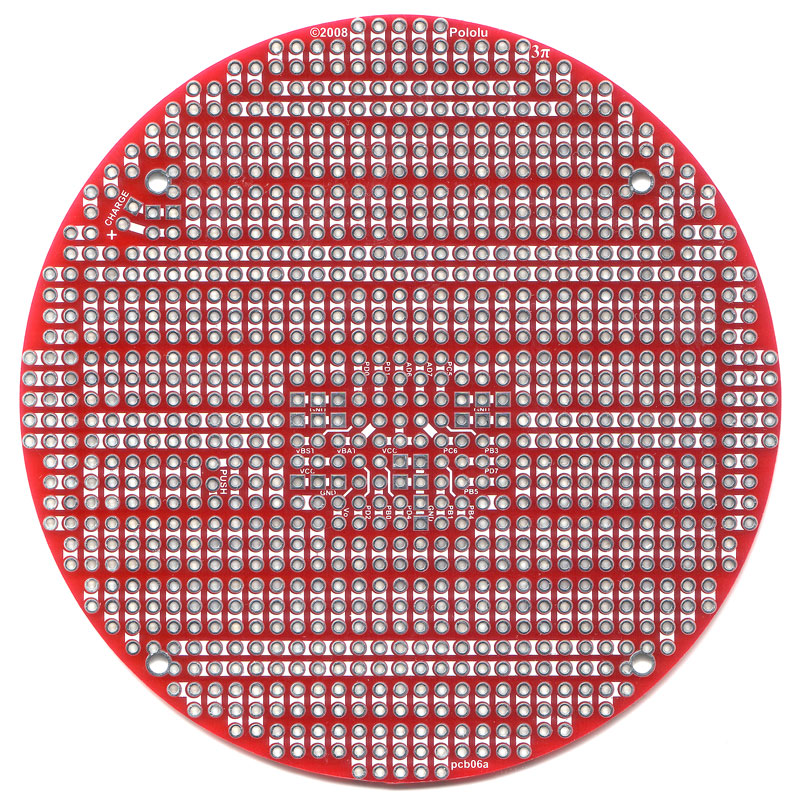
The following two pictures show the black version with cutouts mounted on a 3pi robot:
|
|
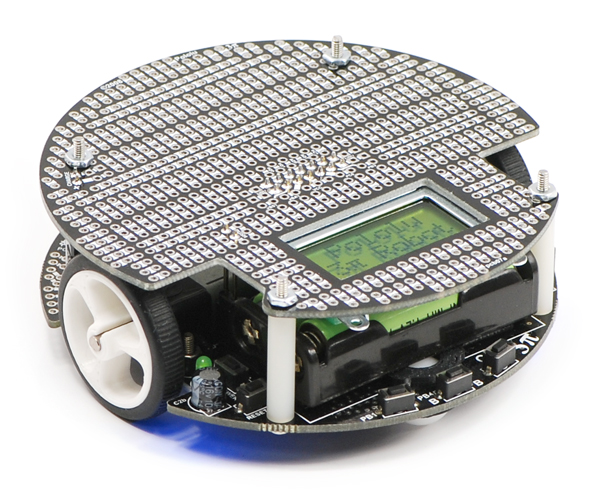

We also offer a more advanced expansion kit that lets you turn your 3pi robot into an m3pi robot. The m3pi expansion kit has sockets for additional electronics, making it simple to significantly increase the capabilities of your 3pi. One socket let’s you use a powerful mbed development board as a high-level robot controller (by issuing serial commands to the 3pi base while it is running its serial slave program), and another socket can be used for a the easy addition of a wireless serial module (XBee, Wixel, Bluetooth, etc). Please note that the m3pi robot is also available fully assembled. Please see the m3pi robot product page for more information.
|
|

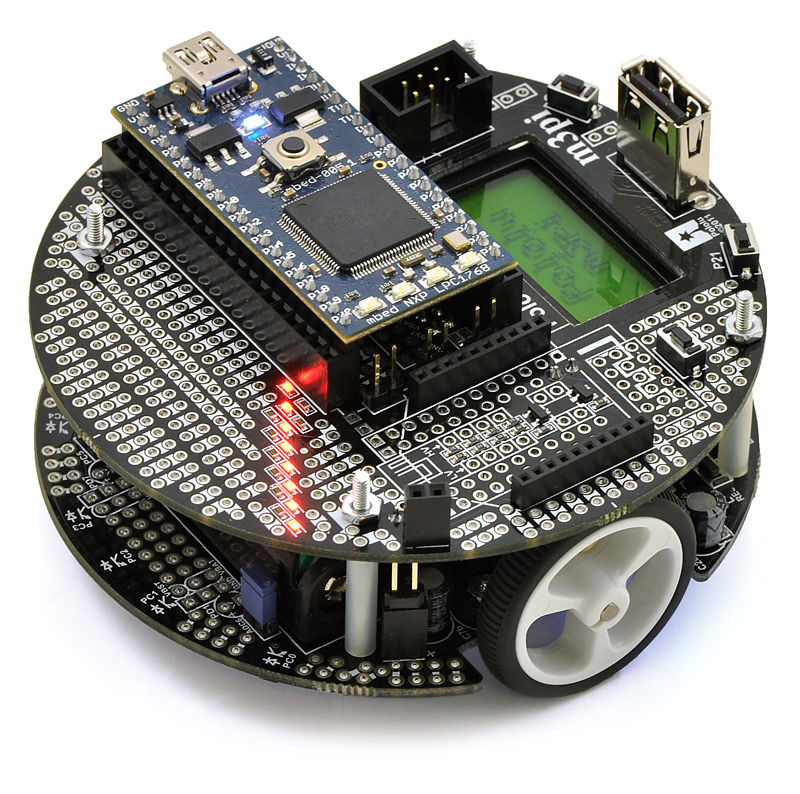
Complete documentation of the serial functions used here can be found in Section 10 of the Pololu AVR Library Command Reference.
This slave program receives serial data on port PD0 (RX) of the 3pi and transmits responses (when necessary) on port PD1 (TX), using a 115.2 kbaud, TTL-level serial protocol. In this example, there are no parity bits, 8 data bits, and one stop bit (N81). The commands implemented here each consist of a single command byte followed by zero or more data bytes. To make it easy to differentiate the command bytes from the data bytes, the command bytes are all in the range 0x80-0xff, while the data bytes are in the range 0x00-0x7f. That is, the command bytes have their most significant bits set, while the data bytes have that bit unset.
Some commands result in the 3pi sending data back out to the controlling device. For commands where integers are sent back, the least significant byte is sent first (little endian).
If bad commands or data bytes are detected, the slave program beeps and displays an error message on the LCD. This means that if you are using the expansion kit without cutouts, you should probably remove the LCD-related commands before loading the program onto your 3pi.
The following commands are recognized by the slave program:
| Command byte | Command | Data bytes | Response bytes | Description |
|---|---|---|---|---|
| 0x81 | signature | 0 | 6 | Sends the slave name and code version, e.g. “3pi1.0”. This command also sets motor speeds to 0 and stops PID line following, if active, so it is useful as an initialization command. |
| 0x86 | raw sensors | 0 | 10 | Reads all five IR sensors and sends the raw values as a sequence of two-byte ints, in the range 0-2000 |
| 0x87 | calibrated sensors | 0 | 10 | Reads all five IR sensors and sends calibrated values as a sequence of two-byte ints, in the range 0-1000 |
| 0xB0 | trimpot | 0 | 2 | Sends the voltage output of the trimpot as a two-byte int, in the range 0-1023 |
| 0xB1 | battery millivolts | 0 | 2 | Sends the battery voltage of the 3pi in mV, as a two-byte int |
| 0xB3 | play music | 2-101 | 0 | Plays a tune specified by a string of musical commands. The first data byte specifies the length of the following string (max length 100), so that the slave program knows how many more data bytes to read. See the play() command in Section 3 of the Pololu AVR Library Command Reference for a description of the musical command format. |
| 0xB4 | calibrate | 0 | 10 | Performs one round of calibration on the sensors, reads all five IR sensors, and sends calibrated values as a sequence of two-byte ints, in the range 0-1000. This should be called multiple times, as the robot moves over a range from white to black. |
| 0xB5 | reset calibration | 0 | 0 | Resets the calibration. This should always be used when connecting to a slave, in case the master reset without a slave reset, for example in case of a power glitch. |
| 0xB6 | line position | 0 | 2 | Reads all five IR sensors using calibrated values and estimates the position of a black line under the robot. The value, which is sent back as a two-byte integer, is 0 when the line is under sensor PC0 or farther to the left, 1000 when the line is directly under sensor PC1, up to 4000 when it is under sensor PC4 or farther to the right. See Section 19 of of the Pololu AVR Library Command Reference for the formula used to estimate position. |
| 0xB7 | clear LCD | 0 | 0 | Clears the LCD screen on the 3pi. |
| 0xB8 | 2-9 | 0 | Prints 1-8 characters to the LCD. The first byte is the length of the following string of characters, as with the play command above. | |
| 0xB9 | LCD goto xy | 2 | 0 | Moves the LCD cursor to x-y coordinates given by the next two bytes. |
| 0xBA | autocalibrate | 0 | 1 | Turns the robot left and right while calibrating. For use when the robot it positioned over a line. Returns the character ‘c’ when complete. |
| 0xBB | start PID | 5 | 0 | Sets up PID parameters and begins line following. The first data byte sets the maximum motor speed. The next four bytes, a, b, c, and d, represent the PID parameters. Specifically, the difference in the motor speeds will be set to (L-2000)×a/b + D×c/d, where L is the position of the line as described above, and D is the derivative of L. The integral term is not implemented in this program. See Section 7.c for more information on PID line following. |
| 0xBC | stop PID | 0 | 0 | Stops PID line following, setting motor speeds to 0. |
| 0xC1 | M1 forward | 1 | 0 | Sets motor M1 turning forward with a speed of 0 (off) up to 127 (full speed). |
| 0xC2 | M1 backward | 1 | 0 | Sets motor M1 turning backward with a speed of 0 (off) up to 127 (full reverse). |
| 0xC5 | M2 forward | 1 | 0 | Sets motor M2 turning forward with a speed of 0 (off) up to 127 (full speed). |
| 0xC6 | M2 backward | 1 | 0 | Sets motor M2 turning backward with a speed of 0 (off) up to 127 (full reverse). |
Source code
#include <pololu/3pi.h>

/*
 * 3pi-serial-slave - An example serial slave program for the Pololu
 * 3pi Robot.  See the following pages for more information:
 *
 * http://www.pololu.com/docs/0J21
 * http://www.pololu.com/docs/0J20
 * http://www.poolu.com/
 *
 */

// PID constants
unsigned int pid_enabled = 0;
unsigned char max_speed = 255;
unsigned char p_num = 0;
unsigned char p_den = 0;
unsigned char d_num = 0;
unsigned char d_den = 0;
unsigned int last_proportional = 0;
unsigned int sensors[5];

// This routine will be called repeatedly to keep the PID algorithm running
void pid_check()
{
	if(!pid_enabled)
		return;

	// Do nothing if the denominator of any constant is zero.
	if(p_den == 0 || d_den == 0)
	{
		set_motors(0,0);
		return;
	}

	// Read the line position, with serial interrupts running in the background.
	serial_set_mode(SERIAL_AUTOMATIC);
	unsigned int position = read_line(sensors, IR_EMITTERS_ON);
	serial_set_mode(SERIAL_CHECK);

	// The "proportional" term should be 0 when we are on the line.
	int proportional = ((int)position) - 2000;

	// Compute the derivative (change) of the position.
	int derivative = proportional - last_proportional;

	// Remember the last position.
	last_proportional = proportional;

	// Compute the difference between the two motor power settings,
	// m1 - m2.  If this is a positive number the robot will turn
	// to the right.  If it is a negative number, the robot will
	// turn to the left, and the magnitude of the number determines
	// the sharpness of the turn.
	int power_difference = proportional*p_num/p_den + derivative*p_num/p_den;

	// Compute the actual motor settings.  We never set either motor
	// to a negative value.
	if(power_difference > max_speed)
		power_difference = max_speed;
	if(power_difference < -max_speed)
		power_difference = -max_speed;

	if(power_difference < 0)
		set_motors(max_speed+power_difference, max_speed);
	else
		set_motors(max_speed, max_speed-power_difference);
}

// A global ring buffer for data coming in.  This is used by the
// read_next_byte() and previous_byte() functions, below.
char buffer[100];

// A pointer to where we are reading from.
unsigned char read_index = 0;

// Waits for the next byte and returns it.  Runs play_check to keep
// the music playing and serial_check to keep receiving bytes.
// Calls pid_check() to keep following the line.
char read_next_byte()
{
	while(serial_get_received_bytes() == read_index)
	{
		serial_check();
		play_check();

		// pid_check takes some time; only run it if we don't
		// have more bytes to process
		if(serial_get_received_bytes() == read_index)
			pid_check();

	}
	char ret = buffer[read_index];
	read_index ++;
	if(read_index >= 100)
		read_index = 0;
	return ret;
}

// Backs up by one byte in the ring buffer.
void previous_byte()
{
	read_index --;
	if(read_index == 255)
		read_index = 99;
}

// Returns true if and only if the byte is a command byte (>= 0x80).
char is_command(char byte)
{
	if (byte < 0)
		return 1;
	return 0;
}

// Returns true if and only if the byte is a data byte (< 0x80).
char is_data(char byte)
{
	if (byte < 0)
		return 0;
	return 1;
}

// If it's not a data byte, beeps, backs up one, and returns true.
char check_data_byte(char byte)
{
	if(is_data(byte))
		return 0;

	play("o3c");

	clear();
	print("Bad data");
	lcd_goto_xy(0,1);
	print_hex_byte(byte);

	previous_byte();
	return 1;
}

/////////////////////////////////////////////////////////////////////
// COMMAND FUNCTIONS
//
// Each function in this section corresponds to a single serial
// command.  The functions are expected to do their own argument
// handling using read_next_byte() and check_data_byte().

// Sends the version of the slave code that is running.
// This function also shuts down the motors and disables PID, so it is
// useful as an initial command.
void send_signature()
{
	serial_send_blocking("3pi1.0", 6);
	set_motors(0,0);
	pid_enabled = 0;
}

// Reads the line sensors and sends their values.  This function can
// do either calibrated or uncalibrated readings.  When doing calibrated readings,
// it only performs a new reading if we are not in PID mode.  Otherwise, it sends
// the most recent result immediately.
void send_sensor_values(char calibrated)
{
	if(calibrated)
	{
		if(!pid_enabled)
			read_line_sensors_calibrated(sensors, IR_EMITTERS_ON);
	}
	else
		read_line_sensors(sensors, IR_EMITTERS_ON);
	serial_send_blocking((char *)sensors, 10);
}

// Sends the raw (uncalibrated) sensor values.
void send_raw_sensor_values()
{
	send_sensor_values(0);
}

// Sends the calibated sensor values.
void send_calibrated_sensor_values()
{
	send_sensor_values(1);
}

// Computes the position of a black line using the read_line()
// function, and sends the value.
// Returns the last value computed if PID is running.
void send_line_position()
{
	int message[1];
	unsigned int tmp_sensors[5];
	int line_position;

	if(pid_enabled)
		line_position = last_proportional+2000;
	else line_position = read_line(tmp_sensors, IR_EMITTERS_ON);

	message[0] = line_position;

	serial_send_blocking((char *)message, 2);
}

// Sends the trimpot value, 0-1023.
void send_trimpot()
{
	int message[1];
	message[0] = read_trimpot();
	serial_send_blocking((char *)message, 2);
}

// Sends the battery voltage in millivolts
void send_battery_millivolts()
{
	int message[1];
	message[0] = read_battery_millivolts();
	serial_send_blocking((char *)message, 2);
}

// Drives m1 forward.
void m1_forward()
{
	char byte = read_next_byte();

	if(check_data_byte(byte))
		return;

	set_m1_speed(byte == 127 ? 255 : byte*2);
}

// Drives m2 forward.
void m2_forward()
{
	char byte = read_next_byte();

	if(check_data_byte(byte))
		return;

	set_m2_speed(byte == 127 ? 255 : byte*2);
}

// Drives m1 backward.
void m1_backward()
{
	char byte = read_next_byte();

	if(check_data_byte(byte))
		return;

	set_m1_speed(byte == 127 ? -255 : -byte*2);
}

// Drives m2 backward.
void m2_backward()
{
	char byte = read_next_byte();

	if(check_data_byte(byte))
		return;

	set_m2_speed(byte == 127 ? -255 : -byte*2);
}

// A buffer to store the music that will play in the background.
char music_buffer[100];

// Plays a musical sequence.
void do_play()
{
	unsigned char tune_length = read_next_byte();

	if(check_data_byte(tune_length))
		return;

	unsigned char i;
	for(i=0;i<tune_length;i++)
	{
		if(i > sizeof(music_buffer)) // avoid overflow
			return;

		music_buffer[i] = read_next_byte();

		if(check_data_byte(music_buffer[i]))
			return;
	}

	// add the end of string character 0
	music_buffer[i] = 0;

	play(music_buffer);
}

// Clears the LCD
void do_clear()
{
	clear();
}

// Displays data to the screen
void do_print()
{
	unsigned char string_length = read_next_byte();

	if(check_data_byte(string_length))
		return;

	unsigned char i;
	for(i=0;i<string_length;i++)
	{
		unsigned char character;
		character = read_next_byte();

		if(check_data_byte(character))
			return;

		// Before printing to the LCD we need to go to AUTOMATIC mode.
		// Otherwise, we might miss characters during the lengthy LCD routines.
		serial_set_mode(SERIAL_AUTOMATIC);
 		print_character(character);
		serial_set_mode(SERIAL_CHECK);
	}
}

// Goes to the x,y coordinates on the lcd specified by the two data bytes
void do_lcd_goto_xy()
{
	unsigned char x = read_next_byte();
	if(check_data_byte(x))
		return;

	unsigned char y = read_next_byte();
	if(check_data_byte(y))
		return;

	lcd_goto_xy(x,y);
}

// Runs through an automatic calibration sequence
void auto_calibrate()
{
	time_reset();
	set_motors(60, -60);
	while(get_ms() < 250)
		calibrate_line_sensors(IR_EMITTERS_ON);
	set_motors(-60, 60);
	while(get_ms() < 750)
		calibrate_line_sensors(IR_EMITTERS_ON);
	set_motors(60, -60);
	while(get_ms() < 1000)
		calibrate_line_sensors(IR_EMITTERS_ON);
	set_motors(0, 0);

	serial_send_blocking("c",1);
}

// Turns on PID according to the supplied PID constants
void set_pid()
{
	unsigned char constants[5];
	unsigned char i;
	for(i=0;i<5;i++)
	{
		constants[i] = read_next_byte();
		if(check_data_byte(constants[i]))
			return;
	}

	// make the max speed 2x of the first one, so that it can reach 255
	max_speed = (constants[0] == 127 ? 255 : constants[0]*2);

	// set the other parameters directly
	p_num = constants[1];
	p_den = constants[2];
	d_num = constants[3];
	d_den = constants[4];

	// enable pid
	pid_enabled = 1;
}

// Turns off PID
void stop_pid()
{
	set_motors(0,0);
	pid_enabled = 0;
}

/////////////////////////////////////////////////////////////////////

int main()
{
	pololu_3pi_init(2000);
	play_mode(PLAY_CHECK);

	clear();
	print("Slave");

	// start receiving data at 115.2 kbaud
	serial_set_baud_rate(115200);
	serial_set_mode(SERIAL_CHECK);
	serial_receive_ring(buffer, 100);

	while(1)
	{
		// wait for a command
		char command = read_next_byte();

		// The list of commands is below: add your own simply by
		// choosing a command byte and introducing another case
		// statement.
		switch(command)
		{
		case (char)0x00:
			// slient error - probable master resetting
			break;

		case (char)0x81:
			send_signature();
			break;
		case (char)0x86:
			send_raw_sensor_values();
			break;
		case (char)0x87:
			send_calibrated_sensor_values(1);
			break;
		case (char)0xB0:
			send_trimpot();
			break;
		case (char)0xB1:
			send_battery_millivolts();
			break;
		case (char)0xB3:
			do_play();
			break;
		case (char)0xB4:
			calibrate_line_sensors(IR_EMITTERS_ON);
			send_calibrated_sensor_values(1);
			break;
		case (char)0xB5:
			line_sensors_reset_calibration();
			break;
		case (char)0xB6:
			send_line_position();
			break;
		case (char)0xB7:
			do_clear();
			break;
		case (char)0xB8:
			do_print();
			break;
		case (char)0xB9:
			do_lcd_goto_xy();
			break;
		case (char)0xBA:
			auto_calibrate();
			break;
		case (char)0xBB:
			set_pid();
			break;
		case (char)0xBC:
			stop_pid();
			break;

		case (char)0xC1:
			m1_forward();
			break;
		case (char)0xC2:
			m1_backward();
			break;
		case (char)0xC5:
			m2_forward();
			break;
		case (char)0xC6:
			m2_backward();
			break;

		default:
			clear();
			print("Bad cmd");
			lcd_goto_xy(0,1);
			print_hex_byte(command);

			play("o7l16crc");
			continue; // bad command
		}
	}
}
10.b. Serial master program
A serial master program used to control the serial slave program is included with the Pololu AVR Library (see Section 6) in libpololu-avr\examples\atmegaxx8\3pi-serial-master. The program is designed to run on an Orangutan SV-xx8, LV-168, or 3pi as a demonstration of what is possible, but you will probably want to adapt it for your own controller. To use the program, make the following connections between your master and slave:
- GND-GND
- PD0-PD1
- PD1-PD0
Turn on both master and slave. The master will display a “Connect” message followed by the signature of the slave source code (e.g. “3pi1.0”). The master will then instruct the slave to display “Connect” and play a short tune. Pressing the B botton on the master causes the slave to go through an auto-calibration routine, after which you can drive the slave around using the A and C buttons on the master, while viewing sensor data on the master’s LCD. Holding down the B button causes the slave to do PID line following.
Source code
#include <pololu/orangutan.h>
#include <string.h>

/*
 * 3pi-serial-master - An example serial master program for the Pololu
 * 3pi Robot.  This can run on any board supported by the library;
 * it is intended as an example of how to use the master/slave
 * routines.
 *
 * http://www.pololu.com/docs/0J21
 * http://www.pololu.com/docs/0J20
 * http://www.poolu.com/
 */

// Data for generating the characters used in load_custom_characters
// and display_readings.  By reading levels[] starting at various
// offsets, we can generate all of the 7 extra characters needed for a
// bargraph.  This is also stored in program space.
const char levels[] PROGMEM = {
	0b00000,
	0b00000,
	0b00000,
	0b00000,
	0b00000,
	0b00000,
	0b00000,
	0b11111,
	0b11111,
	0b11111,
	0b11111,
	0b11111,
	0b11111,
	0b11111
};

// This function loads custom characters into the LCD.  Up to 8
// characters can be loaded; we use them for 6 levels of a bar graph
// plus a back arrow and a musical note character.
void load_custom_characters()
{
	lcd_load_custom_character(levels+0,0); // no offset, e.g. one bar
	lcd_load_custom_character(levels+1,1); // two bars
	lcd_load_custom_character(levels+2,2); // etc...
	lcd_load_custom_character(levels+4,3); // skip level 3
	lcd_load_custom_character(levels+5,4);
	lcd_load_custom_character(levels+6,5);
	clear(); // the LCD must be cleared for the characters to take effect
}

// 10 levels of bar graph characters
const char bar_graph_characters[10] = {' ',0,0,1,2,3,3,4,5,255};

void display_levels(unsigned int *sensors)
{
	clear();
	int i;
	for(i=0;i<5;i++) {
		// Initialize the array of characters that we will use for the
		// graph.  Using the space, an extra copy of the one-bar
		// character, and character 255 (a full black box), we get 10
		// characters in the array.

		// The variable c will have values from 0 to 9, since
		// values are in the range of 0 to 1000, and 1000/101 is 9
		// with integer math.
		char c = bar_graph_characters[sensors[i]/101];

		// Display the bar graph characters.
		print_character(c);
	}
}

// set the motor speeds
void slave_set_motors(int speed1, int speed2)
{
	char message[4] = {0xC1, speed1, 0xC5, speed2};
	if(speed1 < 0)
	{
		message[0] = 0xC2; // m1 backward
		message[1] = -speed1;
	}
	if(speed2 < 0)
	{
		message[2] = 0xC6; // m2 backward
		message[3] = -speed2;
	}
	serial_send_blocking(message,4);
}

// do calibration
void slave_calibrate()
{
	serial_send("\xB4",1);
	int tmp_buffer[5];

	// read 10 characters (but we won't use them)
	serial_receive_blocking((char *)tmp_buffer, 10, 100);
}

// reset calibration
void slave_reset_calibration()
{
	serial_send_blocking("\xB5",1);
}

// calibrate (waits for a 1-byte response to indicate completion)
void slave_auto_calibrate()
{
	int tmp_buffer[1];
	serial_send_blocking("\xBA",1);
	serial_receive_blocking((char *)tmp_buffer, 1, 10000);
}

// sets up the pid constants on the 3pi for line following
void slave_set_pid(char max_speed, char p_num, char p_den, char d_num, char d_den)
{
	char string[6] = "\xBB";
	string[1] = max_speed;
	string[2] = p_num;
	string[3] = p_den;
	string[4] = d_num;
	string[5] = d_den;
	serial_send_blocking(string,6);
}

// stops the pid line following
void slave_stop_pid()
{
	serial_send_blocking("\xBC", 1);
}

// clear the slave LCD
void slave_clear()
{
	serial_send_blocking("\xB7",1);
}

// print to the slave LCD
void slave_print(char *string)
{
	serial_send_blocking("\xB8", 1);
	char length = strlen(string);
	serial_send_blocking(&length, 1); // send the string length
	serial_send_blocking(string, length);
}

// go to coordinates x,y on the slave LCD
void slave_lcd_goto_xy(char x, char y)
{
	serial_send_blocking("\xB9",1);
	serial_send_blocking(&x,1);
	serial_send_blocking(&y,1);
}

int main()
{
	char buffer[20];

	// load the bar graph
	load_custom_characters();

	// configure serial clock for 115.2 kbaud
	serial_set_baud_rate(115200);

	// wait for the device to show up
	while(1)
	{
		clear();
		print("Master");
		delay_ms(100);
		serial_send("\x81",1);

		if(serial_receive_blocking(buffer, 6, 50))
			continue;

		clear();
		print("Connect");
		lcd_goto_xy(0,1);
		buffer[6] = 0;
		print(buffer);

		// clear the slave's LCD and display "Connect" and "OK" on two lines
		// Put OK in the center to test x-y positioning
		slave_clear();
		slave_print("Connect");
		slave_lcd_goto_xy(3,1);
		slave_print("OK");

		// play a tune
		char tune[] = "\xB3 l16o6gab>c";
		tune[1] = sizeof(tune)-3;
		serial_send_blocking(tune,sizeof(tune)-1);

		// wait
		wait_for_button(ALL_BUTTONS);

		// reset calibration
		slave_reset_calibration();

		time_reset();

		slave_auto_calibrate();

		unsigned char speed1 = 0, speed2 = 0;

		// read sensors in a loop
		while(1)
		{
			serial_send("\x87",1); // returns calibrated sensor values

			// read 10 characters
			if(serial_receive_blocking(buffer, 10, 100))
				break;

			// get the line position
			serial_send("\xB6", 1);

			int line_position[1];
			if(serial_receive_blocking((char *)line_position, 2, 100))
				break;

			// get the battery voltage
						serial_send("\xB1",1);

			// read 2 bytes
			int battery_millivolts[1];
			if(serial_receive_blocking((char *)battery_millivolts, 2, 100))
				break;

			// display readings
			display_levels((unsigned int*)buffer);

			lcd_goto_xy(5,0);
			line_position[0] /= 4; // to get it into the range of 0-1000
			if(line_position[0] == 1000)
				line_position[0] = 999; // keep to a max of 3 chars
			print_long(line_position[0]);
			print("   ");

			lcd_goto_xy(0,1);
			print_long(battery_millivolts[0]);
			print(" mV  ");

			delay_ms(10);

			// if button A is pressed, increase motor1 speed
			if(button_is_pressed(BUTTON_A) && speed1 < 127)
				speed1 ++;
			else if(speed1 > 1)
				speed1 -= 2;
			else if(speed1 > 0)
				speed1 = 0;

			// if button C is pressed, control motor2
			if(button_is_pressed(BUTTON_C) && speed2 < 127)
				speed2 ++;
			else if(speed2 > 1)
				speed2 -= 2;
			else if(speed2 > 0)
				speed2 = 0;

			// if button B is pressed, do PID control
			if(button_is_pressed(BUTTON_B))
				slave_set_pid(40, 1, 20, 3, 2);
			else
			{
				slave_stop_pid();
				slave_set_motors(speed1, speed2);
			}
		}
	}

	while(1);
}
10.c. Available I/O on the 3pi's ATmegaxx8
The easiest way to expand your 3pi’s capabilities is probably to turn your 3pi into a “smart base” that is controlled by the microcontroller of your choosing, as described in Section 10.a. This allows you to connect your additional electronics to your secondary microcontroller and only requires you to make connections to pins PD0 and PD1 on the 3pi. These two pins are completely unused digital I/O lines that connect to the ATmegaxx8’s UART module when that module is enabled. You can freely use PD0 and PD1 for general-purpose digital I/O, or you can use them for serial communication with another microcontroller, a serially-controlled device, or a computer (note that you will need to convert the signal to RS-232 levels or USB to communicate with a computer).
In addition to PD0 and PD1, the 3pi robot has a limited number of I/O lines that can be used as inputs for additional sensors or to control additional electronics such as LEDs or servos. These I/O lines can be accessed through the pads at the center of the 3pi, between the two motors, labeled PD0, PD1, ADC6, ADC7, and PC5. If you are using an expansion kit, these lines are brought up to the expansion PCB.
Pins PC5, ADC6, and ADC7 are all connected to 3pi hardware via removable shorting blocks. By removing the shorting block, you can use these pins for your own electronics. Pin PC5 can be used as either a digital I/O or an analog input. When its shorting block is in place, it controls the emitters for the IR sensors; when its shorting block is removed, the emitters are always on. Pin ADC6 is a dedicated analog input that connects to a voltage divider circuit that monitors the battery voltage when its shorting block is in place, and pin ADC7 is a dedicated analog input that connects to the user trimmer potentiometer when its shorting block is in place.
Note: If you call the Pololu AVR library’s sensor reading functions, the 3pi will drive pin PC5 high for the duration of the sensor read, and it will then drive pin PC5 low. It does this even if the PC5 shorting block is removed. If this behavior will interfere with what you want to connect to PC5, you can modify the library code to initialize the sensors with a bogus emitter pin (e.g. 20 instead of 19).
If you are willing to give up the LCD, as is required when you use the expansion kit without cutouts, you gain access to several more I/O lines. Removing the LCD completely frees the three LCD control pins (PB0, PD2, and PD4), and it makes the four LCD data pins (PB1, PB4, PB5, and PD7) available for limited use. If you do use the LCD data pins, you must make sure that their alternate functions do not conflict with whatever you connect to them. Pins PB1, PB4, and PB5 connect to the user pushbuttons, and PD7 connects to the green user LED. It is important to note that PB4 and PB5 are also programming lines, so you must not connect anything here that would interfere with programming.
So in summary, pins PD0 and PD1 are completely free digital I/O lines that can be used for general-purpose I/O or for TTL serial communciation. Pins PC5, ADC6, and ADC7 can be freed from 3pi hardware by removing their respective shorting blocks. PC5 can be used as an analog input or a digital I/O, and ADC6 and ADC7 are dedicated analog inputs. Pins PB0, PD2, and PD4 become completely free digital I/O lines once you remove the LCD, and pins PB1, PB4, PB5, and PD7 are digital I/O lines that you can use for certain applications if you are careful not to cause conflicts between them and their alternate functionality.
For more information, please see Section 9 for the 3pi pin assignment tables and Section 5.e for the 3pi schematic diagram.
11. Related Resources
To learn more about using the Pololu 3pi Robot, see the following list of resources:
- Pololu AVR Programming Quick Start Guide: tutorials on how to get started programming in Windows, Linux, and Mac OS X.
- Pololu AVR Library Command Reference: detailed information about every function in the library.
- Programming the 3pi Robot from the Arduino Environment: a guide to programming the 3pi using the Arduino IDE in place of AVR Studio.
- Microchip Studio for AVR and SAM Devices
- AVR Libc Home Page
- ATmega328P documentation
- ATmega168 documentation
- Tutorial: AVR Programming on the Mac
- WinAVR
- Anibit graphical programming tool for the Pololu 3pi
Finally, we would like to hear your comments and questions over at the 3pi Robot Group on the Pololu Robotics Forum!
12. Revision History and Errata
- 3pi robots with serial numbers less than 0J7259 have AREF connected to AVCC. This makes it unsafe to configure the AVR’s ADC to use the internal voltage reference. Newer 3pi robots disconnect AREF from AVCC and add capacitor C32 between AREF and GND, making it safe to use the internal voltage reference.


Home | Forum | Blog | Support | Ordering Information | Lists | Distributors | BIG Order Form | About | Contact
© 2001–2026 Pololu Corporation



