Support »
Pololu AVR C/C++ Library User’s Guide
View document on multiple pages.
You can also view this document as a printable PDF.
- 1. Introduction
- 2. Getting Started
- 3. Functional Overview and Example programs
- 3.a. Orangutan Analog Input Functions
- 3.b. Orangutan Buzzer Control Functions
- 3.c. Orangutan Digital I/O Functions
- 3.d. Orangutan LCD Control Functions
- 3.e. Orangutan LED Control Functions
- 3.f. Orangutan Motor Control Functions
- 3.g. Orangutan Pushbutton Interface Functions
- 3.h. Orangutan Serial Port Communication Functions
- 3.i. Orangutan Servo Control Functions
- 3.j. Orangutan SVP Functions
- 3.k. Pololu QTR Sensor Functions
- 3.l. Pololu Wheel Encoder Functions
- 4. Using the Pololu AVR Library for your own projects
- 5. Compiling the Pololu AVR Library (Optional)
- 6. Additional resources
1. Introduction
This document is a guide to using the Pololu AVR C/C++ library, including installation instructions, tutorials, and example programs. The Pololu AVR Library makes it easy for you to get started with the following Pololu products:
|
Pololu 3pi robot: a mega168/328-based programmable robot. The 3pi robot essentially contains an SV-328 and a 5-sensor version of the QTR-8RC, both of which are in the list below. |
|
|---|---|---|
|
Pololu Orangutan SVP-1284: based on the mega1284, the SVP-1284 is our newest Orangutan robot controller. It is a super-sized version of the SV-328, with a built-in AVR ISP programmer, more I/O lines, more regulated power, and more memory. It also features hardware that makes it easy to control up to eight servos with a single hardware PWM and almost no processor overhead. |
|
|
Pololu Orangutan SVP-324: based on the mega324, the SVP-324 is a version of the SVP-1284 with less memory. The two versions are completely code-compatible (the same code will run on both devices as long as it’s small enough to fit on the ATmega324PA). |
|
|
Pololu Orangutan X2: based on the mega1284, the X2 robot controller is the most powerful Orangutan. It features an auxiliary microcontroller devoted to controlling much of the integrated hardware (it also acts as a built-in AVR ISP programmer) and high-power motor drivers capable of delivering hundreds of watts. |
|
|
Pololu Orangutan SV-328: a full-featured, mega328-based robot controller that includes an LCD display. The SV-328 runs on an input voltage of 6-13.5V, giving you a wide range of robot power supply options, and can supply up to 3 A on its regulated 5 V bus. This library also supports the original Orangutan SV-168, which was replaced by the SV-328. |
|
|
Pololu Orangutan LV-168: a full-featured, mega168-based robot controller that includes an LCD display. The LV-168 runs on an input voltage of 2-5V, allowing two or three batteries to power a robot. |
|
|
Pololu Baby Orangutan B-48: a compact, complete robot controller based on the mega48. The B-48 packs a voltage regulator, processor, and a two-channel motor-driver into a 24-pin DIP format. |
|
|
Pololu Baby Orangutan B-328: a mega328 version of the above. The mega328 offers more memory for your programs (32 KB flash, 2 KB RAM). This library also supports the Baby Orangutan B-168, which was replaced by the Baby B-328. |
|
|
Pololu QTR-1A and QTR-8A reflectance sensors (analog): an analog sensor containing IR/phototransistor pairs that allows a robot to detect the difference between shades of color. The QTR sensors can be used for following lines on the floor, for obstacle or drop-off (stairway) detection, and for various other applications. |
|
|
Pololu QTR-1RC and QTR-8RC reflectance sensors (RC): a version of the above that is read using digital inputs; this is compatible with the Parallax QTI sensors. |
|
|
Encoder for Pololu Wheel 42×19 mm: a wheel encoder solution that allows a robot to measure how far it has traveled. |


For detailed information about all of the functions available in the library, see the command reference.
Note that the library is designed for Atmel’s AVR-based boards like the Orangutans: to use it with the QTR sensors, your controller must be either an Orangutan or another board built with an ATmega48/168/328P or ATmega324PA/644P/1284P AVR microcontroller.
This document covers use of the library in a C/C++ programming environment. Some parts of the library can also be used in the Arduino IDE. See our guide to using Arduino with Orangutan controllers for more information.
If you want to control a Pololu QTR reflectance sensor with an Arduino, please see our Arduino Library for the Pololu QTR Reflectance Sensors.
2. Getting Started
Please see the Pololu AVR Programming Quick Start Guide for detailed instructions on how to get started using the library in Linux, Windows, and Mac OS X. That guide also explains how to get started with Pololu USB AVR Programmer.
2.a. Download Instructions
This section provides links and instructions for downloading the Pololu AVR C/C++ Library. Please see the Pololu AVR Programming Quick Start Guide for detailed instructions on how to get started using the library in Linux, Windows, or Mac.
Installers for Windows
For Windows users, we recommend first downloading and installing an appropriate version of Microchip Studio (formerly known as Atmel Studio) before you install the Pololu AVR C/C++ Library. If you are using Windows 7 or later, we recommend Microchip Studio 7.0 because it is the latest version supported by our installers. If you are using Windows Vista, we recommend Atmel Studio 6.2 because Microchip Studio 7.0 does not support Windows Vista. After installing Microchip Studio, we recommend downloading the Pololu AVR Development Bundle for Windows, which contains the library along with some drivers you might need. For people who only need the library and do not want any drivers, a standalone installer for the library is also provided. Both installers will automatically detect Microchip Studio and WinAVR and give you the option to integrate the library into either toolchain.
These are the latest installers for Windows we provide:
- Pololu AVR Development Bundle for Windows (~11MB exe): recommended download for Windows users
- Pololu AVR Library Installer for Windows (~1MB exe): library only
ZIP files
We provide ZIP files with binaries and source code for Linux and Mac OS X users and advanced Windows users who do not want to use an installer.
- libpololu-avr-151002.zip (3MB zip): latest version
- libpololu-avr-150324.zip (3MB zip)
- libpololu-avr-140513.zip (3MB zip)
- libpololu-avr-131009.zip (3MB zip)
- libpololu-avr-130508.zip (3MB zip)
- libpololu-avr-121115.zip (3MB zip)
- libpololu-avr-120913.zip (3MB zip)
- libpololu-avr-120821.zip (3MB zip)
- libpololu-avr-120711.zip (3MB zip)
- libpololu-avr-120510.zip (3MB zip)
- libpololu-avr-120329.zip (3MB zip)
- libpololu-avr-101104.zip (2MB zip)
- libpololu-avr-100607.zip (2MB zip)
- libpololu-avr-100326.zip (2MB zip)
- libpololu-avr-100129.zip (1MB zip)
- libpololu-avr-091201.zip (1MB zip)
- libpololu-avr-091106.zip (1MB zip)
- libpololu-avr-090605.zip (721k zip)
- libpololu-avr-090420.zip (719k zip)
- libpololu-avr-090414.src.zip (1MB zip)
- libpololu-avr-081209.src.zip (295k zip)
- libpololu-avr-081209.zip (254k zip)
- libpololu-avr-081104.src.zip (292k zip)
- libpololu-avr-081104.zip (251k zip)
The source code of the library is also available in the libpololu-avr repository on GitHub.
2.b. Manual Installation
The standard way to install the library is documented in the Pololu AVR Programming Quick Start Guide. If for some reason the standard way of installing the library doesn’t work for you, it is easy to install the library manually.
First, determine the location of your avr-gcc files. This will typically be one of:
C:\Program Files (x86)\Atmel\Atmel\Studio\7.0\toolchain\avr8\avr8-gnu-toolchain\avrC:\Program Files (x86)\Atmel\Atmel Toolchain\AVR8 GCC\Native\3.4.2.1002\avr8-gnu-toolchain\avrC:\Program Files (x86)\Atmel\Atmel Studio 6.0\extensions\Atmel\AVRGCC\3.4.0.65\AVRToolchain\avrC:\Program Files (x86)\Atmel\AVR Studio 5.1\extensions\Atmel\AVRGCC\3.3.1.27\AVRToolchain\avrC:\Program Files (x86)\Atmel\AVR Studio 5.0\AVR Toolchain\avrC:\WinAVR-20100110\avr/usr/lib/avr/usr/avr/usr/local/CrossPack-AVR/avr/
If you currently have an older version of the Pololu AVR Library, your first step should be to delete all of the old include files and libpololu_*.a files that you installed previously.
Next, copy the libpololu_*.a files into the lib subdirectory of your avr directory (e.g. /usr/lib/avr/lib). These library files represent separate compilations for the different AVR microcontrollers found on our Orangutans and 3pi robot. There are two different compilations for the ATmega1284P, one for the Orangutan SVP and one for the Orangutan X2. When you make your own projects, you will need to use the appropriate library for your particular microcontroller.
Finally, copy the entire pololu subdirectory into the include subdirectory of the avr directory. The Pololu include files should now be located in avr/include/pololu.
3. Functional Overview and Example programs
3.a. Orangutan Analog Input Functions
Overview
This section of the library provides a set of methods that can be used to read analog voltage inputs, as well as functions specifically designed to read the value of the trimmer potentiometer (on the 3pi Robot, Orangutan SV, Orangutan LV-168, Orangutan SVP and Baby Orangutan B), the value of the temperature sensor in tenths of a degree F or C (on the Orangutan LV-168 only), and the battery voltage (3pi robot, SV-xx8, or SVP).
C++ users: See Section 5.a of Programming Orangutans and the 3pi Robot from the Arduino Environment for examples of this class in the Arduino environment, which is almost identical to C++.
Complete documentation of the functions can be found in Section 2 of the Pololu AVR Library Command Reference.
Usage Examples
This library comes with two examples in libpololu-avr\examples. The Orangutan Motors examples also make limited use of this section.
1. analog1
Demonstrates how you can use the methods in this library to read the analog voltage of the trimmer potentiometer in the background while the rest of your code executes. If the ADC is free, the program starts a conversion on the TRIMPOT analog input (channel 7 on all devices except the SVP), and then it proceeds to execute the rest of the code in loop() while the ADC hardware works. Polling of the analog_is_converting() method allows the program to determine when the conversion is complete and to update its notion of the trimpot value accordingly. Feedback is given via the red user LED, whose brightness is made to scale with the trimpot position.
On the Orangutan SVP, this example code will work, but it is not the recommended way of reading the trimpot. The trimpot reading and averaging is done on the auxiliary processor, so a simple avg=analog_read(TRIMPOT); is sufficient to get the value of the trimpot and will not burden the CPU significantly. You can, however, change the channel number in the code below from TRIMPOT to a channel number from 0 to 7 in order to measure one of the eight analog ports on the AVR.
#include <pololu/orangutan.h>

/*
 * analog1: for the Orangutan LV/SV-xx8 or Baby Orangutan B
 *
 * This example uses the OrangutanAnalog functions to read the voltage
 * output of the trimpot in the background while the rest of the main
 * loop executes.  The LED is flashed so that its brightness appears
 * proportional to the trimpot position.  This example will work on
 * both the Orangutan LV/SV-xx8 and Baby Orangutan B.
 *
 * http://www.pololu.com/docs/0J20
 * http://www.pololu.com
 * http://forum.pololu.com
 */

unsigned int sum;
unsigned int avg;
unsigned char samples;

int main()
{
  set_analog_mode(MODE_8_BIT);    // 8-bit analog-to-digital conversions
  sum = 0;
  samples = 0;
  avg = 0;
  start_analog_conversion(TRIMPOT);  // start initial conversion

  while(1)
  {
    if (!analog_is_converting())     // if conversion is done...
    {
      sum += analog_conversion_result();  // get result
      start_analog_conversion(TRIMPOT);   // start next conversion
      if (++samples == 20)           // if 20 samples have been taken...
      {
        avg = sum / 20;             // compute 20-sample average of ADC result
        samples = 0;
        sum = 0;
      }
    }

    // when avg == 0, the red LED is almost totally off.
    // when avg == 255, the red LED is almost totally on.
    // brightness should scale approximately linearly in between.
    red_led(0);                 // red LED off
    delay_us(256 - avg);
    red_led(1);                 // red LED on
    delay_us(avg+1);
  }
}
2. analog2
Intended for use on the Orangutan LV-168. Note that it will run on the 3pi robot and Orangutan SV-xx8, but the displayed temperature will be incorrect as the analog input connected to the temperature sensor on the Orangutan LV-168 is connected to 2/3rds of the battery voltage on the 3pi and to 1/3rd of the battery voltage on the Orangutan SV-xx8. It displays on the LCD the trimmer potentiometer output in millivolts and the temperature sensor output in degrees Farenheit. If you hold a finger on the underside of the Orangutan LV-168’s PCB near the center of the board, you should see the temperature reading slowly start to rise. Be careful not to zap the board with electrostatic discharge if you try this!
#include <pololu/orangutan.h>

/*
 * analog2: for the Orangutan LV/SV-xx8
 *
 * This example uses the OrangutanAnalog functions to read the voltage
 * output of the trimpot (in millivolts) and to read the Orangutan
 * LV-168's temperature sensor in degrees Farenheit.  These values are
 * printed to the LCD 10 times per second.  This example is intended
 * for use with the Orangutan LV/SV-xx8 only.
 *
 * You should see the trimpot voltage change as you turn it, and you can
 * get the temperature reading to slowly increase by holding a finger on the
 * underside of the Orangutan LV/SV-xx8's PCB near the center of the board.
 * Be careful not to zap the board with electrostatic discharge if you
 * try this!
 *
 * http://www.pololu.com/docs/0J20
 * http://www.pololu.com
 * http://forum.pololu.com
 */

int main()
{
  set_analog_mode(MODE_10_BIT); // 10-bit analog-to-digital conversions

  while(1)                      // run over and over again
  {
    lcd_goto_xy(0,0);           // LCD cursor to home position (upper-left)
    print_long(to_millivolts(read_trimpot()));  // trimpot output in mV
    print(" mV  ");             // added spaces are to overwrite left over chars

    lcd_goto_xy(0, 1);          // LCD cursor to start of the second line

    unsigned int temp = read_temperature_f();  // get temp in tenths of a degree F
    print_long(temp/10);             // get the whole number of degrees
    print_character('.');            // print the decimal point
    print_long(temp - (temp/10)*10); // print the tenths digit
    print_character(223);       // print a degree symbol
    print("F  ");               // added spaces are to overwrite left over chars

    delay_ms(100);              // wait for 100 ms (otherwise LCD flickers too much)
  }
}
3.b. Orangutan Buzzer Control Functions
Overview
These functions allow you to easily control the buzzer on the 3pi robot, Orangutan SV, Orangutan SVP and Orangutan LV-168 . You have the option of playing either a note or a frequency for a specified duration at a specified volume, or you can use the play() method to play an entire melody in the background. Buzzer control is achieved using one of the Timer 1 PWM outputs, and duration timing is performed using a Timer 1 overflow interrupt.
Note: The OrangutanServos and OrangutanBuzzer libraries both use Timer 1, so they will conflict with each other and any other code that relies on or reconfigures Timer 1.
This library is incompatible with some older releases of WinAVR. If you experience any problems when using this library, make sure that your copy of the compiler is up-to-date. We know that it works with WinAVR 20080610.
The benefit to this approach is that you can play notes on the buzzer while leaving the CPU mostly free to execute the rest of your code. This means you can have a melody playing in the background while your Orangutan does its main task. You can poll the isPlaying() method to determine when the buzzer is finished playing.
C++ users: See Section 5.b of Programming Orangutans and the 3pi Robot from the Arduino Environment for examples of this class in the Arduino environment, which is almost identical to C++.
Complete documentation of the functions can be found in Section 3 of the Pololu AVR Library Command Reference.
Usage Examples
This library comes with three examples in libpololu-avr\examples.
1. buzzer1
Demonstrates one way to use this library’s play_note() method to play a simple melody stored in RAM. It should immediately start playing the melody, and you can use the top user pushbutton to stop and replay the melody. The example is structured so that you can add your own code to the main loop and the melody will still play normally in the background, assuming your code executes quickly enough to avoid inserting delays between the notes. You can use this same technique to play melodies that have been stored in EEPROM (the mega168 has enough room in EEPROM to store 170 notes; the mega328 has enough room in EEPROM to store 340 notes).
#include <pololu/orangutan.h>
/*
 * buzzer1:
 *
 * This example uses the OrangutanBuzzer library to play a series of notes
 * on the Orangutan's/3pi's buzzer.  It also uses the OrangutanLCD library
 * to display the notes its playing, and it uses the OrangutanPushbuttons
 * library to allow the user to stop/reset the melody with the top
 * pushbutton.
 *
 * http://www.pololu.com/docs/0J20
 * http://www.pololu.com
 * http://forum.pololu.com
 */

#define MELODY_LENGTH 95

// These arrays take up a total of 285 bytes of RAM (out of a 1k limit)
unsigned char note[MELODY_LENGTH] =
{
  E(5), SILENT_NOTE, E(5), SILENT_NOTE, E(5), SILENT_NOTE, C(5), E(5),
  G(5), SILENT_NOTE, G(4), SILENT_NOTE,

  C(5), G(4), SILENT_NOTE, E(4), A(4), B(4), B_FLAT(4), A(4), G(4),
  E(5), G(5), A(5), F(5), G(5), SILENT_NOTE, E(5), C(5), D(5), B(4),

  C(5), G(4), SILENT_NOTE, E(4), A(4), B(4), B_FLAT(4), A(4), G(4),
  E(5), G(5), A(5), F(5), G(5), SILENT_NOTE, E(5), C(5), D(5), B(4),

  SILENT_NOTE, G(5), F_SHARP(5), F(5), D_SHARP(5), E(5), SILENT_NOTE,
  G_SHARP(4), A(4), C(5), SILENT_NOTE, A(4), C(5), D(5),

  SILENT_NOTE, G(5), F_SHARP(5), F(5), D_SHARP(5), E(5), SILENT_NOTE,
  C(6), SILENT_NOTE, C(6), SILENT_NOTE, C(6),

  SILENT_NOTE, G(5), F_SHARP(5), F(5), D_SHARP(5), E(5), SILENT_NOTE,
  G_SHARP(4), A(4), C(5), SILENT_NOTE, A(4), C(5), D(5),

  SILENT_NOTE, E_FLAT(5), SILENT_NOTE, D(5), C(5)
};

unsigned int duration[MELODY_LENGTH] =
{
  100, 25, 125, 125, 125, 125, 125, 250, 250, 250, 250, 250,

  375, 125, 250, 375, 250, 250, 125, 250, 167, 167, 167, 250, 125, 125,
  125, 250, 125, 125, 375,

  375, 125, 250, 375, 250, 250, 125, 250, 167, 167, 167, 250, 125, 125,
  125, 250, 125, 125, 375,

  250, 125, 125, 125, 250, 125, 125, 125, 125, 125, 125, 125, 125, 125,

  250, 125, 125, 125, 250, 125, 125, 200, 50, 100, 25, 500,

  250, 125, 125, 125, 250, 125, 125, 125, 125, 125, 125, 125, 125, 125,

  250, 250, 125, 375, 500
};

unsigned char currentIdx;

int main()                    // run once, when the sketch starts
{
  currentIdx = 0;
  print("Music!");

  while(1)                     // run over and over again
  {
    // if we haven't finished playing the song and
    // the buzzer is ready for the next note, play the next note
    if (currentIdx < MELODY_LENGTH && !is_playing())
    {
      // play note at max volume
      play_note(note[currentIdx], duration[currentIdx], 15);

      // optional LCD feedback (for fun)
      lcd_goto_xy(0, 1);                           // go to start of the second LCD line
	  if(note[currentIdx] != 255) // display blank for rests
        print_long(note[currentIdx]);  // print integer value of the current note
      print("  ");                            // overwrite any left over characters
      currentIdx++;
    }

    // Insert some other useful code here...
    // the melody will play normally while the rest of your code executes
    // as long as it executes quickly enough to keep from inserting delays
    // between the notes.

    // For example, let the top user pushbutton function as a stop/reset melody button
    if (button_is_pressed(TOP_BUTTON))
    {
      stop_playing(); // silence the buzzer
      if (currentIdx < MELODY_LENGTH)
        currentIdx = MELODY_LENGTH;        // terminate the melody
      else
        currentIdx = 0;                    // restart the melody
      wait_for_button_release(TOP_BUTTON);  // wait here for the button to be released
    }
  }

  return 0;
}
2. buzzer2
Demonstrates how you can use this library’s play() function to start a melody playing. Once started, the melody will play all the way to the end with no further action required from your code, and the rest of your program will execute as normal while the melody plays in the background. The play() function is driven entirely by the Timer1 overflow interrupt. The top user pushbutton will play a fugue by Bach from program memory, the middle user pushbutton will quietly play the C major scale up and back down from RAM, and the bottom user pushbutton will stop any melody that is currently playing or play a single note if the buzzer is currently inactive.
#include <pololu/orangutan.h>

/*
 * buzzer2:
 *
 * This example uses the OrangutanBuzzer functions to play a series of notes
 * on the Orangutan's/3pi's buzzer.  It uses the OrangutanPushbuttons
 * library to allow the user select which melody plays.
 *
 * This example demonstrates the use of the play() method,
 * which plays the specified melody entirely in the background, requiring
 * no further action from the user once the method is called.  The CPU
 * is then free to execute other code while the melody plays.
 *
 * http://www.pololu.com/docs/0J20
 * http://www.pololu.com
 * http://forum.pololu.com
 */

#include <avr/pgmspace.h>  // this lets us refer to data in program space (i.e. flash)
// store this fugue in program space using the PROGMEM macro.
// Later we will play it directly from program space, bypassing the need to load it
// all into RAM first.
const char fugue[] PROGMEM =
  "! O5 L16 agafaea dac+adaea fa<aa<bac#a dac#adaea f"
  "O6 dcd<b-d<ad<g d<f+d<gd<ad<b- d<dd<ed<f+d<g d<f+d<gd<ad"
  "L8 MS <b-d<b-d MLe-<ge-<g MSc<ac<a ML d<fd<f O5 MS b-gb-g"
  "ML >c#e>c#e MS afaf ML gc#gc# MS fdfd ML e<b-e<b-"
  "O6 L16ragafaea dac#adaea fa<aa<bac#a dac#adaea faeadaca"
  "<b-acadg<b-g egdgcg<b-g <ag<b-gcf<af dfcf<b-f<af"
  "<gf<af<b-e<ge c#e<b-e<ae<ge <fe<ge<ad<fd"
  "O5 e>ee>ef>df>d b->c#b->c#a>df>d e>ee>ef>df>d"
  "e>d>c#>db>d>c#b >c#agaegfe f O6 dc#dfdc#<b c#4";

void loop()                     // run over and over again
{
  // wait here for one of the three buttons to be pushed
  unsigned char button = wait_for_button(ALL_BUTTONS);
  clear();

  if (button == TOP_BUTTON)
  {
    play_from_program_space(fugue);

    print("Fugue!");
    lcd_goto_xy(0, 1);
    print("flash ->");
  }
  if (button == MIDDLE_BUTTON)
  {
    play("! V8 cdefgab>cbagfedc");
    print("C Major");
    lcd_goto_xy(0, 1);
    print("RAM ->");
  }
  if (button == BOTTOM_BUTTON)
  {
    if (is_playing())
    {
      stop_playing();
      print("stopped");
    }
    else
    {
      play_note(A(5), 200, 15);
      print("note A5");
    }
  }
}

int main()                    // run once, when the program starts
{
  print("Press a");
  lcd_goto_xy(0, 1);
  print("button..");

  while(1)
  	loop();

  return 0;
}
3. buzzer3
Demonstrates the use of this library’s playMode() and playCheck() methods. In this example, automatic play mode is used to allow the melody to keep playing while it blinks the red user LED. Then the mode is switched to play-check mode during a phase where we are trying to accurately measure time. There are three #define macros that allow you to run this example in different ways and observe the result. Please see the comments at the top of the sketch for more detailed information.
/*
 * buzzer3: for the Orangutan LV, SV, SVP, X2, and 3pi robot.
 *
 * This example program is indended for use on the Orangutan LV, SV,
 * SVP, X2, and 3pi robot and will NOT work under the Arduino environment.
 * It uses the OrangutanBuzzer functions to play a series of notes on
 * the Orangutan's buzzer.
 *
 * This example demonstrates the use of the play_mode()
 * and play_check() methods, which allow you to select
 * whether the melody sequence initiated by play() is
 * played automatically in the background by the Timer1 interrupt, or if
 * the play is driven by the play_check() method in your main loop.
 *
 * Automatic play mode should be used if your code has a lot of delays
 * and is not time critical.  In this example, automatic mode is used
 * to allow the melody to keep playing while we blink the red user LED.
 *
 * Play-check mode should be used during parts of your code that are
 * time critical.  In automatic mode, the Timer1 interrupt is very slow
 * when it loads the next note, and this can delay the execution of your.
 * Using play-check mode allows you to control when the next note is
 * loaded so that it doesn't occur in the middle of some time-sensitive
 * measurement.  In our example we use play-check mode to keep the melody
 * going while performing timing measurements using Timer2.  After the
 * measurements, the maximum time measured is displayed on the LCD.
 *
 * Immediately below are three #define statements that allow you to alter
 * the way this program runs.  You should have one of the three lines
 * uncommented while commenting out the other two:
 *
 * If only WORKING_CORRECTLY is uncommented, the program should run in its
 * ideal state, using automatic play mode during the LED-blinking phase
 * and using play-check mode during the timing phase.  The maximum recorded
 * time should be 20, as expected.
 *
 * If only ALWAYS_AUTOMATIC is uncommented, the program will use automatic
 * play mode during both the LED-blinking phase and the timing phase.  Here
 * you will see the effect this has on the time measurements (instead of 20,
 * you should see a maximum reading of around 27 or 28).
 *
 * If only ALWAYS_CHECK is uncommented, the program will be in play-check
 * mode during both the LED-blinking phase and the timing phase.  Here you
 * will see the effect that the LED-blinking delays have on play-check
 * mode (the sequence will be very choppy while the LED is blinking, but
 * sound normal during the timing phase).  The maximum timing reading should
 * be 20, as expected.
 *
 * http://www.pololu.com/docs/0J20
 * http://www.pololu.com
 * http://forum.pololu.com
 */

#include <pololu/orangutan.h>

// *** UNCOMMENT ONE OF THE FOLLOWING PREPROCESSOR DIRECTIVES ***
// (the remaining two should be commented out)
#define WORKING_CORRECTLY  // this is the right way to use playMode()
//#define ALWAYS_AUTOMATIC // mode is always PLAY_AUTOMATIC, timing is inaccurate
//#define ALWAYS_CHECK     // mode is always PLAY_CHECK, delays interrupt the sequence

#include <avr/pgmspace.h>
const char rhapsody[] PROGMEM = "O6 T40 L16 d#<b<f#<d#<f#<bd#f#"
  "T80 c#<b-<f#<c#<f#<b-c#8"
  "T180 d#b<f#d#f#>bd#f#c#b-<f#c#f#>b-c#8 c>c#<c#>c#<b>c#<c#>c#c>c#<c#>c#<b>c#<c#>c#"
  "c>c#<c#>c#<b->c#<c#>c#c>c#<c#>c#<b->c#<c#>c#"
  "c>c#<c#>c#f>c#<c#>c#c>c#<c#>c#f>c#<c#>c#"
  "c>c#<c#>c#f#>c#<c#>c#c>c#<c#>c#f#>c#<c#>c#d#bb-bd#bf#d#c#b-ab-c#b-f#d#";


int main()
{
  TCCR0A = 0;         // configure timer0 to run at 78 kHz
  TCCR0B = 0x04;      // and overflow when TCNT0 = 256 (~3 ms)
  play_from_program_space(rhapsody);

  while(1)
  {
    // allow the sequence to keep playing automatically through the following delays
#ifndef ALWAYS_CHECK
    play_mode(PLAY_AUTOMATIC);
#else
    play_mode(PLAY_CHECK);
#endif
    lcd_goto_xy(0, 0);
    print("blink!");
    int i;
    for (i = 0; i < 8; i++)
    {
#ifdef ALWAYS_CHECK
      play_check();
#endif
      red_led(1);
      delay_ms(500);
      red_led(0);
      delay_ms(500);
    }

    lcd_goto_xy(0, 0);
    print("timing");
    lcd_goto_xy(0, 1);
    print("        ");    // clear bottom LCD line
    // turn off automatic playing so that our time-critical code won't be interrupted by
    // the buzzer's long timer1 interrupt.  Otherwise, this interrupt could throw off our
    // timing measurements.  Instead, we will now use playCheck() to keep the sequence
    // playing in a way that won't throw off our measurements.
#ifndef ALWAYS_AUTOMATIC
    play_mode(PLAY_CHECK);
#endif
    unsigned char maxTime = 0;
    for (i = 0; i < 8000; i++)
    {
      TCNT0 = 0;
      while (TCNT0 < 20)    // time for ~250 us
        ;
      if (TCNT0 > maxTime)
        maxTime = TCNT0;    // if the elapsed time is greater than the previous max, save it
#ifndef ALWAYS_AUTOMATIC
      play_check();   // check if it's time to play the next note and play it if so
#endif
    }
    lcd_goto_xy(0, 1);
    print("max=");
    print_long((unsigned int)maxTime);
    print(" ");  // overwrite any left over characters
  }
}
3.c. Orangutan Digital I/O Functions
Overview
This section of the library provides commands for using the AVR’s pins as generic digital inputs and outputs. Every pin on the AVR that has a name starting with P, followed by a letter and number (e.g. PC2) can be configured as a digital input or digital output. The program running on the AVR can change the configuration of these pins on the fly using the functions in this library.
Complete documentation of these functions can be found in Section 4 of the Pololu AVR Library Command Reference.
Digital outputs
When a pin is configured as a digital output, the AVR is either driving it low (0 V) or high (5 V). This means that the pin has a strong electrical connection to either 0 V (GND) or 5 V (VCC). An output pin can be used to send data to a peripheral device or supply a small amount of power (for example, to light an LED).
Digital inputs
When a pin is configured as a digital input, the AVR can read the voltage on the pin. The reading is always either low (0) or high (1). Basically, a low reading means that the voltage is close to 0 V, while a high reading means that the voltage is close to 5 V (see the DC characteristics section of your AVR’s datasheet for details). Note that when we talk about absolute voltages in this document, we are assuming that the voltage of the ground (GND) line is defined to be 0 V.
Every I/O pin on the AVR comes with an internal 20–50 kilo-ohm pull-up resistor that can be enabled or disabled. A pull-up resistor is a resistor with a relatively high resistance that connects between a pin and the 5 V supply (VCC). If nothing is driving the pin strongly, then the pull-up resistor will pull the voltage on the pin up to 5 V. Pull-up resistors are useful for ensuring that your input pin reaches a well-known state when nothing is connected to it. If your input pin has nothing connected to it and the pull-up resistor is disabled, then it is called a floating pin. In general, it is not recommended to take a digital reading on a floating pin, because the reading will be unpredictable.
An input pin can be used to read data from a sensor or other peripheral.
When the AVR powers up, all I/O pins are configured as inputs with their pull-up resistors disabled.
Caveats
To use your digital I/O pins correctly and safely, there are several things you should be aware of:
- Maximum voltage ratings: Be sure to not expose your input pins to voltages outside their allowed range, which is -0.5 V – 5.5 V (assuming a VCC of 5 V). For example, do not connect any AVR pins directly to an RS-232 output, which varies between -12 V and 12 V. You can use a voltage divider circuit to overcome this limitation.
- Drawing too much current from an output pin: Be sure you do not attempt to draw too much current from your output pin; it may break. Basically, each output pin can supply up to 20 mA of current (see the DC characteristics section of your AVR’s datasheet for details). This is enough to power typical LEDs, but is too small for many other devices. You can use a transistor to overcome this limitation.
- Shorts: Be sure that you do not connect a high output pin to a low output pin. This connection is called a short because it results in a low-resistance path from VCC to ground which will conduct large amounts of current until something breaks.
- Alternative functions: Many of the pins on the AVR have alternative functions. If these alternate functions are enabled, then the functions in this library may not work on those pins. For example, if you have enabled UART0, then you can not control the output value on PD1 using these functions because PD1 serves as the serial transmit line.
Usage Example
This library comes with an example in libpololu-avr\examples.
1. digital1
This example program takes a digital reading on PC1, and uses that reading to decide whether to drive pin PD1 (the red LED pin) low or high. You can test that the example is working by connecting a wire from PC1 to ground. When the connection is made the red LED should change state.
#include <pololu/orangutan.h>

/*
 * digital1: for the Orangutan controllers and 3pi robot
 *
 * This example uses the OrangutanDigital functions to read a digital
 * input and set a digital output.  It takes a reading on pin PC1, and
 * provides feedback about the reading on pin PD1 (the red LED pin).
 * If you connect a wire between PC1 and ground, you should see the
 * red LED change state.
 *
 * http://www.pololu.com/docs/0J20
 * http://www.pololu.com
 * http://forum.pololu.com
 */

int main()
{
	// Make PC1 be an input with its internal pull-up resistor enabled.
	// It will read high when nothing is connected to it.
	set_digital_input(IO_C1, PULL_UP_ENABLED);

	while(1)
	{
		if(is_digital_input_high(IO_C1))     // Take digital reading of PC1.
		{
			set_digital_output(IO_D1, HIGH); // PC1 is high, so drive PD1 high.
		}
		else
		{
			set_digital_output(IO_D1, LOW);  // PC1 is low, so drive PD1 low.
		}
	}
}
3.d. Orangutan LCD Control Functions
Overview
This section of the library gives you the ability to control the 8×2 character LCD on the 3pi Robot, Orangutan SV, Orangutan SVP, and Orangutan LV-168. It implements the standard 4-bit HD44780 protocol, and it uses the busy-wait-flag feature to avoid the unnecessarily long delays present in other 4-bit LCD control libraries. This comprehensive library is meant to offer as much LCD control as possible, so it most likely gives you more methods than you need. Make sure to use the linker option -Wl,-gc-sections when compiling your code, so that these extra functions will not be included in your hex file. See Section 4 for more information.
This library is designed to gracefully handle alternate use of the four LCD data lines. It will change their data direction registers and output states only when needed for an LCD command, after which it will immediately restore the registers to their previous states. This allows the LCD data lines to additionally function as pushbutton inputs and an LED driver.
C++ users: See Section 5.c of Programming Orangutans and the 3pi Robot from the Arduino Environment for examples of this class in the Arduino environment, which is almost identical to C++.
Complete documentation of this library’s methods can be found in Section 5 of the Pololu AVR Library Command Reference.
Usage Examples
This library comes with two examples in libpololu-avr\examples.
1. lcd1
Demonstrates shifting the contents of the display by moving the word “Hello” around the two lines of the LCD.
#include <pololu/orangutan.h>

/*
 * lcd1: for the Orangutan controllers and 3pi robot
 *
 * This example uses the OrangutanLCD library to display things on the LCD.
 *
 * http://www.pololu.com/docs/0J20
 * http://www.pololu.com
 * http://forum.pololu.com
 */

int main()
{
  while(1)
  {
    print("Hello");           // display "Hello" at (0, 0), a.k.a. upper-left
    delay_ms(200);
    lcd_scroll(LCD_RIGHT, 3, 200);// shift the display right every 200ms three times
    clear();                  // clear the LCD
    lcd_goto_xy(3, 1);             // go to the fourth character of the second LCD line
    print("Hello");           // display "Hello" at (3, 1), a.k.a. lower-right
    delay_ms(200);
    lcd_scroll(LCD_LEFT, 3, 200); // shift the display left every 200ms three times
    clear();                  // clear the LCD
  }

  return 0;
}
1. lcd2
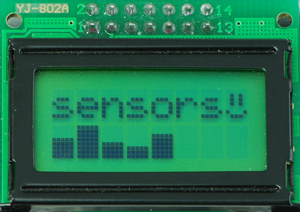
Demonstrates creating and displaying custom characters on the LCD. The following picture shows an example of custom characters, using them to display a bar graph of sensor readings and a smiley face:
 |
#include <pololu/orangutan.h>

// get random functions
#include <stdlib.h>

/*
 * lcd2: for the Orangutan controllers and 3pi robot
 *
 * This example uses the OrangutanLCD functions to display custom
 * characters on the LCD.  Simply push a any user pushbutton to
 * display a new, randomly chosen, custom mood character.
 *
 * http://www.pololu.com/docs/0J20
 * http://www.pololu.com
 * http://forum.pololu.com
 */

// define some custom "mood" characters
#include <avr/pgmspace.h>  // this lets us refer to data in program space (i.e. flash)
const char happy[] PROGMEM = {
  0b00000,                 // the five bits that make up the top row of the 5x8 character
  0b01010,
  0b01010,
  0b01010,
  0b00000,
  0b10001,
  0b01110,
  0b00000
};

const char sad[] PROGMEM = {
  0b00000,
  0b01010,
  0b01010,
  0b01010,
  0b00000,
  0b01110,
  0b10001,
  0b00000
};

const char indifferent[] PROGMEM = {
  0b00000,
  0b01010,
  0b01010,
  0b01010,
  0b00000,
  0b00000,
  0b01110,
  0b00000
};

const char surprised[] PROGMEM = {
  0b00000,
  0b01010,
  0b01010,
  0b00000,
  0b01110,
  0b10001,
  0b10001,
  0b01110
};

const char mocking[] PROGMEM = {
  0b00000,
  0b01010,
  0b01010,
  0b01010,
  0b00000,
  0b11111,
  0b00101,
  0b00010
};

char prevMood = 5;


int main()
{
  lcd_load_custom_character(happy, 0);
  lcd_load_custom_character(sad, 1);
  lcd_load_custom_character(indifferent, 2);
  lcd_load_custom_character(surprised, 3);
  lcd_load_custom_character(mocking, 4);
  clear();                  // this must be called before we can use the custom characters
  print("mood: ?");

  // initialize the random number generator based on how long
  // they hold the button the first time
  wait_for_button_press(ALL_BUTTONS);
  long seed = 0;
  while(button_is_pressed(ALL_BUTTONS))
    seed++;
  srandom(seed);

  while(1)
  {

    lcd_goto_xy(6, 0);             // move cursor to the correct position

    char mood;
    do
    {
      mood = random()%5;
    } while (mood == prevMood);   // ensure we get a new mood that differs from the previous
    prevMood = mood;

    print_character(mood);   // print a random mood character
    wait_for_button(ALL_BUTTONS);   // wait for any button to be pressed
  }

  return 0;
}
3.e. Orangutan LED Control Functions
Overview
These functions allow you to easily control the user LED(s) on the 3pi Robot, Orangutan SV, Orangutan SVP, Orangutan LV-168, and Baby Orangutan B. On the Orangutan SV-xx8 and LV-168, there are two user LEDs are on the top side of the PCB with the red LED on the bottom left and the green LED on the top right. On the 3pi, there are two user LEDs on the bottom side of the PCB with the red LED on the right (when looking at the bottom) and the green LED on the left. Additional LEDs included with the 3pi may be soldered in on the top side (in parallel with the surface-mount LEDs on the underside) for easier viewing. The Orangutan SVP has two user LEDs: a red LED on the bottom right and a green LED on the top left. The Baby Orangutan has a single red LED and no green LED.
Note that the red LED is on the same pin as the UART0 serial transmitter (PD1), so if you are using UART0 for serial transmission then the red LED commands will not work, and you will see the red LED blink briefly whenever data is transmitted on UART0. Note that the green LED is on the same pin as an LCD control pin; the green LED will blink briefly whenever data is sent to the LCD, but the two functions will otherwise not interfere with each other.
C++ users: See Section 5.d of Programming Orangutans and the 3pi Robot from the Arduino Environment for examples of this class in the Arduino environment, which is almost identical to C++.
Complete documentation of these functions can be found in Section 10 of the Pololu AVR Library Command Reference.
This library comes with an example program in libpololu-avr\examples.
1. led1
A simple example that blinks LEDs.
#include <pololu/orangutan.h>

/*
 * led1: for the 3pi robot, Orangutan LV 168, Orangutan SV-xx8, Orangutan SVP,
 *   or Baby Orangutan B
 *
 * This program uses the OrangutanLEDs functions to control the red and green
 * LEDs on the 3pi robot or Orangutan.  It will also work to control the red
 * LED on the Baby Orangutan B (which lacks a second, green LED).
 *
 * http://www.pololu.com/docs/0J20
 * http://www.pololu.com
 * http://forum.pololu.com
 */


int main()
{
  while(1)
  {
    red_led(1);               // red LED on
    delay_ms(1000);           // waits for a second
    red_led(0);               // red LED off
    delay_ms(1000);           // waits for a second
    green_led(1);             // green LED on (will not work on the Baby Orangutan)
    delay_ms(500);            // waits for 0.5 seconds
    green_led(0);             // green LED off (will not work on the Baby Orangutan)
    delay_ms(500);            // waits for 0.5 seconds
  }

  return 0;
}
3.f. Orangutan Motor Control Functions
Overview
This set of functions gives you the ability to control the motor drivers on the 3pi Robot, Orangutan SV, Orangutan SVP, Orangutan LV-168, Baby Orangutan B, and Orangutan X2. For all controllers except the SVP and the X2, it accomplishes this by using the four hardware PWM outputs from timers Timer0 and Timer2, so when used with all boards other than the SVP and the X2, this library will conflict with any other libraries that rely on or reconfigure Timer0 or Timer2. On the SVP, these motor control functions only use Timer2 (they do not affect Timer0). No timers are used for motor control on the X2; for that board, these functions just send the appropriate SPI commands to the X2’s auxiliary processor, which takes care of generating the appropriate control signals for the X2’s motor drivers.
C++ users: See Section 5.e of Programming Orangutans and the 3pi Robot from the Arduino Environment for examples of this class in the Arduino environment, which is almost identical to C++.
Complete documentation of these functions can be found in Section 7 of the Pololu AVR Library Command Reference.
Usage Examples
This library comes with two examples in libpololu-avr\examples.
1. motors1
Demonstrates controlling the motors using the trimmer potentiometer and uses the red LED for feedback.
#include <pololu/orangutan.h>

/*
 * motors1: for the Orangutan LV-168, Orangutan SV-xx8, Orangutan SVP,
 *    and Baby Orangutan B
 *
 * This example uses the OrangutanMotors functions to drive
 * motors in response to the position of user trimmer potentiometer
 * and blinks the red user LED at a rate determined by the trimmer
 * potentiometer position.  It uses the OrangutanAnalog library to measure
 * the trimpot position, and it uses the OrangutanLEDs library to provide
 * limited feedback with the red user LED.
 *
 * http://www.pololu.com/docs/0J20
 * http://www.pololu.com
 * http://forum.pololu.com
 */

unsigned long prevMillis = 0;

int main()
{
  while(1)
  {
    // note that the following line could also be accomplished with:
    // int pot = analogRead(7);
    int pot = read_trimpot();    // determine the trimpot position
    int motorSpeed = pot/2-256;  // turn pot reading into number between -256 and 255
	if(motorSpeed == -256)
		motorSpeed = -255; // 256 is out of range
    set_motors(motorSpeed, motorSpeed);

    int ledDelay = motorSpeed;
	if(ledDelay < 0)
	  ledDelay = -ledDelay;  // make the delay a non-negative number
	ledDelay = 256-ledDelay; // the delay should be short when the speed is high

    red_led(1);       // turn red LED on
    delay_ms(ledDelay);

    red_led(0);       // turn red LED off
	delay_ms(ledDelay);
  }
}
2. motors2
Demonstrates controlling the motors using the trimmer potentiometer, but it uses the LCD for most of the feedback, so it will not fully work on the Baby Orangutan.
#include <pololu/orangutan.h>

/*
 * motors2: for the 3pi robot, Orangutan LV-168,
 *    Orangutan SVP, and Orangutan SV-xx8.
 *
 * This example uses the OrangutanMotors and OrangutanLCD libraries to drive
 * motors in response to the position of user trimmer potentiometer
 * and to display the potentiometer position and desired motor speed
 * on the LCD.  It uses the OrangutanAnalog library to measure the
 * trimpot position, and it uses the OrangutanLEDs library to provide
 * limited feedback with the red and green user LEDs.
 *
 *
 * http://www.pololu.com/docs/0J20
 * http://www.pololu.com
 * http://forum.pololu.com
 */

int main()                     // run over and over again
{
  while(1)
  {
    // note that the following line could also be accomplished with:
    // int pot = analogRead(7);
    int pot = read_trimpot();  // determine the trimpot position

    // avoid clearing the LCD to reduce flicker
    lcd_goto_xy(0, 0);
    print("pot=");
    print_long(pot);               // print the trim pot position (0 - 1023)
    print("  ");              // overwrite any left over digits

    int motorSpeed = (512 - pot) / 2;
    lcd_goto_xy(0, 1);
    print("spd=");
    print_long(motorSpeed);        // print the resulting motor speed (-255 - 255)
    print("   ");
    set_motors(motorSpeed, motorSpeed);  // set speeds of motors 1 and 2

    // all LEDs off
    red_led(0);
    green_led(0);
    // turn green LED on when motors are spinning forward
    if (motorSpeed > 0)
      green_led(1);
    // turn red LED on when motors are spinning in reverse
    if (motorSpeed < 0)
      red_led(1);
    delay_ms(100);
  }
}
3.g. Orangutan Pushbutton Interface Functions
Overview
This library allows you to easily interface with the three user pushbuttons on the 3pi robot, Orangutan SV, Orangutan SVP, and Orangutan LV-168 by either polling for the state of specific buttons or by waiting for press/release events on specifiable buttons. The first time any function in this section is called, the function will initialize all the button I/O pins to be inputs and enable their internal pull-up resistors. The wait_for_button_…() methods in this library automatically take care of button debouncing.
C++ users: See Section 5.f of Programming Orangutans from the Arduino Environment for examples of this class in the Arduino environment, which is almost identical to C++.
Complete documentation of these functions can be found in Section 9 of the Pololu AVR Library Command Reference.
This library comes with an example program in libpololu-avr\examples.
1. pushbuttons1
Demonstrates interfacing with the user pushbuttons. It will wait for you to push either the top button or the bottom button, at which point it will display on the LCD which button was pressed. It will also detect when that button is subsequently released and display that to the LCD.
#include <pololu/orangutan.h>

/*
 * OrangutanPushbuttonExample: for the Orangutan LV-168,
 *   Orangutan SV-xx8, Orangutan SVP, and 3pi robot
 *
 * This example uses the OrangutanPushbuttons library to detect user
 * input from the pushbuttons, and it uses the OrangutanLCD library to
 * display feedback on the LCD.
 *
 * http://www.pololu.com/docs/0J20
 * http://www.pololu.com
 * http://forum.pololu.com
 */

int main()
{
  while(1)
  {
    clear();
    print("Waiting");

    // wait for either the top or bottom buttons to be pressed
    // store the value of the pressed button in the variable 'button'
    unsigned char button = wait_for_button_press(TOP_BUTTON | BOTTOM_BUTTON);
    clear();
    if (button == TOP_BUTTON)     // display the button that was pressed
      print("top down");
    else
      print("bot down");
    wait_for_button_release(button);  // wait for that button to be released
    clear();
    print("released");      // display that the button was released
    delay_ms(1000);
  }
}
3.h. Orangutan Serial Port Communication Functions
Overview
This section of the library provides routines for accessing the serial port (USART) on the 3pi robot, Orangutan SV, Orangutan SVP, Orangutan LV-168, and Baby Orangutan B.
The serial port routines normally use the USART_UDRE_vect, USART_RX_vect, USART0_UDRE_vect, USART0_RX_vect, USART1_UDRE_vect, and USART1_RX_vect interrupts, so they will conflict with any code that also uses these interrupts.
On the 3pi robot, Orangutan SV, Orangutan LV-168, and Baby Orangutan B, using these functions will cause the red user LED functions to stop working, because the red LED is on the same pin as the UART transmitter (PD1/TXD). When the AVR is not transmitting bytes on TXD, the red LED will be on. When the AVR is transmitting bytes on TXD, the red LED will flicker.
On the Orangutan SVP, using these functions to control UART0 will cause the red user LED functions to stop working, because the red LED is on the same pin as the UART0 transmitter (PD1/TXD0). When the AVR is not transmitting bytes on TXD0, the red LED will be off. When the AVR is transmitting bytes on TXD0, the red LED will flicker. However, the AVR on the Orangutan SVP has two UARTs, so if you want to use the red LED and you only need one UART then you can use UART1 instead of UART0.
Complete documentation of this library’s methods can be found in Section 10 of the Pololu AVR Library Command Reference.
Usage Examples
Example code for making the 3pi Robot into a serial slave, controlled by another microcontroller, is given in Section 10.a of the Pololu 3pi Robot User’s Guide. This library also comes with an example program in libpololu-avr\examples:
serial1
#include <pololu/orangutan.h>

/*
 * serial1: for the Orangutan controllers and 3pi robot.
 *
 * This example listens for bytes on PD0/RXD.  Whenever it receives a byte, it
 * performs a custom action.  Whenever the user presses the middle button, it
 * transmits a greeting on PD1/TXD.
 *
 * The Baby Orangutan does not have a green LED, LCD, or pushbuttons so
 * that part of the code will not work.
 *
 * To make this example compile for the Orangutan SVP, you
 * must add a first argument of UART0 to all the serial_*
 * function calls.
 *
 * http://www.pololu.com/docs/0J20
 * http://www.pololu.com
 * http://forum.pololu.com
 */

// receive_buffer: A ring buffer that we will use to receive bytes on PD0/RXD.
// The OrangutanSerial library will put received bytes in to
// the buffer starting at the beginning (receiveBuffer[0]).
// After the buffer has been filled, the library will automatically
// start over at the beginning.
char receive_buffer[32];

// receive_buffer_position: This variable will keep track of which bytes in the receive buffer
// we have already processed.  It is the offset (0-31) of the next byte
// in the buffer to process.
unsigned char receive_buffer_position = 0;

// send_buffer: A buffer for sending bytes on PD1/TXD.
char send_buffer[32];

// wait_for_sending_to_finish:  Waits for the bytes in the send buffer to
// finish transmitting on PD1/TXD.  We must call this before modifying
// send_buffer or trying to send more bytes, because otherwise we could
// corrupt an existing transmission.
void wait_for_sending_to_finish()
{
	while(!serial_send_buffer_empty());
}

// process_received_byte: Responds to a byte that has been received on
// PD0/RXD.  If you are writing your own serial program, you can
// replace all the code in this function with your own custom behaviors.
void process_received_byte(char byte)
{
	switch(byte)
	{
		// If the character 'G' is received, turn on the green LED.
		case 'G':
			green_led(1);
			break;

		// If the character 'g' is received, turn off the green LED.
		case 'g':
			green_led(0);
			break;

		// If the character 'c' is received, play the note c.
		case 'c':
			play_from_program_space(PSTR("c16"));
			break;

		// If the character 'd' is received, play the note d.
		case 'd':
			play_from_program_space(PSTR("d16"));
			break;

		// If any other character is received, change its capitalization and
		// send it back.
		default:
			wait_for_sending_to_finish();
			send_buffer[0] = byte ^ 0x20;
			serial_send(send_buffer, 1);
			break;
	}
}

void check_for_new_bytes_received()
{
	while(serial_get_received_bytes() != receive_buffer_position)
	{
		// Process the new byte that has just been received.
		process_received_byte(receive_buffer[receive_buffer_position]);

		// Increment receive_buffer_position, but wrap around when it gets to
		// the end of the buffer.
		if (receive_buffer_position == sizeof(receive_buffer)-1)
		{
			receive_buffer_position = 0;
		}
		else
		{
			receive_buffer_position++;
		}
	}
}

int main()
{
	// Set the baud rate to 9600 bits per second.  Each byte takes ten bit
	// times, so you can get at most 960 bytes per second at this speed.
	serial_set_baud_rate(9600);

	// Start receiving bytes in the ring buffer.
	serial_receive_ring(receive_buffer, sizeof(receive_buffer));

    while(1)
    {
		// Deal with any new bytes received.
		check_for_new_bytes_received();

		// If the user presses the middle button, send "Hi there!"
		// and wait until the user releases the button.
		if (button_is_pressed(MIDDLE_BUTTON))
		{
			wait_for_sending_to_finish();
			memcpy_P(send_buffer, PSTR("Hi there!\r\n"), 11);
			serial_send(send_buffer, 11);

			// Wait for the user to release the button.  While the processor is
			// waiting, the OrangutanSerial library will take care of receiving
			// bytes using the serial reception interrupt.  But if enough bytes
			// arrive during this period to fill up the receive_buffer, then the
			// older bytes will be lost and we won't know exactly how many bytes
			// have been received.
			wait_for_button_release(MIDDLE_BUTTON);
		}
    }
}
3.i. Orangutan Servo Control Functions
Overview
This section of the library provides commands for generating digital pulses to control servos.
Complete documentation of these functions can be found in Section 11 of the Pololu AVR Library Command Reference.
Note: The OrangutanServos and OrangutanBuzzer libraries both use Timer 1, so they will conflict with each other and any other code that relies on or reconfigures Timer 1.
Servos
A servo motor (also called hobby servo or RC servo) is a device containing a motor that you can command to turn to a specific location. To control a servo, you must connect its three wires properly. The black wire is ground, and should be connected to the ground line of your Orangutan. The red line is power, and should be connected to power supply with a voltage that is within the operating range of your servo, and that is capable of supplying all the current that your servo might draw. The white line is signal, and should be connected to a pin that generates servo pulses, such as an I/O line on the Orangutan. The Orangutan I/O header blocks make it easy to connect your servos, because each column of the block contains ground, power, and an I/O line in the correct order.
To make your servo move, you must output a high pulse to the signal line every 20 ms. The pulse width (also called pulse length or pulse duration) determines which position the servo will move to. Thus, every pulse width (typically measured in microseconds) corresponds to some angle (typically measured in degrees) of the servo’s output shaft. Typical servos have a limited range of motion, and this entire range of motion can be reached with pulse widths between 1 ms and 2 ms.
Take care when choosing pulse widths, because some servos are capable of breaking themselves if they are commanded to move to a position outside their range of motion. To start off, you can send pulse widths of 1.5 ms and then slowly change the pulse width until you discover its upper and lower limits.
Orangutan Servo Control
The OrangutanServos section of the library allows you to generate the control pulses for up to 16 servos.
On every Orangutan except the Orangutan SVP, each servo requires one free I/O pin. The library allows you to choose which I/O pins to use for your servos. On the Baby Orangutan B, there are enough free I/O lines for you to control the full 16 servos. On the Orangutan SV and Orangutan LV-168, there are 8 free I/O lines so you can easily control eight servos, but you can control more servos if you remove the LCD or other unused hardware. The pulses are generated using software PWM.
On the Orangutan SVP, the pulses (for your first 8 servos) are all generated on pin PD5. This pin is a hardware PWM output (OC1A), so the OrangutanServos library generates the servo pulses using hardware PWM, which is more accurate and takes less CPU time than software PWM. Pin PD5 is connected to the input line of an on-board 8-output demultiplexer. If you just need to control one servo, you can leave the demultiplexer input lines disconnected, and plug your servo in to servo port 0. If you want to control more than one servo, then you must choose which free I/O lines to connect to the demultiplexer’s three output-selection lines. If you use one I/O line, you can control two servos. If you use two I/O lines, you can control up to four servos. If you use three I/O lines, then you can control up to eight servos. If you need to control more than 8 servos then you can use software PWM to control up to eight more servos (for a total of 16).
Usage Examples
This library comes with several examples in libpololu-avr\examples.
1. svp-one-servo
This example program demonstrates how to control one servo on the Orangutan SVP using PD5.
#include <pololu/orangutan.h>

/*
 * svp-one-servo: for the Orangutan SVP.
 *
 * This example uses the OrangutanServos functions to control one servo.
 * The servo pulse signal is sent on pin PD5, which is hardwired to the
 * input of the demux.  The servo signal is available on demux output 0.
 * This example uses the OrangutanPushbuttons functions to take input
 * from the user, and the OrangutanLCD functions to display feedback on
 * the LCD.
 *
 * http://www.pololu.com/docs/0J20
 * http://www.pololu.com
 * http://forum.pololu.com
 */

int main()
{
	const unsigned char demuxPins[] = {};
	servos_init(demuxPins, sizeof(demuxPins));

	set_servo_target(0, 1300);	// Make the servo go to a neutral position.

	clear(); // Clear the LCD.

	while(1) // Loop forever.
	{
		// When the user presses the top button, execute a pre-programmed
		// sequence of servo movements.
		if (button_is_pressed(TOP_BUTTON))
		{
			// Set the servo speed to 150.  This means that the pulse width
			// will change by at most 15 microseconds every 20 ms.  So it will
			// take 1.33 seconds to go from a pulse width of 1000 us to 2000 us.
			set_servo_speed(0, 150);

			// Slowly move the servo to position 1800.
			set_servo_target(0, 1800);
			delay_ms(700);

			// Disable the speed limit
			set_servo_speed(0, 0);

			// Make the servo move back to position 1300 as fast as possible.
			set_servo_target(0, 1300);
		}

		if (button_is_pressed(BOTTOM_BUTTON))
		{
			// While the user holds down the bottom button, move the servo
			// slowly towards position 1800.
			set_servo_speed(0, 60);
			set_servo_target(0, 1800);
			wait_for_button_release(BOTTOM_BUTTON);

			// When the user releases the bottom button, print its current
			// position (in microseconds) and then move it back quickly.
			clear();
			print_long(get_servo_position(0));
			print_from_program_space(PSTR(" \xE4s"));
			set_servo_speed(0, 0);
			set_servo_target(0, 1300);
		}
	}
}

// Local Variables: **
// mode: C **
// c-basic-offset: 4 **
// tab-width: 4 **
// indent-tabs-mode: t **
// end: **
2. svp-eight-servo
This example program demonstrates how to control up to eight servos on the Orangutan SVP using the hardware demultiplexer.
#include <pololu/orangutan.h>

/*
 * svp-eight-servo: for the Orangutan SVP.
 *
 * This example uses the OrangutanServos functions to control eight servos.
 * To use this example, you must connect the correct AVR I/O pins to their
 * corresponding servo demultiplexer output-selection pins.
 *   - Connect PB3 to SA.
 *   - Connect PB4 to SB.
 *   - Connect PC0 to SC.
 *
 * http://www.pololu.com/docs/0J20
 * http://www.pololu.com
 * http://forum.pololu.com
 */

int main()
{
	// This array specifies the correspondence between I/O pins and DEMUX
	// output-selection pins.  This demo uses three pins, which allows you
	// to control up to 8 servos.  You can also use two, one, or zero pins
	// to control fewer servos.
	const unsigned char demuxPins[] = {IO_B3, IO_B4, IO_C0}; // 8 servos
	//const unsigned char demuxPins[] = {IO_B3, IO_B4};      // four servos
	//const unsigned char demuxPins[] = {IO_B3};             // two servos
	//const unsigned char demuxPins[] = {};                  // one servo

	servos_init(demuxPins, sizeof(demuxPins));

	// Set the servo speed to 150.  This means that the pulse width
	// will change by at most 15 microseconds every 20 ms.  So it will
	// take 1.33 seconds to go from a pulse width of 1000 us to 2000 us.
	set_servo_speed(0, 150);
	set_servo_speed(1, 150);
	set_servo_speed(2, 150);
	set_servo_speed(3, 150);
	set_servo_speed(4, 150);
	set_servo_speed(5, 150);
	set_servo_speed(6, 150);
	set_servo_speed(7, 150);

	// Make all the servos go to a neutral position.
	set_servo_target(0, 1300);
	set_servo_target(1, 1300);
	set_servo_target(2, 1300);
	set_servo_target(3, 1300);
	set_servo_target(4, 1300);
	set_servo_target(5, 1300);
	set_servo_target(6, 1300);
	set_servo_target(7, 1300);

	while(1)  // Loop forever.
	{
		// When the user presses the top button, execute a pre-programmed
		// sequence of servo movements.
		if (button_is_pressed(TOP_BUTTON))
		{
			set_servo_target(0, 1800); delay_ms(350);
			set_servo_target(1, 1800); delay_ms(350);
			set_servo_target(2, 1800); delay_ms(350);
			set_servo_target(3, 1800); delay_ms(350);
			set_servo_target(4, 1800); delay_ms(350);
			set_servo_target(5, 1800); delay_ms(350);
			set_servo_target(6, 1800); delay_ms(350);
			set_servo_target(7, 1800); delay_ms(1000);

			set_servo_target(0, 1300); delay_ms(350);
			set_servo_target(1, 1300); delay_ms(350);
			set_servo_target(2, 1300); delay_ms(350);
			set_servo_target(3, 1300); delay_ms(350);
			set_servo_target(4, 1300); delay_ms(350);
			set_servo_target(5, 1300); delay_ms(350);
			set_servo_target(6, 1300); delay_ms(350);
			set_servo_target(7, 1300); delay_ms(350);
		}
	}
}
3. svp-sixteen-servo
This example program demonstrates how to control up to sixteen servos on the Orangutan SVP using the hardware demultiplexer.
#include <pololu/orangutan.h>

/*
 * svp-sixteen-servo: for the Orangutan SVP.
 *
 * This example uses the OrangutanServos functions to control sixteen servos.
 * To use this example, you must connect the correct AVR I/O pins to their
 * corresponding servo demultiplexer output-selection pins.
 *   - Connect PB3 to SA.
 *   - Connect PB4 to SB.
 *   - Connect PC0 to SC.
 * Servos a0-a7 will be on the servo demux outputs.
 * Servos b0-b7 will be on pins PA0-PA7.
 *
 * http://www.pololu.com/docs/0J20
 * http://www.pololu.com
 * http://forum.pololu.com
 */

int main()
{
	// This array specifies the correspondence between I/O pins and DEMUX
	// output-selection pins.  This demo uses three pins, which allows you
	// to control up to 8 servos from the demux.
	const unsigned char demuxPins[] = {IO_B3, IO_B4, IO_C0}; // B3=SA, B4=SB, C0=B5.

	// This array specifies the correspondence between I/O pins and
	// software-PWMed servos.
	const unsigned char servoPinsB[] = {IO_A0, IO_A1, IO_A2, IO_A3,
	    IO_A4, IO_A5, IO_A6, IO_A7};

	servos_init_extended(demuxPins, sizeof(demuxPins), servoPinsB, sizeof(servoPinsB));

	// Set the servo speed to 150.  This means that the pulse width
	// will change by at most 15 microseconds every 20 ms.  So it will
	// take 1.33 seconds to go from a pulse width of 1000 us to 2000 us.
	set_servo_speed(0, 150);   // Servo a0 = Demux output 0
	set_servo_speed(1, 150);   // Servo a1 = Demux output 1
	set_servo_speed(2, 150);   // Servo a2 = Demux output 2
	set_servo_speed(3, 150);   // Servo a3 = Demux output 3
	set_servo_speed(4, 150);   // Servo a4 = Demux output 4
	set_servo_speed(5, 150);   // Servo a5 = Demux output 5
	set_servo_speed(6, 150);   // Servo a6 = Demux output 6
	set_servo_speed(7, 150);   // Servo a7 = Demux output 7
	set_servo_speedB(0, 150);  // Servo b0 = pin A0
	set_servo_speedB(1, 150);  // Servo b1 = pin A1
	set_servo_speedB(2, 150);  // Servo b2 = pin A2
	set_servo_speedB(3, 150);  // Servo b3 = pin A3
	set_servo_speedB(4, 150);  // Servo b4 = pin A4
	set_servo_speedB(5, 150);  // Servo b5 = pin A5
	set_servo_speedB(6, 150);  // Servo b6 = pin A6
	set_servo_speedB(7, 150);  // Servo b7 = pin A7

	// Make all the servos go to a neutral position.
	set_servo_target(0, 1300);
	set_servo_target(1, 1300);
	set_servo_target(2, 1300);
	set_servo_target(3, 1300);
	set_servo_target(4, 1300);
	set_servo_target(5, 1300);
	set_servo_target(6, 1300);
	set_servo_target(7, 1300);
	set_servo_targetB(0, 1300);
	set_servo_targetB(1, 1300);
	set_servo_targetB(2, 1300);
	set_servo_targetB(3, 1300);
	set_servo_targetB(4, 1300);
	set_servo_targetB(5, 1300);
	set_servo_targetB(6, 1300);
	set_servo_targetB(7, 1300);

	while(1)  // Loop forever.
	{
		// When the user presses the top button, execute a pre-programmed
		// sequence of servo movements.
		if (button_is_pressed(TOP_BUTTON))
		{
			set_servo_target(0, 1800); delay_ms(350);
			set_servo_target(1, 1800); delay_ms(350);
			set_servo_target(2, 1800); delay_ms(350);
			set_servo_target(3, 1800); delay_ms(350);
			set_servo_target(4, 1800); delay_ms(350);
			set_servo_target(5, 1800); delay_ms(350);
			set_servo_target(6, 1800); delay_ms(350);
			set_servo_target(7, 1800); delay_ms(350);
			set_servo_targetB(0, 1800); delay_ms(350);
			set_servo_targetB(1, 1800); delay_ms(350);
			set_servo_targetB(2, 1800); delay_ms(350);
			set_servo_targetB(3, 1800); delay_ms(350);
			set_servo_targetB(4, 1800); delay_ms(350);
			set_servo_targetB(5, 1800); delay_ms(350);
			set_servo_targetB(6, 1800); delay_ms(350);
			set_servo_targetB(7, 1800); delay_ms(1000);

			set_servo_target(0, 1300); delay_ms(350);
			set_servo_target(1, 1300); delay_ms(350);
			set_servo_target(2, 1300); delay_ms(350);
			set_servo_target(3, 1300); delay_ms(350);
			set_servo_target(4, 1300); delay_ms(350);
			set_servo_target(5, 1300); delay_ms(350);
			set_servo_target(6, 1300); delay_ms(350);
			set_servo_target(7, 1300); delay_ms(350);
			set_servo_targetB(0, 1300); delay_ms(350);
			set_servo_targetB(1, 1300); delay_ms(350);
			set_servo_targetB(2, 1300); delay_ms(350);
			set_servo_targetB(3, 1300); delay_ms(350);
			set_servo_targetB(4, 1300); delay_ms(350);
			set_servo_targetB(5, 1300); delay_ms(350);
			set_servo_targetB(6, 1300); delay_ms(350);
			set_servo_targetB(7, 1300); delay_ms(350);
		}
	}
}

// Local Variables: **
// mode: C **
// c-basic-offset: 4 **
// tab-width: 4 **
// indent-tabs-mode: t **
// end: **
3.j. Orangutan SVP Functions
Overview
The Orangutan SVP is based on the AVR ATmega324 or ATmega1284 processor. It has an auxiliary processor that provides the USB connection, five configurable input lines, and battery voltage reading. Several parts of the Pololu AVR C/C++ Library have built-in support for using the auxiliary processor, so you will not need to worry about the details of the Serial Peripheral Interface (SPI) protocol used to talk to the auxiliary processor. If you are curious about the details of the SPI protocol, you can read the C++ source code of the library.
Complete documentation of the SVP-specific functions can be found in Section 13 of the Pololu AVR Library Command Reference.
An overview of the analog input functions, which support reading the analog inputs on the SVP’s auxiliary processor, can be found in Section 3.a. An overview of the serial port communication functions, which support sending and receiving bytes from the computer via the auxiliary processor’s USB connection, can be found in Section 3.h.
Setting the mode
One of the first things to think about when writing a program for the SVP is what mode you want the auxiliary processor to be in.
If you want to use quadrature encoders, you can use the SVP_MODE_ENCODERS mode and let the auxiliary processor handle the readings from two quadrature encoders on lines A, B, C and D/RX.
If you want to maximize the number of analog inputs available, you can use the SVP_MODE_ANALOG mode which makes A, B, C, and D/RX be analog inputs. The ADC/SS line is also available as an analog input. It is hardwired to a user trimpot, but you can cut the labeled trace between ADC/SS and POT on the bottom of the board to disconnect the pot, and then connect something else to that pin. This allows you to use a total of 13 analog inputs: eight on the AVR and five on the auxiliary processor. All 13 inputs can be read using the same functions (see Section 3.a), so you don’t need to worry too much about which processor is converting them.
If you want to receive TTL-level serial bytes on your computer, you can use the SVP_MODE_RX mode (the default) which makes A, B, and C be analog inputs and D/RX be the serial receive line. In this mode, TTL-level serial bytes received on the RX line will be sent to the computer on the Pololu Orangutan SVP TTL Serial Port. The RX line, along with the TX line (which is always the serial transmit line) make the Orangutan SVP’s auxiliary processor function as a USB-to-TTL-serial adapter for your computer, allowing you to control serial devices from your computer. Alternatively, you can control the serial devices directly from the AVR using the functions in Section 3.h and you can use the RX line to monitor and debug the bytes that are being transmitted (or received) by the AVR.
You can use the setMode() command at the beginning of your program to set the mode of the auxiliary processor. See the Pololu AVR Library Command Reference for details.
Powered by SPI
Whenever you call a function in the Pololu AVR Library that uses the auxiliary processor, the function might initiate SPI communication to the auxiliary processor. This means that the MOSI (PB5) and SCK (PB7) pins will be set to outputs, the MISO (PB6) pin will be set as an input, a pull-up resistor will be enabled on SS (PB4) if it is an input, and the AVR’s hardware SPI module will be enabled. The functions that do this include any analog input function that uses an input on the auxiliary processor, any function for reading the battery voltage or trimpot, any serial port function that uses the USB_COMM port, and any function specific to the Orangutan SVP (Section 13 of the Command Reference).
PB4 should be an output
In order for the functions that talk to the auxiliary processor to work, the SS (PB4) pin must either be an output or be an input that is always high. The AVR’s SPI module is designed so that if SS is an input and it reads low (0 V), then the SPI module will automatically go in to slave mode (the MSTR bit in SPCR will become zero), making it impossible to communicate with the auxiliary processor. Therefore, it is recommended that you make SS an output at the beginning of your program. This can be done with one of the following lines of code:
set_digital_output(IO_B4, LOW); // Make SSbar an output (C only)
OrangutanDigital::setOutput(IO_B4, LOW); // Make SSbar an output (C++ only)
DDRB |= 1<<DDB4; // Make SSbar an output
Usage Examples
This library comes with an example program in libpololu-avr\examples.
1. svp1
A simple example that demonstrates some SVP-specific functions.
#include <pololu/orangutan.h>

/*
 * svp1: for the Orangutan SVP.
 *
 * This example uses the OrangutanSVP functions to set the mode of the
 * auxiliary processor, take analog readings on line D/RX, and display
 * information about the Orangutan's current USB device state on the LCD.
 *
 * http://www.pololu.com/docs/0J20
 * http://www.pololu.com
 * http://forum.pololu.com
 */

int main()
{
  // Make SSbar be an output so it does not interfere with SPI communication.
  set_digital_output(IO_B4, LOW);

  // Set the mode to SVP_MODE_ANALOG so we can get analog readings on line D/RX.
  svp_set_mode(SVP_MODE_ANALOG);

  while(1)
  {
    clear(); // Erase the LCD.

    if (usb_configured())
    {
      // Connected to USB and the computer recognizes the device.
      print("USB");
    }
    else if (usb_power_present())
    {
      // Connected to USB.
      print("usb");
    }

    if (usb_suspend())
    {
      // Connected to USB, in the Suspend state.
      lcd_goto_xy(4,0);
      print("SUS");
    }

    if (dtr_enabled())
    {
      // The DTR virtual handshaking line is 1.
      // This often means that a terminal program is conencted to the
      // Pololu Orangutan SVP USB Communication Port.
      lcd_goto_xy(8,0);
      print("DTR");
    }

    if (rts_enabled())
    {
      // The RTS virtual handshaking line is 1.
      lcd_goto_xy(12,0);
      print("RTS");
    }

    // Display an analog reading from channel D, in millivolts.
    lcd_goto_xy(0,1);
    print("Channel D: ");
    print_long(analog_read_millivolts(CHANNEL_D));

    // Wait for 100 ms, otherwise the LCD would flicker.
    delay_ms(100);
  }
}
3.k. Pololu QTR Sensor Functions
Overview
This set of functions provides access to the QTR family of reflectance sensors, which come as single-sensor units (QTR-1A and QTR-1RC) or as 8-sensor arrays (QTR-8A and QTR-8RC). To initialize the set of sensors that you are using, choose either the qtr_analog_init() or qtr_rc_init() function, and specify the set of pins connected to the sensors that you will be using. The initialization may only be called once within the C environment, while C++ allows the sensors to be used in more complicated ways.
These functions are used by the 3pi support described in the 3pi Robot User’s Guide. We do not recommend using these functions directly on the 3pi unless you are adding additional sensors.
C++ and Arduino users: See Section 3 of Arduino Library for the Pololu QTR Reflectance Sensors for examples of this class in the Arduino environment, which is almost identical to C++. Please note that the Arduino version of this library is implemented differently from the Pololu AVR Library version, so make sure you download the version appropriate for your platform.
Complete documentation of these functions can be found in Section 16 of the Pololu AVR Library Command Reference.
Usage Notes
Calibration
This library allows you to use the calibrate() method to easily calibrate your sensors for the particular conditions it will encounter. Calibrating your sensors can lead to substantially more reliable sensor readings, which in turn can help simplify your code. As such, we recommend you build a calibration phase into your application’s initialization routine. This can be as simple as a fixed duration over which you repeated call the calibrate() method. During this calibration phase, you will need to expose each of your reflectance sensors to the lightest and darkest readings they will encounter. For example, if you have made a line follower, you will want to slide it across the line during the calibration phase so the each sensor can get a reading of how dark the line is and how light the ground is. A sample calibration routine would be:
#include <pololu/orangutan.h>

int main()
{
  // initialize your QTR sensors
  unsigned char qtr_rc_pins[] = {IO_C0, IO_C1, IO_C2};
  qtr_rc_init(qtr_rc_pins, 3, 2000, 255);  // 800 us timeout, no emitter pin
  // int qtr_analog_pins[] = {0, 1, 2};
  // qtr_analog_init(qtr_analog_pins, 3, 10, IO_C0); // 10 samples, emitter pin is PC0

  // optional: wait for some input from the user, such as  a button press

  // then start calibration phase and move the sensors over both
  // reflectance extremes they will encounter in your application:
  int i;
  for (i = 0; i < 250; i++)  // make the calibration take about 5 seconds
  {
    qtr_calibrate(QTR_EMITTERS_ON);
    delay(20);
  }

  // optional: signal that the calibration phase is now over and wait for further
  // input from the user, such as a button press

  while (1)
  {
    // main body of program goes here
  }

  return 0;
}
Reading the Sensors
This library gives you a number of different ways to read the sensors.
- You can request raw sensor values using the read() method, which takes an optional argument that lets you perform the read with the IR emitters turned off (note that turning the emitters off is only supported by the QTR-8x reflectance sensor arrays).
- You can request calibrated sensor values using the qtr_read_calibrated() function, which also takes an optional argument that lets you perform the read with the IR emitters turned off. Calibrated sensor values will always range from 0 to 1000, with 0 being as or more reflective (i.e. whiter) than the most reflective surface encountered during calibration, and 1000 being as or less reflective (i.e. blacker) than the least reflective surface encountered during calibration.
- For line-detection applications, you can request the line location using the qtr_read_line() functions, which takes as optional parameters a boolean that indicates whether the line is white on a black background or black on a white background, and a boolean that indicates whether the IR emitters should be on or off during the measurement. qtr_read_line() provides calibrated values for each sensor and returns an integer that tells you where it thinks the line is. If you are using N sensors, a returned value of 0 means it thinks the line is on or to the outside of sensor 0, and a returned value of 1000 * (N-1) means it thinks the line is on or to the outside of sensor N-1. As you slide your sensors across the line, the line position will change monotonically from 0 to 1000 * (N-1), or vice versa. This line-position value can be used for closed-loop PID control.
A sample routine to obtain the sensor values and perform rudimentary line following would be:
void loop()  // call this routine repeatedly from your main program
{
  unsigned int sensors[3];
  // get calibrated sensor values returned in the sensors array,
  // along with the line position.
  // position will range from 0 to 2000, with 1000 corresponding
  // to the line over the middle sensor
  int position = qtr_read_line(sensors, QTR_EMITTERS_ON);

  // if all three sensors see very low reflectance, take some
  // appropriate action for this situation
  if (sensors[0] > 750 && sensors[1] > 750 && sensors[2] > 750)
  {
    // do something.  Maybe this means we're at the edge of a
    // course or about to fall off a table, in which case, we might
    // want to stop moving, back up, and turn around.
    return;
  }

  // compute our "error" from the line position.  We will make it so that the
  // error is zero when the middle sensor is over the line, because this is
  // our goal.  Error will range from -1000 to +1000.  If we have sensor 0 on
  // the left and sensor 2 on the right,  a reading of -1000 means that we
  // see the line on the left and a reading of +1000 means we see the line
  // on the right.
  int error = position - 1000;

  int leftMotorSpeed = 100;
  int rightMotorSpeed = 100;
  if (error < -500)  // the line is on the left
    leftMotorSpeed = 0;  // turn left
  if (error > 500)  // the line is on the right
    rightMotorSpeed = 0;  // turn right

  // set motor speeds using the two motor speed variables above
}
PID Control
The integer value returned by qtr_read_line() can be easily converted into a measure of your position error for line-following applications, as was demonstrated in the previous code sample. The function used to generate this position/error value is designed to be monotonic, which means the value will almost always change in the same direction as you sweep your sensors across the line. This makes it a great quantity to use for PID control.
Explaining the nature of PID control is beyond the scope of this document, but Wikipedia has a very good article on the subject.
The following code gives a very simple example of PD control (I find the integral PID term is usually not necessary when it comes to line following). The specific nature of the constants will be determined by your particular application, but you should note that the derivative constant Kd is usually much bigger than the proportional constant Kp. This is because the derivative of the error is a much smaller quantity than the error itself, so in order to produce a meaningful correction it needs to be multiplied by a much larger constant.
int lastError = 0;

void loop()  // call this routine repeatedly from your main program
{
  unsigned int sensors[3];
  // get calibrated sensor values returned in the sensors array,
  // along with the line position.
  // position will range from 0 to 2000, with 1000 corresponding
  // to the line over the middle sensor
  int position = qtr_read_line(sensors, QTR_EMITTERS_ON);

  // compute our "error" from the line position.  We will make it so
  // that the error is zero when the middle sensor is over the line,
  // because this is our goal.  Error will range from -1000 to +1000.
  // If we have sensor 0 on the left and sensor 2 on the right,  a
  // reading of -1000 means that we see the line on the left and a
  // reading of +1000 means we see the line on the right.
  int error = position - 1000;

  // set the motor speed based on proportional and derivative PID terms
  // KP is the a floating-point proportional constant (maybe start with a value around 0.1)
  // KD is the floating-point derivative constant (maybe start with a value around 5)
  // note that when doing PID, it's very important you get your signs right, or else the
  // control loop will be unstable
  int motorSpeed = KP * error + KD * (error - lastError);
  lastError = error;

  // M1 and M2 are base motor speeds.  That is to say, they are the
  // speeds the motors should spin at if you are perfectly on the line
  // with no error.  If your motors are well matched, M1 and M2 will be
  // equal.  When you start testing your PID loop, it might help to start
  // with small values for M1 and M2.  You can then increase the speed
  // as you fine-tune your PID constants KP and KD.
  int m1Speed = M1 + motorSpeed;
  int m2Speed = M2 - motorSpeed;

  // it might help to keep the speeds positive (this is optional)
  // note that you might want to add a similiar line to keep the speeds from exceeding
  // any maximum allowed value
  if (m1Speed < 0)
    m1Speed = 0;
  if (m2Speed < 0)
    m2Speed = 0;

  // set motor speeds using the two motor speed variables above
}
3.l. Pololu Wheel Encoder Functions
The PololuWheelEncoders class and the associated C functions provide an easy interface for using the Pololu Wheel Encoders, which allow a robot to know exactly how far its motors have turned at any point in time. Note that this library should work with all standard quadrature encoders, not just the Pololu Wheel Encoders.
This section of the library makes uses of pin-change interrupts to quickly detect and record each transition on the encoder. Interrupt vectors for PCINT0, PCINT1, PCINT2 (and PCINT3 on the Orangutan SVP and X2) will be defined if functions from this library are used, even if the pins selected are all on a single port, so this section of the library will conflict with any other uses of these interrupts. The interrupt service routine (ISR) will take about 20-30 us. If you need better control of the interrupts used, or you want to write a more efficient ISR, you can copy the library code from PololuWheelEncoders.cpp into your own project and modify it as necessary.
Complete documentation of this library’s methods can be found in Section 18 of the Pololu AVR Library Command Reference.
Usage Notes
The two sensors A and B on the encoder board go through a four-step cycle as each tooth of the wheel passes by, for a total of 48 counts per revolution. This corresponds to about 3 mm for each count, though you will have to calibrate values for your own robot to get a precise measure of distance.
Normally, there will be at least 1 ms between counts, which gives the ISR plenty of time to finish one count before the next one occurs. This is very important, because if two counts occur quickly enough, the ISR will not be able to determine the direction of rotation. In this case, an error can be detected by the functions encoders_check_error_m1() or encoders_check_error_m2(). An error like this either corresponds to a miscalibration of the encoder or a timing issue with the software. For example, if interrupts are disabled for several ms while the wheels are spinning quickly, errors will probably occur.
Usage Examples
This library comes with one example program in libpololu-avr\examples. The example measures the outputs of two encoders, one connected to ports PC2 and PC3, and another connected to ports PC4 and PC5. The values of the two encoder outputs and errors (if any) are displayed on the LCD. For use on the Baby Orangutan, remove the LCD display code (and come up with some other way to use the values).
1. wheel_encoders1
#include <pololu/orangutan.h>

int main()
{
  // Initialize the encoders and specify the four input pins.
  encoders_init(IO_C2, IO_C3, IO_C4, IO_C5);

  while(1)
  {
    // Read the counts for motor 1 and print to LCD.
    lcd_goto_xy(0,0);
    print_long(encoders_get_counts_m1());
    print(" ");

    // Read the counts for motor 2 and print to LCD.
    lcd_goto_xy(4,0);
    print_long(encoders_get_counts_m2());
    print(" ");

    // Print encoder errors, if there are any.
    if(encoders_check_error_m1())
    {
      lcd_goto_xy(0,1);
      print("Error 1");
    }
    if(encoders_check_error_m2())
    {
      lcd_goto_xy(0,1);
      print("Error 2");
    }

    delay_ms(50);
  }
}
4. Using the Pololu AVR Library for your own projects
After getting one of the example projects to work with an Orangutan controller or 3pi robot, you can start working on more complicated programs of your own. The library provides easy access to all of the features of the Orangutans and 3pi, including the LCD screen, buttons, LEDs, motors, and buzzer. There are also functions in the library that make it easy for you to do more general-purpose operations with the AVR, such as timing and analog-to-digital conversion. The library also provides support for the Pololu QTR sensors and the Pololu Wheel Encoders (it should actually work for quadrature encoders in general). For a complete list of functions provided by the library, see the command reference.
Usually, the easiest way to adapt this code to your own projects will be to start with a working example and gradually add the things that you need, one step at a time. For Microchip Studio users, we recommend using the New Project templates installed by the library, which are documented in the Pololu AVR Programming Quick Start Guide. However, if you want to start from scratch, there are just a few things that you need to know. First, to use the library with C, you must place one of the following lines
C
#include <pololu/orangutan.h>
#include <pololu/3pi.h>
#include <pololu/qtr.h>
#include <pololu/encoders.h>
at the top of any C file that uses functions provided by the library. To use the library with C++, the equivalent lines are
C++
#include <pololu/orangutan>
#include <pololu/Pololu3pi.h>
#include <pololu/PololuQTRSensors.h>
#include <pololu/PololuWheelEncoders.h>
The line or lines that you include depend on which product you are using with the library.
Second, when compiling, you must link your object files with the appropriate libpololu_atmegaX.a file. This is accomplished by passing the -lpololu_atmegaX option to avr-gcc during the linking step, where X can be 48, 168, 328p, 324p, 644p, 1284p, or 1284p_x2.
To add the -lpololu_atmegaX option within AVR Studio 4, select Project > Configuration Options > Libraries. You should see libpololu_atmega48.a, libpololu_atmega168.a, libpololu_atmega328p.a, libpololu_atmega324p.a, libpololu_atmega644p.a, libpololu_atmega1284p.a, and libpololu_atmega1284p_x2.a listed as options in the left column. Select the file that matches the microcontroller you are programming and click “add library” to add it to your
project.
Note:
- 3pi robots with serial numbers less than 0J5840 use the ATmega168 microcontroller; 3pi robots with serial number 0J5840 or greater use the ATmega328P microcontroller.
- Original Orangutan X2s use the ATmega644P microcontroller; new X2s use the ATmega1284P microcontroller and require you link the libpololu_atmega1284p_x2.a library file.
- The Orangutan SVP-1284 requires you link the libpololu_atmega1284p.a library file.
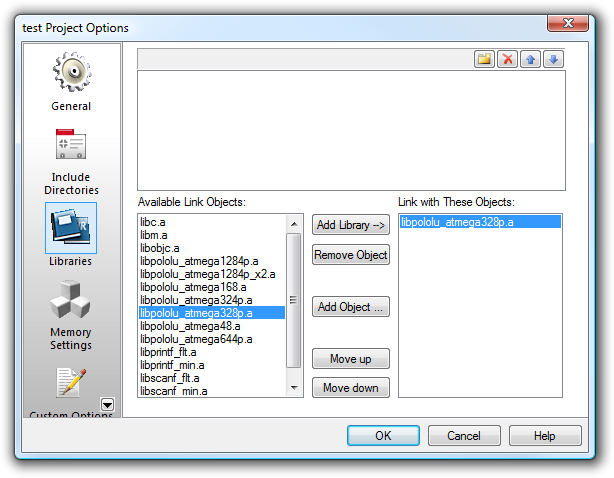 |
AVR Studio 4 library settings for using the Pololu AVR library (libpololu). |
|---|
Finally, we also strongly recommend the linker option -Wl,-gc-sections. This causes unused library functions to not be included, resulting in a much smaller code size. To include this in AVR Studio 4, select Project > Configuration Options > Custom Options. Click on [Linker options] and add -Wl,-gc-sections to the list. This linker option is included in both the AVR Studio and Linux-based example programs described earlier.
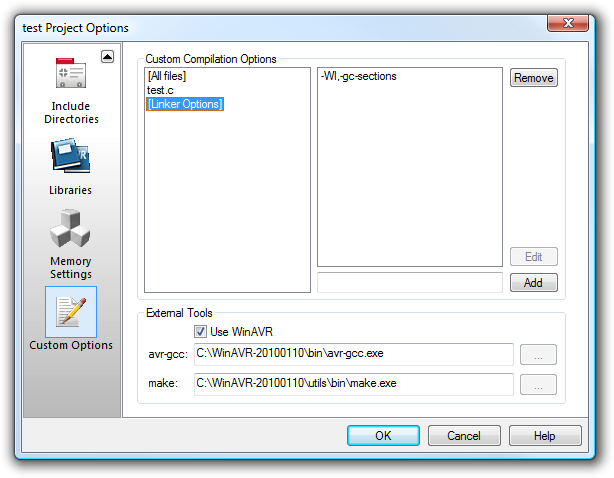 |
Recommended AVR Studio 4 linker options for projects using the Pololu AVR Library. |
|---|
Special option necessary for Orangutan X2
If you are using one of the newer Orangutan X2s that comes with a ATmega1284p processor, you must define the _X2_1284 preprocessor macro so that the Pololu AVR Library Header files know that you are programming an X2 rather than an Orangutan SVP-1284. To include this in AVR Studio 4, select Project > Configuration Options > Custom Options. Click on [All files] and add: -D_X2_1284. This compilation option is included in both the AVR Studio and Linux-based example programs for the Orangutan X2 1284.
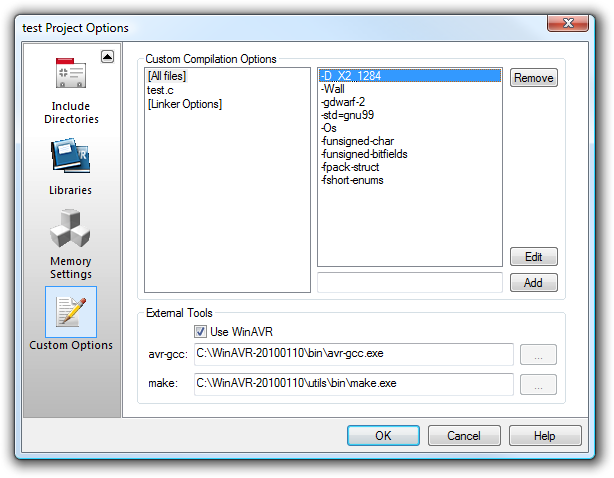 |
This picture shows how to configure AVR Studio 4 to use the -D_X2_1284 option, which is required when compiling a program a newer Orangutan X2 that has a ATmega1284p. |
|---|
5. Compiling the Pololu AVR Library (Optional)
This section is optional, for people who want to modify the library or get a better understanding of how it works. If you just want to install the library, proceed to Section 3.b for Windows, Section 4.b for Linux, or Section 5.b for Mac OS X.
It is assumed in this section that you have already installed the AVR cross-development tools and libraries for your development platform, and have downloaded and extracted the .zip file containing the Pololu AVR Library. The AVR Library can be downloaded as a .zip file from Section 2.a, and extracts to a directory called libpololu-avr.
Open a command prompt within the libpololu-avr directory. If avr-gcc is correctly installed on your system, you will be able to type “make clean”, then “make” to compile the entire library. Pay attention to any errors that occur during the build process. If all goes well, this will generate versions of the library for the ATmega48, ATmega168, ATmega328P, ATmega324PA, ATmega644P, ATmega1284P, and ATmega1284P-X2. If you see errors, it is likely that avr-gcc was installed improperly or in a way that is incompatible with the Makefile.
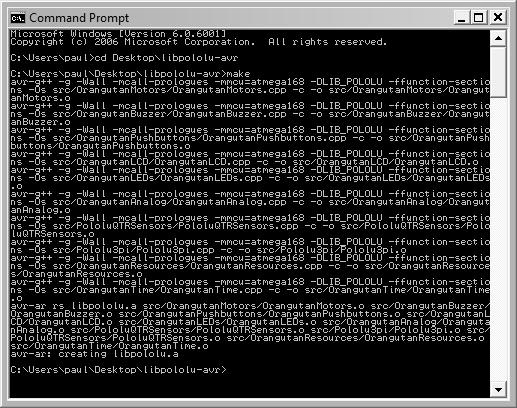 |
Compiling the Pololu AVR Library from the command prompt in Windows. |
|---|
6. Additional resources
To learn more about programming AVRs and using the Pololu AVR Library, see the following list of resources:
- Pololu AVR Library Command Reference: detailed information about every function in the library.
- Programming Orangutans and the 3pi Robot from the Arduino Environment: information about using this library to program Orangutans and the 3pi robot from within the Arduino environment.
- Arduino library for the Pololu QTR Reflectance Sensors: An Arduino library that includes the same functionality as the QTR sensor portion of this library, plus support for our second-generation dimmable QTR reflectance sensors
- Pololu 3pi Robot User’s Guide
- Pololu Orangutan SV and LV-168 User’s Guide
- Pololu Orangutan SVP User’s Guide
- Pololu Baby Orangutan B User’s Guide
- Pololu USB AVR Programmer User’s Guide
- Pololu Orangutan USB Programmer User’s Guide
- WinAVR
- AVR Studio 4
- AVR Libc Home Page
- ATmega328P documentation
- ATmega324PA documentation
- ATmega1284P documentation
- ATmega168 documentation
- Tutorial: AVR Programming on the Mac
- CrossPack for AVR Development
Finally, we would like to hear your comments and questions over at the Pololu Robotics Forum!
Related products


Home | Forum | Blog | Support | Ordering Information | Lists | Distributors | BIG Order Form | About | Contact
© 2001–2026 Pololu Corporation



