Support » Pololu Orangutan USB Programmer User’s Guide » 5. Getting Started Using Windows »
5.a. Using AVR Studio 4
Here we will show you step by step how to use AVR Studio 4 to make the red user LED blink on your Orangutan, Orangutan SV-168, Orangutan SV-328, Orangutan LV-168, Baby Orangutan, or 3pi robot. Please note that this program will not work on the Orangutan X2. If you want to skip the steps that set up the LED-blinker code and jump straight into using your Orangutan USB programmer, you can download the AVR Studio project these steps would help you create and proceed straight to step 4.
- mega48: BlinkLED_m48.zip (9k zip)
- mega168: BlinkLED_m168.zip (9k zip)
- mega328: BlinkLED_m328.zip (9k zip)
- Open AVR Studio and click New Project. Select AVR GCC for the project type. We called our project “BlinkLED” and elected to have a folder called “C:\BlinkLED” created containing the blank file “BlinkLED.c”. Click Next >>. DO NOT click “Finish” yet. If you do accidentally click “Finish”, you will not be able to perform step 2 and will instead have to set the device by going to the “Project” menu and selecting “Configuration Options”.
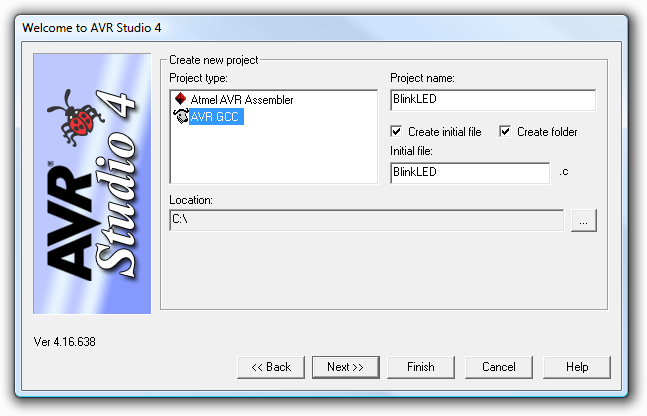
Creating a new AVR Studio 4 project, step 1
- Select AVR Simulator as the debug platform and then select the appropriate device for your Orangutan or 3pi. This will either be ATmega48, ATmega168, or ATmega328P depending on which chip your Orangutan or 3pi has. Click Finish.
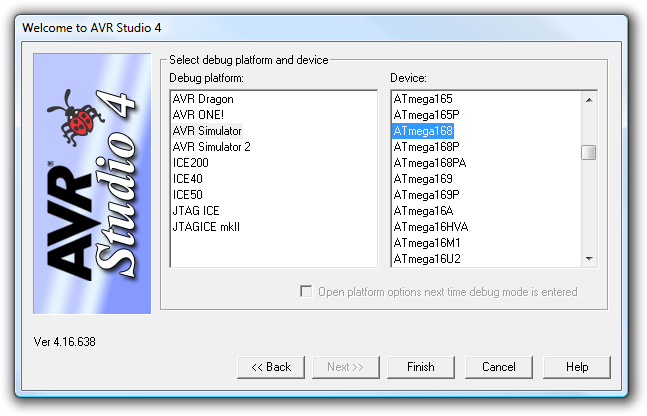
Creating a new AVR Studio 4 project, step 2
- Write your program in BlinkLED.c as seen in the screen shot below and click the Build button on the toolbar (or press F7), or just download the zipped BlinkLED project archive for your device from the list above.
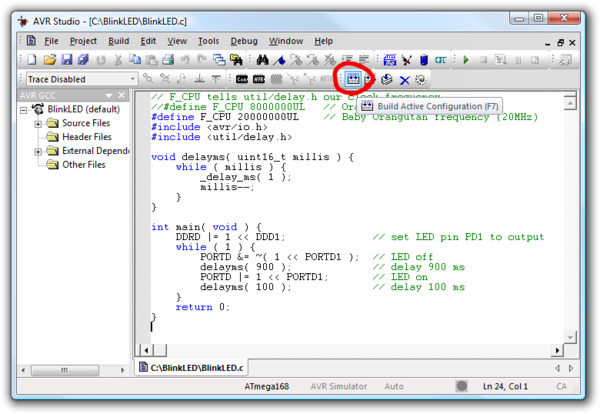
Building a project with AVR Studio
Note: You will probably want to customize this program slightly if you are working with an original Orangutan rather than a Baby Orangutan, Orangutan SV-168, Orangutan SV-328, Orangutan LV-168, or 3pi robot. F_CPU should be defined as the clock frequency of your target device in Hz. For the Orangutan this should be 8000000UL (8 MHz), while for the Orangutan SV-xx8, Orangutan LV-168, Baby Orangutan, and 3pi robot this should be 20000000UL (20 MHz). You can achieve this by commenting out line 3 and uncommenting line 2. If you don’t make this change, the timing of delayms() will be off.
- Make sure your Orangutan USB programmer is connected to your computer via its USB A to mini-B cable and then click the Display the ‘Connect’ Dialog button on the toolbar . You can also accomplish this by going to the “Tools” menu and selecting Program AVR → Connect….
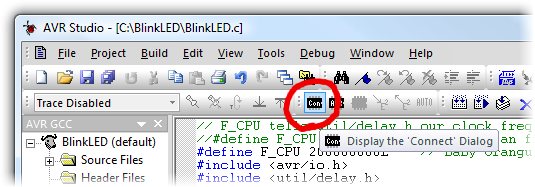
Connecting to the programmer with AVR Studio
- This will bring up a programmer selection dialog. The platform should be AVRISP. The Orangutan USB programmer uses AVR ISP version 2 (written as AVRISPv2), but this is not the same as AVR ISP mkII. Select the serial port of your programmer if you know what it is, or select Auto and it will try all the ports until it detects the programmer. You can determine your programmer’s serial port by looking in the “Ports (COM & LPT)” list of your Device Manager for “Pololu USB-to-serial adapter”. Click “Connect…” to bring up the AVRISP dialog. You should see the green programming status LED flash very briefly as the dialog appears. If an error dialog appears instead of the AVRISP dialog, your computer cannot detect the programmer; please go to Troubleshooting (Section 7) for help identifying and fixing the problem.
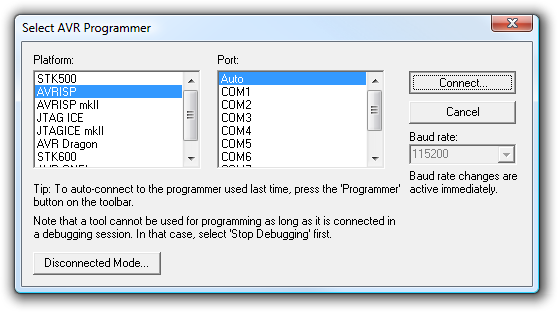
AVR Studio 4’s programmer-selection dialog
- If you have not done so already, connect your programmer to your Orangutan or 3pi using the 6-pin ISP cable. Make sure the cable is oriented so that pin 1 on the connector lines up with pin 1 on your target device! You can test your connection by going to the Main tab and clicking the Read Signature button. This sends a command to the target microcontroller asking for its device signature. If everything works correctly, you should see “Signature matches selected device”. If the signature does not match the selected device, you probably have the wrong device selected (or possibly your target device is turned off). If reading the signature fails entirely, please refer to our troubleshooting advice (Section 7) for help getting your connection working.
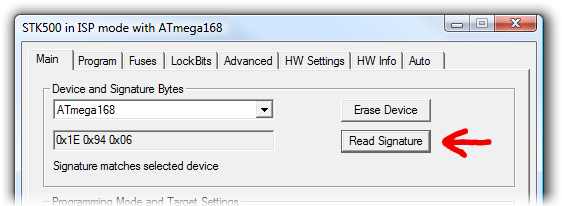
Reading the device signature in AVR Studio’s Main ISP tab
- Now it is time to program your target device. Select the Main tab. Your Device should match the one you selected when you created the project: ATmega328P, ATmega168, or ATmega48. Select the Program tab. Your Input HEX File in the Flash section needs to be the hex file that was generated when you built your program. You can browse for this using the "..." button to the right of the input file text box. If you navigate to your project’s folder, you should find it as “default\<project name>.hex”. Click the Program button (make sure you click the one in the Flash section, not one in the “EEPROM” or “ELF Production File Format” sections!).
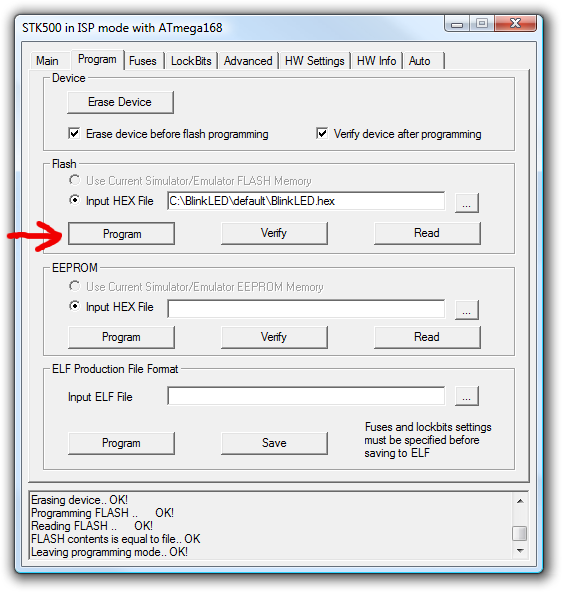
AVR Studio’s Program ISP tab
You should see both the red and the green programming status LEDs flicker on your Orangutan USB programmer as it programs and you should see the following text appear in the text box at the bottom of the Program window:
If there were no problems, the red LED on your Orangutan, Baby Orangutan, or 3pi should now be flashing! Note that if you are trying this on a 3pi robot and you haven’t yet soldered in the optional through-hole LEDs, you will need to turn your 3pi robot over to see the flashing LED as the surface-mounted LEDs are located on the underside of the 3pi’s PCB. If there was a problem, please go to Troubleshooting (Section 7) for help identifying and fixing it.Reading FLASH input file.. OK Setting mode and device parameters.. OK! Entering programming mode.. OK! Erasing device.. OK! Programming FLASH .. OK! Reading FLASH .. OK! FLASH contents is equal to file.. OK Leaving programming mode.. OK!
Related products


Home | Forum | Blog | Support | Ordering Information | Wish Lists | Distributors | BIG Order Form | About | Contact
© 2001–2024 Pololu Corporation



