Support »
Pololu Simple Motor Controller User’s Guide
View document on multiple pages.
You can also view this document as a printable PDF.
- 1. Overview
- 2. Contacting Pololu
- 3. Getting Started
- 4. Connecting Your Motor Controller
- 5. Configuring Your Motor Controller
- 6. Using the Serial Interface
- 7. Writing PC Software to Control the Simple Motor Controller
1. Overview
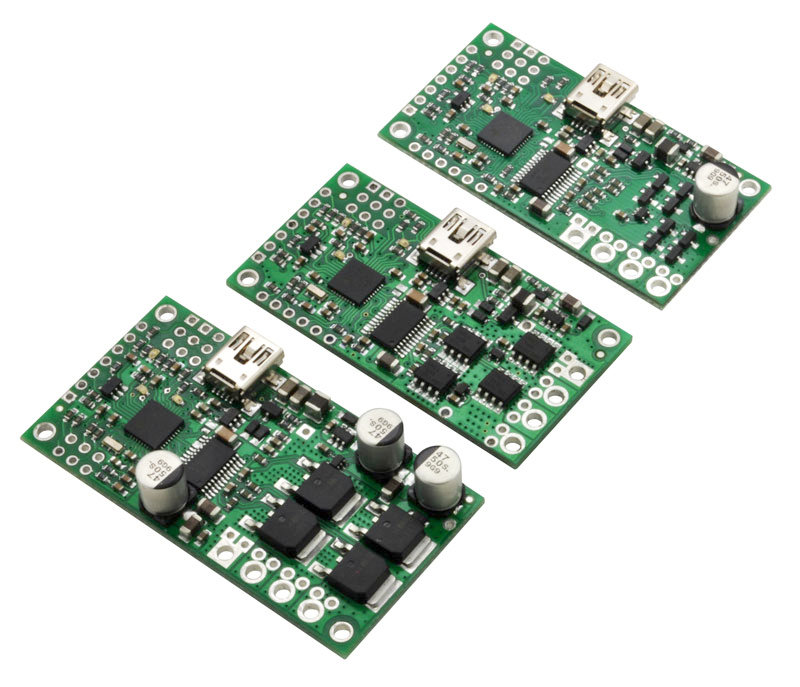 |
Simple Motor Controllers. |
|---|
The Pololu Simple Motor Controllers are versatile, general-purpose motor controllers for brushed, DC motors. A wide operating range of up to 5.5–40V and the ability to deliver up to several hundred Watts in a small form factor make these controllers suitable for many motor control applications. With a variety of supported interfaces—USB for direct connection to a computer, TTL serial for use with embedded systems, RC hobby servo pulses for use as an RC-controlled electronic speed control (ESC), and analog voltages for use with a potentiometer or analog joystick—and a wide array of configurable settings, these motor controllers make it easy to add basic control of brushed DC motors to a variety of projects. Although this motor controller has many more features than competing products, a free configuration utility (for Windows 10, 8, 7, Vista, Windows XP, and Linux) simplifies initial setup of the device and allows for in-system testing and monitoring of the controller via USB.
For 24 V applications, we recommend the 24v12 or 24v23 versions. We strongly recommend against using the 18v7, 18v15, or 18v25 with 24 V batteries, which can significantly exceed 24 V when fully charged and are dangerously close to the maximum voltage limits of these lower-voltage controllers. Using a 24 V battery with an 18vX Simple Motor Controller makes the device much more susceptible to damage from power supply noise or LC voltage spikes.
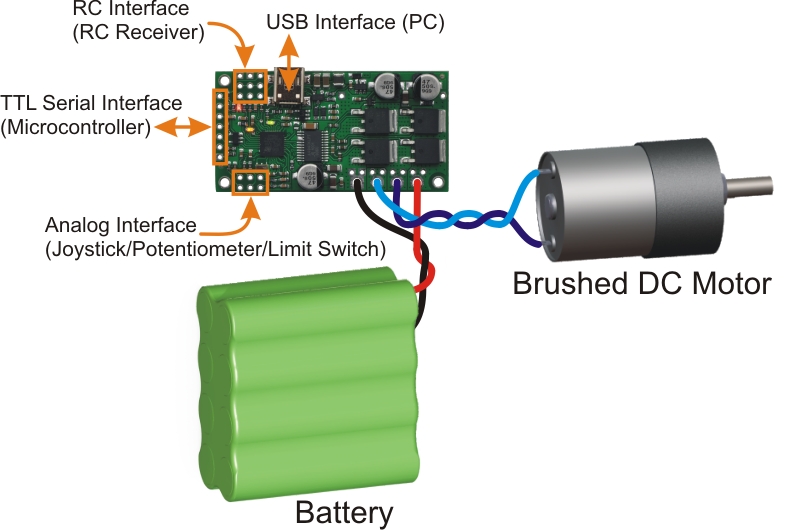 |
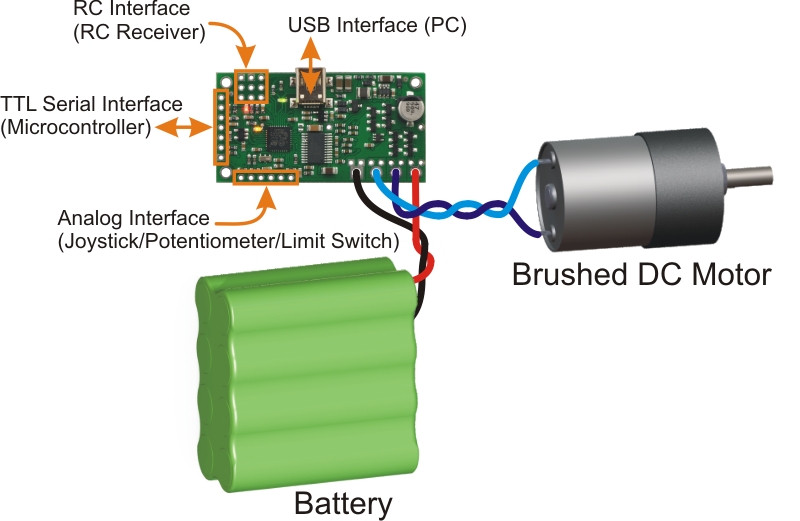
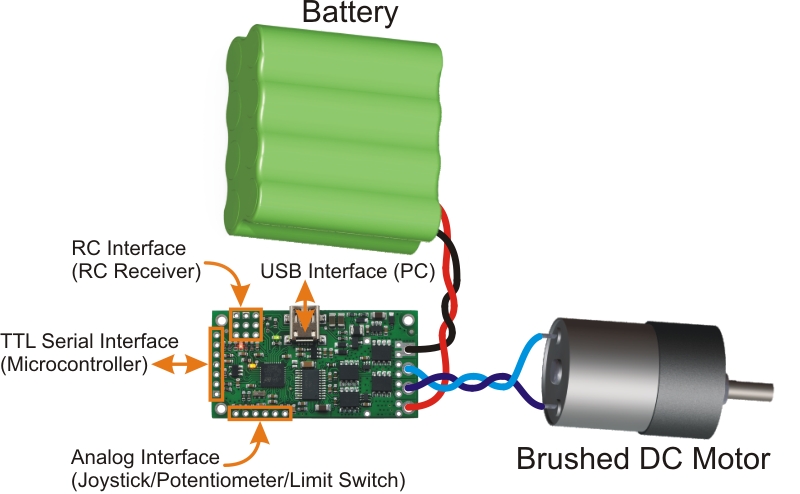
Simple High-Power Motor Controller 18v25 or 24v23 simplified connection diagram. |
|---|
Key Features
- Simple bidirectional control of one DC brush motor.
- 5.5 V to 30 V (18v7, 18v15, and 18v25) or 40 V (24v12 and 24v23) operating supply range.
- 7 A to 25 A maximum continuous current output without a heat sink, depending on controller model
- Four communication or control options:
- USB interface for direct connection to a PC.
- Logic-level (TTL) serial interface for direct connection to microcontrollers or other embedded controllers.
- Hobby radio control (RC) pulse width interface for direct connection to an RC receiver or RC servo controller.
- 0–3.3 V analog voltage interface for direct connection to potentiometers and analog joysticks.
- Simple configuration and calibration over USB with free configuration program (Windows 10, 8, 7, Vista, Windows XP, and Linux compatible).
Note: A USB A to mini-B cable (not included) is required to connect this controller to a computer.
Additional Features
- Adjustable maximum acceleration and deceleration to limit electrical and mechanical stress on the system.
- Adjustable starting speed, maximum speed, and amount of braking when speed is zero.
- Optional safety controls to avoid unexpectedly powering the motor.
- Input calibration (learning) and adjustable scaling degree for analog and RC signals.
- Under-voltage shutoff with hysteresis for use with batteries vulnerable to over-discharging (e.g. LiPo cells).
- Adjustable over-temperature threshold and response.
- Adjustable PWM frequency from 1 kHz to 22 kHz (maximum frequency is ultrasonic, eliminating switching-induced audible motor shaft vibration).
- Error LED linked to a digital ERR output, and connecting the error outputs of multiple controllers together optionally causes all connected controllers to shut down when any one of them experiences an error.
- Field-upgradeable firmware.
|
|
- USB/Serial features:
- Controllable from a computer with native USB, via serial commands sent to the device’s virtual serial (COM) port, or via TTL serial through the device’s RX/TX pins.
- Example code in C#, Visual Basic .NET, and Visual C++ is available in the Pololu USB Software Development Kit
- Optional CRC error detection to eliminate communication errors caused by noise or software faults.
- Optional command timeout (shut off motors if communication ceases).
- Supports automatic baud rate detection from 1200 bps to 500 kbps, or can be configured to run at a fixed baud rate.
- Supports standard compact and Pololu protocols as well as the Scott Edwards Mini SSC protocol and an ASCII protocol for simple serial control from a terminal program.
- Optional serial response delay for communicating with half-duplex controllers such as the Basic Stamp.
- Controllers can be easily chained together and to other Pololu serial motor and servo controllers to control hundreds of motors using a single serial line.
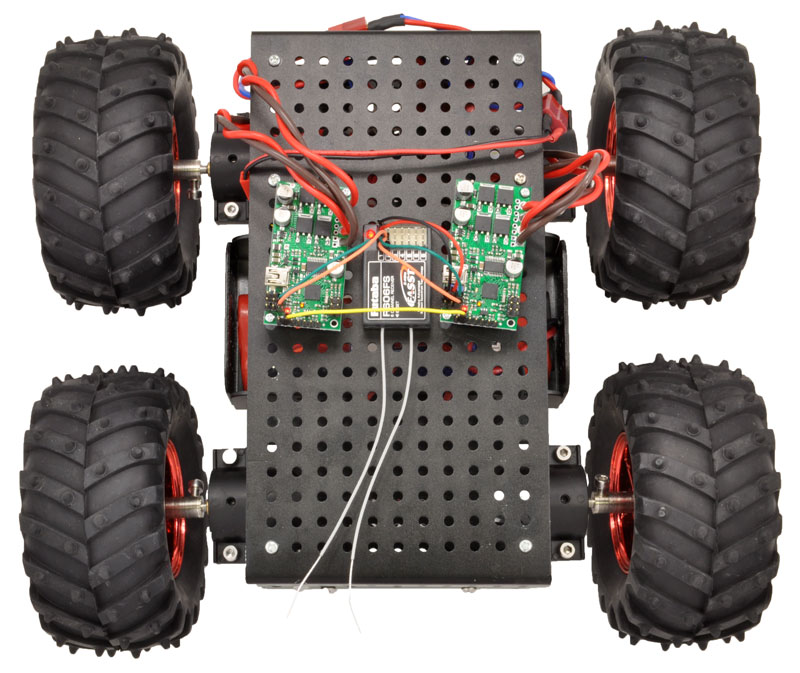 |
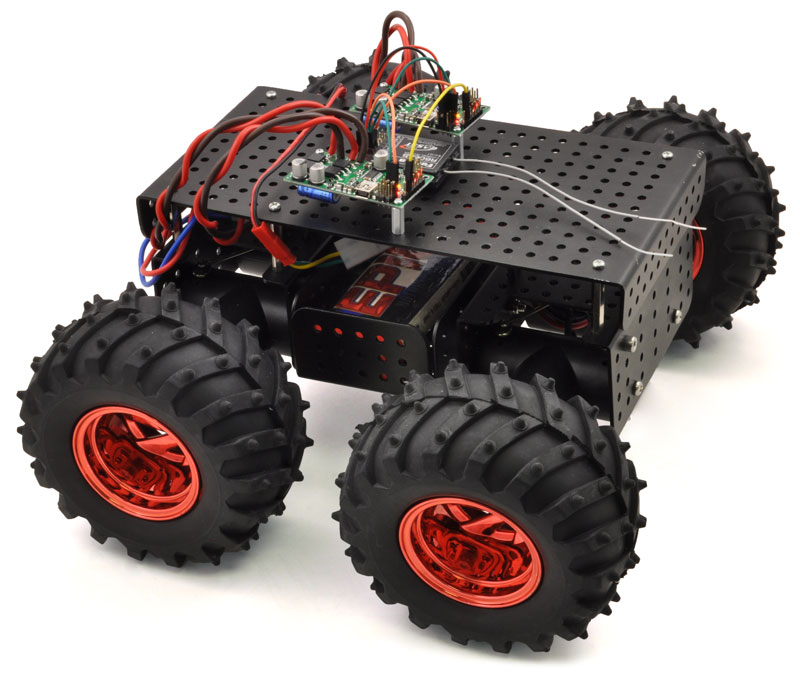
Two Pololu Simple Motor Controllers enable mixed RC-control of Dagu Wild Thumper 4WD all-terrain chassis. |
|---|
- RC features:
- 1/4 µs pulse measurement resolution.
- Works with RC pulse frequencies from 10 to 333 Hz.
- Configurable parameters for determining what constitutes an acceptable RC signal.
- Two RC channels allow for single-stick (mixed) motor control, making it easy to use two simple motor controllers in tandem on an RC-controlled differential-drive robot.
- RC channels can be used in any mode as limit or kill switches (e.g. use an RC receiver to trigger a kill switch on your autonomous robot).
- Battery elimination circuit (BEC) jumper can power the RC receiver with 5 V or 3.3 V.
- Analog features:
- 0.8 mV (12-bit) measurement resolution.
- Works with 0 to 3.3 V inputs.
- Optional potentiometer/joystick disconnect detection.
- Two analog channels allow for single-stick (mixed) motor control, making it easy to use two simple motor controllers in tandem on a joystick-controlled differential-drive robot.
- Analog channels can be used in any mode as limit or kill switches.
Simple Motor Controller Comparison Table
The Simple Motor Controllers are available in several input voltage ranges and output current ranges:
 18v7 |
 18v15 |
24v12 |
 18v25 |
24v23 |
|
|---|---|---|---|---|---|
| Absolute max voltage: | 30 V | 30 V | 40 V | 30 V | 40 V |
| Recommended max voltage(1): | 24 V | 24 V | 34 V | 24 V | 34 V |
| Max continuous current w/o heat sink: | 7 A | 15 A | 12 A | 25 A | 23 A |
| Width: | 1.1" (2.8 cm) | 1.1" (2.8 cm) | 1.1" (2.8 cm) | 1.2" (3.1 cm) | 1.2" (3.1 cm) |
| Length: | 2.1" (5.3 cm) | 2.1" (5.3 cm) | 2.1" (5.3 cm) | 2.3" (5.8 cm) | 2.3" (5.8 cm) |
| Weight(2): | 7 g | 7 g | 7 g | 12 g | 12 g |
| Available with connectors installed? | Yes | Yes | Yes | No | No |
1 We do not recommend using the 18v7, 18v15, or 18v25 versions with 24 V batteries, which can significantly exceed 24 V when fully charged. The 24v12 and 24v23 are the much more appropriate controller for 24 V applications.
2 This is the weight of the board without header pins, terminal blocks, or through-hole power capacitor.
Warning: Take proper safety precautions when using high-power electronics. Make sure you know what you are doing when using high voltages or currents! During normal operation, this product can get hot enough to burn you. Take care when handling this product or other components connected to it.
1.1. 18v7 Included Hardware
|
|
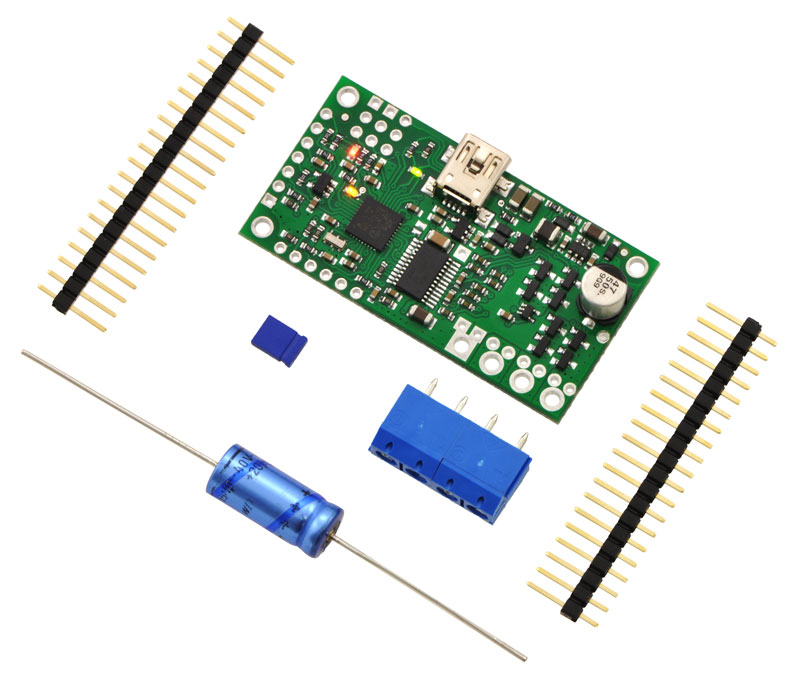
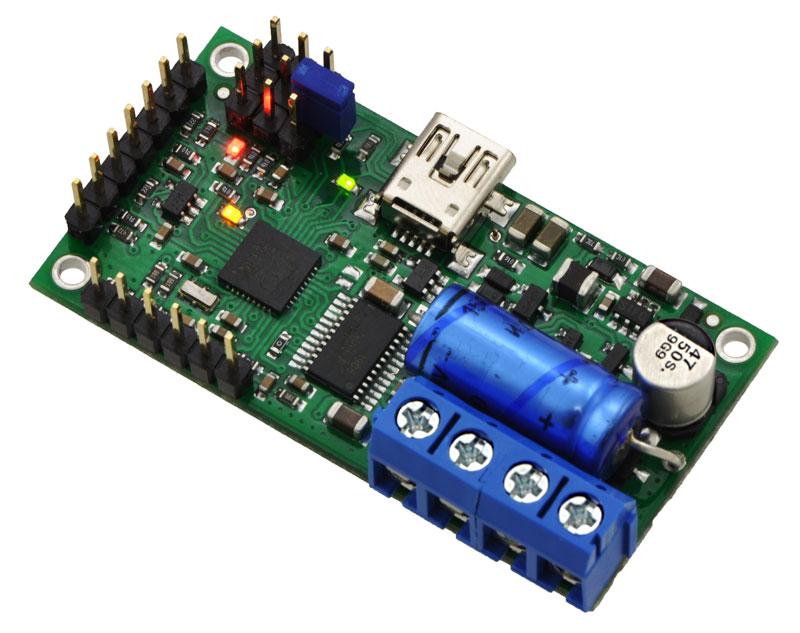
The lowest-power controller version (18v7) is available with the power capacitor and connectors included but not soldered in (as shown in the left picture above) or with the power capacitor and connectors pre-installed (as shown in the right picture above).
The power capacitor has a significant effect on performance; the included capacitor is the minimum size recommended, and bigger ones can be added if there is space. A bigger capacitor might be required if the power supply is poor or far (more than about a foot) from the controller.
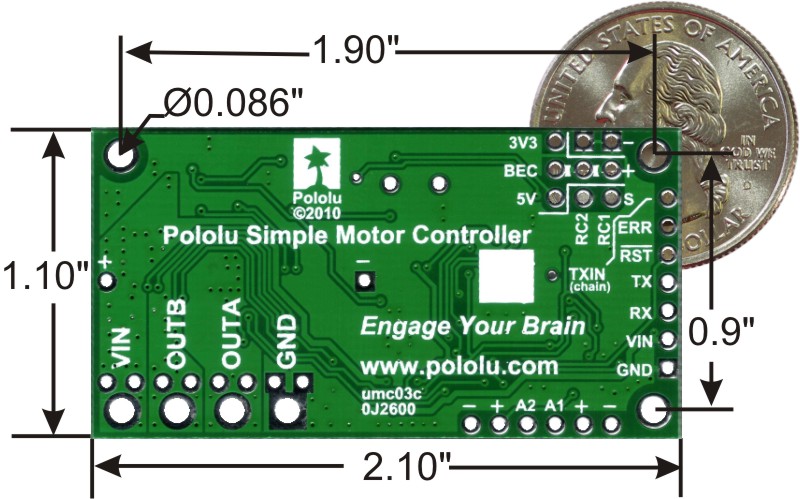 |
Simple Motor Controller 18v7 bottom view with dimensions. |
|---|
1.2. 18v15 and 24v12 Included Hardware
|
|
|
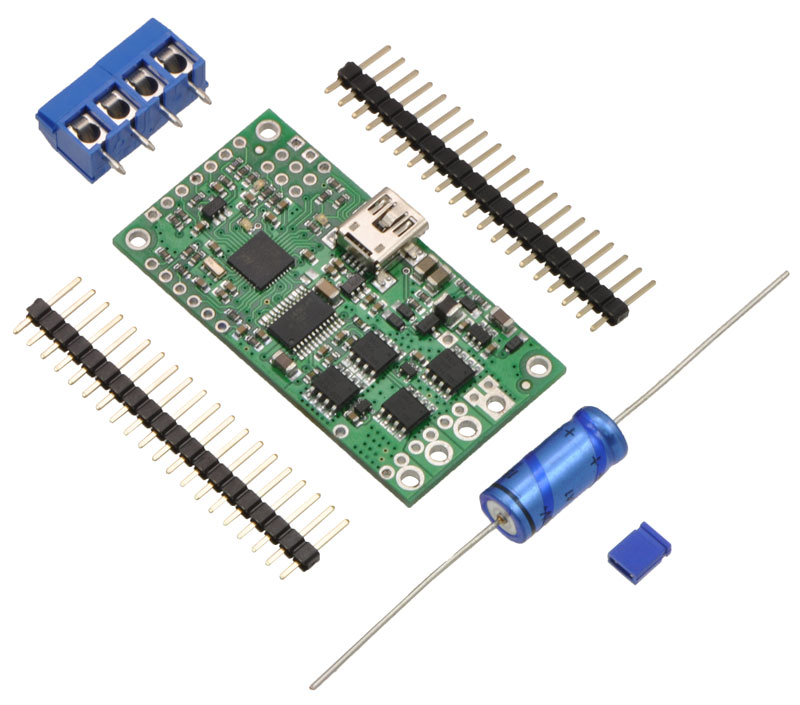
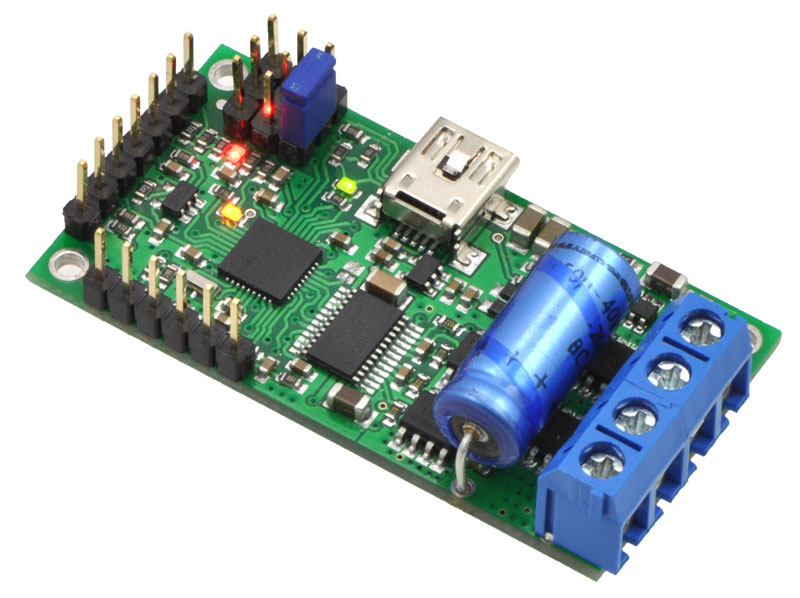
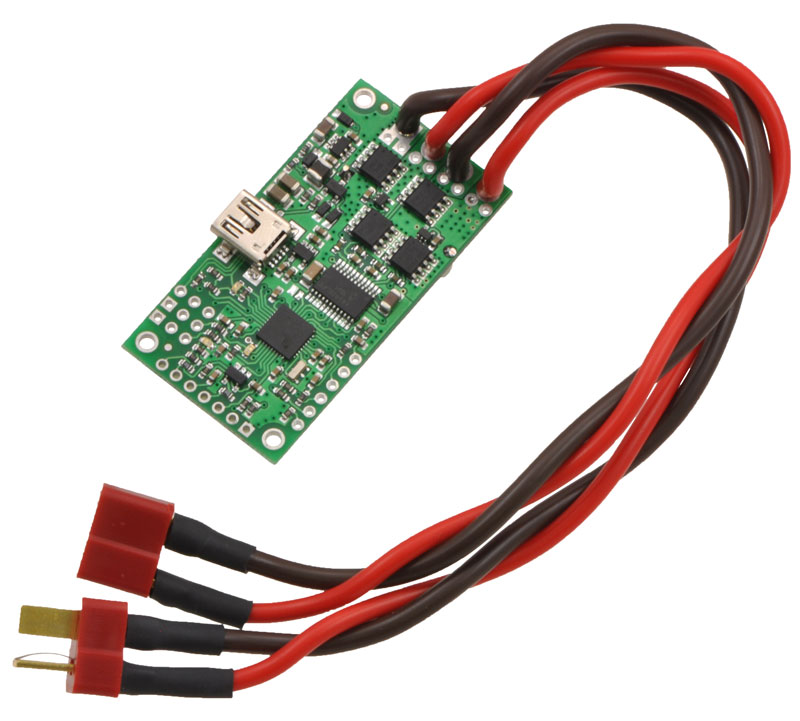
The medium-power controller versions (18v15 and 24v12) are available with the power capacitor and connectors included but not soldered in (as shown in the left picture above) or with the power capacitor and connectors pre-installed (as shown in the middle picture above).
The terminal blocks are only rated for 15 A. For higher-current applications we recommend soldering thick wires directly to the connector-free version of the board and using higher-current connectors (as shown in the right picture above). Another benefit of the connector-free version is flexibility in placement of the power capacitor (e.g. on the other side of the board) to accommodate compact installations or to make room for a heat sink.
The power capacitor has a significant effect on performance; the included capacitor is the minimum size recommended, and bigger ones can be added if there is space. A bigger capacitor might be required if the power supply is poor or far (more than about a foot) from the controller.
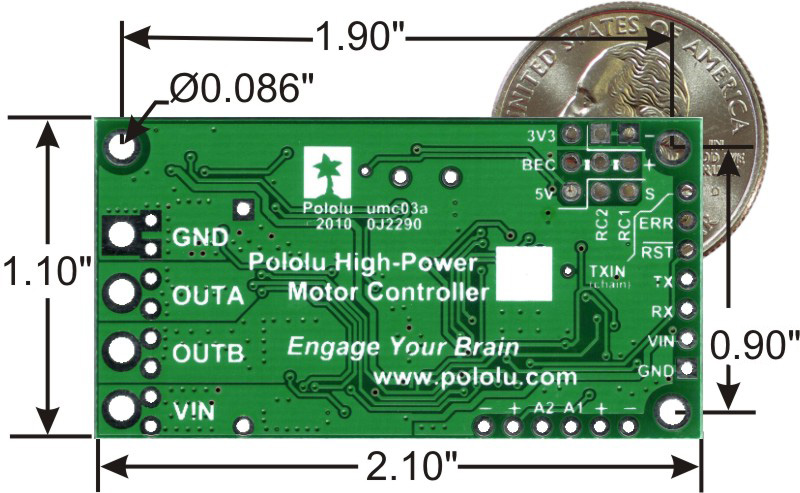 |
Simple High-Power Motor Controller 18v15 or 24v12 bottom view with dimensions. |
|---|
1.3. 18v25 and 24v23 Included Hardware
|
|
|
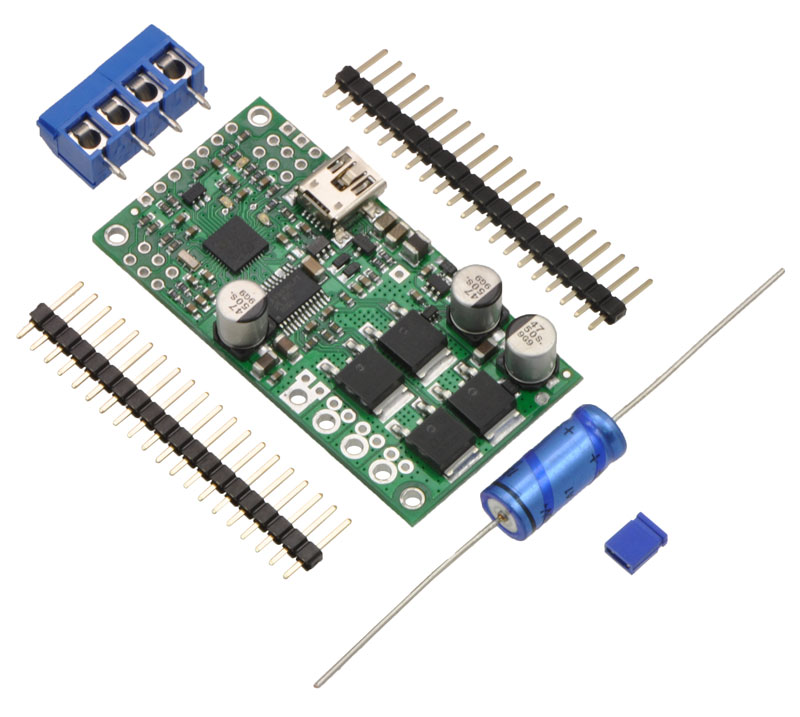

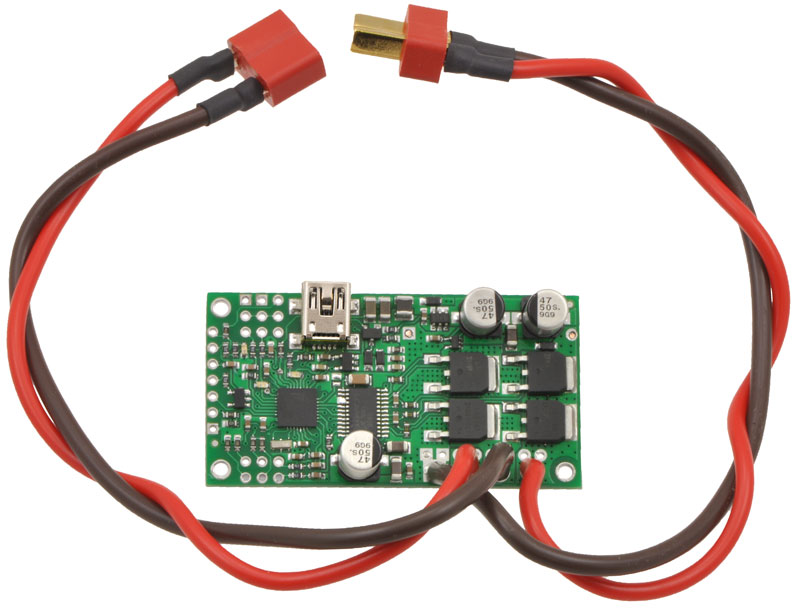
The highest-power controller versions (18v25 and 24v23) are sold without the power capacitor and connectors installed (no fully assembled version is available). They ship with a 40×1 straight 0.1" male header strip, a 5mm-pitch, 4-pin terminal block, and a power capacitor as shown in the left picture above. For applications under 15 A, these pieces can be soldered to the board as shown in the middle picture above; higher current applications should use thick wires soldered directly to the board or higher-current connectors, such as those shown in the right picture above.
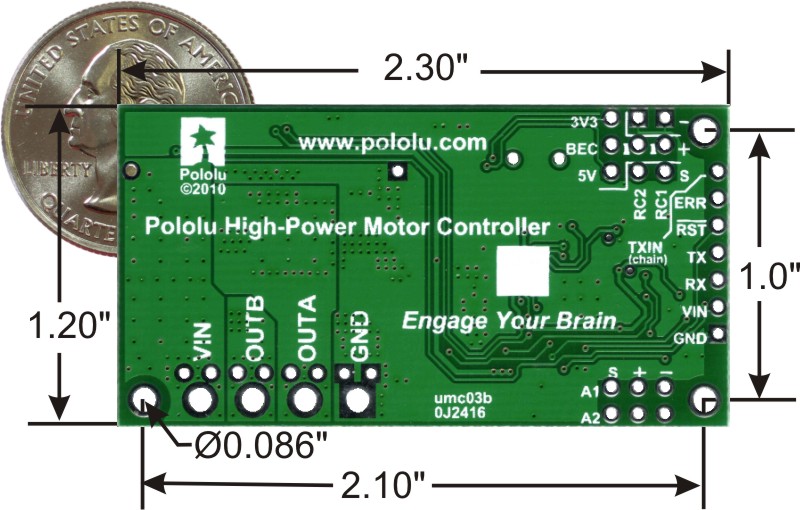 |
Simple High-Power Motor Controller 18v25 or 24v23 bottom view with dimensions. |
|---|
1.4. Supported Operating Systems
The Simple Motor Controller USB drivers and configuration software work under Microsoft Windows XP, Windows Vista, Windows 7, Windows 8, Windows 10, Windows 11, and Linux.
On ARM-based Linux machines such as the Raspberry Pi, the graphical configuration program (the Simple Motor Control Center) does not work. This is caused by problems with Mono’s implementations of WinForms on those systems.
We do not provide any software for Mac OS X, but the controller’s USB virtual COM port is compatible with Mac OS X 10.7 (Lion) and later. As a result, the Simple Motor Controller can be controlled from a Mac, but a Windows or Linux computer is required if you need to change any of the configuration parameters.
Mac OS X compatibility: we have confirmed that the Simple Motor Controller works on Mac OS X 10.7 and we can assist with advanced technical issues, but most of our tech support staff does not use Macs, so basic support for Mac OS X is limited.
There is an issue that prevents the Simple Motor Controller from working with macOS 10.11 or later.
2. Contacting Pololu
 |
You can check the Pololu Simple Motor Controller pages for additional information. The “Resources” tab on each product page contains links to this users guide as well as other valuable resources, such as drivers and the Simple Motor Control Center software.
We would be delighted to hear from you about any of your projects and about your experience with the Simple Motor Controller. You can contact us directly or post on our forum. Tell us what we did well, what we could improve, what you would like to see in the future, or anything else you would like to say!
3. Getting Started
3.1. Installing Windows Drivers and Software
If you are using Windows XP, you will need to have Service Pack 3 installed before installing the drivers for the Simple Motor Controller. See below for details.
Before you connect a Simple Motor Controller to a computer running Microsoft Windows, you should install the drivers:
- Download the Simple Motor Controller Windows Drivers and Software (5MB zip)
- Open the ZIP archive and run setup.exe. The installer will guide you through the steps required to install the Simple Motor Control Center, the Simple Motor Controller command-line utility (SmcCmd), and the Simple Motor Controller drivers on your computer. If the installer fails, you may have to extract all the files to a temporary directory, right click setup.exe, and select “Run as administrator”.
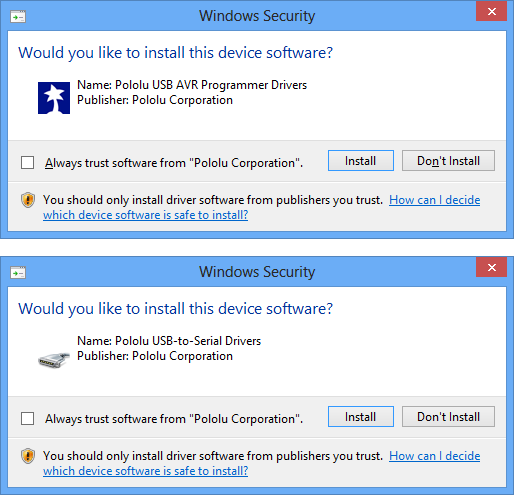
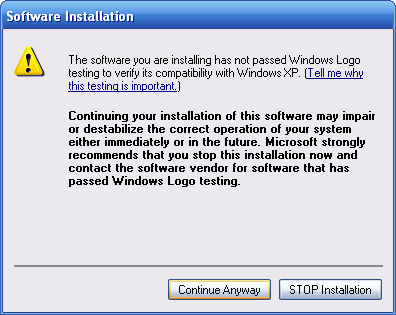
- During the installation, Windows will ask you if you want to install the drivers. Click “Install” (Windows 10, 8, 7, and Vista) or “Continue Anyway” (Windows XP).
|
|
- After the installation is finished, your start menu should have a shortcut to the Simple Motor Control Center (in the Pololu folder). This is a Windows application that allows you to configure, control, and get real-time feedback from the Simple Motor Controller. There will also be a command-line utility called SmcCmd which you can run at a Command Prompt.
Windows 10, Windows 8, Windows 7, and Windows Vista users: Your computer should now automatically install the necessary drivers when you connect a Simple Motor Controller. No further action from you is required.
Windows XP users: Follow steps 5–9 for each new Simple Motor Controller you connect to your computer.
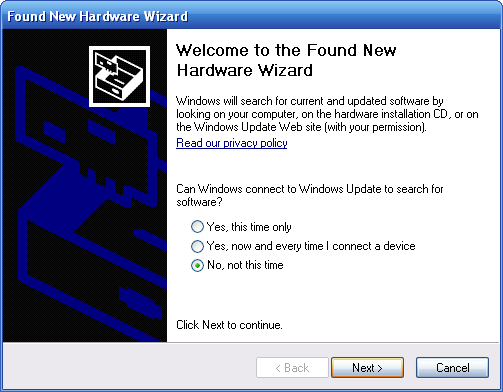
- Connect the device to your computer’s USB port. The Simple Motor Controller shows up as two devices in one so your XP computer will detect both of those new devices and display the “Found New Hardware Wizard” two times. Each time the “Found New Hardware Wizard” pops up, follow steps 6-9.
- When the “Found New Hardware Wizard” is displayed, select “No, not this time” and click “Next”.
 |
- On the second screen of the “Found New Hardware Wizard”, select “Install the software automatically” and click “Next”.
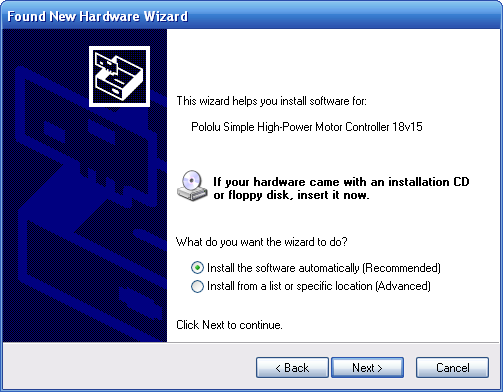 |
- Windows XP will warn you again that the driver has not been tested by Microsoft and recommend that you stop the installation. Click “Continue Anyway”.
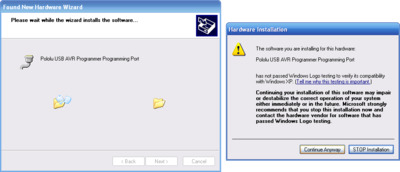 |
- When you have finished the “Found New Hardware Wizard”, click “Finish”. After that, another wizard will pop up. You will see a total of two wizards when plugging in a Simple Motor Controller. Follow steps 6–9 for each wizard.
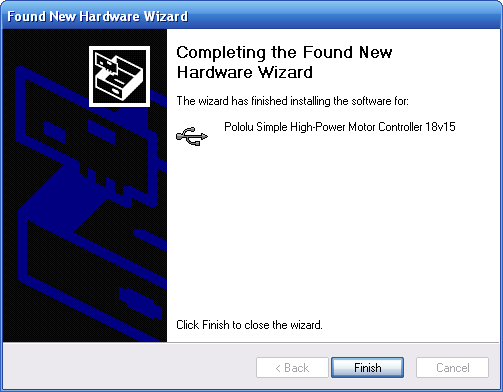 |
After installing the drivers and plugging the Simple Motor Controller in via USB, if you go to your computer’s Device Manager, you should see two entries for the Simple Motor Controller that look like what is shown below:
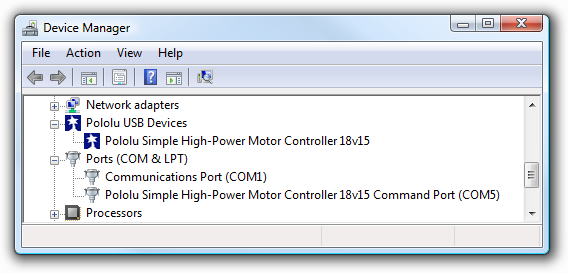 |
Windows Vista or Windows 7 device manager showing a Simple Motor Controller. |
|---|
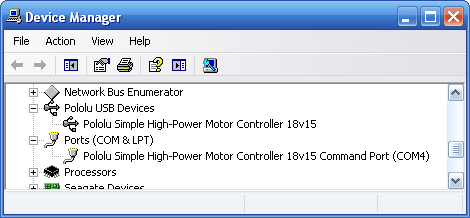 |
Windows XP device manager showing a Simple Motor Controller. |
|---|
COM port
After installing the drivers, if you go to your computer’s Device Manager and expand the “Ports (COM & LPT)” list, you should see a COM port for the Simple Motor Controller. In parentheses after the name, you will see the name of the port (e.g. “COM5” or “COM6”).
You might see that the COM port is named “USB Serial Device” in the Device Manager instead of having a descriptive name. This can happen if you are using Windows 10 or later and you plugged the Simple Motor Controller into your computer before installing our drivers for it. In that case, Windows will set up your Simple Motor Controller using the default Windows serial driver (usbser.inf), and it will display “USB Serial Device” as the name for the port. The port will be usable, but it might be hard to distinguish the port from other ports because of the generic name shown in the Device Manager. We recommend fixing the name in the Device Manager by right-clicking on the “USB Serial Device” entry, selecting “Update Driver Software…”, and then selecting “Search automatically for updated driver software”. Windows should find the Simple Motor Controller drivers you already installed, which contain the correct name for the port.
If you want to change the COM port number assigned to your USB device, you can do so using the Device Manager. Bring up the properties dialog for the COM port and click the “Advanced…” button in the “Port Settings” tab. From this dialog you can change the COM port assigned to your device.
If you use Windows XP and experience problems installing or using the serial port drivers, the cause of your problems might be a bug in older versions of Microsoft’s usb-to-serial driver usbser.sys. Versions of this driver prior to version 5.1.2600.2930 will not work with the Simple Motor Controller. You can check what version of this driver you have by looking in the “Details” tab of the “Properties” window for usbser.sys in C:\Windows\System32\drivers_. To get the fixed version of the driver, you will need to install Service Pack 33. If you do not want Service Pack 3, you can try installing Hotfix KB918365 instead, but some users have had problems with the hotfix that were resolved by upgrading to Service Pack 3. The configuration software will work even if the serial port drivers are not installed properly.
Native USB interface
There should be an entry for the Simple Motor Controller in the “Pololu USB Devices” category of the Device Manager. This represents the Simple Motor Controller’s native USB interface, and it is used by our configuration software.
3.2. Installing Linux Drivers and Software
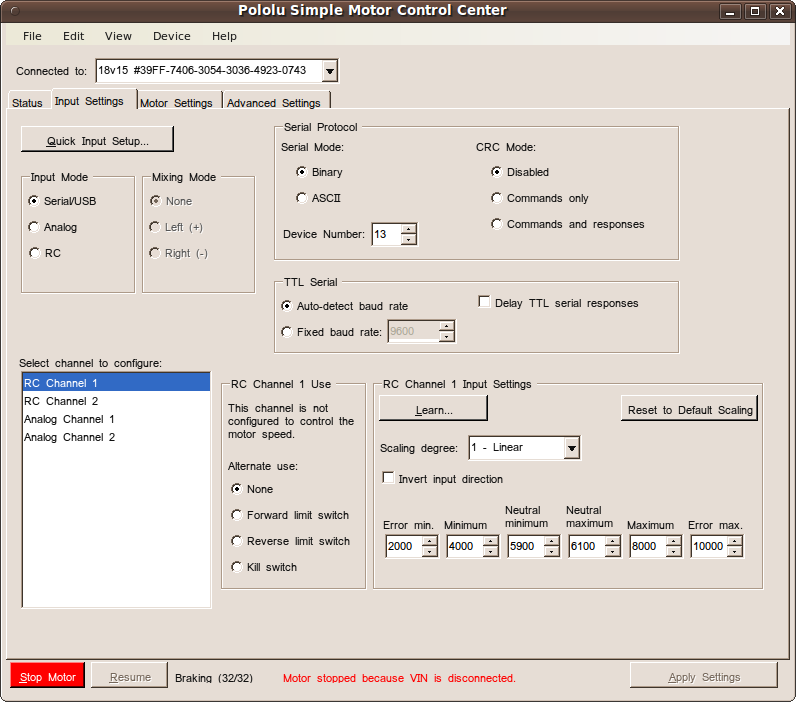 |
The Pololu Simple Motor Control Center running under Linux. |
|---|
You can download the Pololu Simple Motor Control Center (SmcCenter) and the command-line utility (SmcCmd) for Linux here: Simple Motor Controller Linux Software (115k gz).
Unzip the tar/gzip archive by running “tar -xzvf” followed by the name of the file. After following the instructions in README.txt, you can run the programs by executing SmcCenter and SmcCmd.
The Simple Motor Controller’s virtual serial port can be used in Linux without any special driver installation. The virtual serial port is managed by the cdc-acm kernel module, whose source code you can find in your kernel’s source code drivers/usb/class/cdc-acm.c. When you connect the Simple Motor Controller to the PC, the virtual serial port should appear as a device with a name like /dev/ttyACM0 (the number depends on how many other ACM devices you have plugged in). You can use any terminal program (such as kermit) to send commands and receive responses on those ports.
3.3. Understanding the Control Center Status Tab
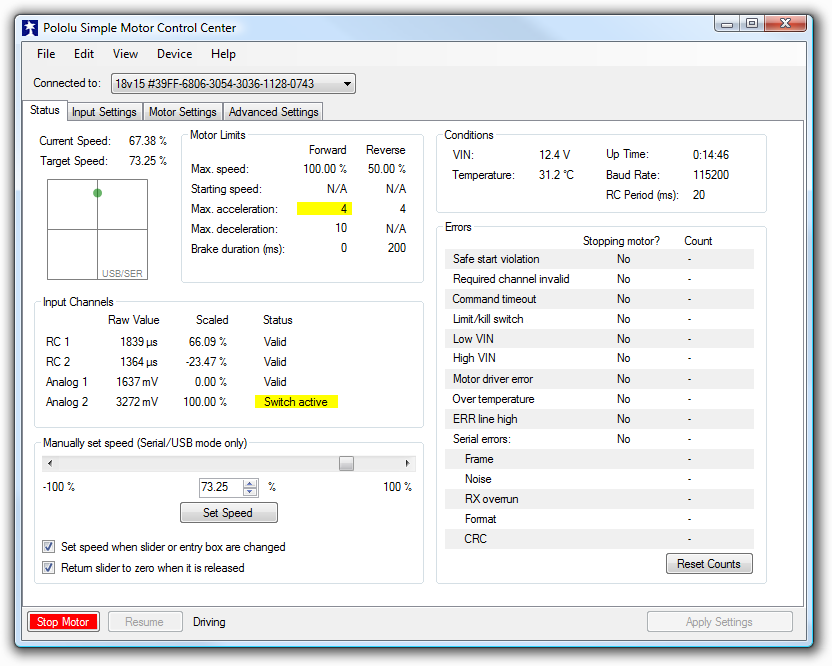
After installing the software and drivers for the Simple Motor Controller, it is a good idea to run the Pololu Simple Motor Control Center and look at the Status tab. The Status tab lets you monitor the status of your motor controller in real time and control the speed of the motor. The Status tab also shows what errors and limits are affecting your motor controller so it can help you quickly troubleshoot any issues you are having.
To use the Status tab, you should connect your Simple Motor Controller to your PC using a USB cable (not included) and run the Pololu Simple Motor Control Center. This is what the Status tab should look like initially, before you have modified any settings or connected anything to the Simple Motor Controller (besides USB):
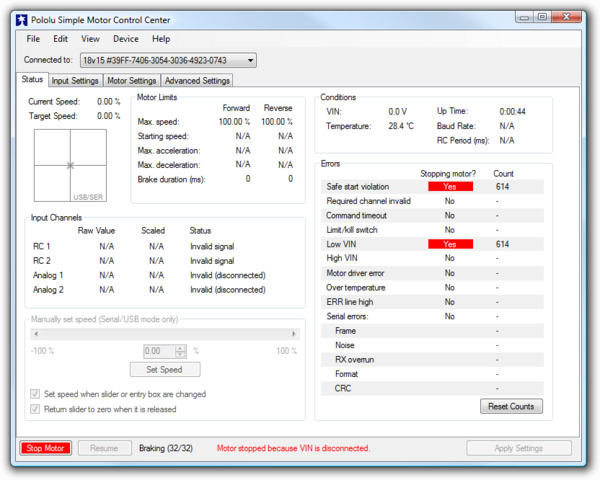 |
The Status tab in the Simple Motor Control Center should look like this when you first connect the controller to the PC. |
|---|
Target Speed and Current Speed
The Target Speed is the speed that the motor controller is trying to achieve. The Target Speed source is determined by the settings in the Input Settings tab, and can come from serial/USB commands, analog voltages, or RC signals.
The Current Speed is the speed at which the controller is currently your driving your motor. There are several reasons why the Current Speed might be different from the Target Speed: errors, acceleration limits, deceleration limits, brake duration, maximum speed limits, starting speed limits, and gradual temperature-based speed limiting. If any of these things are affecting the Current Speed, the appropriate part of the Status tab will be highlighted to let you know. Anything that is stopping the motor completely will be highlighted in red. Anything that is limiting the speed of the motor will be highlighted in yellow.
The Simple Motor Controller represents speeds internally as a number from -3200 (full reverse) to 3200 (full forward). However, by default the speeds in the Status Tab are displayed as percentages so -3200 (full reverse) is shown as -100.00% and 3200 (full forward) is shown as 100.00%.
Below the Target Speed label is a two-dimensional diagram that represents the values of the inputs that are used to set the Target Speed. This diagram is especially useful in RC or Analog mode with Mixing enabled because it graphically shows you the value of both input channels and makes it easier to tell how well the Simple Motor Controller is calibrated for your controller is.
Motor Limits
The Motor Limits box in the Status tab shows the current limits on the movement of the motor. These limits will be equal to the hard motor limits specified in the Motor Settings tab, unless you have temporarily changed the motor limits using the command-line utility (SmcCmd) or a serial command. For more information on these limits, see the section that documents the Motor Settings tab.
Input Channels
The Input Channels box in the Status tab shows the current status of the RC or Analog input channels of the device.
The Raw Value is the raw, unscaled value of the input channel. For RC channels, the Raw Value is the width of pulses received on the input line (RC1 or RC2). It is typically between 1000 μs and 2000 μs, and it is stored internally as an integer in units of quarter-microseconds (6000 corresponds to 1500 μs). For Analog channels, the Raw Value is the average voltage measured on the input line (A1 or A2). It is always between 0 mV and 3300 mV, and it is stored internally as a 12-bit integer (0 corresponds to 0 mV while 4095 corresponds to 3300 mV).
The Scaled Value is a number between -3200 and 3200 that is determined entirely by the Raw Value and the scaling parameters in the Input Settings tab. If the scaling parameters are set up correctly, then the Scaled Value should be 0 when the input is in its neutral position (if it has a neutral position), and they should be ±100 % (±3200 internally) when the input is moved to either extreme.
The Status column summarizes the state of each channel. Here are the different things you might see in the Status column:
- Valid: There is an RC or Analog input connected to this channel and it is working.
- Invalid (disconnected): This message is shown for Analog channels when the controller detects that they are disconnected. If you do not intend to use this channel, you do not need to worry about this message. Otherwise, to correct this situation, make sure that all three pins of your potentiometer or analog joystick are connected correctly to the three analog interface pins (see Section 4.4). The controller toggles the power supply on the Analog + pins in order to detect when your potentiometer is disconnected. This feature can be turned off in the Advanced tab, in which case you will not see the “Invalid (disconnected)” message.
- Invalid signal: This message is shown for RC channels when the controller detects no signal or a bad signal on the RC input. If you do not intend to use this channel, you do not need to worry about this message. Otherwise, to correct this situation, make sure that your RC receiver is powered and connected correctly (see Section 4.3), and check your RC pulse detection settings in the Advanced tab.
- Invalid (too high) and Invalid (too low): These messages are shown for Analog channels when the voltage read on the A1 or A2 pin is outside of the normal range, as specified by the Error min and Error max parameters for that channel in the Input Settings tab. To correct this error, you can re-configure the range of your analog input by clicking the “Learn…” button for that channel, or you can manually adjust the scaling parameters.
- Invalid (high signal) and Invalid (low signal): These messages are shown for RC channels when the pulse width measured on the RC1 or RC2 pin is outside of the normal range as specified by the Error min and Error max parameters for that channel in the Input Settings tab. To correct this error, you can re-configure the range of your RC input by clicking the “Learn…” button for that channel, or you can manually adjust the scaling parameters.
Conditions
The Conditions box in the Status tab shows miscellaneous information about the current state of the controller:
- VIN: This is the voltage of your power supply, measured on the VIN line. When your power supply is disconnected, this should read 0.0 V. This reading is continually compared to the VIN thresholds in the Advanced Settings tab and will generate an error and shut down the motor if it passes these thresholds. This allows a properly configured controller to avoid over-discharging your batteries.
- Temperature: This is a measurement of the temperature of the device. This reading is used prevent damage to the device by shutting down the motor when the board gets too hot (the over-temperature threshold is can be adjusted in the Advanced Settings tab). Please note that this product can get hot enough to burn you during normal operation. Take care when handling this product or other components connected to it. Parts of the board be significantly hotter than this reading, so you should not rely on this temperature reading when deciding whether it is safe to touch the board.
- Up Time: This is the total amount of time that the controller has been running since its last reset or power-up. The Up Time reading can be used to help identify if the controller has reset unexpectedly. You can determine the cause of a reset by looking at the pattern of the yellow LED (see Section 3.5), or you can look in the Device Information window, available from the Device menu. The Up Time reading will overflow back to zero after 49.7 days.
- Baud Rate: This is the current baud rate that the device is using on the TTL serial interface (RX and TX lines) in units of bits per second (bps). By default, the device is in Auto-detect baud rate mode, so this value will be “N/A” until the baud rate is detected. After a 0xAA byte is received on the RX line, the device will detect the baud rate and you can see it here. Please note that the Baud Rate display in the Status tab has nothing to do with the USB virtual COM port (it doesn’t matter what baud rate you use when connecting to the virtual COM port).
- RC Period: This is the period of the RC signal on the RC1 input channel. You can use this reading to help you make the RC period settings in the Advanced Settings tab more strict so that the controller can better identify bad RC signals. If the signal on RC1 is invalid, this reading is reported as “N/A”.
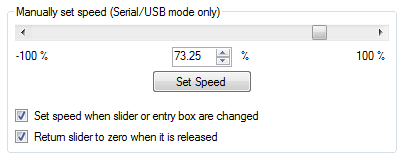 |
Manually set speed (Serial/USB mode only)
The Manually Set Speed box in Status tab allows you to control the speed of your motor over USB by using a scrollbar or by typing in a speed. To use this feature, the Input Mode (configured in the Input Settings tab) must be USB/Serial, and there must be no errors currently stopping the motor. You will need to press the Resume button if you have not disabled Safe Start or if you previously pressed the Stop Motor button.
3.4. Errors
 |
The Errors box in the Status tab of the Pololu Simple Motor Control Center reveals problems that are stopping your motor. |
|---|
The Simple Motor Controller has several features that stop the motor when something is going wrong. These are called errors, and they can help protect your project from damaging itself. Whenever you are having an issue with the controller, you should first check to see what (if any) errors are occurring. You can get information about the errors by:
- Checking the Errors box in the Status tab of the Simple Motor Control Center. This is recommended because it gives you the most information, including a running count of how many times the error has been reported.
- Running the command-line utility (just type
SmcCmd -sat the command line). - Looking at the red LED on the device. It will be lit if there are any errors stopping your motor.
- Writing PC software or using a microcontroller to send the Get Errors serial command.
- Using a microcontroller to measure the voltage on ERR pin. This pin is linked to the red LED so it should go high (3.3 V) when there is an error stopping your motor and low (0 V) otherwise.
All the errors are explained below:
- Safe start violation: Safe Start is a feature that helps prevent the motor from starting up unexpectedly. This feature is enabled by default, but can be disabled in the Advanced Settings tab. The behavior of Safe Start depends on what Input Mode you are using.
In Serial/USB input mode, the Safe start violation error occurs whenever any other error is stopping the motor. After all the other errors have been fixed, you can clear the Safe start violation error by pressing the Resume button (which issues a native USB command) or using a serial command.
In Analog or RC input mode, the Safe start violation error occurs whenever the motor is stopped because of an error AND the inputs that control the speed of the motor are not near their neutral positions. This helps prevent the situation where there might be an error stopping your motor (such as a disconnected battery), and the motor starts running at a high speed when you fix the error. To clear the Safe start violation error, move all the inputs that control the speed of the motor to their neutral positions (the sum of the absolute values of their scaled values must be less than 8 %). - Required channel invalid: This error occurs whenever any required RC or Analog channel is invalid. This error helps ensure that your motor will stop if you accidentally disconnect your joystick, potentiometer or RC receiver. A channel is invalid if it is disconnected, or has a value that is out of range. A channel is required if it controls the speed of the motor or it is configured as a limit switch or kill switch. By default, there are no required channels because the input mode is serial and no limit or kill switches have been configured. You can check the Input Settings tab to see which channels are required. Channels that are required and invalid are highlighted in red in the Input Channels box of the Status tab so you can quickly see which channel is causing this error.
- Command timeout: This error occurs if you are controlling your motor using a microcontroller or a PC (Input Mode is Serial/USB) and the (configurable) time period has elapsed with no valid serial or USB commands being received by the controller. The purpose of this error is to ensure that your motor will stop if the software talking to the controller crashes or if the communications link is broken. All valid serial commands clear this error. The native USB commands for setting the speed and exiting safe start also clear this error. By default, this error is disabled, but it can be enabled from the Advanced Settings tab by setting a non-zero Command Timeout value.
- Limit/kill switch: This error occurs when a limit or kill switch channel stops the motor. More specifically, it occurs in three cases: when a kill switch is active, when a Forward Limit switch is active AND the Target Speed is positive, or when a Reverse Limit switch is active AND the Target Speed is negative. A limit/kill switch is considered active if its scaled value is above 50 %. If you are using a limit switch and your input mode is Serial/USB, you will need to check the Count column in the Status tab to see this error because in Serial/USB mode the Target Speed gets set to 0 whenever there is an error.
- Low VIN: This error occurs whenever your power supply’s voltage is too low or it is disconnected. If you set the correct thresholds in the Advanced Settings tab, this error will prevent you from over-discharging your battery.
- High VIN: This error occurs whenever your power supply’s voltage is too high. You can set the threshold voltage in the Advanced Settings tab.
- Motor driver error: This error occurs whenever the motor driver chip reports an under-voltage or over-temperature error (by driving its fault line low).
- Over temperature: This error occurs whenever the reading from the temperature sensor is too high. You can see the temperature reading in the Conditions box of the Status tab. The behavior of this error and the threshold temperatures can be configured in the Advanced tab.
- ERR line high: This error occurs whenever there are no other errors but the voltage on the ERR line is high (2.3–5 V). This error allows you to connect the error lines of two Simple Motor Controllers together and have both of them stop when either one experiences an error. This error can be disabled in the Advanced Settings tab.
- Serial errors: Serial errors are recorded whenever something goes wrong with the serial communication, either on the RX/TX lines or on the USB virtual COM port. If the input mode is Serial/USB, then a serial error will stop the motor from running until a valid serial command is received, or the Resume button is pressed, or the native USB Set Speed or Exit Safe Start commands are sent. If you are using serial and have not disabled Safe Start mode, you will need to send the Exit Safe-Start command, followed by a Set Speed command to recover from an error and get the motor running again. If you are using serial and have disabled Safe Start, the motor will start driving as soon as a valid Set Speed command is received. These are the types of serial errors that are recorded:
- Frame: This is error occurs when a de-synchronization or excessive noise on the RX line is detected.
- Noise: This error occurs when noise is detected on the RX line.
- RX overrun: This error occurs when the buffer for storing bytes received on the RX line is full and data was lost as a result. This should not occur during normal operation.
- Format: This error occurs if the serial bytes received on RX or the virtual COM port do not obey the protocol specified in this guide. If you get this error, check the bytes you are sending carefully, and compare them to the examples provided.
- CRC: This error occurs if you have enabled cyclic redundancy check (CRC) for serial commands, but the CRC byte received was invalid. CRC helps prevent the motor controller from accidentally performing unwanted actions when it is receiving commands over a noisy serial link. If you get this error, check your algorithm for calculating CRCs and check the quality of your serial signal at the RX pin.
3.5. LED Feedback
The Simple Motor Controllers have three indicator LEDs that provide feedback about the current state of the controller. The LEDs can tell you whether an error is occurring, whether the USB connection is active, what direction the motor is driving, and much more.
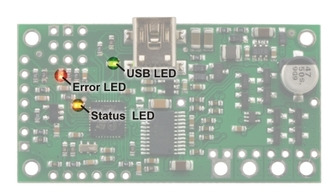 |
Simple Motor Controller 18v7 LEDs. |
|---|
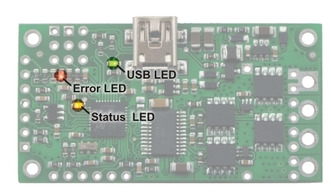 |
Simple High-Power Motor Controller 18v15 or 24v12 LEDs. |
|---|
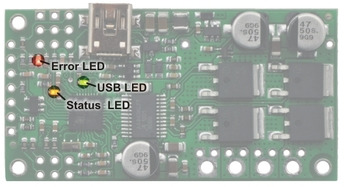 |
Simple High-Power Motor Controller 18v25 or 24v23 LEDs. |
|---|
The Simple Motor Controllers have three indicator LEDs:
Green USB LED
This LED indicates the USB status of the device. When the Simple Motor Controller is not connected to a computer via the USB cable, the green LED will always be off. When you connect the controller to USB, the green LED starts blinking slowly. The blinking continues until the controller receives a particular message from the computer indicating that the Simple Motor Controller’s USB drivers are installed correctly (see Section 3.1 for driver installation instructions). After the controller gets this message, the green LED turns solidly on, except for brief flickers whenever there is USB activity. The Simple Motor Control Center software constantly streams data from the controller, so when the control center is running and connected to the Simple Motor Controller, the green LED will flicker constantly.
Red Error LED
This LED turns on whenever there is an error stopping the motor (see Section 3.4 for information on errors that can stop the motor). The red LED is tied directly to the active-high output ERR, which allows the error status to be monitored by an external device such as a microcontroller. When no errors are stopping the motor, the error LED is off and the ERR pin is pulled low. See Section 4.2 for more information about the ERR pin and the error LED.
Yellow Status LED
This LED helps you visually identify the state of the device, which can be useful when the controller is not connected to the Control Center. On start-up, the status LED briefly flashes a pattern indicating the source of the last reset (see the Reset Flags variable in Section 6.4 for more information):
- 8 blinks over the first two seconds after start-up indicates that the external RST pin was driven low to reset the controller.
- 3 blinks over the first two seconds after start-up indicates that the controller last reset because logic power got too low (power was disconnected or the controller browned out).
- Rapid flickering for the first two seconds after start-up indicates that the controller was reset by a software fault or by a firmware upgrade.
This startup behavior can help you detect if your Simple Motor Controller is browning out and resetting unexpectedly (as can happen if your input voltage drops due to high power demands or electrical noise).
After the start-up phase ends, the status LED primarily gives feedback about the motor driver outputs:
- An even blinking pattern of on for 2/3 s and off for 2/3 s indicates that the controller is not driving the motor and has not yet detected the baud rate. This pattern only occurs when the controller is in USB/serial mode with automatic baud detection enabled and helps you determine when you have established communication between a TTL serial source and the Simple Motor Controller.
- A brief flash once per second indicates that the controller is not driving the motor. If the controller is in Serial/USB mode with automatic baud detection enabled, this pattern additionally indicates that the Simple Motor Controller has successfully learned the TTL serial baud rate.
- A repeating, gradual increase in brightness every second indicates that the controller is driving the motor forward.
- A repeating, gradual decrease in brightness every second indicates that the controller is driving the motor in reverse.
4. Connecting Your Motor Controller
This chapter explains all the electrical connections you might need to make to get your motor controller working the way you want it to.
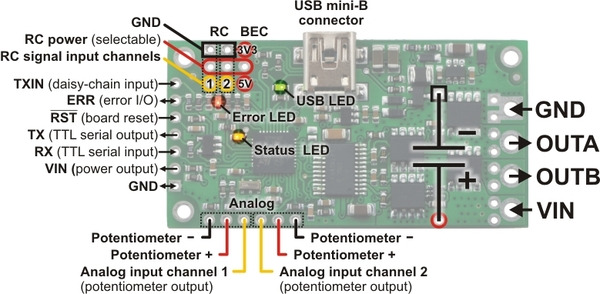
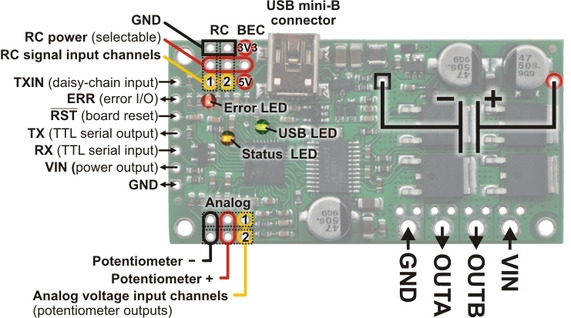
The diagrams below label the key components and pins on the Simple Motor Controllers. Most of these pins are also labeled on the bottom side of the board.
- Simple Motor Controller 18v7 Pin-Out
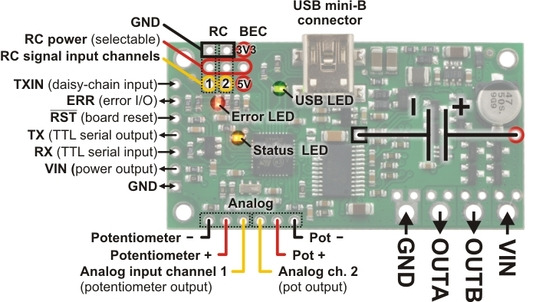 |
 |
- Simple High-Power Motor Controller 18v15 and 24v12 Pin-Out
 |
 |
- Simple High-Power Motor Controller 18v25 and 24v23 Pin-Out
 |
|
4.1. Connecting Power and a Motor
Warning: Take proper safety precautions when using high-power electronics. Make sure you know what you are doing when using high voltages or currents! During normal operation, this product can get hot enough to burn you. Take care when handling this product or other components connected to it.
The first step in using your Simple Motor Controller is connecting power and a motor. With those connections in place, you can immediately start testing with the Simple Motor Control Center. The following section explains the power system in detail.
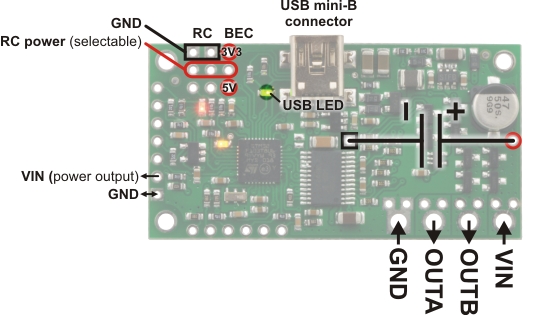 |
Simple Motor Controller 18v7 power and motor connections. |
|---|
 |
Simple High-Power Motor Controller 18v15 or 24v12 power and motor connections. |
|---|
 |
Simple High-Power Motor Controller 18v25 or 24v23 power and motor connections. |
|---|
Power Considerations
The Pololu Simple Motor Controllers can be powered either from USB using a USB A to mini-B cable or from a power supply, such as a battery pack, connected to the large VIN and GND pads. When the VIN supply is not present, the controller can use USB power to perform all of its functions except for driving the motor. The controller automatically selects VIN as the power source when it is present, even when USB is connected. It is OK to have both USB and VIN power simultaneously connected.
Power for the motor must be supplied to the controller through the large VIN and GND pads. The smaller VIN and GND pads on the left side of the board in the diagrams above are not suitable for high currents and should not be used to power the motor controller. These smaller power pins provide a convenient way to pass the input voltage on to other parts in your system, but they should not be used to power anything that will draw more than 500 mA.
All Simple Motor Controller versions can operate from VIN supplies as low as 5.5 V, but the maximum continuous output current will be lower for voltages under 7 V. The maximum power ratings for the Simple Motor Controllers are shown below:
| Simple Motor Controller | 18v7 | 18v15 | 24v12 | 18v25 | 24v23 |
|---|---|---|---|---|---|
| Absolute max voltage | 30 V | 30 V | 40 V | 30 V | 40 V |
| Recommended max voltage | 24 V | 24 V | 34 V | 24 V | 34 V |
| Max continuous current w/o heat sink | 7 A | 15 A | 12 A | 25 A | 23 A |
It is very important that you select a power source that does not exceed the absolute maximum voltage rating for your Simple Motor Controller. Ripple voltage on the supply line can raise the maximum voltage to more than the average or intended voltage, so we recommend you to select a voltage that leaves at least a 6 V margin for noise. It is also important to note that batteries can be much higher than their nominal voltage when fully charged, so we do not recommend using the 18v7, 18v15, or 18v25 versions with 24 V batteries unless appropriate measures are taken to limit the peak voltage.
For 24 V applications, we recommend the 24v12 or 24v23 versions. We strongly recommend against using the 18v7, 18v15, or 18v25 with 24 V batteries, which can significantly exceed 24 V when fully charged and are dangerously close to the maximum voltage limits of these lower-voltage controllers. Using a 24 V battery with an 18vX Simple Motor Controller makes the device much more susceptible to damage from power supply noise or LC voltage spikes.
Finally, make sure you select a power source that is capable of delivering the current your motor will require (e.g. alkaline cells are typically poor choices for high-current applications), and place a large capacitor across power and ground near the motor controller to limit electrical noise (such a capacitor is pre-installed on fully-assembled 18v7, 18v15, and 24v12 controller versions).
The Simple Motor Controllers feature a configurable low-voltage shutoff that can help you avoid damaging batteries that are sensitive to over-discharging, such as Li-Po packs. See Section 5 for more information.
Motor Considerations
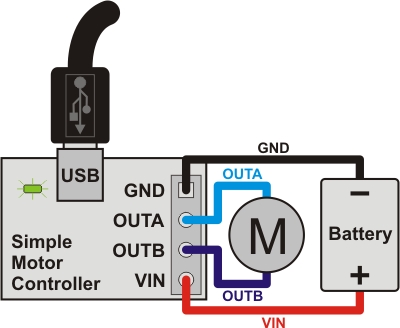 |
The two terminals of your brushed, DC motor connect to the OUTA and OUTB pins. When selecting a motor for your controller (or a controller version for your motor), it is important to consider how the motor will be used in your system. If the motor is likely to be stalled for prolonged periods of time or under heavy load, or if the motor will be rapidly changing direction without acceleration limiting enabled, you should be taking into account the stall current of the motor at the voltage it will be running and selecting a controller that can deliver a continuous current that exceeds the stall current.
It is not unusual for the stall current of a motor to be an order of magnitude (10×) higher than its free-run current. When a motor is supplied with full power from rest, it briefly draws the full stall current, and it draws nearly twice the stall current if abruptly switched from full speed in one direction to full speed in the other direction.
Occasionally, electrical noise from a motor can interfere with the rest of the system. This can depend on a number of factors, including the power supply, system wiring, and the quality of the motor. If you notice parts of your system behaving strangely when the motor is active (e.g. corrupted serial data, bad RC pulses, noisy analog voltage readings, or the motor controller randomly resetting), consider taking the following steps to decrease the impact of motor-induced electrical noise on the rest of your system:
- Solder a 0.1 µF ceramic capacitor across the terminals of your motor, or solder one capacitor from each terminal to the motor case. For the greatest noise suppression, you can use three capacitors (one across the terminals and one from each terminal to the case).
- Make your motor leads as thick and as short as possible, and twist them around each other. It is also beneficial to do this with your power supply leads.
- Route your motor and power leads away from your logic connections if possible.
- Place decoupling capacitors (also known as “bypass capacitors”) across power and ground near any electronics you want to isolate from noise.
Power and Motor Connectors
|
|
|
The fully-assembled 18v7, 18v15, and 24v12 Simple Motor Controller versions ship with terminal blocks soldered into the large VIN, OUTA, OUTB, and GND pads and a power capacitor pre-installed, as shown in the pictures above. These terminal blocks make it easy to connect and disconnect power supplies, but they are only rated for 15 A.
|
|
||||
|
|
All other versions ship with terminal blocks and a power capacitor included but not installed, which provides flexibility in making connections. These versions offer two options for connecting to the high-power signals (VIN, OUTA, OUTB, GND): large holes on 0.2" centers, which are compatible with the included terminal blocks, and pairs of 0.1"-spaced holes, which are compatible with the included 0.1" male header strip and can be used with perfboards, breadboards, and 0.1" connectors. For high-power applications that exceed the 15 A rating of the terminal blocks, we recommend soldering thick wires directly to a connector-free version of the board and using higher-current connectors (see the custom-connector pictures above). Another benefit of the connector-free version is flexibility in placement of the power capacitor (e.g. on the other side of the board) to accommodate compact installations or to make room for a heat sink. The power capacitor has a significant effect on performance; the included capacitor is the minimum size recommended, and bigger ones can be added if there is space. A bigger capacitor might be required if the power supply is poor or far (more than about a foot) from the controller. The pin-out diagrams above show where you can connect the included (or your own larger) power capacitor.
Logic Power
The Simple Motor Controllers use 3.3 V logic, but all of the controllers’ digital inputs are 5V-tolerant, so it can interface directly with 5V systems. The only pins on the board that cannot tolerate 5V are the two analog input channels, A1 and A2. The simple motor controllers incorporate both a 5V regulator and a 3.3V regulator, but the 5V regulator is only used when power is supplied to VIN. Otherwise, the USB 5V bus voltage replaces the output of the 5V regulator. The 5V and 3.3V power buses are available via the RC BEC jumper pads (see the upper-right corners of the power connection diagrams above), and a shorting block can be used to connect the RC power row to the desired voltage rail, thereby powering a connected RC receiver with 3.3 or 5 V. These pins can also be used to supply approximately 150 mA to other components in your system.
Trying Out the Controller with USB
Once you have a connected a power supply and a motor, you can use the Simple Motor Control Center to make the motor move and test how various settings affect the behavior of the motor (see Section 5 for more information on configuring the Simple Motor Controller). The Simple Motor Controller defaults to “Serial/USB” input mode, which lets you control the motor speed with the slider bar under the status tab. If you have already changed the input mode of the device to something else, you can restore it by going to the Input Settings tab, selecting Serial/USB as the Input Mode, and clicking the Apply Settings button in the lower right corner.
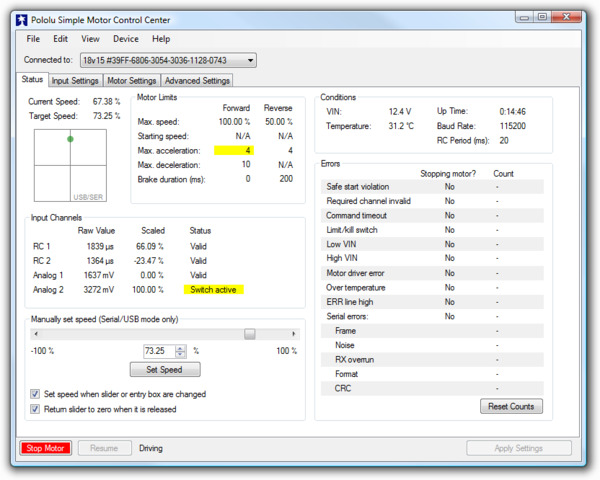 |
Status tab in the Pololu Simple Motor Control Center. |
|---|
Before you can move the motor, you will probably need to click the green Resume button in the lower left corner to clear the safe-start violation. If the Resume button is grayed out, there are errors that are preventing the motor from moving. See Section 3.4 for information on how to identify and fix errors.
Safe Start is an optional feature, enabled by default, that makes it less likely that the motor will start moving unexpectedly.
4.2. Connecting a Serial Device
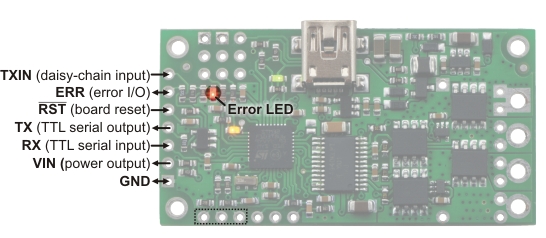
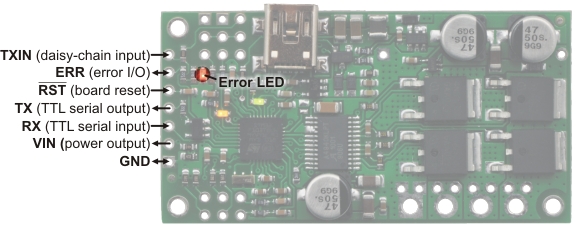
The serial pins make it possible to connect the Simple Motor Controller to a microcontroller (e.g. an A-Star, Orangutan Robot Controller, Arduino, or Basic Stamp) or other logic-level serial device, allowing for the creation of autonomous, self-contained systems. The following section explains the serial pins in detail (see Section 6 for information on using the serial interface).
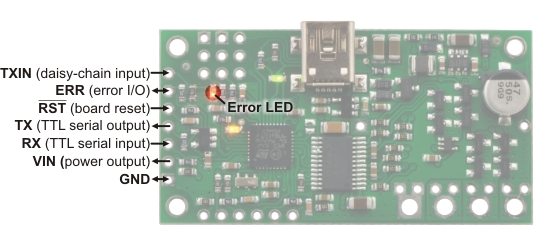 |
Simple Motor Controller 18v7 serial connections. |
|---|
 |
Simple High-Power Motor Controller 18v15 or 24v12 serial connections. |
|---|
 |
Simple High-Power Motor Controller 18v25 or 24v23 serial connections. |
|---|
Serial Connections Overview
The pins along the left side of the Simple Motor Controller can be used to communicate with devices with logic-level (TTL) serial interfaces, such as microcontrollers. As explained in Section 4.1, the Simple Motor Controller uses 3.3V logic, but all of the digital pins in the above diagrams (everything except for VIN and GND) are 5V-tolerant, which means that the Simple Motor Controller can be used directly with a microcontroller running at 5 V as long as that microcontroller is guaranteed to read a 3.3 V signal as high.
The Simple Motor Controller uses its RX and TX pins to receive and transmit asynchronous, logic-level (TTL), non-inverted serial signals with 8-bit characters and one stop bit (often expressed as 8-N-1). This is the type of serial typically used by microcontroller UART modules.
Whenever connecting devices, remember to wire the grounds together, and ensure that each device is properly powered. Unpowered devices with a TTL serial port can turn on or partially on, drawing power from the serial line, which means that extra care must be taken when turning power off and on to reset the devices.
Note: You must use an inverter and level shifter such as a MAX232 or a Pololu 23201a Serial Adapter if you want to interface an RS-232 device with the Simple Motor Controller. Connecting an RS-232 device directly to the Simple Motor Controller can permanently damage it.
Serial Interface Pin Descriptions
| Pin | Direction | Description |
|---|---|---|
| RX | Input | Simple Motor Controller TTL serial receive pin. This should be connected to the TTL serial output (transmit line) of your other device. This connection is only required if you want to send serial commands to the motor controller from your other device. |
| TX | Output | Simple Motor Controller TTL serial transmit pin. This should be connected to the TTL serial input (receive line) of your other device. This connection is only required if you want to receive serial feedback from the motor controller. |
| RST | Input | Simple Motor Controller active-low reset pin. This pin is internally pulled high; driving it low resets the motor controller. You must wait for at least 1 ms after a reset to transmit to the Simple Motor Controller. This pin can be left disconnected in most applications. |
| ERR | In/Out | Simple Motor Controller error output. This pin outputs high when there is an error that is stopping the motor, turning on the red error LED in the process; otherwise, it is weakly pulled low. This pin is documented in more detail below. |
| TXIN | Input | Simple Motor Controller chained transmission input pin. Connecting the transmit output of another serial device to this pin will cause that device’s transmissions to be output from the Simple Motor Controller’s TX pin. This pin is documented in more detail below. |
| GND | Ground connection point. Your serial device must share a common ground with the Simple Motor Controller. | |
| VIN | Output | Board power access point. This pin is internally connected to the large VIN pad where motor power is supplied and can be used to power other components in the system, but it should not be used to supply more than 500 mA. This is not a regulated, logic-level output. |
These pins have a 0.1" spacing.
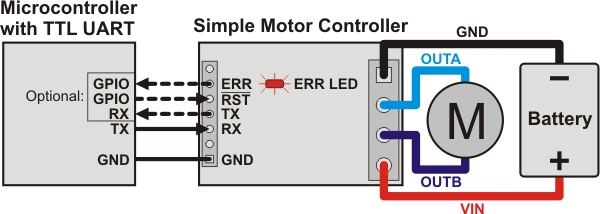
Simple Wiring Example: Connecting to a Microcontroller
All you need to control the Simple Motor Controller with a microcontroller is a connection between the microcontroller’s TTL serial transmit pin and the Simple Motor Controller’s RX pin. If you want to get feedback from the controller, you can connect the TX pin to the microcontroller’s TTL serial receive pin and/or connect the ERR pin to one of the microcontroller’s digital inputs. Connecting one of the microcontroller’s digital outputs to the RST pin allows the microcontroller to selectively reset the Simple Motor Controller.
 |
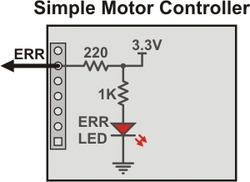
The ERR Pin in Detail
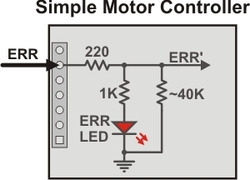
One function of the ERR pin is to communicate that an error is preventing the motor from moving. When such an error occurs, the red error LED turns on and the ERR pin outputs 3.3 V. When there are no errors stopping the motor, the ERR pin is pulled low and the red error LED is off. Because the ERR pin never drives low, it is safe to connect the ERR pins of multiple Simple Motor Controllers to the same microcontroller input. If any one of those controllers experiences an error, the microcontroller error input goes high and the error LEDs of all connected Simple Motor Controllers light up.
By default, the ERR pin is also configured to serve as an input that stops the motor when externally driven above 2.3 V. This means that the error lines of multiple Simple Motor Controllers can be connected together and all motor controllers will shut down their motors when any one motor controller experiences an error. This technique of connecting error lines can be used even when RC signals or analog voltages are used to control the motors. An example of this can be seen in Section 4.3.
The following diagrams show the internal circuitry of the ERR pin in the error case (driving high to report an error) and in the error-free case (pulled low and configured as an input):
|
|
The TXIN Pin in Detail
The TXIN pin is a special input that allows multiple Simple Motor Controllers to be chained together without requiring an external AND gate. The following diagram shows how multiple motor controllers can be connected to a single microcontroller UART:
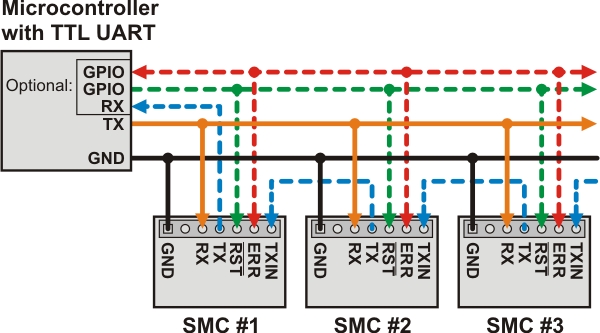 |
Wiring diagram for controlling multiple Simple Motor Controllers with single TTL serial source, such as a microcontroller. |
|---|
Inside each Simple Motor Controller, an AND gate is used to combine the input from the TXIN pin with the controller’s serial transmissions. As long as only one chained controller is transmitting at any given time, the above method of chaining will funnel the transmissions of all chained devices to a single microcontroller receive line. The following diagram shows the internal circuitry of the TX and TXIN pins:
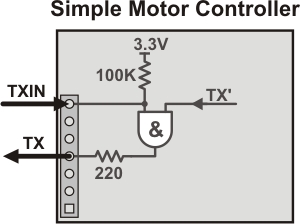 |
Schematic diagram of the Simple Motor Controller TXIN and TX pins. |
|---|
See Section 6.6 for more information on connecting multiple controllers on the same serial line.
4.3. Connecting an RC Receiver
Simple Motor Controller can be directly connected to an RC receiver, allowing for wireless, manual motor control. The RC inputs can serve several functions, from directly controlling the motors (RC input mode) to sending signals to an autonomous robot (Serial/USB mode) to providing an RC kill switch (any input mode). The Simple Motor Controller can derive motor speed from a single RC input channel, or it can mix the signals on both RC channels to generate the motor speed, which makes intuitive throttle+steering control of a differential-drive robot possible using a pair of Simple Motor Controllers. A BEC jumper lets the Simple Motor Controller optionally power your RC receiver at 3.3 or 5 V, eliminating the need for a second battery.
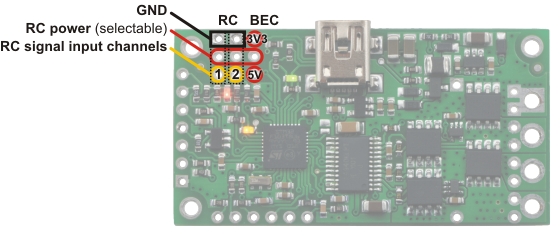
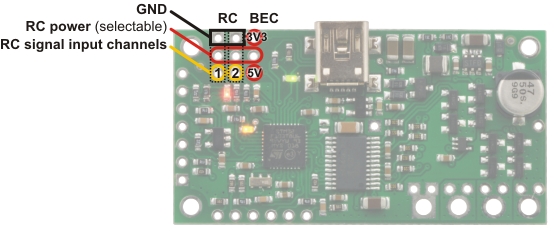 |
Simple Motor Controller 18v7 RC connections. |
|---|
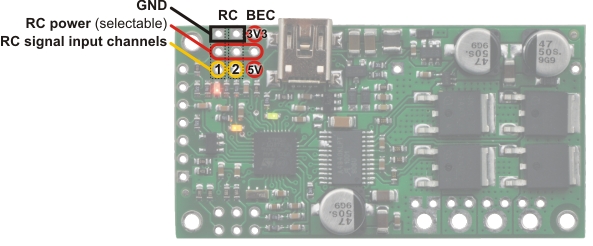
 |
Simple High-Power Motor Controller 18v15 or 24v12 RC connections. |
|---|
 |
Simple High-Power Motor Controller 18v25 or 24v23 RC connections. |
|---|
RC Connections Overview
The RC connection block consists of two channels oriented as columns and a battery elimination circuit (BEC) column for supplying power to the RC receiver. Each channel has a ground pin (outlined in black in the above diagrams), a power pin (outlined in red in the above diagrams), and a signal pin (outlined in yellow in the above diagrams). The RC signal pins can read standard hobby servo RC pulses with peaks anywhere from 2 to 5 V. The included shorting block can be used to supply the power pin row with either 3.3 V or 5 V, which in turn can be used to power an RC receiver.
Note: If you want to connect servos directly to your RC receiver, you must power it separately as the Simple Motor Controller’s regulators cannot supply enough current to power a servo. If your RC receiver is powered separately, you must leave the BEC jumper off to avoid shorting the motor controller’s regulated voltage to your RC receiver’s power source. Your receiver and Simple Motor controller must always have a common ground, even if you power the RC receiver separately.
The channel pins have a 0.1" spacing, which means that a female-female servo extension cable can be used to connect an RC receiver directly to the board.
Simple Wiring Example: Connecting to an RC Receiver
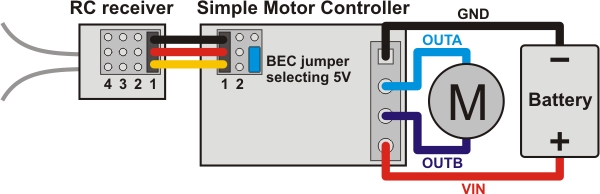 |
Wiring diagram for connecting an RC receiver to a Simple Motor Controller. |
|---|
Using the RC Channels
The Simple Motor Controller is constantly reading the two RC channels and making the measured pulse widths available via the USB and serial interfaces, even when the controller is not in RC mode. For example, you can use the serial interface to read the RC channel values while the motor controller is in analog mode. The RC channels are read with 0.25 µs resolution, and RC pulse frequencies from 10 Hz to 333 Hz are permitted. A number of settings exist for adjusting what constitutes a valid RC signal.
Driving a Motor
In RC mode, the channel values are mapped to motor speed based on the channel calibration values and the mixing mode. We recommend your first step after connecting your RC receiver be to use the Quick Input Setup wizard in the Simple Motor Control Center. The wizard instructs you to move your transmitter control sticks to their extremes and maps stick full forward/right to the maximum forward motor speed, the neutral stick to speed zero, and the stick full back/left to maximum reverse speed. Calibration can have a significant impact on performance.
If mixing mode is disabled, only channel 1 affects motor speed. If mixing mode is set to “right” or “left”, channel 1 is considered the “throttle” input and channel 2 is considered the “steering” input. Left mixing mode obtains motor speed by summing the throttle and steering channels (CH1+CH2) while right mixing mode obtains motor speed by taking the difference of the throttle and steering channels (CH1-CH2). To see why this makes sense, consider a differential-drive robot (a robot with a motor on each side) with a left motor driven by a Simple Motor Controller in left mixing mode and a right motor driven by a Simple Motor Controller in right mixing mode. When throttle is full forward (CH1=max) and steering is neutral (CH2=0), left- and right-mixed motors are both driven forward at full speed and the robot goes forward. When throttle is neutral (CH1=0) and steering is full right (CH2=max), the left mixing results in motor forward at full speed while right mixing results in motor reverse at full speed, so the robot turns right.
As demonstrated above, using both RC channels in mixing mode makes it possible to combine two RC-controlled Simple Motor Controllers to achieve single-stick (mixed) control of a differential drive robot. The following diagram shows how to connect two such motor controllers together:
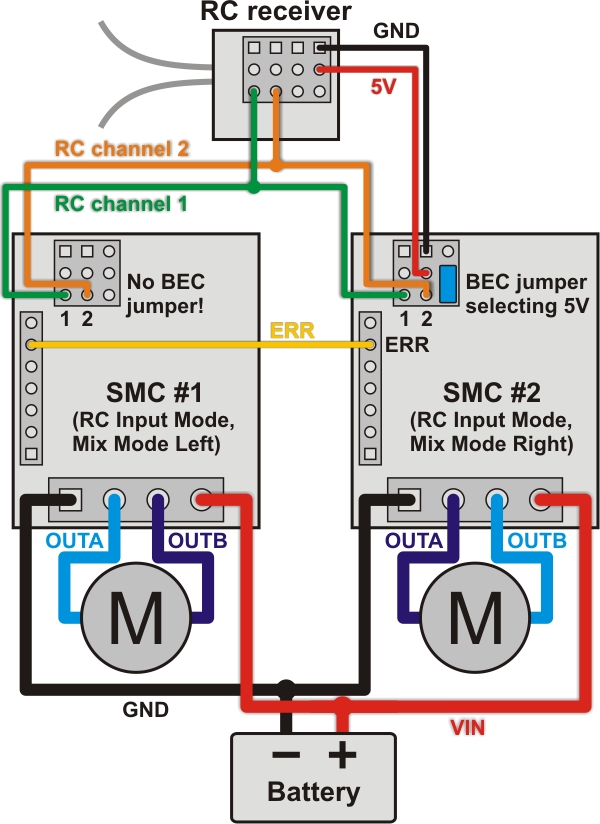 |
Wiring diagram for pairing two Simple Motor Controllers with RC channel mixing. |
|---|
You should configure the controller that drives the right motor as “mixing mode right” and the controller that drives the left motor as “mixing mode left”. You can splice together your own cables or use premade Y splitter cables to connect channels 1 and 2 from your RC receiver to channels 1 and 2 of both controllers as shown in the diagram above. You can also connect the ERR lines of both controllers together to ensure that both controllers stop if either controller experiences an error. The following pictures show a Wild Thumper 4WD chassis being driven by two Simple Motor Controllers in mixed RC mode as depicted in the above wiring diagram:
|
|
Limit/Kill Switches
Unused RC channels can also be used as limit or kill switches. For example, you could use an RC signal as a kill switch to stop your autonomous, serially-controlled robot if it gets into trouble. When configured as a limit or kill switch, if the channel’s value exceeds more than half of its “forward” value, the switch is activated. We recommend you use the Channel Setup Wizard (click the “Learn…” button in the Simple Motor Control Center) for any RC channel you configure as a limit or kill switch.
4.4. Connecting a Potentiometer or Analog Joystick
Simple Motor Controller can be directly connected to a 0 to 3.3 V analog voltage source, such as a potentiometer or analog joystick, allowing for simple manual motor control (e.g. easily control motor speed with a knob). The analog inputs can serve several functions, from directly controlling the motors (Analog input mode) to sending signals to an autonomous robot (Serial/USB mode) to providing limit or kill switch inputs (any input mode). The Simple Motor Controller can derive motor speed from a single analog input channel, or it can mix the signals on both analog channels to generate the motor speed, which makes intuitive throttle+steering control of a differential-drive robot possible using a pair of Simple Motor Controllers. Typical analog voltage sources can be powered directly from the Simple Motor Controller.
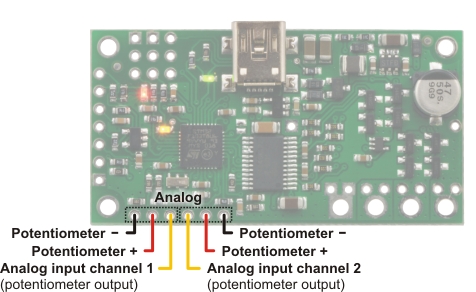 |
Simple Motor Controller 18v7 analog connections. |
|---|
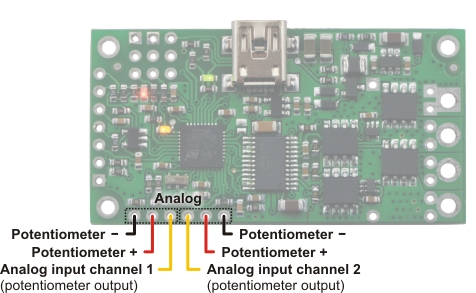 |
Simple High-Power Motor Controller 18v15 or 24v12 analog connections. |
|---|
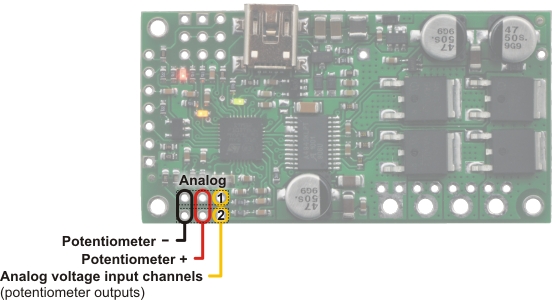 |
Simple High-Power Motor Controller 18v25 or 24v23 analog connections. |
|---|
Analog Connections Overview
The analog connection block consists of two channels. Each channel has a signal pin and a + and – pin for powering the analog voltage source. These potentiometer power pins are special in that they allow the Simple Motor Controller to detect if an analog channel has become disconnected, so we recommend using these pins rather than alternate power supplies or other pins on the board.
If you use an analog voltage source that is not powered from the Simple Motor Controller’s potentiometer power (+ and –) pins, you will need to check the Ignore Pot Disconnect checkbox under the Advanced Settings tab of the Simple Motor Control Center (see Section 5.3).
We recommend using a potentiometer in the 1 kΩ to 10 kΩ range. Higher-resistance potentiometers will not work well with the potentiometer disconnection detection feature. If you need to use a higher-resistance potentiometer, you can disable potentiometer disconnection detection from the Simple Motor Control Center.
Note: The analog channel inputs are not 5V tolerant, so you must not connect voltages over 3.3 V to these pins. If your control source outputs voltages higher than 3.3 V, you can use a voltage divider to ensure the voltage is always at an acceptable level.
The channel pins have a 0.1" spacing, which means that a female-female servo extension cable can be used to connect a potentiometer or analog joystick to the motor controller board.
Simple Wiring Example: Connecting to a Potentiometer
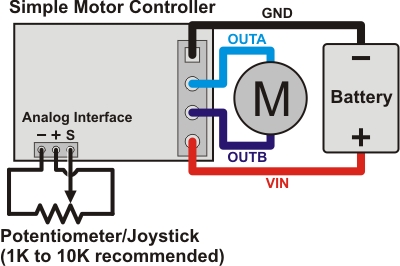 |
Wiring diagram for connecting a potentiometer or joystick to a Simple Motor Controller. |
|---|
Using the Analog Channels
The Simple Motor Controller is constantly sampling the two analog channels and making the measured voltages available via the USB and serial interfaces, even when the controller is not in analog mode. For example, you can use the serial interface to read the analog channel values while the motor controller is in RC mode. The analog channels are read with 12-bit (0.8 mV) resolution.
Driving a Motor
In analog mode, the channel values are mapped to motor speed based the channel calibration values and the mixing mode. We recommend your first step after connecting your analog voltage source be to use Quick Input Setup Wizard in the Simple Motor Control Center. The wizard instructs you to move your inputs to their extremes and maps one extreme to the maximum forward motor speed, the neutral position to speed zero, and the other extreme to maximum reverse speed. Calibration can have a significant impact on performance.
If mixing mode is disabled, only channel 1 affects motor speed. If mixing mode is set to “right” or “left”, channel 1 is considered the “throttle” input and channel 2 is considered the “steering” input. Left mixing mode obtains motor speed by summing the throttle and steering channels (CH1+CH2) while right mixing mode obtains motor speed by taking the difference of the throttle and steering channels (CH1-CH2). To see why this makes sense, consider a differential-drive robot (a robot with a motor on each side) with a left motor driven by a Simple Motor Controller in left mixing mode and a right motor driven by a Simple Motor Controller in right mixing mode. When throttle is full forward (CH1=max) and steering is neutral (CH2=0), left- and right-mixed motors are both driven forward at full speed and the robot goes forward. When throttle is neutral (CH1=0) and steering is full right (CH2=max), the left mixing results in motor forward at full speed while right mixing results in motor reverse at full speed, so the robot turns right.
As demonstrated above, using both analog channels in mixing mode makes it possible to combine two joystick-controlled Simple Motor Controllers to achieve single-stick (mixed) control of a differential drive robot. The connection diagram for such a setup would be very similar to the RC-mixing diagram shown in Section 4.3.
Limit/Kill Switches
Unused analog channels can also be used as limit or kill switches. When configured as a limit or kill switch, if the channel value exceeds more than half of its “forward” value, the switch is activated. If you want to use a push-button switch for this purpose, we recommend using a normally closed (NC) switch connected in one of the two ways depicted in the diagrams below:
|
|
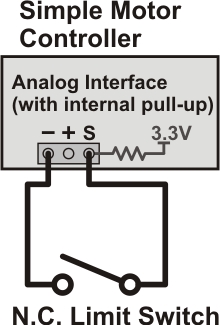
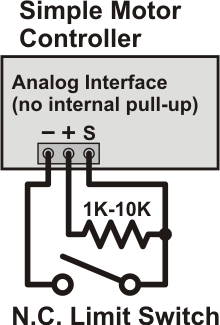
By using a normally closed limit switch, you ensure that if the switch becomes disconnected in some way, the controller considers the limit/kill switch active and stops the motor. The left wiring diagram is simpler because it uses an internal pull-up resistor (enabled using the Simple Motor Control Center), but it can only result in one of two possible states: switch active or switch inactive. The right wiring diagram above is able to take advantage of the potentiometer disconnection detection feature. Pressing the switch activates it, releasing it deactivates it, and disconnecting it results in a disconnection error or an activated switch, depending on which parts of the switch are disconnected.
The above configurations should work with the default analog channel calibration values, but we still recommend you use the Channel Setup Wizard (click the “Learn…” button in the Simple Motor Control Center) for any analog channel you configure as a limit or kill switch.
Normally open (NO) switches can also be used as limit/kill switches with this controller, but they are not as safe since accidental disconnection will lock the switch in an inactive state.
5. Configuring Your Motor Controller
The Simple Motor Controllers can be configured over USB using the Pololu Simple Motor Control Center, which is available for download from the Pololu website (see Section 3.1).
5.1. Input Settings
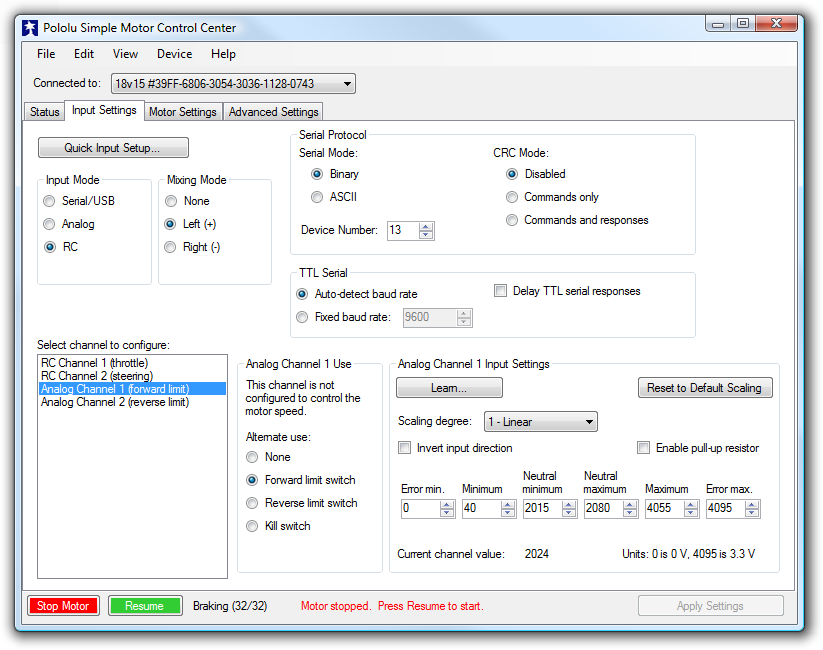
The Input Settings tab of the Pololu Simple Motor Control Center allows you to quickly specify how you want to control the speed of the motor, and also allows you to set up limit and kill switches.
As a first step, we recommend that you click “Quick Input Setup…”. This will launch the Quick Input Setup Wizard, which will let you specify how you want to control of the motor, and (if you are using analog or RC) lets you quickly calibrate your inputs. When you finish the Quick Input Setup Wizard, your new settings will get saved in the Input Settings tab and will (optionally) be applied to the device so you can start using your new settings right away. After you are done running the Quick Input Setup, you should be able to successfully control your motor, as long as you have made all the necessary electrical connections as described in Section 4.
The rest of this section documents all of the Input Settings in detail. If you are able to control the motor the way you want to after running the Quick Input Setup Wizard, then you probably don’t need to read this section.
The serial settings in the Input Settings tab are not documented here. If you want to use the serial interface, please see Section 6.
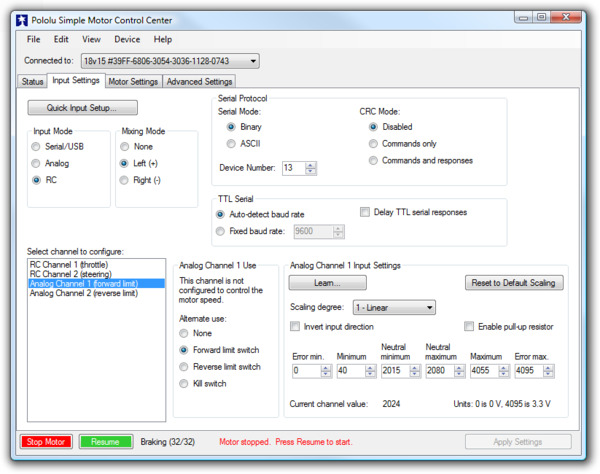 |
Input Settings tab in the Pololu Simple Motor Control Center. |
|---|
Input Mode
The Input Mode specifies what kind of input the controller will use to calculate the Target Speed of the motor. The available options are:
- Serial/USB: In this input mode, the Target Speed is specified by serial or USB commands, and the Target Speed is reset to zero whenever there is an error. This is the default input mode.
- Analog: In this input mode, the Target Speed is determined by the voltages measured on the analog signal lines (A1 and optionally A2 if you want to use mixing).
- RC: In this input mode, the Target Speed is determined by the pulse widths measured on the RC signal lines (RC1 and optionally RC2 if you want to use mixing).
Regardless of which input mode you choose, the Analog and RC input channels will always be measured; those channels can be used as limit or kill switches if they are not controlling the speed of the motor and their values can be retrieved using the Get Variable serial command.
Mixing Mode
If you have chosen Analog or RC as the Input Mode, the Mixing Mode setting specifies whether to use mixing and what type of mixing it is.
The primary use of mixing is for controlling a motor on a differential drive robot. You can use one Simple Motor Controller for each motor on the robot, and feed the same inputs in to both of them. We recommend connecting the throttle (forward/reverse) input to channel 1, and the steering (left/right) input to channel 2.
- None: In this mixing mode, the Target Speed is calculated as a function of the Scaled Value of the first channel only (Analog Channel 1 or RC Channel 1).
- Left (+): In this mixing mode, the Target Speed is calculated as a function of the sum of the Scaled Value of both channels.
- Right (-): In this mixing mode, the Target Speed is calculated as a function of the difference of the Scaled Value of both channels (channel 1 minus channel 2).
Note that in RC and Analog mode, the Target Speed depends not only on the Scaled Values of the channels, but also on the Starting Speed and Max Speed parameters, as explained in Section 5.2.
The table below summarizes all the input and mixing modes you can choose:
| Input Mode | Mixing Mode | Motor speed is calculated from… | Example Applications |
|---|---|---|---|
| Serial/USB | N/A | Serial and/or USB commands | Motor controlled by microcontroller or PC. |
| Analog | None | Analog Channel 1 | Motor controlled by joystick. |
| Analog | Left (+) | Analog Channel 1 plus Analog Channel 2 | Differential drive vehicle controlled by joystick. |
| Analog | Right (-) | Analog Channel 1 minus Analog Channel 2 | Differential drive vehicle controlled by joystick. |
| RC | None | RC Channel 1 | Electronic Speed Controller (ESC). |
| RC | Left (+) | RC Channel 1 plus RC Channel 2 | Differential drive RC vehicle. |
| RC | Right (-) | RC Channel 1 minus RC Channel 2 | Differential drive RC vehicle. |
The settings on the bottom half of the Input Settings tab are all channel-specific settings. To view or edit them, you must first select the desired channel using the list box in the bottom left corner.
Alternate Use
The Alternate Use setting allows you to configure any channel that is not used to control the speed of the motor as a limit or kill switch. The available options are:
- None: This channel will not be used for anything special, but its Raw and Scaled values can be read using serial or USB.
- Forward limit switch: When the scaled value of the channel is above 1600 (50%), the limit switch will be considered active and the motor will not be allowed to move forward. If the target speed is positive, a “Limit/kill switch” error will occur.
- Reverse limit switch: When the scaled value of the channel is above 1600 (50%), the limit switch will be considered active and the motor will not be allowed to move in reverse. If the target speed is negative, a “Limit/kill switch” error will occur.
- Kill switch: When the scaled value of the channel is above 1600 (50%), the kill switch will be considered active and the “Limit/kill switch” error will occur, preventing the motor from moving. For example, you could use the kill switch feature and the Serial/USB input mode to make an autonomous robot that you can conveniently immobilize from a distance using an RC transmitter and receiver.
The Forward and Reverse Limit Switch options allow you to set up limits that prevent your actuator from moving out of its allowed range. See Section 4.3 and Section 4.4 for information about connecting limit switches. You will probably want to avoid setting a motor deceleration limit if you are using a limit switch, because the deceleration limit will prevent the motor from stopping immediately: when the switch is triggered, the motor will gradually decelerate from its current speed to zero, which might be bad for your system depending on how it is set up.
Any channel configured as a limit or kill switch is considered a required channel. This means that the motor will stop if that channel becomes disconnected (the Required channel invalid error will occur).
Learn button
The Learn… button launches the Channel Setup Wizard, which lets you quickly calibrate your input channel or limit switch. Before using this wizard, you should select your desired Alternate Use and if you are configuring an analog channel then you should first enable the pull-up resistor and check “Ignore Pot Disconnect” in the Advanced Settings tab if necessary.
Enable pull-up resistor (analog channels only)
When checked, the Enable pull-up resistor option enables a pull-up resistor on the selected analog input line. The value of the resistor is approximately 40 kΩ and it pulls the line up to 3.3 V.
Scaling Parameters
The rest of channel-specific settings are all scaling parameters, which means they specify how the Scaled Value of the input channel is calculated from its Raw Value. They also specify the normal range of the input channel. All of these parameters except Scaling degree can be easily set using the Learn… button.
The Raw Value of a channel is measured directly from the input pin. For RC channels, the Raw Value is the width of received pulses in units of 1/4 μs; typical RC receivers will generate signals between 4000 (1000 μs) and 8000 (2000 μs). For Analog channels, the Raw Value is a 12-bit measurement of the voltage on the input line: 0 is 0 V and 4095 is 3.3 V. You can see the raw value of the selected channel by looking at the “Current channel value” label or by looking at the Status tab.
If the Raw Value is less than Error min or greater than Error max, then the channel is considered invalid and the Scaled Value is not computed. Otherwise, the Scaled Value of a channel is calculated from the Raw Value using the scaling parameters. Specifically:
- Raw values between Error min. and Minimum map to a Scaled Value of -3200 (or 3200 if “Invert input direction” is checked).
- Raw values between Minimum and Neutral minimum map to a Scaled Value between -3200 (or 3200 if “Invert input direction” is checked) and 0.
- Raw values between Neutral minimum and Neutral maximum map to a Scaled Value of 0.
- Raw values between Neutral maximum and Maximum map to a Scaled Value between 0 and 3200 (or -3200 if “Invert input direction” is checked).
- Raw values between Maximum and Error max. map to a Scaled Value of 3200 (or -3200 if “Invert input direction” is checked).
By default, the scaling is linear, but you can change the Scaling degree to use a higher-degree polynomial function, which gives you better control for low speeds.
The Error min. and Error max. parameters should be set so that the input channel’s Raw Value is always within that range whenever the input is operating properly. One way to do this is to move your input to the minimum position, and set Error min. to be 10–200 counts lower than the current channel value. Similarly, move your input to its maximum position, and set Error max. to be 10–200 counts higher than the current channel value.
The Minimum and Maximum parameters should be as far apart as possible to maximize the accuracy of your speed control, but they should still be close enough that you can reliably reach scaled values of ±3200 (±100 %). One way to do this is to move your input to its minimum position, and set Minimum to be 10–200 counts higher than the current channel value. Similarly, move your input to its maximum position, and set Maximum to be 10–200 counts lower than the current channel value.
The Neutral minimum and Neutral maximum parameters should be as close as possible to maximize the accuracy of your speed control, but they should still be far enough from eachother so that you can reliably reach a scaled value of 0 when you put your input in the neutral position (e.g. release your finger from the joystick). Some joysticks can settle at different positions depending on where you release the from, so you should experiment with releasing your joystick from different positions and see what Raw Values you get (you can see them using “Current channel value” label or in the Status tab). Then set Neutral minimum and Neutral maximum so that their range includes all of the values you saw, and has a reasonable margin. This guarantees that you will not waste any power driving your motor when your stick is in the neutral position.
If you want to restrict the scaled value of the channel to always be negative or always be positive, you can set the Minimum equal Neutral Minimum or you can set Maximum equal to Neutral Maximum. This could be useful for one-directional control of a motor but typical applications will not need this.
5.1.1. Configuring a Limit or Kill Switch
Limit switches and kill switches help protect your motor controller from performing unwanted actions. For example, analog limit switches could be configured to prevent your actuator from moving out of its valid range. An RC kill switch could be configured to conveniently immobilize an autonomous robot from a distance using an RC Transmitter and Receiver.
To configure your Simple Motor Controller to use a limit or kill switch, follow these steps:
- Decide what channel you are going to connect your limit switch to, and connect it to that channel as described in Section 4.3 if it is an RC limit or kill switch or Section 4.4 if it is an analog limit or kill switch.
- If you are using an Analog channel for your limit switch and you decide to use the internal pull-up instead of supplying an external one, check the “Enable pull-up resistor” box for that channel in the Input Settings tab.
- If you are using an Analog channel and have chosen a wiring configuration that makes it impossible for the controller to detect when your switch is disconnected, check “Ignore pot disconnect” box in the Advanced Settings. Disconnect detection works by toggling power to the analog power pins (+) and making sure that this toggling has an effect on the voltage on the sigal pin (A1 or A2). If you have wired your switch such that the analog power pin is not connected to the signal pin, you will need to do this.
- Select the desired Alternate Use for the limit switch channel. This determines whether it will be a Forward Limit Switch, Reverse Limit Switch, or Kill Switch. See Section 5.1 for details about the Alternate Use.
- Click “Apply Settings”.
- Look at the current channel value label in the Input Settings tab. Press or activate your switch and make sure that the channel value changes significantly. If the value does not change, then you should double check your connections and settings and try again.
- Click the “Learn…” button for the channel in the Input Settings tab. The Channel Setup Wizard will walk you through the steps needed to calibrate your limit switch’s scaling parameters.
5.2. Motor Settings
The Motor Settings tab of the Pololu Simple Motor Control Center allows you to set up limits to protect your system and lets you specify the details of how your motor should be driven.
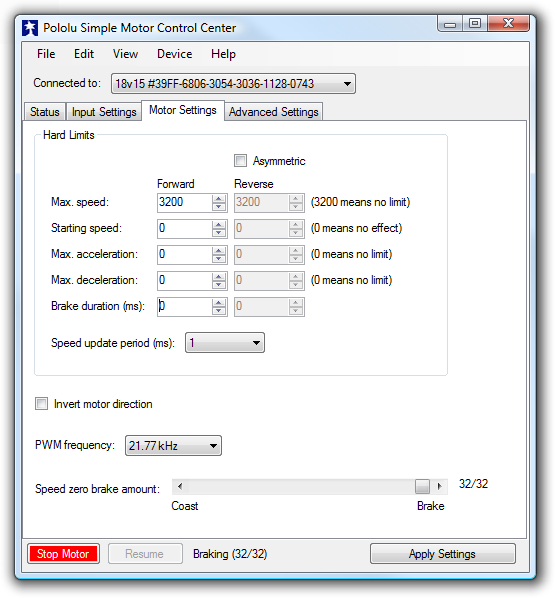 |
Motor Settings tab in the Pololu Simple Motor Control Center. |
|---|
Hard Limits
The Hard Limits box allows you to set up hard limits on the motion of your motor in order to protect your system and reduce mechanical stress.
They are called Hard Limits because they are stored in non-volatile memory and they are always obeyed. However, all of them except Starting Speed can be temporarily modified using the appropriate USB or serial command. Only modifications that make the system safer are allowed. These temporary changes will only last until the next time the device resets, at which point the hard limits will be reloaded. See Section 6.2.1 for more details about setting temporary motor limits.
If you want to enter different limits for the reverse and forward directions, check the Asymmetric checkbox.
Max speed is a number between 0 and 3200 that specifies the maximum speed at which the motor controller will ever drive the motor. The default value is 3200, which corresponds to 100% and means there is no limit. A value of 0 means that the motor will not be allowed to drive in the specified direction. This setting also affects how the Target Speed is computed in RC and Analog modes: after mixing is optionally performed, a scaled value of 3200 or -3200 maps to the Max speed. The Max speed should be zero or it should be greater than the Starting speed.
Starting speed is a number between 0 and 3200 that specifies the minimum speed at which the motor controller will ever drive the motor. The default value is 0, which means there is no minimum, so this setting has no effect. This setting also affects how the Target Speed is computed in RC or Analog modes: after mixing is optionally performed, a scaled value of 1 means the Target Speed equals the Forward Starting Speed and a scaled value of -1 means the Target Speed equals the inverse (negation) of Reverse Starting Speed. The starting speed parameter allows you to save some energy by never driving the motor at speeds that are too low to actually make the motor turn. It can also make your joystick control be more accurate and responsive, because the motor can start moving as sooner as the stick leaves the neutral area.
Max. acceleration is a number between 0 and 3200 that specifies how much the magnitude (absolute value) of the motor speed is allowed to increase every speed update period. The default value is 0, which means there is no limit. An acceleration limit can help reduce mechanical stress and help reduce current spikes when the motor is starting up. If an acceleration value of 1 is too fast for your application, you can increase the Speed update period to make it slower.
Max. deceleration is a number between 0 and 3200 that specifies how much the magnitude (absolute value) of the motor speed is allowed to decrease every speed update period. The default value is 0, which means there is no limit. A deceleration limit can help reduce mechanical stress and help reduce current spikes when the motor is decelerating. Note that deceleration limits apply even when there is an error stopping the motor; depending on your setup, it might not be a good idea to use deceleration in conjunction with a limit switch because the motor will not stop as fast as possible when the limit switch is triggered. If an deceleration value of 1 is too fast for your application, you can increase the Speed update period to make it slower.
Brake duration is the time, in milliseconds, that the motor controller will spend braking the motor (Current Speed = 0) before allowing the Current Speed to change signs. The Forward Brake Duration is the braking time required before switching from forward to reverse (from positive to negative speeds). The Reverse Brake Duration is the braking time required before switching from reverse to forward (from negative to positive speeds).
The Speed update period is the time, in milliseconds, between consecutive updates to the Current Speed. The default is 1 ms, which is the lowest allowed value. By increasing the Speed update period, you can decrease the effective rate of acceleration and deceleration because the updates will be applied less often. The slowest possible acceleration/deceleration can be achieved by setting the Speed update period to 100 ms and the acceleration/deceleration limit to 1; with this configuration it will take 320 seconds to accelerate from speed 0 to speed 3200 (100 %) or decelerate from speed 3200 to speed 0.
The Invert motor direction option lets you switch the meanings of forward and reverse. By default, Forward means the average voltage on OUTA is greater than the average voltage on OUTB (and reverse means the opposite). With the Invert motor direction option enabled, Forward means the average voltage on OUTA is less than the average voltage on OUTB.
The PWM frequency setting specifies the frequency of the rapidly-switching (PWM) signal used to control the speed of the motor. Several PWM Frequency options are available between 1.12 and 21.77 kHz. The default PWM frequency is 21.77 kHz. This is an ultrasonic frequency; it is too high for humans to hear, so you won’t hear the high-pitched whine from the motor that other motor controllers can cause. Using a lower PWM frequency will reduce switching losses and slightly increase the power output to the motor because the duty cycle (the percentage of the time that the H-bridge is powering the motor) can be closer to 100%. Note that a speed of 3200 is called 100 % but it does not correspond to a duty cycle of 100 %. The correspondence between maximum duty cycle and PWM frequency is shown in the table below.
| PWM Frequency | Duty cycle when speed is 100% | |
|---|---|---|
| 21.77 kHz | 96.8% | |
| 11.07 kHz | 98.4% | |
| 7.42 kHz | 98.9% | |
| 5.58 kHz | 99.2% | |
| 4.47 kHz | 99.3% | |
| 3.20 kHz | 99.5% | |
| 2.04 kHz | 99.7% | |
| 1.12 kHz | 99.8% |
Speed zero brake amount is a number between 0 and 32 that specifies how strongly to brake the motor when the Current Speed is set to 0. This corresponds to the percentage of time that the low-side MOSFETs will be turned on and braking the motor. The default is 32, which means full brake. This means that whenever the Current Speed gets set to zero (because of an error or any other reason) the motor will brake as fast as possible, and it will be relatively hard to turn the motor by hand while it is stopped. If you would prefer that your motor have a more gradual stop or be easier to turn while it is stopped, you can set Speed zero brake amount to 0, which is almost full coast. Another way to have gradual stops is to set a deceleration limit, which will cause the Current Speed to slowly drop to zero.
5.3. Advanced Settings
The Advanced Settings tab lets you fine-tune the details of how your Simple Motor Controller behaves.
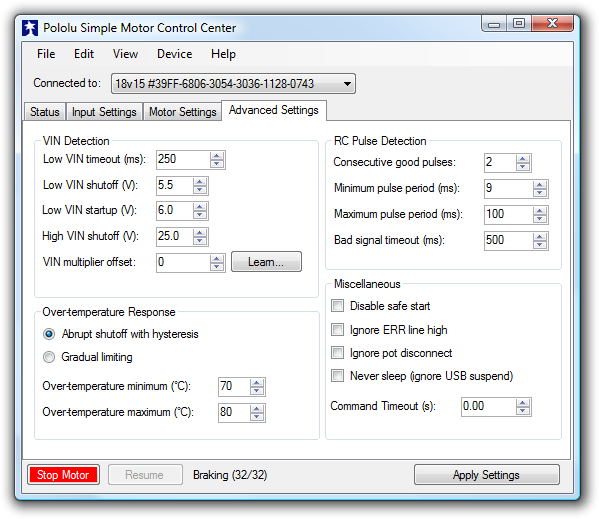 |
Advanced Settings tab in the Pololu Simple Motor Control Center. |
|---|
VIN Detection
These options specify how to measure the voltage on the VIN line.
The Low VIN options specify what constitutes a Low VIN error. A Low VIN error occurs when the voltage on the VIN line drops below the Low VIN shutoff voltage and stays below it for the amount of time specified by the Low VIN timeout. The Low VIN error will stop occurring when the voltage on the VIN line rises above the Low VIN startup voltage.
If you are using a battery that can be damaged by over-discharging, we recommend setting your Low VIN shutoff to an appropriate value so that your motors will shut down when the battery voltage gets too low. For example, if you are using a Lithium-Polymer (Li-Po) battery, it would be good to set a Low VIN Shutoff to something like 3.0 V or 3.5 V multiplied by the number of cells in your battery. You should also consult your battery’s specifications, and adjust your Low VIN shutoff based on how much current your motor draws and how careful you want to be.
If VIN exceeds the High VIN shutoff level, a High VIN error will occur. This error is different from the other errors: it instantly shuts down the motors and goes in to full braking mode, regardless of your deceleration and speed zero brake amount settings. This means that if you are using the controller in a differential drive vehicle and your vehicle is being pulled down a hill by gravity, the extra voltage generated by the motors might trigger a VIN error and the controller would attempt to stop your robot’s descent by braking.
The VIN multiplier offset is a calibration factor used in computing VIN. The default value of 0 should work fine for most purposes. If you have a multimeter or another accurate way of measuring voltage, you can click the Learn… button to have the software automatically set this number for you. If you find that the VIN reading shown in the Status tab is too high, you should decrease this number. If it is too low, you should increase this number.
Over-temperature Response
The Simple Motor Controller monitors its temperature using a sensor near the MOSFETs and protects itself from burning up by generating an error when the temperature is too high. The Simple Motor Controller has two modes for over-temperature response:
- Abrupt shutoff with hysteresis: This is the default mode. In this mode, the Over temperature error will start occurring when the temperature exceeds the Over-temperature maximum and will keep until the temperature drops below the Over-temperature minimum. In this mode, it will be obvious when you are having temperature issues because your motor will shut down completely while your motor controller cools off.
- Gradual limiting: In this mode, whenever the temperature is between the Over-temperature minimum and Over-temperature maximum, the magnitude of the motor speed will be limited. The speed limit is 3200 (100 %) when the temperature is equal to the Over-temperature minimum, and it decreases linearly with temperature so that the speed limit is 0 when the temperature is equal to the Over-temperature maximum. If the temperature rises above the Over-temperature maximum an over-temperature error will occur and the motor will stop. In this mode, the motor will keep on running as the board heats up, but it might run slower due to the temperature-based speed limiting.
RC Pulse Detection
These parameters adjust how lenient or strict the RC signal measurement is on the RC1 and RC2 lines. If you use strict settings, your controller will shut down faster when the RC signal is lost and be less likely to act on corrupted data. If you use lenient settings, your controller will be more likely to keep operating when the RC signal quality is poor.
Consecutive good pulses is the number of consecutive good pulses that must be received before the controller starts heeding good pulses and updating the channel value. The default value of 2 means that after 2 good pulses in a row are received, the third one will be used to update the channel value. A value of 0 means that every good pulse results in an update of the channel value. Increasing this number makes your settings more strict while decreasing it makes them more lenient.
Minimum pulse period and Maximum pulse period specify limits on the amount of time allowed between pulses. If a pulse is received too soon after a previous pulse, it is considered bad. If the pulses on the line stop, then the RC input channel’s signal is considered invalid after an amount of time equal to the Maximum pulse period has elapsed. The period of your RC signal is shown in the Status tab, so you can use that to help pick good values for these settings.
The Bad signal timeout is like an expiration time for the pulses. If the RC signal line is corrupted by enough bad pulses that the channel’s value is not getting updated, then the RC input channel’s signal will be considered invalid after an amount of time equal to the Bad signal timeout has elapsed. Increasing this number makes your settings more strict while decreasing it makes them more lenient.
Miscellaneous
The Disable safe start option disables Safe-start violation error, which is described in Section 3.4. In Serial/USB input mode, this means that you will no longer have to send Exit Safe Start commands. In RC or Analog input mode, this means that you will no longer have to center your inputs in order to restart the motor after an error. This option makes it more likely that the motor will start when you are not expecting it.
The Ignore ERR line high option disables the ERR line high error, which is described in Section 3.4. This allows your motor to run even if the ERR line is being driven high by some external device.
The Ignore pot disconnect option disables the disconnect detection for analog channels. Enabling this option means that the device will stop toggling the positive (+) analog power pins in order to detect whether your potentiometer is connected. The analog channel will still be considered invalid if the voltage goes out of the acceptable range specified by the Error min and Error max parameters for that channel. This option is necessary if you are connecting a limit switch or other device to the analog input in a way that prevents the disconnect detection from working.
The Never sleep (ignore USB suspend) option prevents the device from going in to deep sleep mode in order to comply with the suspend current requirements of the USB specifications. Checking this option will make the device non-USB compliant, but will allow it to perform some functions while connected to a sleeping PC via USB and the VIN power supply is disconnected. Note that the Simple Motor Controller can not drive a motor while VIN is disconnected.
The Command timeout error occurs if you are controlling your motor using a microcontroller or a PC (Input Mode is Serial/USB) and the Command Timeout period has elapsed with no valid serial or USB commands being received by the controller. The default value of Command Timeout is 0, which means the error is disabled. The Command Timeout can be specified with 0.01 s resolution and can be as high as 655.35 s. The purpose of the Command timeout error is to ensure that your motor will stop if the software talking to the controller crashes or if the communications link is broken. For more details about this error see Section 3.4.
5.4. Upgrading Firmware
The Simple Motor Controller has field-upgradeable firmware that can be easily updated when Pololu releases bug fixes or new features.
Firmware Versions
- Version 1.00: This is the original version.
- Version 1.01: This version fixes a bug that made the ASCII Get Variable serial command malfunction for negative numbers.
- Version 1.02: This version fixes a bug that caused the controller to detect the wrong baud rate if the baud rate detection byte was sent during the first two milliseconds after a reset.
- Version 1.03, released on 2010-11-18: This version fixes a bug that caused the yellow LED to flicker sometimes.
- Version 1.04, released on 2012-08-09: This version fixes some bugs with error handling. The effect of the Exit Safe Start serial command now lasts for 200 ms instead of ending immediately and the ERR line high error now works in RC and analog mode.
Upgrade Instructions
You can determine the version of your controller’s firmware by running the Pololu Simple Motor Control Center software, connecting to the controller, and selecting “Device Information…” from the Device menu. If you do not have the latest firmware, you can upgrade the firmware by following these steps:
Linux users: The Simple Motor Controller’s firmware cannot be upgraded from a Linux computer. This is due to bugs in recent versions of mono, which we were able to reproduce on mono version “Debian 2.10.8.1-5ubuntu2”. If you need to upgrade your firmware, please use a computer running Windows.
- Save the settings stored on your controller using the “Save settings file…” option in the File menu. All of your settings will be reset to their default values during the firmware upgrade.
- Download the latest version of the firmware here: Firmware version 1.04 for the Simple Motor Controllers (266k fmi). This single file will work with all the different Simple Motor Controllers.
- Connect your controller to a Windows computer using a USB cable. Do not attempt to upgrade the firmware on a Linux computer.
- Run the Pololu Simple Motor Control Center application and connect to the controller.
- In the Device menu, select “Upgrade firmware…”. You will see a message asking you if you are sure you want to proceed: click OK. The Simple Motor Controller will now disconnect itself from your computer and reappear as a new device with a name like “Pololu Simple High-Power Motor Controller 18v15 Bootloader”.
- Windows 10, Windows 8, Windows 7, and Vista: the driver for the bootloader will automatically be installed.
- Windows XP: follow steps 6–8 from Section 3.1 to get the driver working.
- Once the bootloader’s drivers are properly installed, the green LED should be blinking in a double heart-beat pattern, and there should be an entry for the bootloader in the “Pololu USB Devices” list of your computer’s Device Manager.
- Go to the window titled “Firmware Upgrade” that the Pololu Simple Motor Control Center opened. Click the “Browse…” button and select the firmware file you downloaded.
- If it is not already selected, select the device you want to upgrade from the “Device” dropdown box.
- Click the “Program” button. You will see a message warning you that your device’s firmware is about to be erased and asking you if you are sure you want to proceed: click Yes.
- It will take a few seconds to erase the Simple Motor Controller’s existing firmware and load the new firmware.
- Once the upgrade is complete, the Firmware Upgrade window will close, the Simple Motor Controller will disconnect from your computer once again, and it will reappear as it was before. If there is only one Simple Motor Controller plugged into your computer, the Pololu Simple Motor Control Center will connect to it. Check the firmware version number and make sure that it now indicates the latest version of the firmware.
If you run into problems during a firmware upgrade, please contact us for assistance.
6. Using the Serial Interface
The Simple Motor Controller has two serial interfaces that allow you to send commands and receive responses from the controller. The commands and responses are represented as a series of bytes. Serial commands let you set the speed of the motor when the Input Mode is Serial/USB. In any Input Mode, serial commands let you request information about the motor controller’s state and monitor the RC and Analog channel inputs. The serial commands can come from a TTL serial source, such as a microcontroller, transmitted to the motor controller’s RX pin, or they can come via USB transmitted to the controller’s virtual COM port. The Simple Motor Controller treats the two command sources independently and can simultaneously process commands from both sources.
The Simple Motor Controller can also be controlled using its native USB interface (see Section 7).
COM Port
The Simple Motor Controller installs as two devices, one of which is a virtual serial (COM) command port (see Section 3.1 for driver installation instructions). You can identify the COM port number by looking in your computer’s Device Manager:
|
Windows Vista or Windows 7 device manager showing a Simple Motor Controller. |
|---|
In Linux, the COM port name will be something like /dev/ttyACM0. In Mac OS X 10.7 or later the COM port name will be something like /dev/cu.usbmodemfa121.
You can use a terminal program or computer software to send commands to this virtual serial port over USB. Most common programming languages have libraries for sending serial data (e.g. Visual C# has a SerialPort class), which makes it easy to write a custom computer program to control the Simple Motor Controller. See Section 6.7 for code examples. The baud rate settings do not matter when communicating through the virtual COM port.
TTL Serial
The Simple Motor Controller’s serial receive line, RX, can receive bytes from a TTL serial source, such as a microcontroller, which allows for integration into embedded systems. The RX line expects a logic-level (0 to 2–5 V, or “TTL”), non-inverted serial signal.
The voltage on the RX pin should not go below 0 V and should not exceed 5 V.
The Simple Motor Controller provides logic-level (0 to 3.3 V) serial output on its serial transmit line, TX. The bytes sent by the motor controller on TX are typically responses to commands that request information, but they can also be data received by the TXIN pin and passed on. If you aren’t interested in receiving TTL serial bytes from the motor controller, you can leave the TX line disconnected. See Section 4.2 for more information on connecting a serial device to the Simple Motor Controller.
The serial interface is asynchronous, meaning that the sender and receiver are separately configured ahead of time to agree on the length of a bit (this is known as the “baud rate” and it is usually specified in bits per second, or bps), and each side independently times the serial bits. The Simple Motor Controller has the ability to automatically detect the baud rate, which means that it can be used even when the baud rate of the serial source is unknown as long as the serial source initiates communication by sending the proper baud rate indication byte: 0xAA (written as 170 in decimal notation). The Simple Motor Controller works with baud rates from 1200 to 500,000 bits per second. Asynchronous TTL serial is available as hardware modules called “UARTs” on many microcontrollers, but it can also be “bit-banged” by a standard digital output line under software control.
The data format is 8 data bits, no parity bit, and one stop bit, which is often expressed as 8-N-1. The diagram below depicts a typical asynchronous, non-inverted TTL serial byte:
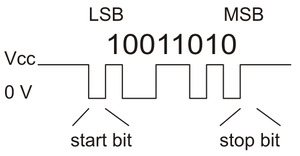 |
Diagram of a non-inverted TTL serial byte. |
|---|
A non-inverted TTL serial line has a default (non-active) state of high. A transmitted byte begins with a single low “start bit”, followed by the bits of the byte, least-significant bit (LSB) first. Logical ones are transmitted as high (3.3 V) and logical zeros are transmitted as low (0 V), which is why this format is referred to as “non-inverted” serial. The byte is terminated by a “stop bit”, which is the line going high for at least one bit time. The Simple Motor Controller supports fixed baud rates of 1099 bps to 2 Mbps and can automatically detect baud rates up to 500 kbps in auto-detect baud rate mode.
You must wait for at least 1 ms after the Simple Motor Controller powers up or is reset before you start sending data. Anything sent during this first millisecond is likely to be ignored or incorrectly received.
Whenever connecting devices, remember to wire the grounds together, and ensure that each device is properly powered. Unpowered devices with a TTL serial port can turn on or partially on, drawing power from the serial line, which means that extra care must be taken when turning power off and on to reset the devices.
Note: TTL serial is not the same as RS-232 serial. You must use an inverter and level shifter such as a MAX232 or a Pololu 23201a Serial Adapter if you want to interface an RS-232 device with the Simple Motor Controller. Connecting an RS-232 device directly to the Simple Motor Controller can permanently damage it.
6.1. Serial Settings
The behavior of the Simple Motor Controller’s serial interface is determined by a number of settings, almost all of which can be configured under the Input Settings tab of the Simple Motor Control Center:
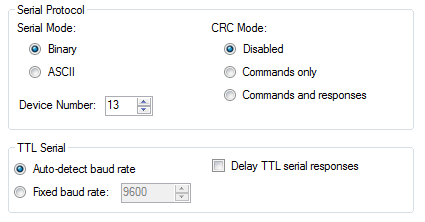 |
The serial settings in the Input Settings tab of the Pololu Simple Motor Control Center. |
|---|
Serial Mode: The Serial Mode determines which protocols the Simple Motor Controller will accept.
- Binary: In this mode, the controller expects command packets comprised of a series of bytes that conform to the Compact, Pololu, or Mini SSC protocol formats (see Section 6.2 for more information on these protocols). The Binary-protocol commands are more compact than their ASCII-protocol counterparts, so they can be transmitted faster, and they let you send commands addressed to a particular device number, so this mode should be used when multiple devices daisy-chained together on the same serial line. Note that some of the other serial settings (documented below) are only available in this mode.
- ASCII: In this mode, the controller expects command packets comprised of ASCII characters, which makes the commands potentially more friendly to beginners since they look like character strings rather than seemingly random sets of bytes. Also, the ASCII protocol makes it easy to send commands to the Simple Motor Controller from a terminal program. See Section 6.3 for more information on the ASCII protocol.
CRC Mode: When enabled, the Simple Motor Controller requires a cyclic redundancy check (CRC) byte at the end of every Binary Mode serial command packet, which helps ensure that the controller won’t misinterpret noisy commands or act up when presented with a stream of random serial bytes (see Section 6.5 for more information on CRCs). CRC error detection is only available when the Serial Mode is “Binary”; it is disabled when the Serial Mode is “ASCII”. There are three possible CRC modes:
- Disabled: CRC error detection is not enabled, and CRC bytes should not be added to the end of command packets.
- Commands only: The proper CRC byte must be appended to the end of every Binary Mode serial command packet. If the CRC byte is not appended or is incorrect, a Serial CRC Error is generated. Serial responses from the controller do not have a CRC byte appended to the end.
- Commands and responses: The proper CRC byte must be appended to the end of every Binary Mode serial command packet. If the CRC byte is not appended or is incorrect, a Serial CRC Error is generated. Additionally, serial responses from the controller have a CRC byte appended to the end, which lets you be more confident that the response was not corrupted by noise.
Device Number: This is the device number (0–127) that is used to address this device in Pololu Protocol and Mini SSC protocol commands. This setting is useful when using the Simple Motor Controller with other devices in a daisy-chained configuration (see Section 6.6).
Baud Rate: This setting only applies to TTL serial communication via the RX and TX pins; it is not relevant for serial communication over the virtual COM port. Auto-detect baud rate is only available when the Serial Mode is “Binary”; Fixed baud rate is automatically selected when the Serial Mode is “ASCII”.
- Auto-detect baud rate: In this mode, the Simple Motor Controller automatically detects the baud rate from the first 0xAA (170) baud rate indication byte it receives on the RX line. Every time the controller is powered up or reset, and every time the “Apply settings” button is pressed in the Simple Motor Control Center, you will need to send a baud rate indication byte before the Simple Motor Controller will accept TTL serial commands. Once you send the baud rate indication byte, you can check the Status Tab of the Simple Motor Control Center to see what baud rate the controller detected. The controller can automatically detect baud rates from 1200 bps to 500 kbps.
- Fixed baud rate: In this mode, the Simple Motor Controller will only respond to TTL serial signals transmitted at the configured fixed baud rate (in units of bits per second, or bps). The fixed baud rate can be set from 1099 bps to 2 Mbps, but the Simple Motor Controller will not be able to keep up with a constant stream of commands at baud rates over 500 kbps (if you send commands to the controller faster than it can process them, the receive buffer will eventually fill up, data will be lost, and a Serial RX Overrun Error will be generated).
Delay TTL serial responses: Enabling this feature causes the Simple Motor Controller to wait for approximately 4 ms before transmitting a TTL serial response. This is useful when interfacing with devices like the Basic Stamp that use half-duplex UARTs and need time to switch from transmit mode to receive mode. When this feature is disabled, transmission of a response packet begins as soon as possible after the last byte of a command packet is received (if that command packet generates a response).
Command Timeout: This setting lets you configure the Simple Motor Controller to shut down the motor if too much time elapses between received commands, which could happen if your serial control source gets disconnected or loses power. It is located under the Advanced Tab of the Simple Motor Control Center. See Section 5.3 for more information on this parameter.
6.2. Binary Commands
When configured in “Binary” serial mode, the Simple Motor Controller offers several serial command protocols similar to that of other Pololu products. Communication is achieved by sending serial command packets consisting of a single command byte followed by any data bytes that command requires (not all commands require data bytes; some command packets simply consist of a single command byte). Command bytes always have their most significant bits set, while data bytes almost always have their most significant bits cleared:
- 0x80 (128) ≤ command byte ≤ 0xFF (255)
0x00 (0) ≤ data byte ≤ 0x7F (127)
This means that each data byte can only transmit seven bits of information. The only exception to this is the Mini SSC command, where the command byte is 0xFF, or 255, and the data bytes can have any value from 0x00 to 0xFE (0 to 254).
Note: If you are using the TTL serial interface and the motor controller is in Auto-Detect Baud Rate mode, you must send the baud rate indication byte 0xAA, or 170, on the RX line before sending any commands. The 0xAA baud rate indication byte can be the first byte of a Pololu protocol command, or it can be transmitted as a single byte. Communication via the controller’s virtual COM port is unaffected by baud rate settings and does not require the transmission of an initial baud rate indication byte.
This guide displays byte values in the format: “hex (decimal)”, where hex is the hexadecimal (base-16) representation of the byte’s value, and decimal is the decimal representation of the byte’s value. The hexadecimal representation starts with the prefix 0x (e.g. 0x10).
Keep in mind that a byte is simply a number between 0x00 (0) and 0xFF (255). For serial protocols, the important thing about a byte is its value, not the notation (e.g. hex, decimal, or binary) you use in your source code to write the byte.
The following three sub-protocols are available in binary serial mode:
Compact Protocol
This is the simpler and more compact of the two protocols; it is the protocol you should use if your Simple Motor Controller is the only device connected to your serial line. The compact protocol command packet is simply:
| command byte (MSB set) | [data byte 1] | [data byte 2] | … | [data byte n] |
|---|---|---|---|---|
| 1XXXXXXX | [0XXXXXXX] | [0XXXXXXX] | … | [0XXXXXXX] |
For example, if we want to set the motor speed to 3200 (full speed) forward, we could send the following byte sequence:
| Hex notation: | 0x85, | 0x00, | 0x64 |
| Decimal notation: | 133, | 0, | 100 |
The byte 0x85 is the Set Motor Forward command, and the last two bytes contain the speed.
Pololu Protocol
This protocol is compatible with the serial protocol used by our other serial motor and servo controllers. As such, you can daisy-chain a Simple Motor Controller on a single serial line along with our other serial controllers (including additional Simple Motor Controllers) and, using this protocol, send commands specifically to the desired controller without confusing the other devices on the line.
To use the Pololu protocol, you must transmit 0xAA (170 in decimal) as the first (command) byte, followed by a Device Number data byte. The default Device Number for the Simple Motor Controller is 0x0D (13 in decimal), but this is a configuration parameter you can change. Any controller on the line whose device number matches the specified device number accepts the command that follows; all other Pololu devices ignore the command. The remaining bytes in the command packet are the same as the compact protocol command packet you would send, with one key difference: the compact protocol command byte is now a data byte for the command 0xAA and hence must have its most significant bit cleared. Therefore, the command packet is:
| 0xAA (170) | device number | command byte (with MSB cleared) | [data byte 1] | [data byte 2] | … | [data byte n] |
|---|---|---|---|---|---|---|
| 10101010 | 0XXXXXXX | 0XXXXXXX | [0XXXXXXX] | [0XXXXXXX] | … | [0XXXXXXX] |
For example, if we want to set the motor speed to 3200 (full speed) forward, we could send the following byte sequence:
| Hex notation: | 0xAA, | 0x0D, | 0x05, | 0x00, | 0x64 |
| Decimal notation: | 170, | 13, | 5, | 0, | 100 |
The byte 0x05 is the Set Motor Forward command (0x85) with its most significant bit cleared.
Mini SSC Protocol
The Simple Motor Controller also responds to the Scott Edwards Mini SSC protocol, a simple, three-byte serial protocol commonly used by servo controllers. This protocol allows you to control up to 254 different motors by chaining multiple motor controllers together. Since it only takes three serial bytes to set the speed of one motor, this protocol is good if you need to send many commands rapidly to multiple motor controllers. The Mini SSC protocol is to transmit 0xFF (255 in decimal) as the first (command) byte, followed by a Device Number byte and an 8-bit motor speed byte. If you think of the available motor speeds as ranging from -127 to +127, the motor speed byte is this signed speed value offset by 127. Therefore, A speed byte of 0 results in full-speed reverse, a speed byte of 127 results in speed 0 (motor stopped), and a speed byte of 254 results in full-speed forward. The command packet is:
| 0xFF (255) | device number (0-254) | speed byte (0-254) |
|---|---|---|
| 11111111 | XXXXXXXX | XXXXXXXX |
For example, if we want to set the speed of device 13 to approximately half-speed forward (63+127=190), we could send the following byte sequence:
| Hex notation: | 0xFF, | 0x11, | 0xBE |
| Decimal notation: | 255, | 13, | 190 |
The Device Number byte and Speed byte can be any value except 255, though the Simple Motor Control center will not let you set the controller’s Device Number to a value greater than 127. If the Device Number byte matches the motor controller’s device number or if the Device Number byte is 254, the motor controller will respond to the command (all controllers respond to Mini SSC commands addressed to Device Number 254).
The Simple Motor Controller identifies the Pololu, Compact, and Mini-SSC protocols on the fly when configured in Binary serial mode; you do not need to use a configuration parameter to identify which of these three protocols you are using, and you can freely mix commands in the three protocols.
Trying the Binary Serial Interface
If you are having trouble using the Binary protocols, it can help to first use a program like the Pololu Serial Transmitter utility for Windows to send bytes to the Simple Motor Controller’s virtual COM port. This program makes it easy send packets of arbitrary bytes, which can help you identify if your problems are with your control software or with the bytes you are trying to send. The Serial Transmitter Utility can even automatically append the appropriate CRC7 byte to the end of the transmitted command packet.
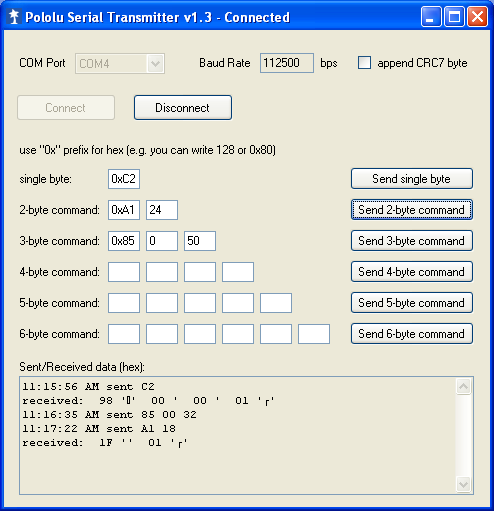 |
Sending Binary (Compact Protocol) commands to the Simple Motor Controller with the Pololu Serial Transmitter utility. |
|---|
6.2.1. Binary Command Reference
Exit Safe-Start (Serial/USB input mode only)
Command Format:
| Command Byte | Data Byte 1 | Data Byte 2 | |
|---|---|---|---|
| Compact Protocol | 0x83 (131) | - | - |
| Pololu Protocol | 0xAA (170) | device number | 0x03 (3) |
Description: If the Input Mode is Serial/USB, and you have not disabled Safe-start protection, then this command is required before the motor can run. Specifically, this command must be issued when the controller is first powered up, after any reset, and after any error stops the motor. This command has no serial response.
If you just want your motor to run whenever possible, you can transmit Exit Safe Start and motor speed commands regularly. The motor speed commands are documented below. One potential problem with this approach is that if there is an error (e.g. the battery becomes disconnected) then the motor will start running immediately when the error has been resolved (e.g. the battery is reconnected).
If you want to prevent your motor from starting up unexpectedly after the controller has recovered from an error, then you should only send an Exit Safe Start command after either waiting for user input or issuing a warning to the user.
Motor Forward (Serial/USB input mode only)
Command Format:
| Command Byte | Data Byte 1 | Data Byte 2 | Data Byte 3 | Data Byte 4 | |
|---|---|---|---|---|---|
| Compact Protocol | 0x85 (133) | speed byte 1 | speed byte 2 | - | - |
| Compact Alternate Use | 0x85 (133) | 0 | speed % | - | - |
| Pololu Protocol | 0xAA (170) | device number | 0x05 (5) | speed byte 1 | speed byte 2 |
| Pololu Alternate Use | 0xAA (170) | device number | 0x05 (5) | 0 | speed % |
Description: This command lets you set the full-resolution motor target speed in the forward direction. The motor speed must be a number from 0 (motor stopped) to 3200 (motor forward at full speed) and is specified using two data bytes. The first data byte contains the low five bits of the speed and the second data byte contains the high seven bits of the speed.
The first speed data byte can be computed by taking the full (0-3200) speed modulo 32, which is the same as dividing the speed by 32, discarding the quotient, and keeping only the remainder. We can get the same result using binary math by bitwise-ANDing the speed with 0x1F (31). In C (and many other programming languages), these operations can be carried out with the following expressions:
speed_byte_1 = speed % 32;
or, equivalently:
speed_byte_1 = speed & 0x1F;
The second speed data byte can be computed by dividing the full (0-3200) speed by 32, discarding the remainder, and keeping only the quotient (i.e. turn the division result into a whole number by dropping everything after the decimal point). We can get the same result using binary math by bit-shifting the speed right five places. In C (and many other programming languanges), these operations can be carried out with the following expressions:
speed_byte_2 = speed / 32;
or, equivalently:
speed_byte_2 = speed >> 5;
This command has no serial response.
Example:
If we want to set the motor target speed to half-speed forward, we can use the above equations to compute that the first speed byte must be the remainder of 1600/32, or 0, and the second speed byte must be the quotient of 1600/32, or 50. Therefore, we can send the following compact protocol bytes:
We Send:
| Command Byte | Data Byte 1 | Data Byte 2 | |
|---|---|---|---|
| Compact Protocol | 0x85 (133) | 0x00 (0) | 0x32 (50) |
Alternate Interpretation: The allowed values for the second speed data byte are 0–100, so you can ignore the first speed data byte (always set it to 0), and consider the second data byte to simply be the speed percentage. For example, to drive the motor at 53% speed, you would use byte1=0 and byte2=53.
Motor Reverse (Serial/USB input mode only)
Command Format:
| Command Byte | Data Byte 1 | Data Byte 2 | Data Byte 3 | Data Byte 4 | |
|---|---|---|---|---|---|
| Compact Protocol | 0x86 (134) | speed byte 1 | speed byte 2 | - | - |
| Compact Alternate Use | 0x86 (134) | 0 | speed % | - | - |
| Pololu Protocol | 0xAA (170) | device number | 0x06 (6) | speed byte 1 | speed byte 2 |
| Pololu Alternate Use | 0xAA (170) | device number | 0x06 (6) | 0 | speed % |
Description: This command lets you set the full-resolution motor target speed in the reverse direction. The motor speed must be a number from 0 (motor stopped) to 3200 (motor reverse at full speed) and is specified using two data bytes, the first containing the low five bits of the speed and the second containing the high seven bits of the speed. This command behaves the same as the Motor Forward command except the motor moves in the opposite direction.
Motor Forward 7-Bit (Serial/USB input mode only)
Command Format:
| Command Byte | Data Byte 1 | Data Byte 2 | Data Byte 3 | |
|---|---|---|---|---|
| Compact Protocol | 0x89 (137) | speed | - | - |
| Pololu Protocol | 0xAA (170) | device number | 0x09 (9) | speed |
Description: This command sets the motor target speed in the forward direction based on the specified low-resolution (7-bit) Speed byte. The Speed byte is a number from 0 (motor stopped) to 127 (motor forward at full speed). This command has no serial response.
Example:
To set the motor target speed to approximately half-speed forward (63), we could send the following compact protocol bytes:
We Send:
| Command Byte | Data Byte 1 | |
|---|---|---|
| Compact Protocol | 0x89 (137) | 0x3F (63) |
Motor Reverse 7-Bit (Serial/USB input mode only)
Command Format:
| Command Byte | Data Byte 1 | Data Byte 2 | Data Byte 3 | |
|---|---|---|---|---|
| Compact Protocol | 0x8A (138) | speed | - | - |
| Pololu Protocol | 0xAA (170) | device number | 0x0A (10) | speed |
Description: This command sets the motor target speed in the reverse direction based on the specified low-resolution (7-bit) Speed byte. The Speed byte is a number from 0 (motor stopped) to 127 (motor reverse at full speed). This command has no serial response.
Set Speed Mini SSC (Serial/USB input mode only)
Command Format:
| Command Byte | Data Byte 1 | Data Byte 2 | |
|---|---|---|---|
| Mini SSC Protocol | 0xFF (255) | device number | speed |
Description: This is the Mini SSC Protocol command for setting the motor speed. This command has no serial response. See Section 6.2 for complete documentation of this command.
Motor Brake (Serial/USB input mode only)
Command Format:
| Command Byte | Data Byte 1 | Data Byte 2 | Data Byte 3 | |
|---|---|---|---|---|
| Compact Protocol | 0x92 (146) | brake amount | - | - |
| Pololu Protocol | 0xAA (170) | device number | 0x12 (18) | brake amount |
Description: This command causes the motor to immediately brake by the specified amount (configured deceleration limits are ignored). The Brake Amount byte can have a value from 0 to 32, with 0 resulting in maximum coasting (the motor leads are floating almost 100% of the time) and 32 resulting in full braking (the motor leads are shorted together 100% of the time). Requesting a brake amount greater than 32 results in a Serial Format Error. This command has no serial response.
Example:
To set the motor outputs to 50% braking (a Brake Amount of 16), we would transmit the following compact protocol bytes:
We Send:
| Command Byte | Data Byte 1 | |
|---|---|---|
| Compact Protocol | 0x92 (146) | 0x10 (16) |
Get Variable (any input mode)
Command Format:
| Command Byte | Data Byte 1 | Data Byte 2 | Data Byte 3 | |
|---|---|---|---|---|
| Compact Protocol | 0xA1 (161) | variable ID | - | - |
| Pololu Protocol | 0xAA (170) | device number | 0x21 (33) | variable ID |
Response Format:
| Response Byte 1 | Response Byte 2 |
|---|---|
| variable low byte | variable high byte |
Description: This command lets you read a 16-bit variable from the Simple Motor Controller. See Section 6.4 for a list of all of available variables. The value of the requested variable is transmitted as two bytes, with the low byte sent first. You can reconstruct the variable value from these bytes using the following equation:
variable_low_byte + 256 * variable_high_byte
If the variable type is signed and the above result is greater than 32767, you will need to subtract 65536 from the result to obtain the correct, signed value. Alternatively, if it is supported by the language you are using, you can cast the result to a signed 16-bit data type.
Requesting variable IDs between 41 and 127 results in a Serial Format Error, and the controller does not transmit a response.
Example:
To request the board temperature (variable ID 24), we would transmit the following compact protocol bytes and wait until we have received two bytes in response from the Simple Motor Controller (or until our receiving function times out, which could happen if there is a problem):
We Send:
| Command Byte | Data Byte 1 | |
|---|---|---|
| Compact Protocol | 0xA1 (161) | 0x18 (24) |
We Receive:
| Response Byte 1 | Response Byte 2 |
|---|---|
| 0x1E (30) | 0x01 (1) |
This response tells us that the temperature is:
30 + 256 * 1 = 286
in units of 0.1 °C, which means the board temperature is 28.6 °C.
Set Motor Limit (any input mode)
Command Format:
| Command Byte | Data Byte 1 | Data Byte 2 | Data Byte 3 | Data Byte 4 | Data Byte 5 | |
|---|---|---|---|---|---|---|
| Compact Protocol | 0xA2 (162) | limit ID | limit byte 1 | limit byte 2 | - | - |
| Pololu Protocol | 0xAA (170) | device number | 0x22 (34) | limit ID | limit byte 1 | limit byte 2 |
Response Format:
| Response Byte 1 |
|---|
| response code |
Description: This command lets you change the temporary motor limit variables documented in Section 6.4. The ID of the limit to set is specified by the first compact protocol data byte, and the value of the limit is specified by the next two data bytes, the first of which (limit byte 1) contains the low seven bits of the value and the second (limit byte 2) contains the high seven bits. Limit IDs from 0 to 3 affect both forward and reverse limits equally (they are “symmetric”). Limit IDs from 4 to 7 affect only forward limits and limit IDs from 8 to 11 affect only reverse limits. The following table provides the limit IDs for all of the temporary motor limit variables along with the allowed limit values:
| ID | Name | Allowed Values | Units |
|---|---|---|---|
| 0 or 4 | Max Speed Forward | 0–3200 | 0=0%, 3200=100% |
| 1 or 5 | Max Acceleration Forward | 0–3200 (0=no limit) | Δspeed per update period |
| 2 or 6 | Max Deceleration Forward | 0–3200 (0=no limit) | Δspeed per update period |
| 3 or 7 | Brake Duration Forward | 0–16384 | 4 ms |
| 0 or 8 | Max Speed Reverse | 0–3200 | 0=0%, 3200=100% |
| 1 or 9 | Max Acceleration Reverse | 0–3200 (0=no limit) | Δspeed per update period |
| 2 or 10 | Max Deceleration Reverse | 0–3200 (0=no limit) | Δspeed per update period |
| 3 or 11 | Brake Duration Reverse | 0–16384 | 4 ms |
Note: The Brake Duration units used by this command are 4 ms, which differs from 1 ms units used by the Brake Duration variables returned by the Get Variable command.
The first limit value byte, limit byte 1, can be computed by taking the full limit value modulo (or “mod”) 128, which is the same as dividing the value by 128, discarding the quotient, and keeping only the remainder. We can get the same result using binary math by bitwise-ANDing the limit with 0x7F (127). In C (and many other programming languages), these operations can be carried out with the following expressions:
limit_byte_1 = limit % 128;
or, equivalently:
limit_byte_1 = limit & 0x7F;
The second limit value byte, limit byte 2, can be computed by dividing the full limit value by 128, discarding the remainder, and keeping only the quotient (i.e. turn the division result into a whole number by dropping everything after the decimal point). We can get the same result using binary math by bit-shifting the limit right seven places. In C (and many other programming languanges), these operations can be carried out with the following expressions:
limit_byte_2 = limit / 128;
or, equivalently:
limit_byte_2 = limit >> 7;
Note that the Hard Motor Limit settings place restrictions on the limit values you can set with this command (see Section 5.2 for more information on the hard motor limits). The hard limits configured through the Simple Motor Control Center are considered minimal safety requirements, and the temporary limits cannot be changed in a way that makes the controller “less safe” than this. This means that the Maximum Speed, Acceleration, and Deceleration temporary limits cannot be increased beyond their hard-limit counterparts and the Brake Duration limits cannot be decreased below their hard-limit counterparts. If you try to set a temporary limit in a way prohibited by the corresponding hard limit, the temporary limit value is set to the hard limit and the response code byte indicates that the value could not be set as requested.
If the arguments to this command are valid, the controller responds to this command with a single-byte code:
| Response Code | Description |
|---|---|
| 0 | No problems setting the limit. |
| 1 | Unable to set forward limit to the specified value because of Hard Motor Limit settings. |
| 2 | Unable to set reverse limit to the specified value because of Hard Motor Limit settings. |
| 3 | Unable to set forward and reverse limits to the specified value because of Hard Motor Limit settings. |
Limit IDs above 11 and limit values outside of their allowed value ranges result in a Serial Format Error and no response is transmitted by the controller.
The limit values set with this command persist only until the controller is next reset or the “Apply settings” button is next clicked in the Simple Motor Control Center, at which point the temporary limit settings are all reinitialized to the hard limit settings.
Example:
To set the reverse deceleration limit (limit ID 10) to 500, we can use the above equations to compute that limit byte 1 must be the remainder of 500/128, or 116, and limit byte 2 must be the quotient of 500/128, or 3. Therefore, we can send the following compact protocol bytes and wait until we have received one byte in response from the Simple Motor Controller (or until our receiving function times out, which could happen if there is a problem):
We Send:
| Command Byte | Data Byte 1 | Data Byte 2 | Data Byte 3 | |
|---|---|---|---|---|
| Compact Protocol | 0xA2 (162) | 0x0A (10) | 0x74 (116) | 0x03 (3) |
We Receive:
| Response Byte 1 |
|---|
| 0x00 (0) |
This response tells us the temporary limit was set as requested. If our Max Deceleration Reverse hard motor limit was below 500, we would receive a response code of 2, which would tell us that the temporary limit was not set as requested (rather, it was set equal to whatever the hard limit is).
Get Firmware Version (any input mode)
Command Format:
| Command Byte | Data Byte 1 | Data Byte 2 | |
|---|---|---|---|
| Compact Protocol | 0xC2 (194) | - | - |
| Pololu Protocol | 0xAA (170) | device number | 0x42 (66) |
Response Format:
| Response Byte 1 | Response Byte 2 | Response Byte 3 | Response Byte 4 |
|---|---|---|---|
| product ID low byte | product ID high byte | minor FW version (BCD format) | major FW version (BCD format) |
Description: This command lets you read the Simple Motor Controller product number and firmware version number. The first two bytes of the response are the low and high bytes of the product ID (each Simple Motor Controller version has a unique product ID), and the last two bytes of the response are the firmware minor and major version numbers in binary-coded decimal (BCD) format. BCD format means that the version number is the value you get when you write it in hex and then read it as if it were in decimal. For example, a minor version byte of 0x15 (21) means a the minor version number is 15, not 21.
Example:
To request the product ID and firmware version, we would transmit the following compact protocol byte and wait until we have received four bytes in response from the Simple Motor Controller (or until our receiving function times out, which could happen if there is a problem):
We Send:
| Command Byte | |
|---|---|
| Compact Protocol | 0xC2 (194) |
We Receive:
| Response Byte 1 | Response Byte 2 | Response Byte 1 | Response Byte 2 |
|---|---|---|---|
| 0x98 (152) | 0x00 (0) | 0x00 (0) | 0x01 (1) |
This response tells us that the product ID is 0x0098 (152) and the firmware version is 1.0.
Stop Motor (any input mode)
Command Format:
| Command Byte | Data Byte 1 | Data Byte 2 | |
|---|---|---|---|
| Compact Protocol | 0xE0 (224) | - | - |
| Pololu Protocol | 0xAA (170) | device number | 0x60 (96) |
Description: This command sets the motor target speed to zero and makes the controller susceptible to a safe-start violation error if Safe Start is enabled. Put another way, this command will stop the motor (configured deceleration limits will be respected) and not allow the motor to start again until the Safe-Start conditions required by the Input Mode are satisfied. This command has no serial response.
6.3. ASCII Commands
When configured in “ASCII” serial mode, the Simple Motor Controller offers a simple serial interface based on ASCII characters. This mode makes it easy to interact with the Simple Motor Controller through a terminal program, such as HyperTerminal, and it can provide a more intuitive interface for users who would rather deal with character strings than bits and bytes.
There are some limitations when using ASCII mode, however:
- The commands are longer than their Binary-mode Compact Protocol counterparts, so they will take longer to send when using a TTL serial connection.
- Automatic baud detection is not available; you must configure the Simple Motor Controller to the appropriate fixed baud rate ahead of time if you are communicating using TTL serial.
- CRC error detection is not available.
- The ASCII-mode serial responses might be harder to parse with some programming languages than the Binary-mode responses.
Command Format
ASCII commands consist of a command string, which is typically a single letter, followed by a comma-separated list of numbers representing the arguments to the command. Not all commands take arguments, and only one command (Set Motor Limit) takes multiple arguments. All commands must be terminated by a special termination character, such as a carriage return (<CR>).
Expressed generally, the format is: command string + [argument 1 + [‘,’ + argument 2]] + termination character
For example, to command the motor to drive forward at speed 3200 (full speed), we could send the following ASCII command:
“F3200<CR>”
Here the command string is “F”, the argument string is “3200”, and the termination character is <CR>.
ASCII commands are case-insensitive and white-space is ignored, so “F3200<CR>” has the same effect as “f 3200 <CR>”.
The specific commands are documented in Section 6.3.1.
Command Strings
The following table lists all of the available command strings:
| Command String | Command Name |
|---|---|
| “GO” | Exit Safe-Start |
| “F” | Motor Forward |
| “R” | Motor Reverse |
| “B” | Motor Brake |
| “D” | Get Variable |
| “L” | Set Motor Limit |
| “V” | Get Firmware Version |
| “X” | Stop Motor |
Argument Strings
Command arguments are expressed as strings of ASCII digits. By default, the string is interpreted as a decimal (base 10) value, but an “H” can be appended to the end of the string to tell the Simple Motor Controller to interpret it as a hexadecimal (base 16, or hex) value. For example, you can represent an argument value of 127 with “127” or “7FH” (0x7F is the hex representation of 127). The arguments to the three motor commands (“F”, “R”, and “B”) can also be written as percentages by appending a “%” to the end of the argument. For example, you can represent full motor speed with the argument “3200” or with the argument “100%”.
Termination Characters
ASCII mode accepts three different termination characters:
- Carriage Return: A carriage return is the character sent when you press the Enter key in a terminal program. It is often written as <CR> and has a character value of 13. In C, this special character can be written as ‘\r’.
- NL Line Feed: Also known as “new line”, this character is often written as <LF> and has a character value of 12. In C, this special character can be written as ‘\n’.
- Null Character: This character is used to terminate strings in C. It is often written as <NUL> and has a character value of 0. In C, the string “abc” is comprised of the four characters: ‘a’, ‘b’, ‘c’, and <NUL>.
One of the above three characters must be the last character in your ASCII command string.
Responses
Any ASCII mode command string that contains more than just a termination character will generate a serial response from the Simple Motor Controller. The first character of the response gives you information about the status of the Simple Motor controller; it can be one three possible characters:
| Status Character | Meaning |
|---|---|
| ‘.’ | The last command was understood and no errors are stopping the motor. |
| ‘!’ | The last command was understood and errors are stopping the motor. |
| ‘?’ | The last command was not understood (a Serial Format Error has occurred). |
If the command sent responds with data (e.g. the Get Variable command), the data follows the status character as a decimal (base 10) string of ASCII digits.
The ASCII mode serial response is always terminated by a carriage return (<CR>) followed by a line feed (<LF>).
For example, if we send a Motor Forward command while no errors are stopping the motor, the response would be “.<CR><LF>”. If we send a Get Variable command while errors are stopping the motor, the response might be “!123<CR><LF>”, which would indicate that the requested variable has a value of 123.
Commands that consist only of termination characters do not result in a serial response from the Simple Motor Controller. All other commands, even invalid ones, cause the Simple Motor Controller to respond when a termination character is received.
Using a Terminal Program
ASCII mode makes it easy to communicate with the Simple Motor Controller from a terminal program, such as HyperTerminal. The responses are formatted so that they will appear nicely in the terminal window.
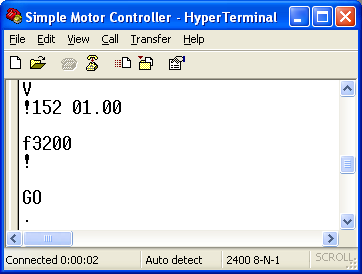 |
We recommend you enable local echoing of transmitted characters when typing commands into a terminal program. The following picture shows our recommended ASCII settings when using HyperTerminal:
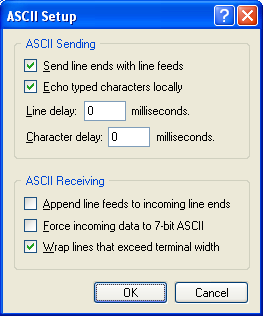 |
You can get to this dialog by going to the File > Properties menu and clicking on the ASCII Setup… button under the Settings tab.
6.3.1. ASCII Command Reference
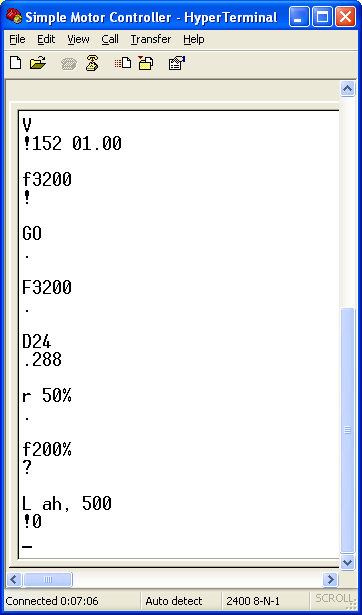 |
Sending ASCII commands to the Simple Motor Controller from HyperTerminal (with echoing of typed characters enabled). |
|---|
Exit Safe-Start (Serial/USB input mode only)
Command Format: “GO<CR>”
Description: This command clears the Serial/USB safe-start violation and allows the motor to run. When Safe-Start protection is enabled, this command must be issued when the controller is first powered up, after any reset, and after any error stops the motor.
Motor Forward (Serial/USB input mode only)
- “F1600<CR>”
- “F50%<CR>”
- “F640H<CR>”
Command Format: “F<speed><CR>”
Description:
This command sets the motor target speed in the forward direction. The argument speed can be an integer from 0 (motor stopped) to 3200 (motor forward at full speed) or an integer percentage from 0% to 100%. You can represent the speed in hex by putting an “H” at the end of the number. If the argument speed is outside the allowed range, a Serial Format Error occurs..
Examples: The following commands all make the motor drive forward at half speed:
Motor Reverse (Serial/USB input mode only)
Command Format: “R<speed><CR>”
Description: This command sets the motor target speed in the reverse direction. It behaves the same as the Motor Forward command above, except the motor turns in the opposite direction.
Motor Brake (Serial/USB input mode only)
- “B32<CR>”
- “B100%<CR>”
- “B20H<CR>”
Command Format: “B<brake_amount><CR>”
Description:
This command causes the motor to immediately brake by the specified amount (configured deceleration limits are ignored). The argument brake_amount can be an integer from 0 (maximum coasting) to 32 (full braking) or an integer percentage from 0% to 100%. You can represent the brake amount in hex by putting an “H” at the end of the number. If the argument brake_amount is outside the allowed range, a Serial Format Error occurs.
Error. Examples: The following commands all make the motor brake as hard as possible:
Get Variable (any input mode)
- “D24<CR>”
- “D18H<CR>”
Command Format: “D<variable_id><CR>”
Description:
This command lets you read a variable from the Simple Motor Controller. See Section 6.4 for a list of all of available variables. The value of the requested variable is transmitted as an ASCII-encoded decimal number. If the argument variable_id is between 41 and 127, a Serial Format Error occurs.
Example: The following commands both request the board temperature (variable ID 24, or 0x18):
We might receive “.286<CR><LF>” as a response. The leading ‘.’ is a status character that indicates the last command was understood and no errors are currently stopping the motors. The rest of the characters before the carriage return (<CR>) and new line (<LF>) characters are an ASCII representation of a decimal (base 10) number. This particular variable has units of 0.1 °C, which would mean that the board temperature is 28.6 °C.
Set Motor Limit(any input mode)
- “L10,500<CR>”
- “LAH,1F4H<CR>”
- “L10,1F4H<CR>”
Command Format: “L<limit_id>,<limit_value><CR>”
Description: This command lets you change the temporary motor limit variables documented in Section 6.4. Limit IDs from 0 to 3 are affect both forward and reverse limits equally (they are “symmetric”). Limit IDs from 4 to 7 affect only forward limits and limit IDs from 8 to 11 affect only reverse limits. The following table provides the limit IDs for all of the temporary motor limit variables along with the allowed limit values:
| ID | Name | Allowed Values | Units |
|---|---|---|---|
| “0” or “4” | Max Speed Forward | 0–3200 | 0=0%, 3200=100% |
| “1” or “5” | Max Acceleration Forward | 0–3200 (0=no limit) | Δspeed per update period |
| “2” or “6” | Max Deceleration Forward | 0–3200 (0=no limit) | Δspeed per update period |
| “3” or “7” | Brake Duration Forward | 0–16384 | 4 ms |
| “0” or “8” | Max Speed Reverse | 0–3200 | 0=0%, 3200=100% |
| “1” or “9” | Max Acceleration Reverse | 0–3200 (0=no limit) | Δspeed per update period |
| “2” or “10” | Max Deceleration Reverse | 0–3200 (0=no limit) | Δspeed per update period |
| “3” or “11” | Brake Duration Reverse | 0–16384 | 4 ms |
Note: The Brake Duration units used by this command are 4 ms, which differs from 1 ms units used by the Brake Duration variables returned by the Get Variable command.
Note that the Hard Motor Limit settings place restrictions on the limit values you can set with this command (see Section 5.2 for more information on the hard motor limits). The hard limits configured through the Simple Motor Control Center are considered minimal safety requirements, and the temporary limits cannot be changed in a way that makes the controller “less safe” than this. This means that the Maximum Speed, Acceleration, and Deceleration temporary limits cannot be increased beyond their hard-limit counterparts and the Brake Duration limits cannot be decreased below their hard-limit counterparts. If you try to set a temporary limit in a way prohibited by the corresponding hard limit, the temporary limit value is set to the hard limit and the response code byte indicates that the value could not be set as requested.
If the arguments to this command are valid, the controller responds to this command with an ASCII digit:
| Response Code | Description |
|---|---|
| ‘0’ | No problems setting the limit. |
| ‘1’ | Unable to set forward limit to the specified value because of Hard Motor Limit settings. |
| ‘2’ | Unable to set reverse limit to the specified value because of Hard Motor Limit settings. |
| ‘3’ | Unable to set forward and reverse limits to the specified value because of Hard Motor Limit settings. |
Limit IDs above 11 and limit values outside of their allowed value ranges result in a Serial Format Error.
The limit values set with this command persist only until the controller is next reset or the “Apply settings” button is next clicked in the Simple Motor Control Center, at which point the temporary limit settings are all reinitialized to the hard limit settings.
Example: The following commands all set the reverse deceleration limit (limit ID 10, or 0x0A) to 500, or 0x1F4:
We might receive “.0<CR><LF>” as a response. The leading ‘.’ is a status character that indicates the last command was understood and no errors are currently stopping the motors. The following character, ‘0’, tells us the temporary limit was set as requested. If our Max Deceleration Reverse hard motor limit was below 500, this character would have been ‘2’, which would tell us that the temporary limit was not set as requested (rather, it was set equal to whatever the hard limit is).
Get Firmware Version (any input mode)
Command Format: “V<CR>”
Description: This command prints the Simple Motor Controller product number (in decimal) and firmware version number (the two major firmware version digits followed by the two minor firmware version digits). For example, the response to this command might be “.152 01.00<CR><LF>”, which indicates a product ID of 152, a major firmware version of 1, and a minor firmware version of 0.
Stop Motor (any input mode)
Command Format: “X<CR>”
Description: This command sets the motor target speed to zero and makes the controller succeptible to a safe-start violation error if Safe Start is enabled. Put another way, this command will stop the motor (configured deceleration limits will be respected) and not allow the motor to start again until the Safe-Start conditions required by the Input Mode are satisfied.
6.4. Controller Variables
The Simple Motor Controller maintains a set of variables that contain real-time information about the controller’s inputs, outputs, and state, and these variables, in conjunction with the user settings, determine the behavior of the controller. These variables are all displayed in some way under the Status Tab of the Simple Motor Control Center (see Section 3.3), and they can all be requested via the serial interface (see the Get Variable command in Section 6.2.1 and Section 6.3.1) for use by custom control programs. The serial interface reports all variables as 16-bit (2-byte values transmitted least significant byte first), though not all variables use all 16 bits.
Status Flag Registers
Status flag registers are unsigned, 16-bit values whose bits convey general information about the controller’s status, such as any errors have occurred, the errors are currently stopping the motor, and sources of controller output limitations.
| ID | Name | Description |
|---|---|---|
| 0 | Error Status | The set bits of this variable indicate the errors that are currently stopping the motor. The motor can only be driven when this register has a value of 0. (See Section 3.4 for error descriptions.)
|
| 1 | Errors Occurred | The set bits of this register indicate the errors that have occurred since this register was last cleared. This status register has the same bit assignments as the Error Status register documented above. Reading this variable clears all of the bits. |
| 2 | Serial Errors Occurred | The set bits of this variable indicate the serial errors that have occurred since this variable was last cleared. Reading this variable clears all of the bits. (See Section 3.4 for serial error descriptions.)
|
| 3 | Limit Status | The set bits of this variable indicate things that are currently limiting the motor controller.
|
| 127 | Reset Flags | Flags indicating the source of the last board reset. This variable does not change while the controller is running and is not reported under the Status Tab of the Simple Motor Control Center. You can view it in the Device Information window of the Control Center, which is available from the Device menu, and for the first two seconds after start-up, the yellow status LED flashes a pattern that indicates the last reset source (see Section 3.5).
|
RC Channel Inputs
The raw and scaled signals measured on the RC channel inputs are always available through serial variable requests, which allows programs using the serial interface to factor the channel inputs into their motor control algorithms. If no valid signal is detected, the raw channel value is reported as 0xFFFF (65535) and the scaled channel value is reported as 0. The Simple Motor Controller is always reading the RC input channels, even when the Input Mode is not RC.
| ID | Name | Type | Description | Units |
|---|---|---|---|---|
| 4 | RC1 Unlimited Raw Value | unsigned 16-bit |
The positive pulse width of the signal on RC channel 1. This value is 0xFFFF (65535) if no valid signal is detected. | 0.25 µs |
| 5 | RC1 Raw Value | unsigned 16-bit |
The positive pulse width of the signal on RC channel 1. This value is 0xFFFF (65535) if no valid signal is detected or if the signal is outside of the Error Max/Error Min channel calibration settings. | 0.25 µs |
| 6 | RC1 Scaled Value | signed 16-bit |
The scaled version of the RC1 raw value (based on RC channel 1 calibration settings). This value is 0 if the raw value is 0xFFFF, else it ranges from -3200 to +3200. | internal units |
| 8 | RC2 Unlimited Raw Value | unsigned 16-bit |
See RC1 Unlimited Raw Value. | 0.25 µs |
| 9 | RC2 Raw Value | unsigned 16-bit |
See RC1 Raw Value. | 0.25 µs |
| 10 | RC2 Scaled Value | signed 16-bit |
See RC1 Scaled Value. | internal units |
Analog Channel Inputs
The raw and scaled voltages measured on the analog channel inputs are always available through serial variable requests, which allows programs using the serial interface to factor the channel inputs into their motor control algorithms. If the controller detects a disconnected potentiometer (this requires potentiometer disconnect detection to be enabled under the Advanced Settings tab), the raw channel value is reported as 0xFFFF (65535) and the scaled channel value is reported as 0. The Simple Motor Controller is always reading the analog input channels, even when the Input Mode is not Analog.
| ID | Name | Type | Description | Units |
|---|---|---|---|---|
| 12 | AN1 Unlimited Raw Value | unsigned 16-bit |
The 12-bit ADC reading of analog channel 1. This value is 0xFFFF (65535) if the controller detects the input is disconnected. | 0=0 V, 4095=3.3 V |
| 13 | AN1 Raw Value | unsigned 16-bit |
The 12-bit ADC reading of analog channel 1. This value is 0xFFFF (65535) if the controller detects the input is disconnected or if the signal is outside of the Error Max/Error Min channel calibration settings. | 0=0 V, 4095=3.3 V |
| 14 | AN1 Scaled Value | signed 16-bit |
The scaled version of the AN1 raw value (based on analog channel 1 calibration settings). This value is 0 if the raw value is 0xFFFF, else it ranges from -3200 to +3200. | internal units |
| 16 | AN2 Unlimited Raw Value | unsigned 16-bit |
See AN1 Unlimited Raw Value. | 0=0 V, 4095=3.3 V |
| 17 | AN2 Raw Value | unsigned 16-bit |
See AN1 Raw Value. | 0=0 V, 4095=3.3 V |
| 18 | AN2 Scaled Value | signed 16-bit |
See AN1 Scaled Value. | internal units |
Diagnostic Variables
The following variables can be used to monitor various internal conditions of the Simple Motor Controller, such as the input voltage, the board temperature, the and the motor speed.
| ID | Name | Type | Description | Units |
|---|---|---|---|---|
| 20 | Target Speed | signed 16-bit |
Motor target speed (-3200 to +3200) requested by the controlling interface. | internal units |
| 21 | Speed | signed 16-bit |
Current speed of the motor (-3200 to +3200). | internal units |
| 22 | Brake Amount | unsigned 16-bit |
When Speed=0, this variable indicates how hard the controller is braking with a value from 0 (full coast) to 32 (full brake). Otherwise, it has a value of 0xFF (255). The high byte of this variable is always zero. | 0=coast, 32=brake |
| 23 | Input Voltage | unsigned 16-bit |
Measured voltage on the VIN pin. | mV |
| 24 | Temperature | unsigned 16-bit |
Board temperature as measured by a temperature sensor near the motor driver. Temperatures below freezing are reported as 0. | 0.1 °C |
| 26 | RC Period | unsigned 16-bit |
If there is a valid signal on RC1, this variable contains the signal period. Otherwise, this variable has a value of 0. | 0.1 ms |
| 27 | Baud Rate Register | unsigned 16-bit |
Value of the controller’s baud rate register (BRR). Convert to units of bps with the equation 72,000,000/BRR. In automatic baud detection mode, BRR has a value of 0 until the controller has detected the baud rate. |
seconds per 7.2e7 bits |
| 28 | System Time (Low) | unsigned 16-bit |
Two lower bytes of the number of milliseconds that have elapsed since the controller was last reset or powered up. | ms |
| 29 | System Time (High) | unsigned 16-bit |
Two upper bytes of the number of milliseconds that have elapsed since the controller was last reset or powered up. | 65,536 ms |
Temporary Motor Limits
These variables contain the user-imposed limits on the motor output, such as maximum speed, acceleration, and deceleration. These variables are initialized to the hard motor limit settings (see Section 5.2) every time the controller is powered up or reset and every time the apply settings button is pressed in the Simple Motor Control Center. These temporary limits can be changed via the serial interface while the controller is running to impose stricter/safer limits than the hard motor limit settings (see the Set Motor Limit command in Section 6.2.1 and Section 6.3.1).
| ID | Name | Type | Description | Units |
|---|---|---|---|---|
| 30 | Max Speed Forward | unsigned 16-bit |
Maximum allowed motor speed in the forward direction (0 to 3200). | internal units |
| 31 | Max Acceleration Forward | unsigned 16-bit |
Maximum allowed motor acceleration in the forward direction (0 to 3200; 0 means no limit). | Δspeed per update period |
| 32 | Max Deceleration Forward | unsigned 16-bit |
Maximum allowed motor deceleration from the forward direction (0 to 3200; 0 means no limit). | Δspeed per update period |
| 33 | Brake Duration Forward | unsigned 16-bit |
Time spent braking (at speed 0) when transitioning from forward to reverse. | ms |
| 36 | Max Speed Reverse | unsigned 16-bit |
Maximum allowed motor speed in the reverse direction (0 to 3200). | internal units |
| 37 | Max Acceleration Reverse | unsigned 16-bit |
Maximum allowed motor acceleration in the reverse direction (0 to 3200; 0 means no limit). | Δspeed per update period |
| 38 | Max Deceleration Reverse | unsigned 16-bit |
Maximum allowed motor deceleration from the reverse direction (0 to 3200; 0 means no limit). | Δspeed per update period |
| 39 | Brake Duration Reverse | unsigned 16-bit |
Time spent braking (at speed 0) when transitioning from reverse to forward. | ms |
The Simple Motor Controller uses an internal system of units, labeled internal units in the above tables, where 3200 represents the maximum possible motor speed in the forward direction, 0 represents a stopped motor, and -3200 represents the maximum possible motor speed in the reverse direction. The RC and analog channel inputs are scaled from their raw units into this internal “-3200 to +3200” unit system using the channel calibration settings.
6.5. Cyclic Redundancy Check (CRC) Error Detection
For certain applications, verifying the integrity of the data you are sending and receiving can be very important. Because of this, the Simple Motor Controller has optional 7-bit cyclic redundancy checking, which is similar to a checksum but more robust as it can detect errors that would not affect a checksum, such as an extra zero byte or bytes out of order.
Cyclic redundancy checking can be enabled by selecting a CRC Mode of “Commands only” or “Commands and responses” in the Input Settings tab of the Simple Motor Control Center. In CRC mode, the Simple Motor Controller expects an extra byte to be added onto the end of every Binary-mode command packet (CRC error checking is not available when the serial mode is “ASCII”). The most-significant bit of this byte must be cleared, and the seven least-significant bits must be the 7-bit CRC for that packet. If this CRC byte is incorrect, a CRC Error will occur and the command will be ignored. The Simple Motor Controller will append a CRC byte to the data it transmits in response to serial commands if the CRC mode is “Commands and responses”.
A detailed account of how cyclic redundancy checking works is beyond the scope of this document, but you can find more information using Wikipedia. The CRC computation is basically a carryless long division of a CRC “polynomial”, 0x91, into your message (expressed as a continuous stream of bits), where all you care about is the remainder. The Simple Motor Controller uses CRC-7, which means it uses an 8-bit polynomial and, as a result, produces a 7-bit remainder. This remainder is the lower 7 bits of the CRC byte you tack onto the end of your command packets.
For sample C code that computes the CRC byte of a command packet, see Section 6.7.6.
The CRC implemented on the Simple Motor Controller is the same as the one on the Maestro servo controller and jrk and qik motor controllers, but it differs from that on the TReX motor controller. Instead of being done MSB first, the computation is performed LSB first to match the order in which the bits are transmitted over the serial line. In standard binary notation, the number 0x91 is written as 10010001. However, the bits are transmitted in this order: 1, 0, 0, 0, 1, 0, 0, 1, so we will write it as 10001001 to carry out the computation below.
The CRC-7 algorithm is as follows:
- Express your 8-bit CRC-7 polynomial and message in binary, LSB first. The polynomial 0x91 is written as 10001001.
- Add 7 zeros to the end of your message.
- Write your CRC-7 polynomial underneath the message so that the LSB of your polynomial is directly below the LSB of your message.
- If the LSB of your CRC-7 is aligned under a 1, XOR the CRC-7 with the message to get a new message; if the LSB of your CRC-7 is aligned under a 0, do nothing.
- Shift your CRC-7 right one bit. If all 8 bits of your CRC-7 polynomial still line up underneath message bits, go back to step 4.
- What’s left of your message is now your CRC-7 result (transmit these seven bits as your CRC byte when talking to the Simple Motor Controller with CRC enabled).
If you have never encountered CRCs before, this probably sounds a lot more complicated than it really is. The following example shows that the CRC-7 calculation is not that difficult. For the example, we will use a two-byte sequence: 0x83, 0x01.
Steps 1 & 2 (write as binary, least significant bit first, add 7 zeros to the end of the message):
    CRC-7 Polynomial = [1 0 0 0 1 0 0 1]
    message = [1 1 0 0 0 0 0 1] [1 0 0 0 0 0 0 0] 0 0 0 0 0 0 0
Steps 3, 4, & 5:
                    _______________________________________________
    1 0 0 0 1 0 0 1 ) 1 1 0 0 0 0 0 1 1 0 0 0 0 0 0 0 0 0 0 0 0 0 0
                  XOR 1 0 0 0 1 0 0 1 | | | | | | | | | | | | | | |
                      _______________ | | | | | | | | | | | | | | |
                        1 0 0 1 0 0 0 1 | | | | | | | | | | | | | |
           shift  ----> 1 0 0 0 1 0 0 1 | | | | | | | | | | | | | |
                        _______________ | | | | | | | | | | | | | |
                              1 1 0 0 0 0 0 0 | | | | | | | | | | |
                              1 0 0 0 1 0 0 1 | | | | | | | | | | |
                              _______________ | | | | | | | | | | |
                                1 0 0 1 0 0 1 0 | | | | | | | | | |
                                1 0 0 0 1 0 0 1 | | | | | | | | | |
                                _______________ | | | | | | | | | |
                                      1 1 0 1 1 0 0 0 | | | | | | |
                                      1 0 0 0 1 0 0 1 | | | | | | |
                                      _______________ | | | | | | |
                                        1 0 1 0 0 0 1 0 | | | | | |
                                        1 0 0 0 1 0 0 1 | | | | | |
                                        _______________ | | | | | |
                                            1 0 1 0 1 1 0 0 | | | |
                                            1 0 0 0 1 0 0 1 | | | |
                                            _______________ | | | |
                                                1 0 0 1 0 1 0 0 | |
                                                1 0 0 0 1 0 0 1 | |
                                                _______________ | |
                                                      1 1 1 0 1 0 0 = 0x17
So the full command packet we would send with CRC enabled is: 0x83, 0x01, 0x17.
6.6. Daisy Chaining
This section is a guide to integrating the Simple Motor Controller in to a project that has multiple TTL serial devices that use a compatible protocol.
First of all, you will need to decide whether to use the Pololu protocol, the Mini SSC protocol, or a mix of both (see Section 6.2). You must make sure that no serial command you send will cause unintended operations on the devices it was not addressed to. If you want to daisy chain several Simple Motor Controllers together, you can use a mixture of both protocols. If you want to daisy chain the Simple Motor Controller with other devices that use the Pololu protocol, you can use the Pololu protocol. If you want to daisy chain the Simple Motor Controller with other devices that use the Mini SSC protocol, you can use the Mini SSC protocol.
Secondly, assign each device in the project a different device number so that they can be individually addressed by your serial commands. For the Simple Motor Controller, this can be done in the Input Settings tab of the Simple Motor Control Center.
The following diagram shows how to connect one master and many slave devices together into a chain. Each of the slave devices may be a Simple Motor controller or any other TTL serial device, such as a Maestro, jrk, qik or other microcontroller.
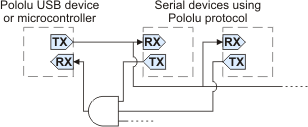 |
Daisy chaining serial devices using the Pololu protocol. An optional AND gate is used to join multiple TX lines. |
|---|
The Simple Motor Controller has a special input called TXIN that eliminates the need for an external AND gate (the AND gate is built in to the Simple Motor Controller.) To make a chain of devices using the TXIN input, connect them like this:
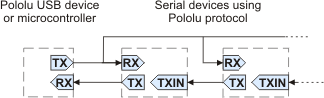 |
Daisy chaining serial devices that have a TXIN input. |
|---|
For additional connection diagrams and more information about the TXIN pin, see Section 4.2.
Connections
Connect the TX line of your controlling device to the RX lines of all of the slave devices. Sent commands will then be received by all slaves.
When receiving serial responses from multiple slaves, each device should only transmit when requested, so if each device is addressed separately, multiple devices will not transmit simultaneously. However, the TX outputs are driven high when not sending data, so they cannot simply be wired together. Instead, you can use an AND gate, as shown in the diagram, to combine the signals, or you can use the TXIN pin as described above if the device has one. Note that in many cases receiving responses is not necessary, and the TX lines can be left unconnected.
Whenever connecting devices, remember to wire the grounds together, and ensure that each device is properly powered. Unpowered devices with a TTL serial port can turn on or partially on, drawing power from the serial line, which means that extra care must be taken when turning power off and on to reset the devices.
Sending commands
The Pololu Protocol or Mini SSC protocol should be used when multiple Pololu devices are receiving the same serial data. This allows the devices to be individually addressed, and it allows responses to be sent without collisions.
If the devices are configured to detect the baud rate, then when you issue your first Pololu Protocol command, the devices can automatically detect the baud from the initial 0xAA byte.
Some older Pololu devices use 0x80 as an initial command byte. If you want to chain these together with devices expecting 0xAA, you should first transmit the byte 0x80 so that these devices can automatically detect the baud rate, and only then should you send the byte 0xAA so that the Simple Motor Controller can detect the baud rate. Once all devices have detected the baud rate, Pololu devices that expect a leading command byte of 0x80 will ignore command packets that start with 0xAA, and Pololu devices that use the Pololu Protocol, such as the Simple Motor Controller, will ignore command packets that start with 0x80.
6.7. Sample Code
This section contains example code for controlling the Simple Motor Controller over TTL serial or over the USB virtual serial port. These examples use the Compact Protocol without CRC error detection, so they require the Simple Motor Controller to be in Binary serial mode with the CRC Mode set to Disabled. For information about the serial commands used by this sample code, refer to Section 6.2.1.
6.7.1. Arduino Examples
 |
Arduino R3, top view. |
|---|
The Arduino is a popular prototyping platform that is well suited for beginners to the world of embedded programming. Arduino boards are based on Atmel’s AVR microcontrollers, like the Orangutan robot controllers, and are essentially programmed in C++. The Arduino uses its hardware serial (or “UART”) lines for programming and for debugging with the Arduino IDE’s serial monitor, so we do not recommend using these lines to communicate with peripheral serial devices like the Simple Motor Controller. Instead, we recommend using the SoftwareSerial library included with the Arduino IDE, which lets you use arbitrary I/O lines for transmitting and receiving serial bytes. The drawback is that software serial requires much more processing time than hardware serial.
In the following examples, we use the SoftwareSerial library to transmit bytes on digital pin 4 and receive bytes on digital pin 3. These examples are written for Arduino 1.0 and will not work with earlier verisons of the IDE.
These sample programs require the Simple Motor Controller to have a fixed baud rate set to 19200 bps. It must also be in Binary serial mode with the CRC Mode set to Disabled. Auto baud rate detection can be used, but it is not recommended because of inaccuracy in the SoftwareSerial library.
Simple Example
This example assumes the following connections exist between the Arduino and the Simple Motor Controller:
- Arduino digital pin 4 to Simple Motor Controller RX
- Arduino GND to Simple Motor Controller GND
There is nothing special about Arduino pin 4; you can use any free digital pins other than 0 and 1 (the Arduino’s hardware serial lines) if you change the pin definition at the top of the sample program accordingly. See Section 4.2 for more information on connecting a serial device to the Simple Motor Controller.
This program demonstrates how to initiate serial communication with the Simple Motor Controller and how to send commands to set the motor speed. For information about the serial commands used by this sample code, refer to Section 6.2.1. Note that the Simple Motor Controller must be powered when this Arduino sketch starts running.
#include <SoftwareSerial.h>
#define rxPin 3  // pin 3 connects to smcSerial TX  (not used in this example)
#define txPin 4  // pin 4 connects to smcSerial RX
SoftwareSerial smcSerial = SoftwareSerial(rxPin, txPin);

// required to allow motors to move
// must be called when controller restarts and after any error
void exitSafeStart()
{
  smcSerial.write(0x83);
}

// speed should be a number from -3200 to 3200
void setMotorSpeed(int speed)
{
  if (speed < 0)
  {
    smcSerial.write(0x86);  // motor reverse command
    speed = -speed;  // make speed positive
  }
  else
  {
    smcSerial.write(0x85);  // motor forward command
  }
  smcSerial.write(speed & 0x1F);
  smcSerial.write(speed >> 5);
}

void setup()
{
  // initialize software serial object with baud rate of 19.2 kbps
  smcSerial.begin(19200);

  // the Simple Motor Controller must be running for at least 1 ms
  // before we try to send serial data, so we delay here for 5 ms
  delay(5);

  // if the Simple Motor Controller has automatic baud detection
  // enabled, we first need to send it the byte 0xAA (170 in decimal)
  // so that it can learn the baud rate
  smcSerial.write(0xAA);  // send baud-indicator byte

  // next we need to send the Exit Safe Start command, which
  // clears the safe-start violation and lets the motor run
  exitSafeStart();  // clear the safe-start violation and let the motor run
}

void loop()
{
  setMotorSpeed(3200);  // full-speed forward
  delay(1000);
  setMotorSpeed(-3200);  // full-speed reverse
  delay(1000);
}
Advanced Example
This example assumes the following connections exist between the Arduino and the Simple Motor Controller:
- Arduino digital pin 3 to Simple Motor Controller TX
- Arduino digital pin 4 to Simple Motor Controller RX
- Arduino digital pin 5 to Simple Motor Controller RST
- Arduino digital pin 6 to Simple Motor Controller ERR
- Arduino GND to Simple Motor Controller GND
There is nothing special about Arduino pins 3 through 6; you can use any free digital pins other than 0 and 1 (the Arduino’s hardware serial lines) if you change the pin definitions at the top of the sample program accordingly. See Section 4.2 for more information on connecting a serial device to the Simple Motor Controller.
This program demonstrates how to initiate serial communication with the Simple Motor Controller and how to send commands to set the motor speed, read variables, and change the temporary motor limits. For information about the serial commands used by this sample code, refer to Section 6.2.1. It will be more interesting if you have input power and a motor connected to your Simple Motor Controller (see Section 4.1), but you can see some interesting things even without a motor connected by using the Status tab of the Simple Motor Control Center application to monitor the effect this sketch has on the controller’s variables (see Section 3.3).
#include <SoftwareSerial.h>
#define rxPin 3    // pin 3 connects to SMC TX
#define txPin 4    // pin 4 connects to SMC RX
#define resetPin 5 // pin 5 connects to SMC nRST
#define errPin 6   // pin 6 connects to SMC ERR
SoftwareSerial smcSerial = SoftwareSerial(rxPin, txPin);

// some variable IDs
#define ERROR_STATUS 0
#define LIMIT_STATUS 3
#define TARGET_SPEED 20
#define INPUT_VOLTAGE 23
#define TEMPERATURE 24

// some motor limit IDs
#define FORWARD_ACCELERATION 5
#define REVERSE_ACCELERATION 9
#define DECELERATION 2

// read a serial byte (returns -1 if nothing received after the timeout expires)
int readByte()
{
  char c;
  if(smcSerial.readBytes(&c, 1) == 0){ return -1; }
  return (byte)c;
}

// required to allow motors to move
// must be called when controller restarts and after any error
void exitSafeStart()
{
  smcSerial.write(0x83);
}

// speed should be a number from -3200 to 3200
void setMotorSpeed(int speed)
{
  if (speed < 0)
  {
    smcSerial.write(0x86);  // motor reverse command
    speed = -speed;  // make speed positive
  }
  else
  {
    smcSerial.write(0x85);  // motor forward command
  }
  smcSerial.write(speed & 0x1F);
  smcSerial.write(speed >> 5);
}

unsigned char setMotorLimit(unsigned char  limitID, unsigned int limitValue)
{
  smcSerial.write(0xA2);
  smcSerial.write(limitID);
  smcSerial.write(limitValue & 0x7F);
  smcSerial.write(limitValue >> 7);
  return readByte();
}

// returns the specified variable as an unsigned integer.
// if the requested variable is signed, the value returned by this function
// should be typecast as an int.
unsigned int getVariable(unsigned char variableID)
{
  smcSerial.write(0xA1);
  smcSerial.write(variableID);
  return readByte() + 256 * readByte();
}

void setup()
{
  Serial.begin(115200);    // for debugging (optional)
  smcSerial.begin(19200);

  // briefly reset SMC when Arduino starts up (optional)
  pinMode(resetPin, OUTPUT);
  digitalWrite(resetPin, LOW);  // reset SMC
  delay(1);  // wait 1 ms
  pinMode(resetPin, INPUT);  // let SMC run again

  // must wait at least 1 ms after reset before transmitting
  delay(5);

  // this lets us read the state of the SMC ERR pin (optional)
  pinMode(errPin, INPUT);

  smcSerial.write(0xAA);  // send baud-indicator byte
  setMotorLimit(FORWARD_ACCELERATION, 4);
  setMotorLimit(REVERSE_ACCELERATION, 10);
  setMotorLimit(DECELERATION, 20);
  // clear the safe-start violation and let the motor run
  exitSafeStart();
}

void loop()
{
  setMotorSpeed(3200);  // full-speed forward
  // signed variables must be cast to ints:
  Serial.println((int)getVariable(TARGET_SPEED));
  delay(1000);
  setMotorSpeed(-3200);  // full-speed reverse
  Serial.println((int)getVariable(TARGET_SPEED));
  delay(1000);

  // write input voltage (in millivolts) to the serial monitor
  Serial.print("VIN = ");
  Serial.print(getVariable(INPUT_VOLTAGE));
  Serial.println(" mV");

  // if an error is stopping the motor, write the error status variable
  // and try to re-enable the motor
  if (digitalRead(errPin) == HIGH)
  {
    Serial.print("Error Status: 0x");
    Serial.println(getVariable(ERROR_STATUS), HEX);
    // once all other errors have been fixed,
    // this lets the motors run again
    exitSafeStart();
  }
}
6.7.2. Orangutan Examples
 |
Orangutan SVP fully assembled. |
|---|
The Orangutan robot controllers feature user-programmable Atmel AVR microcontrollers interfaced with additional hardware useful for controlling robots. They are programmable in C or C++ and supported by the Pololu AVR library, which makes it easy to use the integrated hardware and AVR peripherals, such as the UART module. Unlike the Arduino, the hardware serial lines are completely available on the Orangutans, so software serial is not necessary when connecting to serial devices like the Simple Motor Controller.
In the following example programs, we use the OrangutanSerial functions from the Pololu AVR library to transmit bytes on pin PD1. In the advanced example, we use the OrangutanSerial functions to receive bytes on pin PD0, and we use the OrangutanLCD functions to report feedback obtained from the Simple Motor Controller. See the Pololu AVR library command reference for more information on these functions.
This code requires the Simple Motor Controller to have automatic baud rate detection enabled or to have a fixed baud rate set to 115200 bps. It must also be in Binary serial mode with the CRC Mode set to Disabled.
Simple Example
This example assumes the following connections exist between the Orangutan and the Simple Motor Controller:
- Orangutan pin PD0 to Simple Motor Controller TX
- Orangutan GND to Simple Motor Controller GND
Pin PD0 is the Orangutan’s hardware serial receive line and must be connected to the Simple Motor Controller as described above for this sample program to work. See Section 4.2 for more information on connecting a serial device to the Simple Motor Controller.
This program demonstrates how to initiate serial communication with the Simple Motor Controller and how to send commands to set the motor speed. For information about the serial commands used by this sample code, refer to Section 6.2.1. Note that the Simple Motor Controller must be powered when this Orangutan program starts running.
#include <pololu/orangutan.h>

char command[3];

// These first two functions call the appropriate Pololu AVR library serial functions
// depending on which Orangutan you are using.  The Orangutan SVP and X2 have multiple
// serial ports, so the serial functions for these devices require an extra argument
// specifying which port to use.  You can simplify this program by just calling the
// library function appropriate for your Orangutan board.

void setBaudRate(unsigned long baud)
{
#if _SERIAL_PORTS > 1  // Orangutan X2 and SVP users
  serial_set_baud_rate(UART0, baud);
#else
  serial_set_baud_rate(baud);
#endif
}

void sendBlocking(char * buffer, unsigned char size)
{
#if _SERIAL_PORTS > 1  // Orangutan X2 and SVP users
  serial_send_blocking(UART0, buffer, size);
#else
  serial_send_blocking(buffer, size);
#endif
}

// required to allow motors to move
// must be called when controller restarts and after any error
void exitSafeStart()
{
  command[0] = 0x83;
  sendBlocking(command, 1);
}

// speed should be a number from -3200 to 3200
void setMotorSpeed(int speed)
{
  if (speed < 0)
  {
    command[0] = 0x86;  // motor reverse command
    speed = -speed;  // make speed positive
  }
  else
  {
    command[0] = 0x85;  // motor forward command
  }
  command[1] = speed & 0x1F;
  command[2] = speed >> 5;
  sendBlocking(command, 3);
}

// initialization code called once when the program starts running
void setup()
{
  // initialize hardware serial (UART0) with baud rate of 115.2 kbps
  setBaudRate(115200);

  // the Simple Motor Controller must be running for at least 1 ms
  // before we try to send serial data, so we delay here for 5 ms
  delay_ms(5);

  // if the Simple Motor Controller has automatic baud detection
  // enabled, we first need to send it the byte 0xAA (170 in decimal)
  // so that it can learn the baud rate
  command[0] = 0xAA;
  sendBlocking(command, 1);  // send baud-indicator byte

  // next we need to send the Exit Safe Start command, which
  // clears the safe-start violation and lets the motor run
  exitSafeStart();  // clear the safe-start violation and let the motor run
}

// program execution starts here
int main()
{
  setup();
  while (1)  // loop forever
  {
    setMotorSpeed(3200);
    delay_ms(1000);
    setMotorSpeed(-3200);
    delay_ms(1000);
  }
}
Advanced Example
This example assumes the following connections exist between the Orangutan and the Simple Motor Controller:
- Orangutan pin PD0 to Simple Motor Controller TX
- Orangutan pin PD1 to Simple Motor Controller RX
- Orangutan pin PC0 to Simple Motor Controller RST
- Orangutan pin PC1 to Simple Motor Controller ERR
- Orangutan GND to Simple Motor Controller GND
Pins PD0 and PD1 are the Orangutan’s hardware serial receive and transmit lines, respectively, and must be connected to the Simple Motor Controller as described above for this sample program to work. There is nothing special about pins PC0 and PC1, however; you can connect any free digital pins to the Simple Motor Controller RST and ERR pins if you change the pin definitions at the top of the sample program accordingly. See Section 4.2 for more information on connecting a serial device to the Simple Motor Controller.
This program demonstrates how to initiate serial communication with the Simple Motor Controller and how to send commands to set the motor speed, read variables, and change the temporary motor limits. For information about the serial commands used by this sample code, refer to Section 6.2.1. It will be more interesting if you have input power and a motor connected to your Simple Motor Controller (see Section 4.1), but you can see some interesting things even without a motor connected by using the Status tab of the Simple Motor Control Center application to monitor the effect this program has on the controller’s variables (see Section 3.3).
#include <pololu/orangutan.h>
#define resetPin IO_C0  // pin PC0 connects to SMC nRST
#define errPin IO_C1  // pin PC1 connects to SMC ERR

// some variable IDs
#define ERROR_STATUS 0
#define LIMIT_STATUS 3
#define TARGET_SPEED 20
#define INPUT_VOLTAGE 23
#define TEMPERATURE 24

// some motor limit IDs
#define FORWARD_ACCELERATION 5
#define REVERSE_ACCELERATION 9
#define DECELERATION 2

char command[4];

// These first three functions call the appropriate Pololu AVR library serial functions
// depending on which Orangutan you are using.  The Orangutan SVP and X2 have multiple
// serial ports, so the serial functions for these devices require an extra argument
// specifying which port to use.  You can simplify this program by just calling the
// library function appropriate for your Orangutan board.

void setBaudRate(unsigned long baud)
{
#if _SERIAL_PORTS > 1  // Orangutan X2 and SVP users
  serial_set_baud_rate(UART0, baud);
#else
  serial_set_baud_rate(baud);
#endif
}

void sendBlocking(char * buffer, unsigned char size)
{
#if _SERIAL_PORTS > 1  // Orangutan X2 and SVP users
  serial_send_blocking(UART0, buffer, size);
#else
  serial_send_blocking(buffer, size);
#endif
}

char receiveBlocking(char * buffer, unsigned char size, unsigned int timeout_ms)
{
#if _SERIAL_PORTS > 1  // Orangutan X2 and SVP users
  return serial_receive_blocking(UART0, buffer, size, timeout_ms);
#else
  return serial_receive_blocking(buffer, size, timeout_ms);
#endif
}

// required to allow motors to move
// must be called when controller restarts and after any error
void exitSafeStart()
{
  command[0] = 0x83;
  sendBlocking(command, 1);
}

// speed should be a number from -3200 to 3200
void setMotorSpeed(int speed)
{
  if (speed < 0)
  {
    command[0] = 0x86;  // motor reverse command
    speed = -speed;  // make speed positive
  }
  else
  {
    command[0] = 0x85;  // motor forward command
  }
  command[1] = speed & 0x1F;
  command[2] = speed >> 5;
  sendBlocking(command, 3);
}

char setMotorLimit(unsigned char  limitID, unsigned int limitValue)
{
  command[0] = 0xA2;
  command[1] = limitID;
  command[2] = limitValue & 0x7F;
  command[3] = limitValue >> 7;
  sendBlocking(command, 4);

  char response = -1;
  receiveBlocking(&response, 1, 500);
  return response;
}

// returns the specified variable as an unsigned integer.
// if the requested variable is signed, the value returned by this function
// should be typecast as an int.
unsigned int getVariable(unsigned char variableID)
{
  command[0] = 0xA1;
  command[1] = variableID;
  sendBlocking(command, 2);

  unsigned int response;
  if (receiveBlocking((char *)&response, 2, 500))
    return 0;  // if we don't get a response in 500 ms, return 0
  return response;
}

// initialization code called once when the program starts running
void setup()
{
  setBaudRate(115200);

  // briefly reset SMC when Arduino starts up (optional)
  set_digital_output(resetPin, LOW);
  delay_ms(1);  // wait 1 ms
  set_digital_input(resetPin, HIGH_IMPEDANCE);  // let SMC run again

  // must wait at least 1 ms after reset before transmitting
  delay_ms(5);

  // this lets us read the state of the SMC ERR pin (optional)
  set_digital_input(errPin, HIGH_IMPEDANCE);

  command[0] = 0xAA;
  sendBlocking(command, 1);  // send baud-indicator byte
  setMotorLimit(FORWARD_ACCELERATION, 4);
  setMotorLimit(REVERSE_ACCELERATION, 10);
  setMotorLimit(DECELERATION, 20);
  // clear the safe-start violation and let the motor run
  exitSafeStart();
}

// main loop of the program; this executes over and over while the program runs
void loop()
{
  static int speed = 3200;  // full-speed forward

  setMotorSpeed(speed);
  speed = -speed;  // switch motor direction

  clear();  // clear the LCD and move cursor to start of first row
  print("ts=");
  // signed variables must be cast to ints:
  print_long((int)getVariable(TARGET_SPEED));
  lcd_goto_xy(0, 1);  // move LCD cursor to start of second row

  if (is_digital_input_high(errPin))
  {
    // if an error is stopping the motor, print the error status variable
    // in hex and try to re-enable the motor
    print("Err=");
    print_hex(getVariable(ERROR_STATUS));
    // once all other errors have been fixed, this lets the motor run again
    exitSafeStart();
  }
  else
  {
    // print input voltage (in Volts) to the LCD
    print("VIN=");
    unsigned int vin = getVariable(INPUT_VOLTAGE);
    // print truncated whole number of Volts
    print_unsigned_long(vin/1000);
    print_character('.');
    // print rounded tenths of a Volt
    print_unsigned_long(((vin%1000) + 50) / 100);
  }

  delay_ms(1000);
}

// program execution starts here
int main()
{
  setup();
  while (1)
  {
    loop();
  }
}
6.7.3. Cross-platform C Example
The example C code below works on Windows, Linux, and Mac OS X 10.7 or later. It demonstrates how to get the error status from the controller, how to read a variable, and how to set the target speed.
This code will work in Windows if compiled with MinGW, but it does not work with the Microsoft C compiler. For Windows-specific example code that works with either compiler, see Section 6.7.4.
For this example to work, the Simple Motor Controller’s input mode must be Serial/USB, the serial mode must be Binary, and the CRC Mode must be set to Disabled. These are the default settings that the controller is shipped with. The controller should be connected to the computer via USB.
// Uses POSIX functions to send and receive data from the virtual serial
// port of a Pololu Simple Motor Controller.
// NOTE: The Simple Motor Controller's Input Mode must be set to Serial/USB.
// NOTE: You must change the 'const char * device' line below.

#include <fcntl.h>
#include <stdio.h>
#include <unistd.h>

#ifdef _WIN32
#define O_NOCTTY 0
#else
#include <termios.h>
#endif

#define SERIAL_ERROR -9999

// Reads a variable from the SMC and returns it as number between 0 and 65535.
// Returns SERIAL_ERROR if there was an error.
// The 'variableId' argument must be one of IDs listed in the
// "Controller Variables" section of the user's guide.
// For variables that are actually signed, additional processing is required
// (see smcGetTargetSpeed for an example).
int smcGetVariable(int fd, unsigned char variableId)
{
  unsigned char command[] = {0xA1, variableId};
  if(write(fd, &command, sizeof(command)) == -1)
  {
    perror("error writing");
    return SERIAL_ERROR;
  }

  unsigned char response[2];
  if(read(fd,response,2) != 2)
  {
    perror("error reading");
    return SERIAL_ERROR;
  }

  return response[0] + 256*response[1];
}

// Returns the target speed (-3200 to 3200).
// Returns SERIAL_ERROR if there is an error.
int smcGetTargetSpeed(int fd)
{
  int val = smcGetVariable(fd, 20);
  return val == SERIAL_ERROR ? SERIAL_ERROR : (signed short)val;
}

// Returns a number where each bit represents a different error, and the
// bit is 1 if the error is currently active.
// See the user's guide for definitions of the different error bits.
// Returns SERIAL_ERROR if there is an error.
int smcGetErrorStatus(int fd)
{
  return smcGetVariable(fd,0);
}

// Sends the Exit Safe Start command, which is required to drive the motor.
// Returns 0 if successful, SERIAL_ERROR if there was an error sending.
int smcExitSafeStart(int fd)
{
  const unsigned char command = 0x83;
  if (write(fd, &command, 1) == -1)
  {
    perror("error writing");
    return SERIAL_ERROR;
  }
  return 0;
}

// Sets the SMC's target speed (-3200 to 3200).
// Returns 0 if successful, SERIAL_ERROR if there was an error sending.
int smcSetTargetSpeed(int fd, int speed)
{
  unsigned char command[3];

  if (speed < 0)
  {
    command[0] = 0x86; // Motor Reverse
    speed = -speed;
  }
  else
  {
    command[0] = 0x85; // Motor Forward
  }
  command[1] = speed & 0x1F;
  command[2] = speed >> 5 & 0x7F;

  if (write(fd, command, sizeof(command)) == -1)
  {
    perror("error writing");
    return SERIAL_ERROR;
  }
  return 0;
}

int main()
{
  // Open the Simple Motor Controller's virtual COM port.
  const char * device = "/dev/ttyACM0";  // Linux
  //const char * device = "\\\\.\\COM6";  // Windows
  //const char * device = "/dev/cu.usbmodemfa121"; // Mac OS X
  int fd = open(device, O_RDWR | O_NOCTTY);
  if (fd == -1)
  {
    perror(device);
    return 1;
  }

#ifdef _WIN32
  _setmode(fd, _O_BINARY);
#else
  struct termios options;
  tcgetattr(fd, &options);
  options.c_iflag &= ~(INLCR | IGNCR | ICRNL | IXON | IXOFF);
  options.c_oflag &= ~(ONLCR | OCRNL);
  options.c_lflag &= ~(ECHO | ECHONL | ICANON | ISIG | IEXTEN);
  tcsetattr(fd, TCSANOW, &options);
#endif

  smcExitSafeStart(fd);

  printf("Error status: 0x%04x\n", smcGetErrorStatus(fd));

  int speed = smcGetTargetSpeed(fd);
  printf("Current Target Speed is %d.\n", speed);

  int newSpeed = (speed <= 0) ? 3200 : -3200;
  printf("Setting Target Speed to %d.\n", newSpeed);
  smcSetTargetSpeed(fd, newSpeed);

  close(fd);
  return 0;
}
6.7.4. Windows C Example
For example C code that shows how to control a Simple Motor Controller using its serial interface in Microsoft Windows, download SmcSerialCWindows.zip (5k zip). This zip archive contains a Microsoft Visual C++ 2010 Express project, and the provided C code can also be compiled with MinGW. This example is like the previous example except it does the serial communication Windows-specific functions like CreateFile and WriteFile.
For this example to work, the Simple Motor Controller’s input mode must be Serial/USB, the serial mode must be Binary, and the CRC Mode must be set to Disabled. These are the default settings that the controller is shipped with. The controller should be connected to the computer via USB.
6.7.5. Bash Script Example
The Bash shell script below works on Linux and Mac OS X 10.7 or later. It demonstrates how to control a Simple Motor Controller over USB. You can run it using the example commands given below. You will need to change the DEVICE argument to be the name of the Simple Motor Controller’s virtual serial port (see Section 6).
For this script to work, the Simple Motor Controller’s input mode must be Serial/USB, the serial mode must be Binary, and the CRC Mode must be set to Disabled. These are the default settings that the controller is shipped with. The controller should be connected to the computer via USB.
#!/bin/bash
# Sets the speed of a Simple Motor Controller via its virtual serial port.
# Usage: smc-set-speed.sh DEVICE SPEED
# Linux example: bash smc-set-speed.sh /dev/ttyACM0 3200
# Mac OS X example: bash smc-set-speed.sh /dev/cu.usbmodemfa121 3200
# Windows example: bash smc-set-speed.sh '\\.\COM6' 3200
# DEVICE is the name of the virtual COM port device.
# SPEED is a number between -3200 and 3200
DEVICE=$1
SPEED=$2

byte() {
  printf "\\x$(printf "%x" $1)"
}

{
  byte 0x83  # exit safe-start
  if [ $SPEED -lt 0 ]; then
    byte 0x86  # motor reverse
    SPEED=$((-$SPEED))
  else
    byte 0x85  # motor forward
  fi
  byte $((SPEED & 0x1F))
  byte $((SPEED >> 5 & 0x7F))
} > $DEVICE
This script can also be run on Windows, but since Windows does not have bash installed by default it is easier to use SmcCmd.
6.7.6. CRC Computation in C
Simple Example
The following example program shows how to compute a CRC byte in the C language. The outer loop processes each byte, and the inner loop processes each bit of those bytes. In the example main() routine, this is applied to generate the CRC byte in the message 0x83, 0x01, that was used in Section 6.5. The getCRC() function will work without modification in both Arduino and Orangutan programs.
const unsigned char CRC7_POLY = 0x91;

unsigned char getCRC(unsigned char message[], unsigned char length)
{
  unsigned char i, j, crc = 0;

  for (i = 0; i < length; i++)
  {
    crc ^= message[i];
    for (j = 0; j < 8; j++)
    {
      if (crc & 1)
        crc ^= CRC7_POLY;
      crc >>= 1;
    }
  }
  return crc;
}

int main()
{
  // create a message array that has one extra byte to hold the CRC:
  unsigned char message[3] = {0x83, 0x01, 0x00};
  message[2] = getCRC(message, 2);
  // send this message to the Simple Motor Controller
}
Advanced Example
The following example program shows a more efficient way to compute a CRC in the C language. The increased efficiency is achieved by pre-computing the CRCs of all 256 possible bytes and storing them in a lookup table, which can be in RAM, flash, or EEPROM. These table values are then XORed together based on the bytes of the message to get the final CRC. In the example main() routine, this is applied to generate the CRC byte in the message 0x83, 0x01, that was used in Section 6.5.
#include <stdio.h>

const unsigned char CRC7_POLY = 0x91;
unsigned char CRCTable[256];

unsigned char getCRCForByte(unsigned char val)
{
  unsigned char j;

  for (j = 0; j < 8; j++)
  {
    if (val & 1)
      val ^= CRC7_POLY;
    val >>= 1;
  }

  return val;
}

void buildCRCTable()
{
  int i;

  // fill an array with CRC values of all 256 possible bytes
  for (i = 0; i < 256; i++)
  {
    CRCTable[i] = getCRCForByte(i);
  }
}

unsigned char getCRC(unsigned char message[], unsigned char length)
{
  unsigned char i, crc = 0;

  for (i = 0; i < length; i++)
    crc = CRCTable[crc ^ message[i]];
  return crc;
}

int main()
{
  unsigned char message[3] = {0x83, 0x01, 0x00};
  int i, j;

  buildCRCTable();
  message[2] = getCRC(message, 2);

  for (i = 0; i < sizeof(message); i++)
  {
    for (j = 0; j < 8; j++)
      printf("%d", (message[i] >> j) % 2);
    printf(" ");
  }
  printf("\n");
}
7. Writing PC Software to Control the Simple Motor Controller
There are two ways to write PC software to control a Simple Motor Controller: the native USB interface and the virtual serial port. The native USB interface provides more features than the serial port, such as the ability to change configuration parameters and select the Simple Motor Controller by its serial number. Also, the USB interface allows you to recover more easily from temporary disconnections. The virtual serial port interface is easier to use if you are not familiar with programming, and it can work with existing software programs that use serial ports, such as LabView.
 |
The Pololu USB SDK contains example code for the Simple Motor Controller in C#, Visual C++, and Visual Basic .NET. |
|---|
Native USB Interface
The Pololu USB Software Development Kit supports Windows and Linux, and includes the source code for:
- SmcExample1: a simple example application that uses native USB and has three buttons for setting the motor speed. Versions of this example are available in C#, Visual Basic .NET, and Visual C++.
- SmcExample2: an example graphical application that has a scrollbar for setting the motor speed over native USB (written in C#).
- SmcCmd: a command-line utility for configuring and controlling the Simple Motor Controller (written in C#).
- Smc: A .NET class library that enables native USB communication with the Simple Motor Controller (written in C#).
You can modify the applications in the SDK to suit your needs or you can use the class library to integrate the Simple Motor Controller in to your own applications.
Virtual Serial Port
Almost any programming language is capable of accessing the Simple Motor Controller’s virtual COM port. We recommend the Microsoft .NET framework, which is free to use and contains a SerialPort class that makes it easy to read and write bytes from a serial port. You can download Visual Studio Express (for either C#, C++, or Visual Basic) and write programs that use the SerialPort class to communicate with the Simple Motor Controller. You will need to set the Simple Motor Controller’s serial mode to be either “Binary” or “ASCII” depending on which command set you want to use. See Section 6.7 for example code that uses the virtual COM port.
Related products


Home | Forum | Blog | Support | Ordering Information | Lists | Distributors | BIG Order Form | About | Contact
© 2001–2026 Pololu Corporation



