Support »
Pololu USB AVR Programmer User’s Guide
View document on multiple pages.
You can also view this document as a printable PDF.
- 1. Overview
- 2. Contacting Pololu
- 3. Getting Started in Windows
- 4. Getting Started in Linux
- 5. Getting Started in Mac OS X
- 6. Communicating via the USB-to-TTL-Serial Adapter
- 7. Measuring Voltages Using the SLO-scope
- 8. Troubleshooting
- 9. Upgrading Firmware
1. Overview
The Pololu USB AVR programmer is a programmer for Atmel’s AVR microcontrollers and controller boards based on these MCUs, such as Pololu Orangutan robot controllers and the 3pi robot. The programmer emulates an STK500 on a virtual serial port, making it compatible with standard AVR programming software. Two additional features help with building and debugging projects: a TTL-level serial port for general-purpose communication and a SLO-scope for monitoring signals and voltage levels.
Please note that this guide only applies to the original version of the Pololu USB AVR Programmer (Pololu item #1300), not the newer Pololu USB AVR Programmer v2. If you have one of the newer v2.x programmers, which have blue PCBs instead of green, you can find their user’s guide here.
Important Safety Warning and Handling Procedures
The USB AVR programmer is not intended for young children! Younger users should use this product only under adult supervision. By using this product, you agree not to hold Pololu liable for any injury or damage related to the use or to the performance of this product. This product is not designed for, and should not be used in, applications where the malfunction of the product could cause injury or damage. Please take note of these additional precautions:
- The USB AVR programmer contains lead, so follow appropriate handling procedures, such as washing hands after handling.
- Since the PCB and its components are exposed, take standard precautions to protect your programmer from ESD (electrostatic discharge), such as first touching the surface the programmer is resting on before picking it up. When handing the programmer to another person, first touch their hand with your hand to equalize any charge imbalance between you so that you don’t discharge through the programmer as the exchange is made.
1.a. Module Pinout and Components
 |
Pololu USB AVR programmer, labeled top view. |
|---|
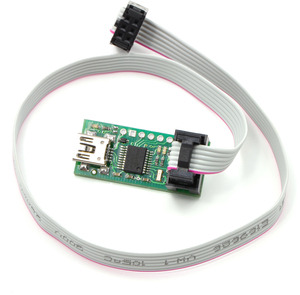
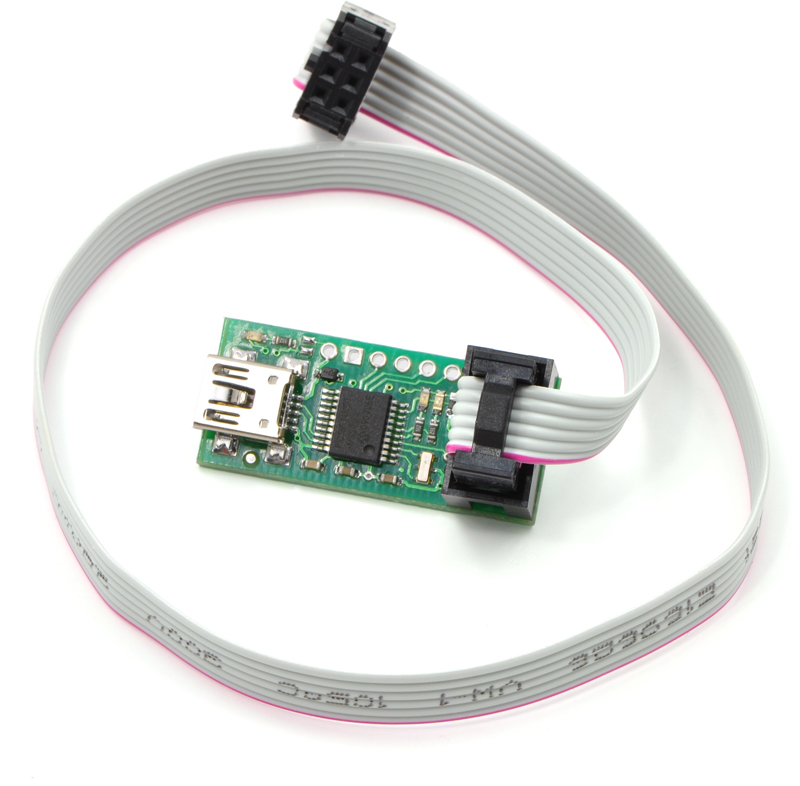
The Pololu USB AVR programmer connects to a computer’s USB port via an included USB A to mini-B cable, and it connects to the target device via an included 6-pin ISP programming cable (the older, 10-pin ISP connections are not directly supported, but it is easy to create or purchase a 6-pin-to-10-pin ISP adapter).
The USB AVR programmer has three indicator LEDs:
- The green LED indicates the USB status of the device. When you connect the programmer to the computer via the USB cable, the green LED will start blinking slowly. The blinking continues until it receives a particular message from the computer indicating that the drivers are installed correctly. After the programmer gets this message, the green LED will be on, but it will flicker briefly when there is USB activity.
- The yellow LED indicates that the programmer is doing something. When it is blinking, it means that the programmer has detected the target device (the voltage on the target VDD line is high). When it is on solid, it means that the SLO-scope is enabled, and lines A and B are used for the SLO-scope instead of the USB-to-TTL-serial adapter.
- The red LED indicates an error or warning. When it is blinking, it means that the target device is not detected (the voltage on the target VDD line is low). When it is on solid, it means that the last attempt at programming resulted in an error. You can determine the source of the error by running the configuration utility (see Section 3.e).
The VBUS line provides direct access to the 5V VBUS line on the USB cable and can be used to power additional devices. The line can provide up to 100 mA, so the current draw of your programmer plus any additional devices should not exceed this amount. If you attempt to draw more than this limit, your computer might disconnect the USB port temporarily or take other actions to limit the use of USB power.
The GND line provides direct access to the grounded line on the USB cable (and ground on the programmer).
The TX and RX lines are the TTL serial port for the USB-to-TTL-serial adapter. They are labeled from the computer’s perspective: TX is an output that connects to your target’s serial receive pin and RX is an input that connects to your target’s serial transmit pin. Section 6 describes how to use these lines to communicate with your devices from the computer.
The A and B lines can be used as serial control/handshaking lines for the USB-to-TTL-serial adapter (see Section 6.a) or as analog voltage inputs for the SLO-scope (see Section 7).
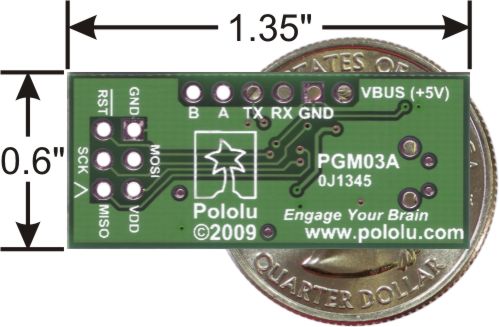 |
Pololu USB AVR programmer bottom view with dimensions. |
|---|
The USB AVR programmer has a standard 6-pin AVR ISP connector for programming AVRs, and the pins are labeled on the silkscreen on the bottom side of the board. The pins on the connector are:
- MISO: The “Master Input, Slave Output” line for SPI communication with the target AVR. The programmer is the master, so this line is an input.
- VDD: An input line that the programmer uses to measure the voltage of the target AVR. While programming the target device, the programmer uses this line to constantly monitor the target VDD. If the voltage goes too low or varies too much, then the programmer aborts programming in order to avoid damage to the target AVR. Section 3.e has more information about target VDD monitoring. The VDD line is not used to power the programmer; the programmer is powered from the USB. This line cannot be used to power the target device; the target device must be independently powered for programming to work.
- SCK: The clock line for SPI communication with the target AVR. The programmer is the master, so this line is an output during programming.
- MOSI: The “Master Output, Slave Input” line for SPI communication with the target AVR. The programmer is the master, so this line is an output during programming.
- RST: The target AVR’s reset line. This line is used as an output driven low during programming to hold the AVR in reset.
- GND: Ground. This line should be connected to the target device’s ground.
1.b. Supported Microcontrollers
The programmer should work with all AVRs that can be programmed with the AVR ISP interface, but it has not been tested on all devices. It has been tested with all Orangutan robot controllers and the 3pi Robot. The programmer features upgradable firmware, allowing updates for future devices. It does not currently work with Atmel’s XMega line of microcontrollers.
The programmer is powered by the 5V USB power bus, and it is intended for programming AVRs that are running at close to 5 V (note that the programmer does not deliver power to the target device).
1.c. Supported Operating Systems
We support using the Pololu USB AVR Programmer on Windows Vista, Windows 7, Windows 8, Windows 10, Linux, and Mac OS X.
The programmer’s configuration utility works only in Windows, but this should not be a big problem for Linux users because all the options that can be set in the configuration utility are stored in persistent memory, so you would only have to use Windows when you want to change those parameters, which should be rarely (if ever). The programmer does not require the configuration to program AVRs or to use the TX and RX USB-to-TTL-serial adapter pins.
The SLO-scope application works only in Windows.
The programmer is compatible with a variety of AVR programming utilities for Windows, Linux and macOS, including AVRDUDE, AVR Studio 4, AVR Studio 5, and Atmel Studio.
2. Contacting Pololu
 |
You can check the Pololu USB AVR programmer page for additional information. We would be delighted to hear from you about any of your projects and about your experience with the Pololu USB AVR Programmer. You can contact us directly or post on our forum. Tell us what we did well, what we could improve, what you would like to see in the future, or anything else you would like to say!
3. Getting Started in Windows
3.a. Installing Windows Drivers and Software
If you use Windows XP, you will need to have either Service Pack 3 or Hotfix KB918365 installed before installing the drivers for the Pololu USB AVR programmer. Some users who installed the hotfix have reported problems using the programmer which were solved by upgrading to Service Pack 3, so we recommend Service Pack 3 over the hotfix.
Please note that these drivers will only work for the original version of the Pololu USB AVR Programmer (Pololu item #1300), not the newer Pololu USB AVR Programmer v2. If you have one of the newer v2.x programmers, which have blue PCBs instead of green, you will need to install the drivers specific to those.
Before you connect your Pololu USB AVR programmer to a computer running Microsoft Windows, you must install its drivers:
- Download and install the Pololu AVR Development Bundle (~11 MB exe). This includes the drivers and software for the Pololu USB AVR Programmer, along with the Pololu AVR C/C++ Library and the Orangutan SVP Drivers. If you are not sure which of these components you need, it is OK to install all of them. If you only need to install the drivers and software for the programmer, you can download those separately: USB AVR Programmer Windows Drivers and Software (11MB exe).
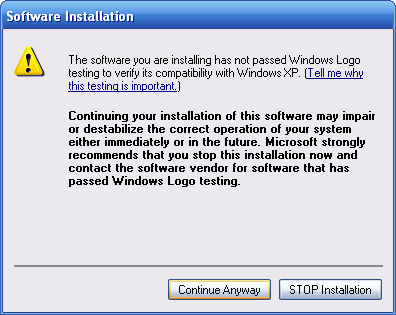
- During the installation, Windows will ask you if you want to install the drivers. Click “Install” (Windows 10, 8, 7, and Vista) or “Continue Anyway” (Windows XP).
|
|
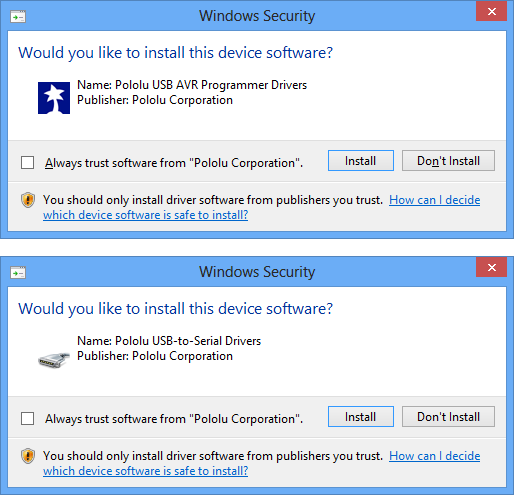
Windows 10, Windows 8, Windows 7, and Windows Vista users: After the installation has finished, your computer should automatically install the necessary drivers when you connect a Pololu USB AVR programmer, in which case no further action from you is required.
Windows XP users: After the installation has finished, follow steps 3-7 for each new Pololu USB AVR programmer you connect to your computer.
- Connect the USB AVR programmer to your computer’s USB port. The programmer is actually three devices in one so your XP computer will detect all three of those new devices and display the “Found New Hardware Wizard” three times. Each time the “Found New Hardware Wizard” pops up, follow steps 4-7.
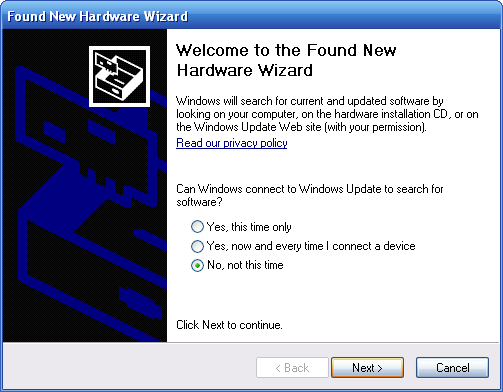
- When the “Found New Hardware Wizard” is displayed, select “No, not this time” and click “Next”.
 |
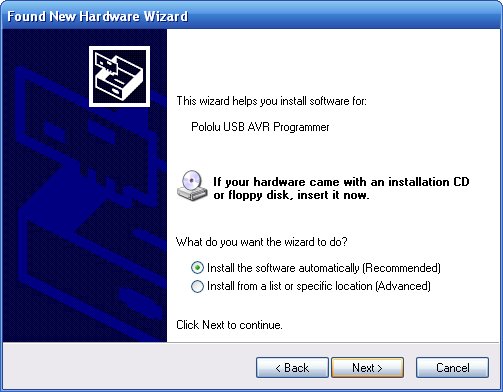
- On the second screen of the “Found New Hardware Wizard”, select “Install the software automatically” and click “Next”.
 |
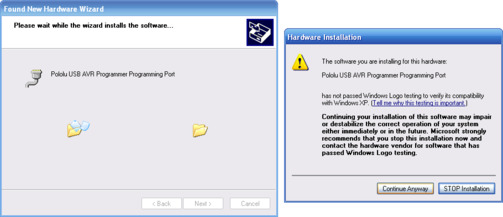
- Windows XP will warn you again that the driver has not been tested by Microsoft and recommend that you stop the installation. Click “Continue Anyway”.
 |
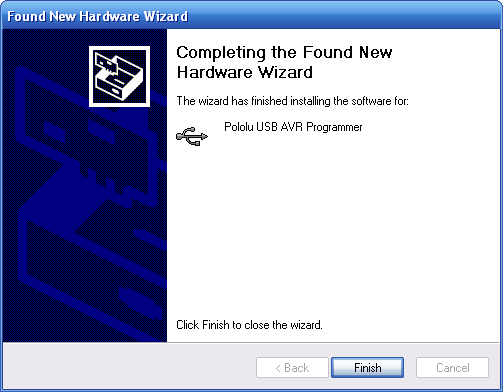
- When you have finished the “Found New Hardware Wizard”, click “Finish”. After that, another wizard will pop up. You will see a total of three wizards when plugging in the programmer. Follow steps 4-7 for each wizard.
 |
If you use Windows XP and experience problems installing the serial port drivers, the cause of your problems might be a bug in older versions of Microsoft’s usb-to-serial driver usbser.sys. Versions of this driver prior to version 5.1.2600.2930 will not work with the USB AVR programmer. You can check what version of this driver you have by looking in the “Details” tab of the “Properties” window for C:\Windows\System32\drivers\usbser.sys. To get the fixed version of the driver, you will need to either install Service Pack 3 or Hotfix KB918365. Some users who installed the hotfix have reported problems using the programmer which were solved by upgrading to Service Pack 3, so we recommend Service Pack 3 over the hotfix.
After installing the drivers, if you go to your computer’s Device Manager and expand the “Ports (COM & LPT)” list, you should see two COM ports: “Pololu USB AVR Programmer Programming Port” and “Pololu USB AVR Programmer TTL Serial Port”. In parentheses after these names, you will see the name of the port (e.g. “COM3” or “COM4”). If you expand the “Pololu USB Devices” list you should see an entry for the Pololu USB AVR programmer.
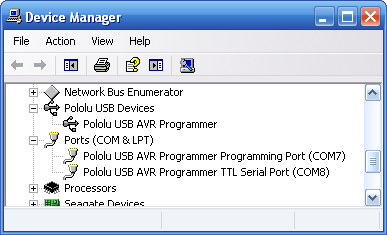 |
Windows XP device manager showing the Pololu USB AVR Programmer |
|---|
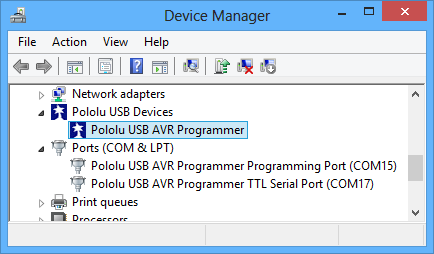 |
Windows 8 device manager showing the Pololu USB AVR Programmer |
|---|
The COM ports in the Device Manager might actually be named “USB Serial Device” instead of having a descriptive name as shown in the screenshots above. This can happen if you are using Windows 10 or later and you plugged the programmer into your computer before installing our drivers for it. In that case, Windows will set up your programmer using usbser.inf, a driver from Microsoft that ships with Windows 10 and later, and it will display “USB Serial Device” as the name for each port. The ports will be usable, but it will be hard to distinguish the ports from each other because of the generic name shown in the Device Manager. We recommend fixing the names in the Device Manager by right-clicking on each “USB Serial Device” entry, selecting “Update Driver Software…”, and then selecting “Search automatically for updated driver software”. Windows should find the drivers you already installed, which contain the correct name for the port.
Some software will not allow connection to higher COM port numbers. In particular, AVR Studio and early versions of Atmel Studio cannot connect to ports higher than COM9. If you need to change the COM port number assigned to your programmer, you can do so using the Device Manager. Double-click the COM port to open the properties dialog, and click the “Advanced…” button in the “Port Settings” tab. From this dialog you can change the COM port assigned to the programmer.
Once your have successfully installed the device drivers and software, you can run the Pololu USB AVR Programmer Configuration Utility, which is available in the Start menu in the Pololu folder. This application allows you to change many of the settings of your programmer and can help troubleshoot problems. Please see Section 3.e for more information.
This software package also contains the installation files for the Pololu SLO-scope application for Windows. Please see Section 7 for usage instructions.
3.b. Programming AVRs using Atmel Studio
If you have an Orangutan or 3pi Robot or wish to use the Pololu AVR C/C++ Library for some other reason, we recommend following the Pololu AVR Programming Quick Start Guide instead of this tutorial.
The following tutorial covers the steps needed to program AVRs in Windows using Atmel Studio and a Pololu USB AVR Programmer. Atmel Studio is a free integrated development environment (IDE) provided by Atmel. In this tutorial, we will write a simple program to blink an LED connected to pin PD1 of an AVR. If you want to program an AVR that does not have an LED connected to pin PD1, the code in this tutorial can be modified.
You will need to:
- Download and install Atmel Studio by following the instructions on Atmel’s website. If you use Windows Vista, you should download Atmel Studio 6.2, because that is latest version that supports Windows Vista. This tutorial was written for Atmel Studio 7.0 and Atmel Studio 6.2.
- Install the Pololu USB AVR Programmer’s drivers on your computer. See Section 3.a for instructions.
- Upgrade your programmer’s firmware to version 1.07 or later if necessary. See Section 9 for instructions. If your programmer was shipped from Pololu after 2012-02-29, then you already have the right firmware.
- If you are using Atmel Studio 6 or older, you might need to add an XML file to Atmel Studio to make it support the AVR you wish to program. See Section 3.b.1 for instructions.
After you have completed these prerequisites, you can create a new Atmel Studio project:
- Open Atmel Studio and click New Project. In the New Project dialog, select GCC C Executable Project for the template. Enter the project name and location. In this tutorial, we will name our project “BlinkLED” and put it in the “C:\” directory, but you can choose a different name and location if you would like. Uncheck the Create directory for solution box to simplify the directory structure of your project. Click OK.
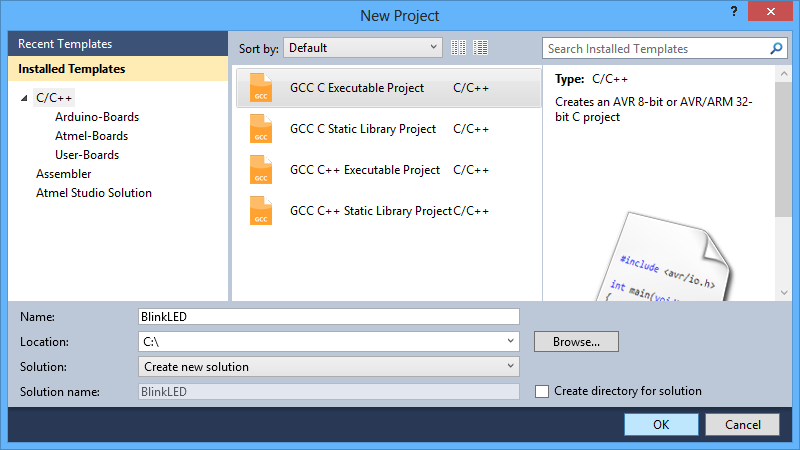 |
The New Project dialog of Atmel Studio 6. |
|---|
- In the Device Selection window, select the device name of your specific AVR. Click OK to create the project.
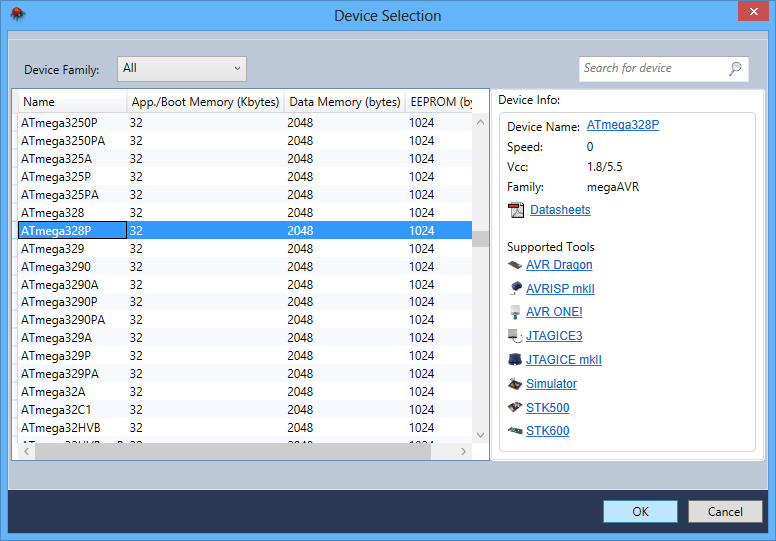 |
The Device Selection dialog of Atmel Studio 6. |
|---|
- Remove the template code that was automatically placed in BlinkLED.c and replace it with the code below:
#define F_CPU 20000000    // AVR clock frequency in Hz, used by util/delay.h
#include <avr/io.h>
#include <util/delay.h>

int main() {
	DDRD |= (1<<DDD1);          // set LED pin PD1 to output
	while (1) {
		PORTD |= (1<<PORTD1);   // drive PD1 high
		_delay_ms(100);         // delay 100 ms
		PORTD &= ~(1<<PORTD1);  // drive PD1 low
		_delay_ms(900);         // delay 900 ms
	}
}
Note: The value of F_CPU should be the clock frequency of your AVR in units of Hz, so if your AVR is not running at 20 MHz you will need to change that line. If you do not make this change, the timing of _delay_ms() will be off, but the LED will still blink.
- Click the Build Solution button on the toolbar (or press F7) to compile the code.
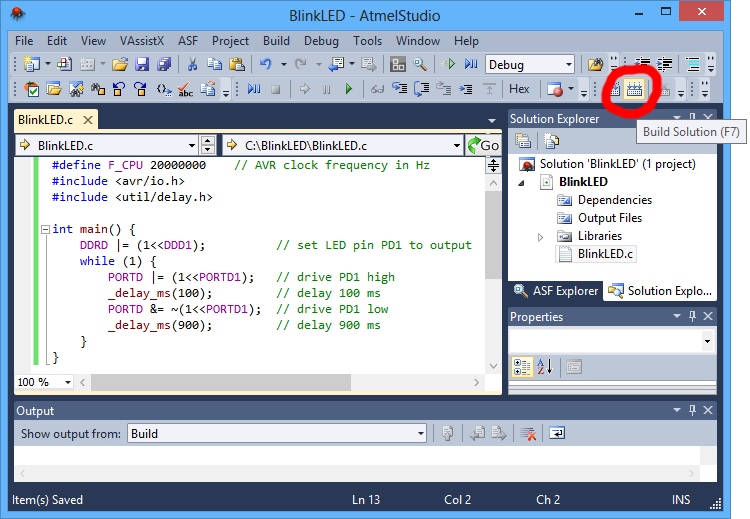 |
Building a project with Atmel Studio 6. |
|---|
- Make sure your USB AVR programmer is connected to your computer via its USB A to mini-B cable and then select Add target… from the Tools menu. Select STK500 as the tool. Select the COM port that has been assigned to the programmer’s programming port, and click Apply. If you are not sure which COM port to select, look in the Device Manager under the “Ports (COM & LPT)” list. This step can be skipped if you have done it before.
 |
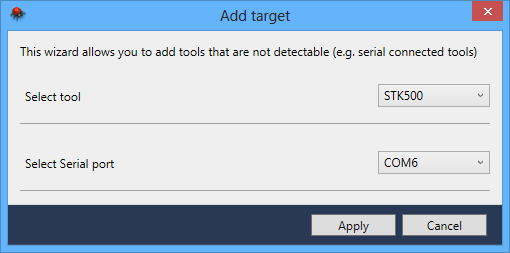 |
The “Add target” dialog box in Atmel Studio 6. |
|---|
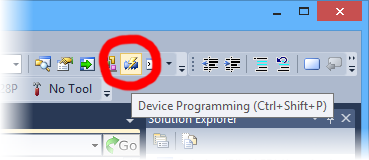
- Click the Device Programming button on the toolbar. You can also select Device Programming from the Tools menu.
 |
- This will bring up the Device Programming dialog. For the Tool, select the STK500 that you added earlier. Select the same device you selected earlier. If your device is not in the list, you might need to add it to the list by following the instructions in Section 3.b.1. For the Interface, select ISP. Click Apply.
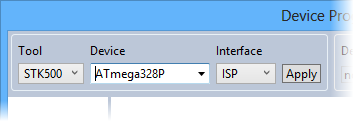 |
Selecting a programmer, device, and interface in the Device Programming dialog of Atmel Studio 6. |
|---|
If you got an error that says “Unable to connect to tool STK500” and you see an error message in the Output pane in the main window that says “The signature of the attached tool is AVRISP_2, which is unexpected.” then you need to upgrade your programmer’s firmware to version 1.07 or later (see Section 9). If you get a different error, see Troubleshooting (Section 8) for help identifying and fixing the problem.
- If you have not done so already, connect the programmer to the target device using the 6-pin ISP cable. Make sure the cable is oriented so that pin 1 on the connector lines up with pin 1 on your target device, and that the target device is powered on. You can test the connection by clicking the Read button next to the Device Signature box. This sends a command to the target AVR asking for its signature. If everything works correctly, you should see a number in hex notation appear in the Device Signature box. If you get an error about the signature being wrong, you might have selected the wrong device. If you get a warning that says “Read voltage … is outside selected device’s operating range” then double check to make sure that your device is powered and that you have upgraded the programmer to firmware version 1.07 or later. For more help getting your connection working, see Troubleshooting (Section 8).
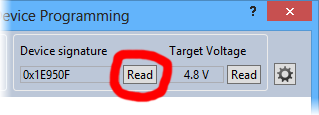 |
Reading the device signature of an AVR in Atmel Studio 6. |
|---|
- Now it is time to program your target device. Select the Memories section on the left. The Flash box should contain the path to the ELF file that was generated when you built your program. If it does not, you can browse for this using the “…” button to the right of the text box. If you navigate to your project’s folder, you should find it as “Debug\<project name>.elf”. Click the Program button in the Flash box.
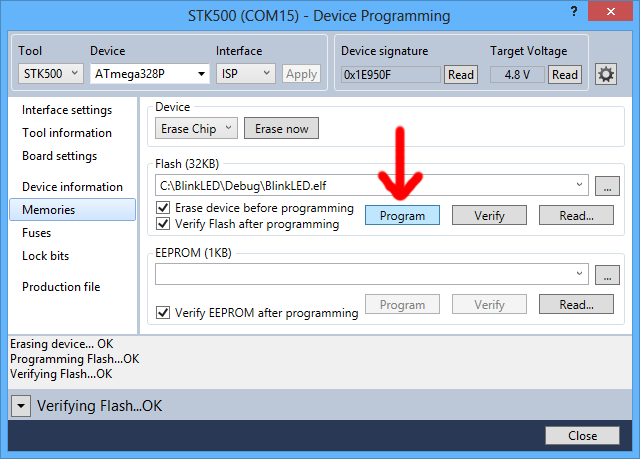 |
The Memories section of the Device Programming dialog in Atmel Studio 6. |
|---|
As your USB AVR Programmer programs the AVR, you should see all three LEDs flicker and you should see the following text appear at the bottom of the window:
Erasing device... OK
Programming Flash...OK
Verifying Flash...OK
If there were no problems, the LED connected to PD1 of your AVR should now be flashing! Note that if you are trying this on a 3pi robot and you have not yet soldered in the optional through-hole LEDs, the flashing LED will be on the bottom of the robot. If there was a problem, please see Troubleshooting (Section 8) for help identifying and fixing it.
3.b.1. Adding Devices to Atmel Studio 6
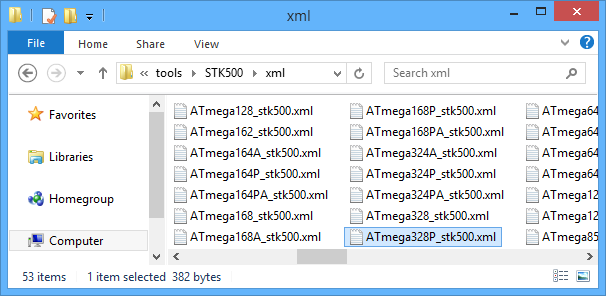 |
By default, Atmel Studio 6 only supports programming a small selection of different AVRs with STK500-compatible programmers such as the Pololu USB AVR Programmer. If you would like to program a device that is not supported by default using Atmel Studio 6, you will need to add an XML file to one of Atmel Studio’s directories. If you are using Atmel Studio 7 or later, these steps should not be necessary.
- Navigate to the directory where you installed Atmel Studio and find the
tools\STK500\xmlsubdirectory. By default, on a 64-bit computer this will beC:\Program Files (x86)\Atmel\Atmel Studio 6.2\tools\STK500\xml. - Right click on
ATmega168_stk500.xmland select Edit to open it in Notepad. - Replace all occurrences of “ATmega168” in the file with the name of the device you want to program. The device name you type should exactly match the name of one of the XML files in Atmel Studio’s
devicessubdirectory, for example “ATmega328P”. - In the File menu, select Save As… and save it as
DEVICENAME_stk500.xmlwhereDEVICENAMEis the same device name that you entered into the file, for exampleATmega328P_stk500.xml. - Restart Atmel Studio. A new entry for your device should now be visible in the Device drop down box of the Device Programming dialog. This should allow you to program HEX files onto that device from Atmel Studio using the Pololu USB AVR Programmer.
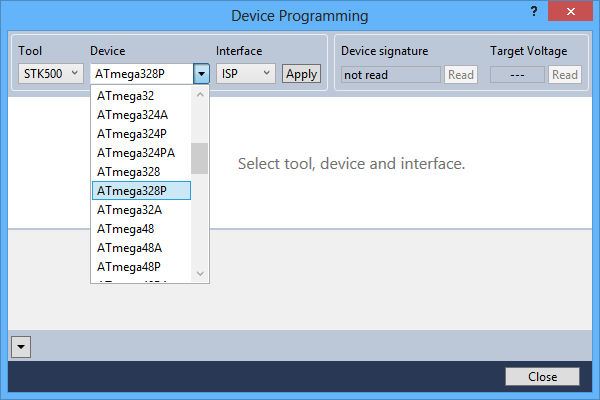 |
The ATmega328P has been successfully added to the device selection box of Atmel Studio 6. |
|---|
3.b.2. Using Advanced Features of Atmel Studio
This section provides a brief overview of the features of Atmel Studio’s Device Programming dialog that were not covered in Section 3.b. You will not typically need to use these advanced features, but it is good to know about them for the rare occasions when you will need them. Please see the Atmel Studio documentation for more detailed descriptions of these features.
ISP Clock Frequency
In the Device Programming dialog, under Interface settings, you can set the frequency of the clock used when programming the target device. The higher the ISP frequency, the faster the target AVR will be programmed, but this frequency must be less than a quarter of the target AVR’s clock frequency. Click Read to read the frequency from the programmer and click Write to write the selected frequency to the programmer. It is important to note that the actual frequency values displayed in Atmel Studio are not correct when you are using the Pololu USB AVR programmer. See Section 3.e for a list of the actual frequencies and more information about selecting the ISP frequency.
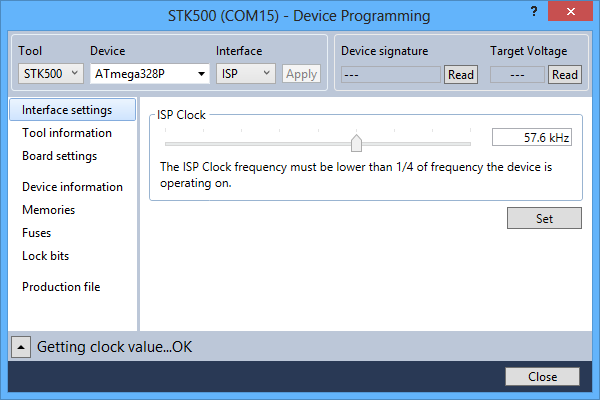 |
Atmel Studio 6’s interface for setting the ISP frequency. |
|---|
Fuses (proceed with caution!)
Selecting Fuses in the Device Programming dialog automatically causes the programmer to read the fuse settings of the target AVR. If the programmer is not connected to the target AVR when you select this tab, Atmel Studio displays an error message. Fuses allow you to configure certain persistent, fundamental aspects of your AVR such as boot flash size, brown-out detection level, and the clock off of which it should run (e.g. external crystal or internal oscillator). To learn more about the fuses and what they do, see the datasheet for your specific AVR.
Warning: You can permanently disable your AVR by setting the fuses incorrectly. Only advanced users who know precisely what they are doing should change the fuse settings!
Lock Bits
Selecting Lock bits in the Device Programming dialog automatically causes the programmer to read the lock bits of the target AVR. If the programmer is not connected to the target AVR when you select this tab, Atmel Studio displays an error message. Lock bits allow you to secure your AVR by preventing further flash writing or reading. The lock bits can be reset to a fully unlocked state by performing a chip erase (i.e. by clicking the Erase Device button in the Memories section). Lock bits are usually only important if you wish to release a product to other people without giving them access to the program it is running, or if you wish to make it more difficult to accidentally overwrite a programmed chip.
3.b.3. Faster programming with F5 in Atmel Studio
The Device Programming dialog in Atmel Studio is modal, which means you must close it after you are done programming in order to go back to editing your source code. It takes 4 clicks to open up the dialog and initiate the programming process again. This section describes a different method for programming that will allow you to compile and program simply by pressing F5.
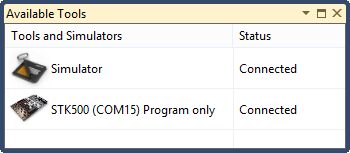
First, in the View menu, select “Available Atmel Tools”. This will bring up the “Available Tools” window. Make sure that there is one and only one STK500 in the list and make sure that the COM port number matches the COM port number of the Pololu USB AVR Programmer Programming Port, which is displayed in the Device Manager. If there are multiple STK500 entries, right click on them and select “Remove” to remove the extra entries. You will only have to do this once.
 |
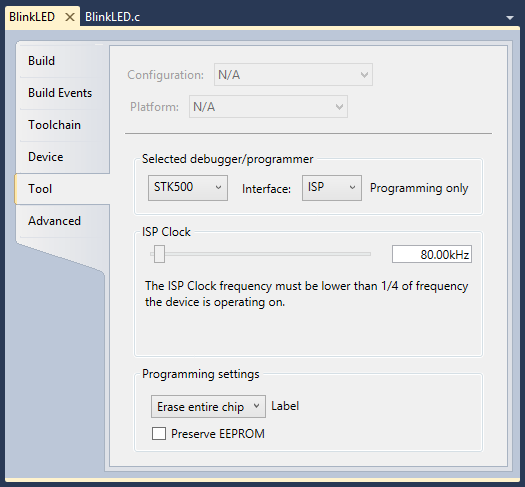
Next, open the project properties window by opening the Project menu and selecting “Properties…”. In the Tool tab, select STK500 as the debugger/programmer, and select ISP as the interface. You will only have to do this once per project. You can also set the ISP Clock speed here but please note that the frequencies displayed in Atmel Studio are not correct when you are using the Pololu USB AVR programmer (see Section 3.e for the correspondence). It is a good idea to set the frequency to something between 80 and 90 kHz (which will result in 200 kHz on the Pololu AVR Programmer) at first and to try increasing it later once F5 programming is working.
 |
Finally, you should be able to press F5 to build your project and program the resulting HEX file onto your AVR! Alternatively you can program by selecting either “Continue” or “Start Without Debugging” from the Debug menu.
3.c. Programming AVRs Using AVR Studio 4
This tutorial covers the older AVR Studio 4, which is no longer supported by Atmel. For a tutorial on the newer Atmel Studio see Section 3.b. For a tutorial on AVR Studio 4 for Orangutan and 3pi robot users, see the Programming Orangutans and the 3pi Robot from AVR Studio 4 guide.
The following tutorial covers the steps needed to program AVRs in Windows using AVR Studio 4 and a Pololu USB AVR programmer. Specifically, we will write a simple program to blink an LED connected to pin PD1 of an AVR. If you want to program an AVR that does not have an LED connected to pin PD1, the code in this tutorial may need to be modified.
You will need to download and install several pieces of software:
- The Pololu USB AVR Programmer’s drivers (see Section 3.a).
- WinAVR: WinAVR is a free, open-source suite of development tools for the AVR family of microcontrollers, including the GNU C/C++ compiler for AVRs (avr-gcc).
- AVR Studio 4: AVR Studio 4 is a free integrated development environment (IDE) for programming AVRs offered by Atmel. AVR Studio 4 works with the WinAVR avr-gcc compiler and contains built-in support for AVR ISP programming.
If you have an Orangutan or 3pi and want to jump straight in to using your USB AVR programmer, you can skip steps 1–3 by downloading the AVR Studio project these steps would create. Determine the microcontroller on your device, download the corresponding file below, extract all the files to a directory, open the AVR Studio project file (BlinkLED.aps), and proceed to step 4.
- mega48: BlinkLED_m48.zip (9k zip)
- mega168: BlinkLED_m168.zip (9k zip)
- mega328: BlinkLED_m328.zip (9k zip)
Open AVR Studio and click New Project. Select AVR GCC for the project type. Enter the project name and initial file name. In the screenshot below, we named our project “BlinkLED” and elected to have a folder called “C:\BlinkLED” created containing the blank file “BlinkLED.c”. Click Next >>. DO NOT click “Finish” yet. If you do accidentally click “Finish”, you will not be able to perform step 2 and will instead have to set the device by going to the “Project” menu and selecting “Configuration Options”.
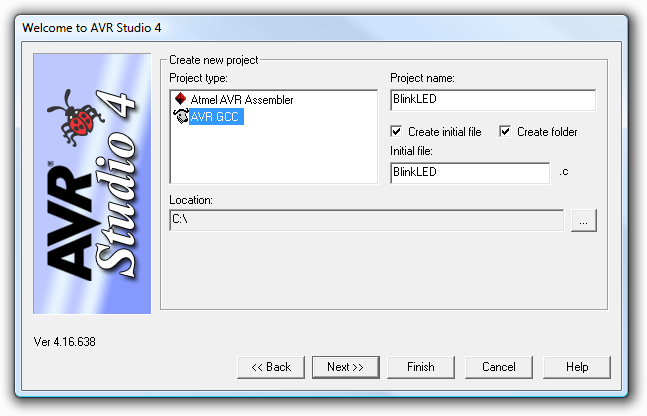
Creating a new AVR Studio 4 project, step 1
Select AVR Simulator as the debug platform and then select the appropriate device for your target AVR. For an Orangutan or 3pi Robot, this will either be ATmega48, ATmega168, ATmega328P, ATmega324PA, ATmega644P, or ATmega1284P depending on which chip your Orangutan or 3pi Robot has. Click Finish.
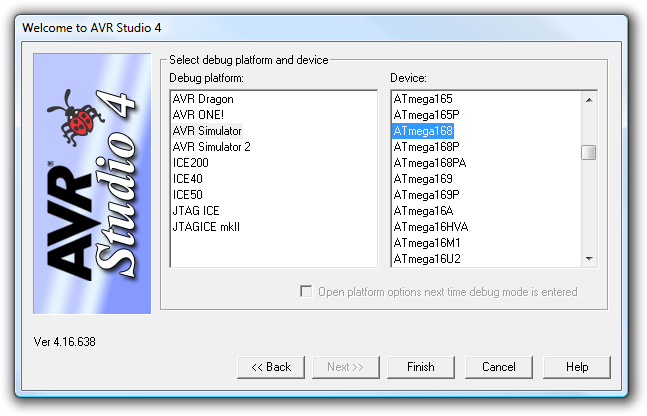
Creating a new AVR Studio 4 project, step 2
Write your program in BlinkLED.c as seen in the screen shot below and click the Build button on the toolbar (or press F7).
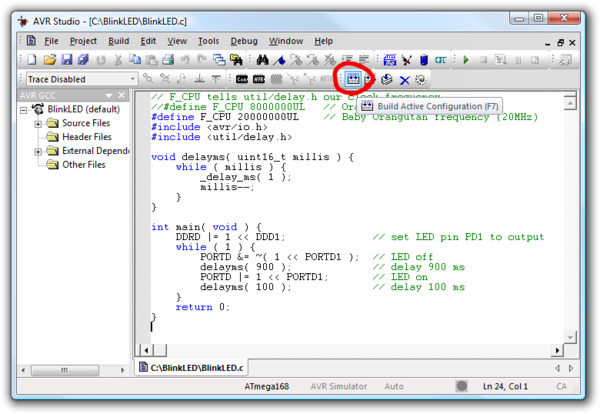
Building a project with AVR Studio
Note: You will probably want to customize this program slightly if the clock frequency of your AVR is not 20 MHz. F_CPU should be defined as the clock frequency of your AVR in units of Hz. If you do not make this change, the timing of delayms() will be off, but the LED will still blink.
Make sure your USB AVR programmer is connected to your computer via its USB A to mini-B cable and then click the Display the ‘Connect’ Dialog button on the toolbar. You can also accomplish this by going to the “Tools” menu and selecting Program AVR > Connect….
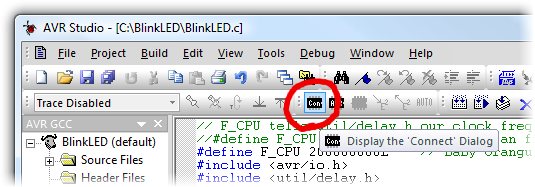
Connecting to the programmer with AVR Studio
This will bring up a programmer selection dialog. Select AVRISP as the platform. The USB AVR programmer uses AVR ISP version 2, which is written as AVRISPv2. Please note that this is not the same as AVR ISP mkII. Select the port name of your programmer if you know what it is, or select Auto and AVR Studio will try all the ports until it detects the programmer. You can determine your programmer’s port name by looking in the “Ports (COM & LPT)” list of your Device Manager for “Pololu USB AVR Programmer Programming Port”. Click “Connect…” to bring up the ISP window.
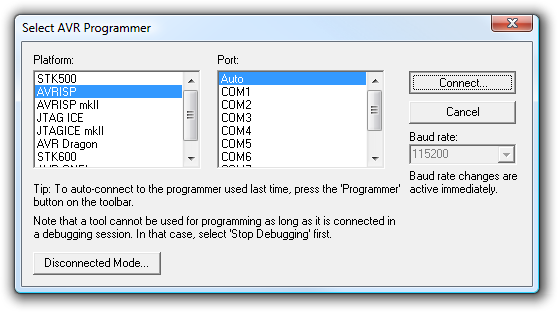
AVR Studio 4’s programmer-selection dialog
If the ISP window does not appear when you click “Connect…”, your computer cannot detect the programmer. Please see Troubleshooting (Section 8) for help identifying and fixing the problem.
If AVR Studio brings up a dialog asking if you want to upgrade (or downgrade) your programmer’s firmware, click Cancel to ignore the message and use your programmer. To prevent this dialog from appearing in the future, use the Configuration Utility (Section 3.e) to change the programmer’s hardware and software version numbers.
Select the Main tab. In the dropdown box that lists AVR models, select the same device that you selected when you created the project. For an Orangutan or 3pi Robot, this will either be ATmega48, ATmega168, or ATmega328P.
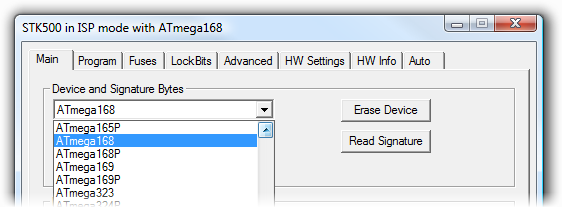
Selecting the device for ISP programming in AVR Studio
If you have not done so already, connect the programmer to the target device using the 6-pin ISP cable. Make sure the cable is oriented so that pin 1 on the connector lines up with pin 1 on your target device! You can test the connection by going to the Main tab and clicking the Read Signature button. This sends a command to the target AVR asking for its device signature. If everything works correctly, you should see “Signature matches selected device”. If the signature does not match the selected device, you probably have the wrong device selected (or possibly your target device is turned off). If reading the signature fails entirely, please see Troubleshooting (Section 8) for help getting your connection working.
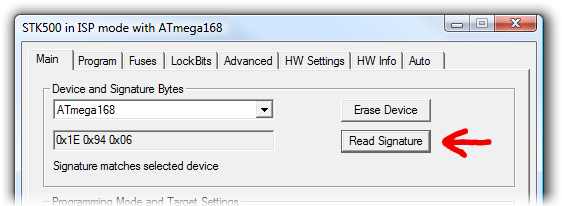
Reading the device signature in AVR Studio’s Main ISP tab
Now it is time to program your target device. Select the Program tab. Your Input HEX File in the Flash section needs to be the hex file that was generated when you built your program. You can browse for this using the "..." button to the right of the input file text box. If you navigate to your project’s folder, you should find it as “default\<project name>.hex”. Click the Program button (make sure you click the one in the Flash section, not one in the “EEPROM” or “ELF Production File Format” sections!).
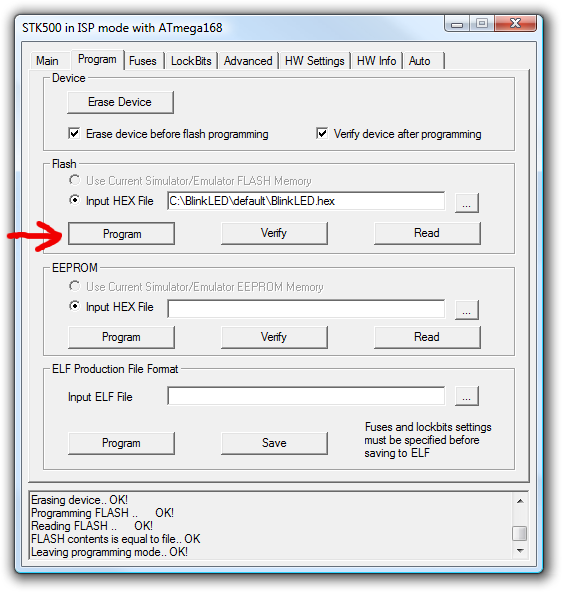
AVR Studio’s Program ISP tab
As your USB AVR programmer programs the AVR, you should see all three LEDs flicker and you should see the following text appear at the bottom of the window:
Reading FLASH input file.. OK
Setting mode and device parameters.. OK!
Entering programming mode.. OK!
Erasing device.. OK!
Programming FLASH ..      OK!
Reading FLASH ..      OK!
FLASH contents is equal to file.. OK
Leaving programming mode.. OK!
If there were no problems, the LED connected to PD1 of your AVR should now be flashing! Note that if you are trying this on a 3pi robot and you have not yet soldered in the optional through-hole LEDs, the flashing LED will be on the bottom of the robot. If there was a problem, please see Troubleshooting (Section 8) for help identifying and fixing it.
3.c.1. Using Advanced Features of AVR Studio 4
This section provides a brief overview of the programming features of AVR Studio 4 that were not covered in Section 3.c. You will not typically need to use these advanced features, but it is good to know about them for the rare occasions when you will need them. Please see the Atmel’s AVR Studio 4 documentation for more detailed descriptions of these features.
ISP Frequency
In the ISP window, under the Main tab, the Programming Mode and Target Settings section lets you set the frequency of the clock used when programming the target device. The higher the ISP frequency, the faster the target AVR will be programmed, but this frequency must be less than a quarter of the target AVR’s clock frequency. Click Read to read the frequency from the programmer and click Write to write the selected frequency to the programmer. It is important to note that the frequencies in the ISP Freq list are not correct when you are using the Pololu USB AVR programmer. See Section 3.e for a list of the actual frequencies and more information about selecting the ISP frequency.
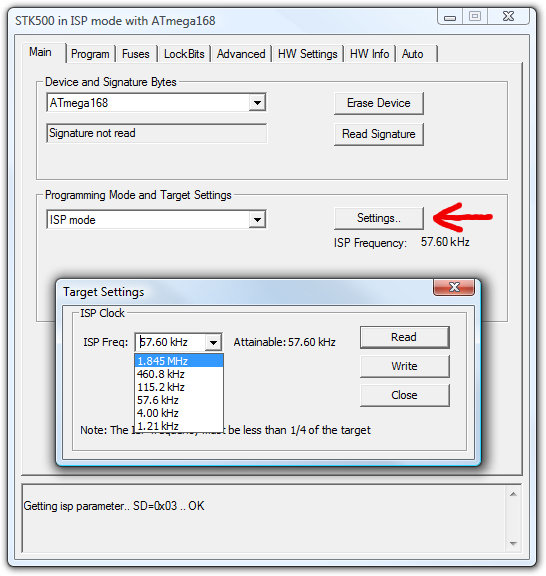 |
AVR Studio’s interface for setting the ISP frequency. |
|---|
Fuses (proceed with caution!)
Clicking on the Fuses tab automatically causes the programmer to read the fuse settings of the target AVR. If the programmer is not connected to the target AVR when you select this tab, AVR Studio displays an error message. Fuses allow you to configure certain persistent, fundamental aspects of your AVR such as boot flash size, brown-out detection level, and the clock off of which it should run (e.g. external crystal or internal oscillator). To learn more about the fuses and what they do, see the datasheet for your specific AVR.
Warning: You can permanently disable your AVR by setting the fuses incorrectly. Only advanced users who know precisely what they are doing should change the fuse settings!
Lock Bits
Clicking on the Lock Bits tab automatically causes the programmer to read the lock bits of the target AVR. If the programmer is not connected to the target AVR when you select this tab, AVR Studio displays an error message. Lock bits allow you to secure your AVR by preventing further flash writing or reading. The lock bits can be reset to a fully unlocked state by performing a chip erase (i.e. by clicking the Erase Device button in the Main tab). Lock bits are usually only important if you wish to release a product to other people without giving them access to the program it is running, or if you wish to make it more difficult to accidentally overwrite a programmed chip.
3.d. Programming AVRs Using AVRDUDE
It is possible to program AVRs in Windows using AVRDUDE. AVRDUDE is free and included in the WinAVR package. To program a hex file onto your AVR, you would type something similar to the following into a command prompt:
cd C:\BlinkLED\Debug
avrdude -p m328p -P COM2 -c avrispv2 -U flash:w:BlinkLED.hex
- The argument following the -p is the part number of the AVR. For an Orangutan or 3pi Robot, the part number should be m328p, m1284p, m324p, m644p, m168, or m48.
- The argument following the -P is the port name. You can determine your programmer’s port name by looking in the “Ports (COM & LPT)” list of your Device Manager for “Pololu USB AVR Programmer Programming Port”.
- The argument following the -c is the programmer protocol and should be avrispv2.
- The -U option is used for writing, reading, or verifying flash, EEPROM, fuses, or lock bits. In this example we are using -U to write BlinkLED.hex to flash.
Please see the AVRDUDE documentation for more detailed information.
AVRDUDE’s terminal mode (the -t option) is not compatible with the programmer because the programmer will exit programming mode and release the target AVR from reset if it receives no programming commands for 1400 ms.
3.e. Configuring the Programmer
The Pololu USB AVR programmer can be configured using the Pololu USB AVR Programmer Configuration Utility for Windows. The utility comes with the Windows drivers (Section 3.a). You can run it from your Start Menu, or by just double clicking on the executable pgm03a_config.exe. This section describes all the available settings and what they do.
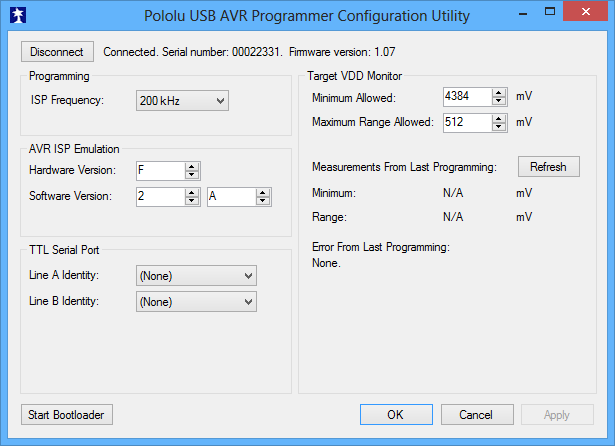 |
Pololu USB AVR programmer configuration utility for Windows. |
|---|
Target VDD Monitor
The USB AVR programmer monitors the voltage of the target AVR while it is being programmed to ensure that ISP commands are only sent when the AVR’s VDD is at a safe level, since attempting to program an underpowered AVR can permanently disable it. There are two parameters that control this feature:
- Minimum Allowed: This parameter determines the lowest level (in millivolts) that the target AVR’s VDD is allowed to go. If the target AVR’s VDD drops below this level, the programmer immediately aborts programming and turns on the red programming LED. Lowering this value will allow programming of AVRs at lower voltages, but will make it more likely that the programmer will send ISP commands to the AVR while the AVR is running at an unsafe voltage. The default value is 4384 mV.
- Maximum Range Allowed: This parameter determines how much the target AVR’s VDD measurements are allowed to vary (in millivolts). When the programmer recieves an ISP programming request, it starts keeping track of the maximum and minimum measurements of the AVR’s VDD. If the difference between the maximum and minimum exceeds the allowed maximum range, the programmer immediately aborts programming and turns on the red programming LED. Increasing this value will allow programming of AVRs under less stable power conditions, but will make it more likely that the programmer will send ISP commands to the AVR while the AVR is running at an unsafe voltage. The default value is 512 mV.
Measurements From Last Programming
This section displays the minimum and range of the target VDD measurements from the last time the programmer was in programming mode or tried to enter programming mode. This can help determine whether programming problems are due to the target’s power supply.
Error From Last Programming
When an error or unexpected condition causes the programmer to leave programming mode, or fail to enter programming mode, then the programmer turns on the red LED and records the error code. A description of the error can be found here. See Troubleshooting (Section 8) for details on specific error messages.
ISP Frequency
The higher the ISP frequency, the faster you can program the target AVR, but the ISP frequency must be less than a quarter of the target AVR’s clock frequency.
The ISP frequency can be set in Atmel Studio (see Section 3.b.2) as well as in the Configuration Utility, but the frequencies listed in the Atmel Studio user interface do not match the actual frequencies used by the Pololu USB AVR programmer. The correspondence is shown below:
| Frequency Listed in Atmel Studio |
Actual Frequency | Allowed Target Frequency |
|---|---|---|
| 1.843 MHz | 2000 kHz | > 8 MHz |
| 460.8 kHz | 1500 kHz | > 6 MHz |
| 115.2 kHz | 750 kHz | > 3 MHz |
| 57.6 kHz | 200 kHz | > 800 kHz |
| 28.36 kHz | 4.0 kHz | > 16 kHz |
| 14.07 kHz | ||
| 7.009 kHz | 1.5 kHz* | > 6 kHz |
| 4.00 kHz | ||
| 3.498 kHz | ||
| 1.748 kHz | ||
| 1.21 kHz |
An AVR running at 20 MHz or higher (e.g. the Orangutan SV-xx8, Orangutan LV-168, Baby Orangutan, and 3pi robot) can be programmed at 2000 kHz (1.845 MHz in Atmel Studio), which is the fastest setting.
An AVR running at 8 MHz or higher (e.g. the original Orangutan) can be programmed at 1500 kHz (460.8 kHz in AVR Studio).
An AVR running at 1 MHz, such as one clocked off of the internal RC oscillator with the divide-by-8 fuse bit programmed, can be programmed at an ISP frequency as high as 200 kHz (57.6 kHz in Atmel Studio). This is the USB AVR programmer’s default ISP frequency.
The two lowest frequencies support AVRs with a clock frequency under 1 MHz. The 1.5 kHz setting is too slow to actually program the flash or EEPROM on your target device using Atmel Studio (it will timeout while attempting to program the flash/EEPROM pages), but it will still let you set the fuses. Be aware that if you attempt to program flash or EEPROM at 4.0 kHz, it might take five minutes or longer to program a 16KB of flash, so we only recommend this ISP frequency for putting small programs on very low-frequency AVRs.
Serial Number
This is a unique identifier assigned to this programmer by Pololu. This number can not be changed.
TTL Serial Port
This section is used to identify pins A and B with serial handshaking lines so that they can be used as general purpose user I/O lines. See Section 6.a.
AVR ISP Emulation
This section is used to change the hardware and software version numbers of the programmer. These numbers are read by Atmel Studio when it connects to the programmer and are expressed in hex. If these numbers do not match the numbers that Atmel Studio expects, then it might bring up a dialog asking if you want to upgrade (or downgrade) your programmer’s firmware; the Pololu AVR USB programmer does not support this method of firmware upgrading, so this dialog is nothing more than a nuisance to those not using an Atmel programmer. You should click Cancel to ignore the message and proceed to the AVRISP programming dialog. To prevent this firmware-upgrade dialog from appearing in the future, set the numbers here to the numbers that AVR Studio says it expects.
4. Getting Started in Linux
The Pololu USB AVR programmer can be used in Linux to program AVRs and to send and receive bytes on the USB-to-TTL-serial adapter.
The configuration utility is written for Windows; there is no Linux version. All of the parameters that can be set in the configuration utility are stored in persistent memory, so Linux users only have to use Windows when they want to change those parameters, which should not be too often.
The SLO-scope client is written for Windows, and there is no Linux version; Linux users are unable to use the SLO-scope at this time.
If you would like to write a configuration utility or SLO-scope application for Linux, you can contact us for information.
4.a. Linux Driver
No driver installation is necessary to use the Pololu USB AVR Programmer in Linux. The Linux Kernel comes with a USB-to-serial driver (the cdc_acm module) that automatically works with the programmer. (The source code for this driver is in the kernel source under drivers/usb/class/cdc-acm.c.)
When you plug your programmer into a Linux computer, the CDC ACM driver should automatically detect it and create two serial port devices. Unless you have other devices plugged in that use the CDC ACM driver, the names of these two serial port devices should be /dev/ttyACM0 for the programming port and /dev/ttyACM1 for the USB-to-TTL-serial adapter.
If the programmer is plugged in, but you do not see these devices, please see Troubleshooting (Section 8) for help identifying and fixing the problem.
4.b. Programming AVRs in Linux
If you have an Orangutan or 3pi Robot or wish to use the Pololu AVR C/C++ Library for some other reason, we recommend following the Pololu AVR Programming Quick Start Guide instead of this tutorial.
To program AVRs in Linux using the Pololu USB AVR Programmer, you will need to install four software packages, which can be downloaded from their respective websites. In Ubuntu Linux, these packages are provided in the “Universe” repository.
- gcc-avr: the GNU C compiler, ported to the AVR architecture
- avr-libc: a library giving access to special functions of the AVR
- binutils-avr: tools for converting object code into hex files
- avrdude: the software to drive the programmer
Once these packages are installed, you will be able to compile C programs for the AVR with gcc to produce hex files. These hex files can be loaded on to your AVR using avrdude and a programmer.
We will not go into the details of writing C programs for the AVR here, but, as an example, we will show you how to use your Linux computer and the USB AVR Programmer to make an LED connected to PD1 of an AVR blink. On any of the Orangutan robot controllers and the 3pi Robot, this program will blink the red user LED. If you want to program an AVR that does not have an LED connected to pin PD1, the LED-blinker code in this tutorial will have no visible effect.
If your device is an ATmega48, ATmega168, or ATmega328P, download the corresponding archive below:
- mega48: BlinkLED_m48.zip (9k zip)
- mega168: BlinkLED_m168.zip (9k zip)
- mega328: BlinkLED_m328.zip (9k zip)
If your device is not one of the above, you will need to download one of the above archives and modify the makefile to use your particular device.
Unpack the archive on your Linux computer. Copy the file BlinkLED/linux/Makefile into the BlinkLED/ directory. You will need to edit this file. Change all instances of “/dev/ttyUSB0” to the name of the programming port device, usually /dev/ttyACM0. Additionally, it may be necessary to change the settings at the beginning to reflect the locations where the AVR utilities were installed.
Note: You will probably want to edit BlinkLED.c slightly if the clock frequency of your AVR is not 20 MHz. F_CPU should be defined as the clock frequency of your AVR in units of Hz. If you do not make this change, the timing of delayms() will be off, but the LED will still blink.
At this point, you should be ready to compile the example program and load it on to the AVR. Plug in the programmer and type make. You should see output like this:
/usr/bin/avr-gcc -g -Os -Wall -mcall-prologues -mmcu=atmega168   -c -o BlinkLED.o BlinkLED.c
/usr/bin/avr-gcc -g -Os -Wall -mcall-prologues -mmcu=atmega168 BlinkLED.o -o BlinkLED.obj
/usr/bin/avr-objcopy  -R .eeprom -O ihex BlinkLED.obj BlinkLED.hex
/usr/bin/avrdude -c avrispv2 -p m168 -P /dev/ttyACM0 -e

avrdude: AVR device initialized and ready to accept instructions

Reading | ################################################## | 100% 0.08s

avrdude: Device signature = 0x1e9406
avrdude: erasing chip

avrdude: safemode: Fuses OK

avrdude done.  Thank you.

/usr/bin/avrdude -c avrispv2 -p m168 -P /dev/ttyACM0 -U flash:w:BlinkLED.hex
avrdude: stk500_2_ReceiveMessage(): timeout

avrdude: AVR device initialized and ready to accept instructions

Reading | ################################################## | 100% 0.03s

avrdude: Device signature = 0x1e9406
avrdude: NOTE: FLASH memory has been specified, an erase cycle will be performed
         To disable this feature, specify the -D option.
avrdude: erasing chip
avrdude: reading input file "BlinkLED.hex"
avrdude: input file BlinkLED.hex auto detected as Intel Hex
avrdude: writing flash (224 bytes):

Writing | ################################################## | 100% 0.39s

avrdude: 224 bytes of flash written
avrdude: verifying flash memory against BlinkLED.hex:
avrdude: load data flash data from input file BlinkLED.hex:
avrdude: input file BlinkLED.hex auto detected as Intel Hex
avrdude: input file BlinkLED.hex contains 224 bytes
avrdude: reading on-chip flash data:

Reading | ################################################## | 100% 0.05s

avrdude: verifying ...
avrdude: 224 bytes of flash verified

avrdude: safemode: Fuses OK

avrdude done.  Thank you.

rm BlinkLED.o BlinkLED.obj
This output indicates the AVR was successfully programmed. The LED connected to PD1 of your AVR should now be flashing! Note that if you are trying this on a 3pi robot and you have not yet soldered in the optional through-hole LEDs, the flashing LED will be on the bottom of the robot. If there was a problem, please see Troubleshooting (Section 8) for help identifying and fixing it.
5. Getting Started in Mac OS X
The Pololu USB AVR Programmer can be used to program AVR microcontrollers, using Mac OS X as the development environment.
5.a. Firmware Support for Mac OS X
If you want to use the programmer with Mac OS X 10.11 (El Capitan) or later, you will need to upgrade your firmware to version 1.08 or later by following the firmware upgrade instructions in Section 9. Firmware version 1.07 works with Mac OS X 10.7 through 10.10. However, there is a problem that causes the programmer’s virtual serial ports to frequently disappear and reappear when used on Mac OS X 10.11. This problem can be fixed by upgrading to firmware version 1.08 or later.
5.b. Determining serial port names in Mac OS X
To use the programmer in Mac OS X, you will need to determine which names have been assigned to its serial ports.
To do this, open a Terminal window, type ls /dev/tty.usb*, and press enter. You should see two entries of the form tty.usbmodem<number> (e.g. /dev/tty.usbmodem00022331). These entries represent virtual serial ports created by the programmer.
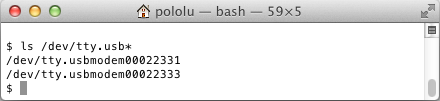 |
The entry with the lower number is your programmer’s Programming Port, and later you will need to pass its name as a parameter to AVRDUDE. The entry with the higher number (which should be two plus the lower number) is the TTL Serial Port, and you can use a terminal program such as screen to send and receive bytes from it.
If you have other USB devices plugged in, you might see additional serial ports for those devices.
5.c. Programming AVRs in Mac OS X
If you have an Orangutan or 3pi Robot or wish to use the Pololu AVR C/C++ Library for some other reason, we recommend following the Pololu AVR Programming Quick Start Guide instead of this tutorial.
Installing prerequisites
To program AVRs in Mac OS X, you will need the free avr-gcc compiler, avr-libc, AVRDUDE, and other associated tools.
To obtain these tools, we recommend first installing Homebrew. Then run the following commands to install AVRDUDE and homebrew-avr:
brew install avrdude
xcode-select --install
brew tap osx-cross/avr
brew install avr-gcc
You can now compile programs for the AVR at the command line using the avr-gcc or avr-g++ compilers.
Using AVRDUDE
Once an AVR program has been compiled to a .hex file, it is ready to be flashed to the AVR. The AVRDUDE program may be used for this purpose.
To see the full command-line syntax for AVRDUDE, type avrdude --help at the command line, or consult the AVRDUDE documentation. Typical usage would be as follows:
avrdude -p <partno> -c avrisp2 -P <port> -U flash:w:<filename>.hex
For example:
avrdude -p m328p -c avrisp2 -P /dev/cu.usbmodem00022331 -U flash:w:test.hexIf all goes well, the output should look something like this:
avrdude: AVR device initialized and ready to accept instructions

Reading | ################################################## | 100% 0.01s

avrdude: Device signature = 0x1e950f
avrdude: NOTE: FLASH memory has been specified, an erase cycle will be performed
         To disable this feature, specify the -D option.
avrdude: erasing chip
avrdude: reading input file "test.hex"
avrdude: input file test.hex auto detected as Intel Hex
avrdude: writing flash (3392 bytes):

Writing | ################################################## | 100% 0.88s

avrdude: 3392 bytes of flash written
avrdude: verifying flash memory against test.hex:
avrdude: load data flash data from input file test.hex:
avrdude: input file test.hex auto detected as Intel Hex
avrdude: input file test.hex contains 3392 bytes
avrdude: reading on-chip flash data:

Reading | ################################################## | 100% 0.72s

avrdude: verifying ...
avrdude: 3392 bytes of flash verified

avrdude: safemode: Fuses OK

avrdude done.  Thank you.
6. Communicating via the USB-to-TTL-Serial Adapter
One bonus feature of the Pololu USB AVR programmer is the USB-to-TTL-serial adapter, which can be used for connecting microcontroller projects to a personal computer. The programmer’s drivers make the USB-to-TTL-serial adapter look like a standard serial port to the operating system, allowing you to use existing terminal programs and software that are designed to use serial ports. This feature is similar to the Pololu USB-to-serial adapter product, except the programmer has fewer control lines available and transmits at 5 V.
The TX and RX lines of the programmer are used to send asynchronous serial communication. When the programmer receives a byte from the computer via USB, it will transmit that byte on the TX line. When the programmer receives a byte on the RX input line, it will send that byte back to the computer via USB.
The bytes are sent and received eight bits at a time, with no parity and one stop bit. This coding is sometimes abbreviated 8N1. The bits must be non-inverted, meaning that a zero is sent as low voltage, and a one is sent as high voltage. All devices involved in asynchronous serial communication need to agree ahead of time on the duration of one bit (the baud rate), so all devices must be independently configured to run at the same baud rate before they will be able to communicate with each other. The USB AVR programmer supports all integer baud rates from 110 to 115200 bits per second. The following figure is an example of an 8N1 TTL serial byte:
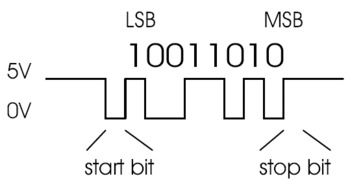 |
To use the USB-to-TTL-serial adapter, you must first determine what port name the operating system has assigned it.
To determine the port name in Microsoft Windows, open the Device Manager, expand the “Ports (COM & LPT)” list, and look for the “Pololu USB AVR Programmer TTL Serial Port” entry. The port name will be at the end of this line in parentheses (e.g. “COM4”). In Windows, a given device will always be associated with the same port unless you manually change its port assignment (see Section 3.a).
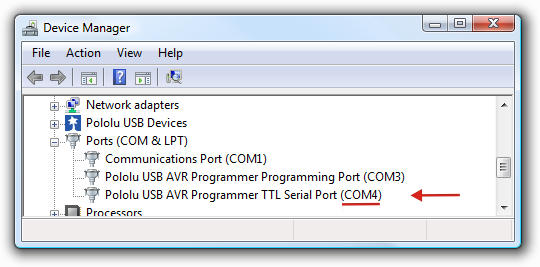 |
In Windows, the Device Manager shows which port name is assigned to the Pololu USB AVR Programmer’s USB-to-TTL-serial adapter. |
|---|
To determine the port name in Linux, type ls /dev/ttyACM*. The port name will be one of the devices listed there. If there are only two ports, then the USB-to-TTL-serial adapter will be /dev/ttyACM1 (and the programming port will be /dev/ttyACM0). If you see more than two ports, then you should look at the output from dmesg when you plug in the USB AVR programmer to see which two ports are created; the second port is the USB-to-TTL-serial adapter. In Linux, the port name depends on how many other devices are using the USB CDC ACM driver to create virtual serial ports at the time the USB AVR Programmer is plugged in.
 |
The USB AVR Programmer’s two serial ports in Linux. |
|---|
After determining the port name, you can use any serial port software to communicate on that port.
There are many free terminal programs available, including PuTTY (Windows or Linux), Tera Term (Windows), and Br@y Terminal (Windows). Advanced users developing scripted applications may prefer the free terminal program kermit. To use any of these terminal programs with the USB-to-TTL-serial adapter, you must specify the port name determined above and your desired baud rate. The characters you type will be transmitted on the programmer’s TX line. Bytes received by the programmer on the RX line will be displayed on the screen by the terminal program.
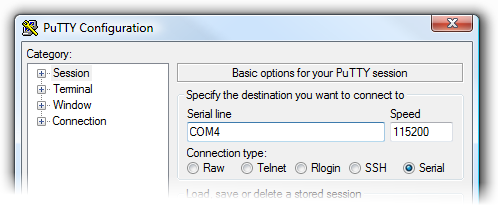 |
PuTTY is a free Windows terminal program that can send and receive bytes on a serial port. |
|---|
If you need to send and receive non-ASCII bytes, you can use the Pololu Serial Transmitter Utility for Windows.
You can also write a computer program to use the serial port. The freely available Microsoft .NET framework contains a SerialPort class that makes it easy to read and write bytes from a serial port. Here is some example C# .NET code that uses a serial port:
// Choose the port name and the baud rate.
System.IO.Ports.SerialPort port = new System.IO.Ports.SerialPort("COM4", 115200);

// Connect to the port.
port.Open();

// Transmit two bytes on the TX line: 1, 2
port.Write(new byte[]{1, 2}, 0, 2);

// Wait for a byte to be received on the RX line.
int response = port.ReadByte();

// Show the user what byte was received.
MessageBox.Show("Received byte: " + response);

// Disconnect from the port so that other programs can use it.
port.Close();
6.a. Communicating via the Serial Control Lines
Firmware version 1.04 (released on April 29th, 2011) fixes a problem with the RTS and DTR control signal outputs. If you want to use those outputs, you should upgrade your firmware to version 1.04. Please see Section 9 for information about upgrading your firmware.
Firmware version 1.03 (released on December 22nd, 2010) inverts the TTL serial port’s control signals so that 0 V corresponds to 1 and 5 V corresponds to 0, making it consistent with other USB-to-TTL-serial adapters. Prior to version 1.03, the opposite convention was used.
In addition to transmitting bytes on the TX line and receiving bytes on the RX line, the USB-to-TTL-serial adapter can use programmer pins A and B as serial handshaking lines of your choosing. Each pin can be configured as an input or an output by identifying it with a serial handshaking line. The table below shows which handshaking lines are available (CTS is not available because there is no provision for it in the USB CDC ACM subclass).
| Direction | Name | .NET System.IO.Ports.SerialPort member |
|---|---|---|
| Output | DTR | DtrEnable |
| Output | RTS | RtsEnable |
| Input | CD | CDHolding |
| Input | DSR | DsrHolding |
| Input | RI | N/A |
By default, pins A and B are high-impedance inputs that are not identified with any handshaking line. To use pins A and/or B, you must configure them to be serial handshaking lines using the Pololu USB AVR Programmer Configuration Utility (see Section 3.e). The programmer stores the configuration in persistent memory.
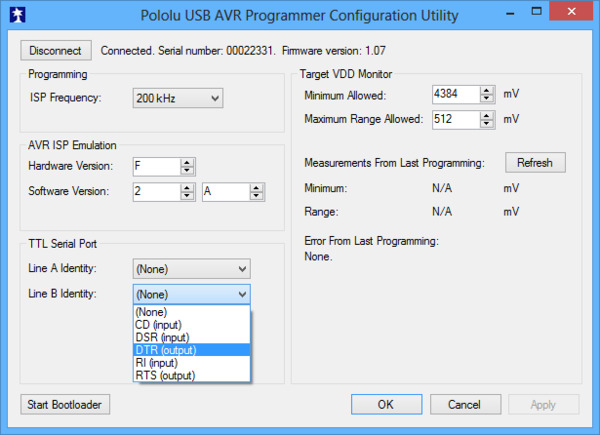 |
Pins A and B can be identified with serial handshaking lines using the Pololu USB AVR Programmer Configuration Utility. |
|---|
After your have associated pins A and/or B with serial handshaking lines, you can take advantage of the I/O capabilities of A and B. For input lines, this means you can get a digital reading of the voltage on the line over USB. For output lines, this means you can set the voltage on the line over USB. A voltage of 0 V corresponds to a logical 1, while a voltage of 1 V corresponds to a logical 0.
For example, if you wanted to connect your Pololu USB AVR Programmer to an AVR running the Arduino bootloader, you could configure pin A to be DTR and then connect pin A to the AVR’s reset line. When the Arduino software sets DTR to 1, the programmer will drive the line A low, which puts the AVR in reset mode.
You can read input lines and/or set output lines by either using a terminal program that supports control signals (such as Br@y Terminal) or by writing a computer program. The Microsoft .NET framework is free to use and it contains a SerialPort class that makes it easy to read and write bytes from a serial port as well as set and read the control signals. Here is some example C# .NET code that uses a serial port in this way:
// Choose the port name and the baud rate.
System.IO.Ports.SerialPort port = new System.IO.Ports.SerialPort("COM4", 115200);

// Connect to the port.
port.Open();

// Assuming that line A is identified with RTS, and your firmware version is 1.04
// or greater, this drives line A low (0 V).
port.RtsEnable = true;

// Assuming that line B is identified with DSR, and your firmware version is 1.03
// or greater, this takes an inverted digital reading of line B.
if (port.DsrHolding)
{
    MessageBox.Show("Line B is low.");
}
else
{
    MessageBox.Show("Line B is high.");
}

// Disconnect from the port so that other programs can use it.
port.Close();
When the SLO-scope feature is enabled, it assumes control of pins A and B and uses them as analog inputs (or digital outputs controlled by the SLO-scope application). Pins A and B temporarily lose their serial handshaking line associations while the SLO-scope is active, but these associations are restored once the SLO-scope is disabled. You can disable the SLO-scope via the SLO-scope application or by unplugging the programmer and plugging it back in.
7. Measuring Voltages Using the SLO-scope
A second bonus feature of the Pololu USB AVR programmer is the severely limited oscilloscope (SLO-scope), which uses lines A and B as inputs to measure TTL-level voltages at a sample rate of up to 20 kHz. The SLO-scope has two operating modes:
- Two 8-bit analog channels sampling at 10 kHz
- One 7-bit analog channel (A) and one digital channel (B) sampling at 20 kHz
The SLO-scope can measure voltages between ground and approximately 5 V (depending on your computer’s USB bus voltage); you can measure higher voltages by passing them through an external voltage divider before connecting them to the programmer. The following schematic shows a general voltage divider circuit that can be used to scale down an input signal to the SLO-scope’s required 0 – 5 V range:
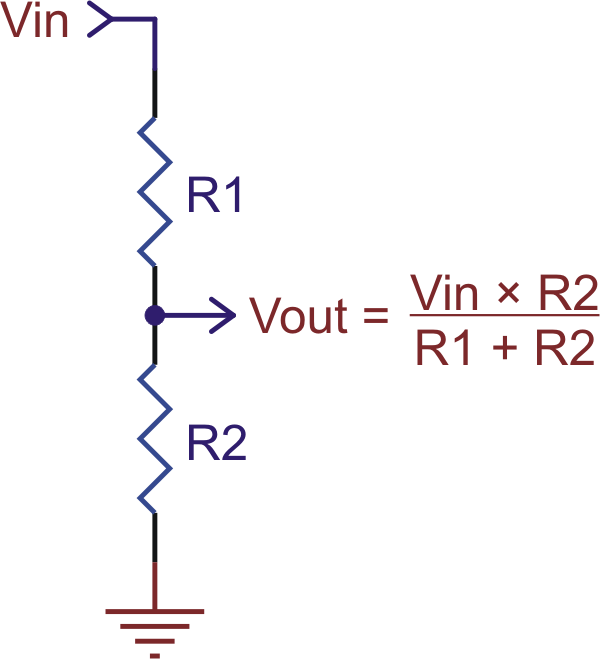 |
The total resistance of R1+R2 should be as large as possible to minimize the divider’s effect on your signal, but it should not exceed 100 kΩ or so.
Runing the Pololu SLO-scope Application
The SLO-scope application for Windows comes with the Windows software and drivers (Section 3.a). At this time, the SLO-scope can only be used under the Windows operating system.
To start the SLO-scope application, open the Start menu and navigate to:
- All Programs > Pololu > SLO-scope
The SLO-scope application was written as a Visual C# 2008 project: SLO-scope client C# source code (56k zip)
Using the Pololu SLO-scope Application
This application connects to the programmer, streams data from the SLO-scope, and provides the basic functionality of a 10 or 20 kHz oscilloscope.
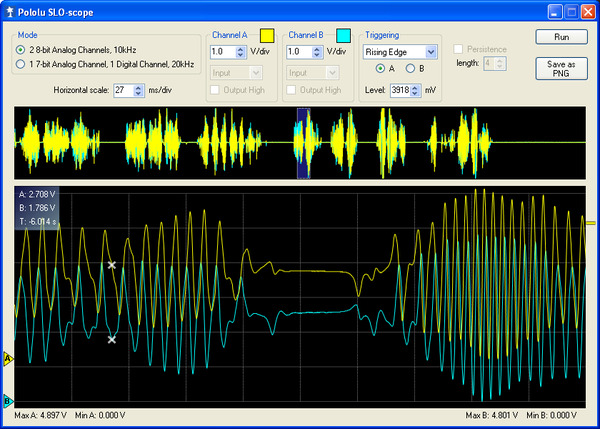 |
Pololu SLO-scope client for Windows. |
|---|
Controls are available for setting the SLO-scope operating mode, adjusting the horizontal and vertical scales, and configuring lines A and B as digital outputs.
To start capturing data, click the Run button in the upper right corner. If the horizontal scale is such that it takes more than 200 ms of data to fill the lower SLO-scope pane, the data will continuously stream across the pane. If the lower pane displays 200 ms of data or less, the pane will draw all of its data at once when it has enough new data to warrant an update (or, if triggering is enabled, when the trigger event is satisfied). In this latter time domain, you can enable the persistence feature (check the Persistence checkbox) to cause the data on the screen to fade out over time when the next update occurs. The Length parameter determines how long it takes for the data to fade. The upper SLO-scope pane shows a summary of all of the data currently stored in memory. This is approximately 10 seconds of data when running at 10 kHz and 5 seconds of data when running at 20 kHz.
To review the captured data in detail, click the Stop button (in the same place that the Run previously occupied). When the SLO-scope is stopped, you can scroll through the data stored in memory by clicking on the portion of the upper pane that you want to inspect or by clicking and dragging the cursor in the lower pane to pan through the data more finely. You can zoom in and out by changing the horizontal scale, and you can inspect the data in the lower pane by hovering over it with your cursor. A purple rectangle highlights the portion of the upper pane is visible in the lower pane.
You can adjust the vertical scaling of a channel’s data by changing its volts-per-division parameter, and you can adjust the amount of data that is shown in the lower pane by changing the SLO-scope’s milliseconds-per-division (horizontal scale) parameter.
Triggering can be used when horizontal scaling is 20 ms/div or less. You can trigger on rising or falling edges of either channel A or channel B, and you can adjust the trigger level by directly setting the value in millivolts or by dragging the trigger level scrollbar on the right side of the lower pane to the desired position. When triggering is enabled, the data in the lower pane will update whenever a trigger event occurs. Triggering can help you to better identify and analyze periodic signals (such as motor noise, PWMs, etc.) while the SLO-scope is running.
To change the color used to draw a channel’s data, double click on the colored square in either the Channel A or Channel B box.
To change the vertical position of the 0V level of a channel, click and drag that channel’s corresponding 0V-indicator triangle on the left side of the lower pane.
While the SLO-scope is running, lines A and B do not function as serial handshaking lines as discussed in Section 6.a. Rather, the SLO-scope can control the I/O states of A and B. The SLO-scope application lets you configure these pins as inputs (their default settings when you first enable the SLO-scope) or as digital outputs driven high or low.
8. Troubleshooting
This section helps solve problems you might have using the Pololu USB AVR programmer.
If the computer fails to connect to the programmer:
- If you are using AVR Studio 5 or Atmel Studio, make sure that your programmer has firmware version 1.07 or later. Using a firmware version prior to 1.06 will result in an error message in the Output tab that says “The signature of the attached tool is AVRISP_2, which is unexpected” and “Atmel.VsIde.AvrStudio.Services.TargetService.TCF.Internal.Services.Remote.ToolProxy+ToolContext”, and a dialog box that says either “Unable to connect to tool STK500” or “AVR Studio was unable to start your debug session”. See Section 9 for information about determining your firmware version and upgrading.
- If you are using Mac OS X 10.11, make sure that your programmer has firmware version 1.08 or later. See Section 5.a for more information.
- If you are using AVR Studio 5 or Atmel Studio and programming with the F5 key does not work, then click View > Available Atmel Tools. This will open the “Available Tools” window. Make sure that there is one and only one STK500 in the list and make sure that the COM port number matches the COM port number of the Pololu USB AVR Programmer Programming Port, which is displayed in the Device Manager. If there are multiple STK500 entries, right click on them and select “Remove” to remove the extra entries.
- Make sure your programmer is connected to your computer via a USB A to mini-B cable. If the programmer was previously working and has since stopped, try closing all programs using the programmer (the configuration utility, the SLO-scope client, and the Atmel Studio Device Programming dialog), and cycle the power by unplugging it from your computer and then reconnecting it.
- If you are in Windows, make sure you have installed the drivers the programmer needs to operate. Section 3.a describes how to install the drivers in Windows.
- Is the programmer’s green USB status LED on? This is the LED next to the USB mini-B connector. If this LED is blinking slowly, then your drivers are not properly installed.
- If you are in Windows, can you see your programmer listed in the Device Manager? The Device Manager should show three devices: under “Pololu USB Devices” should be “Pololu USB AVR Programmer”, and under “Ports (COM & LPT)” should be “Pololu USB AVR Programmer Programming Port” and “Pololu USB AVR Programmer TTL Serial Port” and there should be no error symbols on the icons representing these devices.
- If you are in Linux, check that /dev/ttyACM0 and /dev/ttyACM1 exist. If they do not, see the section below.
- Your computer will only let one program at a time have a given COM port open. If you are connected to your programmer’s programming port using another program, such as a terminal or a second instance of Atmel Studio, you will not be able to connect to that same COM port with your programming software. Please make sure you do not have any terminal programs connected to your programmer’s programming port. If you have multiple versions of Atmel Studio running, make sure that you have closed the ISP programming dialogs in all of them. When the ISP dialog is open, that instance of AVR Studio has an open connection to your programmer’s programming port.
- If you are using AVR Studio 4, try connecting to your programmer’s specific COM port instead of selecting the “Auto” option, which attempts to locate the port automatically. Some versions of AVR Studio 4 fail to automatically detect programmers on virtual COMs port that are too high (e.g. above COM9). If your programming COM port is too high to select from the connection dialog box and AVR Studio 4 does not automatically detect the programmer, you will need to reassign the programming port to a lower virtual COM port. You can do this by opening the properties dialog of the “Pololu USB AVR Programming Port” (found in the “Ports (COM & LPT)” section of the Device Manager) and clicking the “Advanced…” button under the “Port Settings” tab.
If the programmer has problems connecting to the target AVR:
- The most common cause for this problem is an incorrect connection between your programmer and your target device. If the ISP pins are misaligned between the programmer and the target AVR, the two will not be able to communicate. Please make sure that the ISP pins as numbered in Section 1.a are correctly connected between your AVR and your programmer (i.e. 1 goes to 1, 2 goes to 2, etc.).
- The target AVR must be powered for programming to work. Please make sure that your target device has power and is turned on. If you are using AVR Studio 5 or Atmel Studio, you can get a reading of your AVR’s VCC voltage by clicking the “Read” button next to the Target Voltage box in the upper right corner of the Device Programming dialog.
- If the target AVR is running at a voltage lower than 5 V, you may need to decrease the minimum allowed target VDD setting using the configuration utility (Section 3.e). Please note that you might need to take additional special steps to safely program an AVR that is running off of a voltage below VUSB-0.5 V.
- Your programmer’s ISP frequency must be less than a quarter of your target AVR’s clock frequency, but frequencies that are too low can result in timeouts. The default frequency of 200 kHz should work for most AVRs. Try setting the ISP frequency to 200 kHz using the configuration utility (Section 3.e) or by supplying the
-B 3option to AVRDUDE. - If the red error LED is on solid, then run the configuration utility (Section 3.e) to determine the cause of the error.
- There may be a problem with the target device. It is possible to kill a device with a static shock, by incorrectly connecting power, or by programming the fuses incorrectly. There could also be a short or cut trace somewhere on your target device. The ideal way to test for this is to try programming a different device with your USB AVR programmer, or try using a different programmer to program your target device. If this is not an option, try verifying that the target device is still functional and perform some continuity tests to check for shorts or disconnections on the ISP programming lines. Don’t forget to check the 6-pin ISP cable for shorts as well.
If /dev/ttyACM0 or /dev/ttyACM1 do not exist in Linux:
- Try closing all programs using the programmer, unplugging the programmer, and plugging it back in.
-
If the programmer is connected, the
lsusbcommand should output a line like this (the important thing is the 1ffb:0081):Bus 002 Device 002: ID 1ffb:0081
-
If the CDC ACM driver detected the programmer when it was plugged in, then the
dmesgcommand should have some output like this:[ 26.378771] /build/buildd/linux-2.6.24/drivers/usb/class/cdc-acm.c: This device cannot do calls on its own. It is no modem. [ 26.380858] cdc_acm 2-1:1.0: ttyACM0: USB ACM device [ 26.413512] /build/buildd/linux-2.6.24/drivers/usb/class/cdc-acm.c: This device cannot do calls on its own. It is no modem. [ 26.413542] cdc_acm 2-1:1.2: ttyACM1: USB ACM device [ 26.421314] usbcore: registered new interface driver cdc_acm [ 26.421333] /build/buildd/linux-2.6.24/drivers/usb/class/cdc-acm.c: v0.25:USB Abstract Control Model driver for USB modems and ISDN adapters
-
If the CDC ACM driver is associated with both serial ports of the programmer, then the
/dev/bus/usb/devicesfile (or/proc/bus/usb/devices) should have a group of lines like this (the important thing is that Driver=cdc_acm should appear in four places):T: Bus=02 Lev=01 Prnt=01 Port=00 Cnt=01 Dev#= 2 Spd=12 MxCh= 0 D: Ver= 2.00 Cls=ef(unk. ) Sub=02 Prot=01 MxPS= 8 #Cfgs= 1 P: Vendor=1ffb ProdID=0081 Rev= 0.01 S: Manufacturer=Pololu Corporation S: Product=Pololu USB AVR Programmer S: SerialNumber=00000005 C:* #Ifs= 5 Cfg#= 1 Atr=80 MxPwr=100mA A: FirstIf#= 0 IfCount= 2 Cls=02(comm.) Sub=02 Prot=01 A: FirstIf#= 2 IfCount= 2 Cls=02(comm.) Sub=02 Prot=01 I:* If#= 0 Alt= 0 #EPs= 1 Cls=02(comm.) Sub=02 Prot=01 Driver=cdc_acm E: Ad=81(I) Atr=03(Int.) MxPS= 10 Ivl=1ms I:* If#= 1 Alt= 0 #EPs= 2 Cls=0a(data ) Sub=00 Prot=00 Driver=cdc_acm E: Ad=02(O) Atr=02(Bulk) MxPS= 8 Ivl=0ms E: Ad=82(I) Atr=02(Bulk) MxPS= 8 Ivl=0ms I:* If#= 2 Alt= 0 #EPs= 1 Cls=02(comm.) Sub=02 Prot=01 Driver=cdc_acm E: Ad=83(I) Atr=03(Int.) MxPS= 10 Ivl=1ms I:* If#= 3 Alt= 0 #EPs= 2 Cls=0a(data ) Sub=00 Prot=00 Driver=cdc_acm E: Ad=04(O) Atr=02(Bulk) MxPS= 8 Ivl=0ms E: Ad=84(I) Atr=02(Bulk) MxPS= 8 Ivl=0ms I:* If#= 4 Alt= 0 #EPs= 1 Cls=ff(vend.) Sub=01 Prot=01 Driver=(none) E: Ad=85(I) Atr=03(Int.) MxPS= 22 Ivl=1ms
Try comparing the outputs on your system to the outputs above to determine what went wrong.
Still need help?
If none of the above troubleshooting suggestions help, please contact us for support.
9. Upgrading Firmware
The program that runs on the USB AVR Programmer (the firmware) can be upgraded with bug fixes or new features.
Firmware Versions
- Version 1.00, released 2009-06-02: This is the original firmware for the programmer. All programmers that shipped from Pololu before 2009-12-17 were shipped with this version.
- Version 1.01, released on 2009-12-17: This version contains two bug fixes related to the programmer’s TTL serial port. Programmers that shipped from Pololu between 2009-12-18 and 2012-02-29 were shipped with this version.
- Version 1.03, released on 2010-12-22: This firmware version inverts the TTL serial port’s control signals so that 0 V corresponds to 1 and 5 V corresponds to 0.
- Version 1.04, released on 2011-04-29: This firmware version fixes a bug where if the sum of the minimum measured target VDD and the maximum allowed range of the target VDD exceeds 8160 mV, the programmer will incorrectly think that the AVR is not properly powered and refuse to program it. This version also fixes a problem with the optional RTS and DTR control signal outputs on the A and B lines.
- Version 1.05, released on 2011-07-07: This firmware version adds support for AVRs with 256 KB of flash memory and increases the programming timeout period from 350 ms to 1400 ms.
- Version 1.06, released on 2011-09-16: This firmware version adds support for AVR Studio 5.0 by changing the programmer’s signature from “AVRISP_2” to “STK500_2”.
- Version 1.07, released on 2012-02-29: This firmware version adds support for AVR Studio 5.1 and later by reporting the target voltage when it is requested.
- Version 1.08, released on 2016-04-28: This firmware version fixes an issue that prevents the programmer from working on macOS 10.11 or later.
Special Modified Firmware Versions
These special modified versions of the firmware make the programmer appear as a single virtual COM port instead of a composite device with two virtual COM ports and a native USB interface. These versions of the firmware do not support the TTL serial port, the SLO-scope, or the configuration utility. These versions were provided to support Mac OS X 10.6 or earlier.
- Special Modified Version 1.01nc, released 2010-12-9: This version is based on the standard firmware version 1.01.
- Special Modified Version 1.02nc, released 2010-12-21: This version is very similar to 1.01nc but it has improved support for older versions of Mac OS X.
- Special Modified Version 1.06nc, released 2011-09-16: This version is based on the standard firmware version 1.06.
- Special Modified Version 1.07nc, released 2012-02-29: This version is based on the standard firmware version 1.07.
Determining your firmware version
You can determine the firmware version by following the steps below.
To determine the programmer’s firmware version in Windows: If you only see one entry for the programmer in your Device Manager, then you have a special modified firmware version. If you see multiple entries for the programmer, then you have one of the standard firmware versions and you can determine the exact version number by following these steps:
- Double click on the “Pololu USB AVR Programmer” entry in the “Pololu USB Devices” list.
- In the Details tab, select the “Hardware Ids” property in the dropdown box.
- The first value displayed should be something like
USB\VID_1FFB&PID_0081&REV_0101&MI_04. The number after theREV_is your revision code. If the revision code is “0001” then you have firmware version 1.00. Otherwise, your firmware version is determined by inserting a period in the middle of the revision code. For example, a revision code of “0107” corresponds to firmware version 1.07, while a revision code of “0101” corresponds to a firmware version 1.01.
To determine the programmer’s firmware version in Linux:
If you see only one device with a name matching /dev/ttyACM* appear when you connect the programmer to your computer, then you have a special modified firmware version. If you see two such devices appear, then you have one of the standard firmware versions and you can determine the exact version number by following these steps:
- Run the following command:
lsusb -v -d 1ffb:0081 | grep bcdDevice - This should output a line that has a number on it. That number is the revision code. If the revision code is “0.01” then you have firmware version 1.00. Otherwise, your firmware version is the same as the revision code.
To determine the programmer’s firmware version in Mac OS X:
If you see only one device with a name matching /dev/tty.usb* appear when you connect the programmer to your computer, then you have a special modified firmware version. If you see two such devices appear, then you have one of the standard firmware versions and you can determine the exact version number by following these steps:
- Run the following command:
ioreg -p IOUSB -n "Pololu USB AVR Programmer" | grep bcdDevice - This should output a line that has a number on it. If the number is 1 then you have firmware version 1.00. If the number is between 257 and 511, then you have firmware version 1.x, where x is equal to the number minus 256. For example, if the number is 263, then you have firmware version 1.07. If the number is 264, then you have firmware version 1.08.
Upgrading Firmware
To upgrade your programmer’s firmware, follow these steps:
- If you have changed any of the programmer’s settings in the configuration utility or with
PgmCmd, record your current settings because the firmware upgrade process will reset the settings. - Download the desired version of the firmware here:
- Firmware version 1.08 for the USB AVR Programmer (29k pgm) — released April 28th, 2016.
- Firmware version 1.07 for the USB AVR Programmer (29k pgm) — released February 29th, 2012.
- Get your programmer into bootloader mode. If you are using Windows and your programmer has the standard firmware, this can be done by clicking the “Start Bootloader” button in the lower left corner of the configuration utility.
If you cannot use the “Start Bootloader” button for any reason (e.g. you are using a different operating system, you have installed a special modified firmware, or your firmware has been corrupted during an upgrade attempt), then you will need to use the programmer’s bootloader pads to get it into bootloader mode. To do this, first unplug everything from your programmer. Short out the two bootloader pads highlighted below by touching them both to a wire, screwdriver, or other conductive tool. While the pads are shorted out, plug the programmer in to USB. This may take a few tries. You can stop shorting out the pads after the programmer is plugged in to USB.
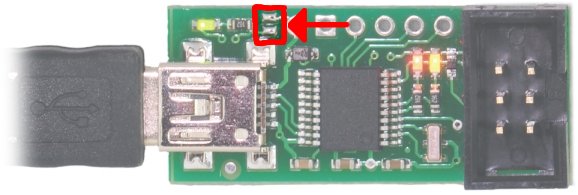 |
The Pololu USB AVR Programmer’s bootloader pads. |
|---|
- Once the programmer is in bootloader mode, it will appear to your computer as a new device called “Pololu pgm03a Bootloader”.
- Windows 10, Windows 8, Windows 7, Vista, Linux, and Mac OS X: The driver for the bootloader will automatically be installed and you can proceed to the next step.
- Windows XP: When the “Found New Hardware Wizard” is displayed, follow steps 4–6 in Section 3.a to get the driver working.
- Once the bootloader’s drivers are properly installed, the green LED should be blinking in a double heart-beat pattern, and there should be an entry for the bootloader in the “Ports (COM & LPT)” list of your computer’s Device Manager in Windows.
- Use a terminal program (such as Br@y Terminal or screen) to connect to the bootloader’s virtual serial port. In Windows, you can determine the port name of the bootloader (e.g. COM5) by looking in the Device Manager. In Linux, you can determine the port name (e.g.
/dev/ttyACM0) by runningdmesg. In Mac OS X, you can determine the port name (e.g./dev/tty.usbmodem00022331) by runningls /dev/tty.usb*. You can use any baud rate. - Type the following lower-case letters into your terminal program to send them to the bootloader:
fwbootload. After each letter is sent, the bootloader should echo back the upper-case version of that letter. After you have finished typing this sequence, you should see “FWBOOTLOAD” as the output from the bootloader in your terminal program, and the programmer’s yellow LED should be on. - Now send lower-case “
s”. The bootloader will spend a few seconds erasing the current firmware and settings, and then it will echo back an upper-caseS. Do not disconnect the programmer from the computer after this point until the upgrade is complete. - Now send the contents of the downloaded firmware upgrade file to the bootloader. The firmware upgrade file is a plain-text (ASCII) file, so you can open it in a text editor (such as notepad), copy the whole thing, and then paste it into your terminal program. Br@y terminal has a “Send File” button you can use.
- While the file is being sent, the bootloader will send back period characters (“….”). This process will take about 5 seconds. When the firmware upgrade is complete, the bootloader should send back a pipe character (“|”) and turn the red LED on.
- You can now unplug your programmer, plug it back into the computer, and use the new firmware.
If you run into problems during or after the firmware upgrade, then it is possible that you accidentally corrupted the firmware on your programmer. The solution to this problem is to retry the firmware upgrade procedure. Even if your programmer is not recognized at all by your computer and you see no sign of life from it, you can get it back into bootloader mode by following the instructions in step 3.


Home | Forum | Blog | Support | Ordering Information | Lists | Distributors | BIG Order Form | About | Contact
© 2001–2026 Pololu Corporation



