Support » Pololu Maestro Servo Controller User’s Guide » 4. Using the Maestro Control Center »
4.c. Sequencer
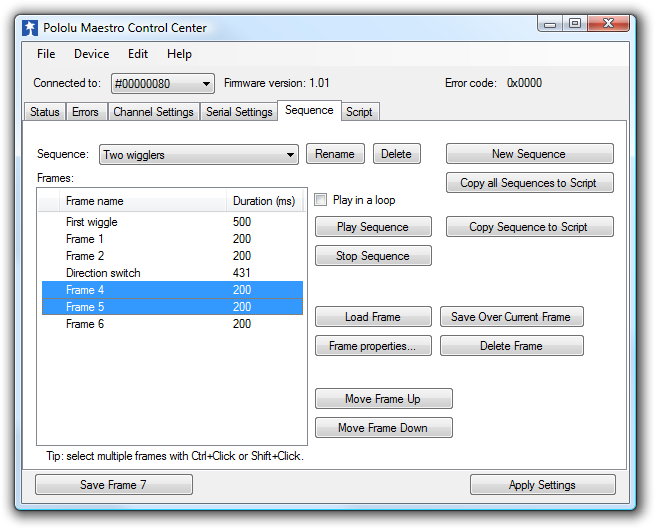 |
The Sequence tab in the Maestro Control Center. |
|---|
The Sequence tab allows simple motion sequences to be created and played back on the Maestro. A sequence is simply a list of “frames” specifying the positions of each of the servos and a duration (in milliseconds) for each frame. Sequences are stored in the registry of the computer where the sequence was created. Sequences can be copied to the script, which is saved on the Maestro. Sequences can also be exported to another computer via a saved settings file.
To begin creating a sequence, click the New Sequence button and enter a name for the sequence. Using the controls in the Status tab, set each of the servos to the position you would like for the first frame, then click Save Frame at the bottom of the window. Repeat to create several frames, then switch back to the Sequence tab. You can now play back the sequence using the “Play Sequence” button, or you can set the servos to the positions of the specific frame by clicking the Load Frame button.
The Frame properties… button allows you to set the duration and name of a frame.
The Save Over Current Frame button overwrites the selected frame(s) with the current target values from the Maestro.
If the Play in a loop checkbox is checked, sequence playback will loop back to the beginning of the sequence whenever it reaches the end.
The Sequence dropdown box along with the Rename, Delete, and New Sequence buttons allow you to create and manage multiple sequences.
A sequence can also be used to create a script which is stored on the Maestro. There are two buttons for copying the sequence into the script:
- Copy Sequence to Script sets the script to a looped version of the sequence. In most cases, you will also want to check the “Run script on startup” option in the Script tab so that the script runs automatically when the Maestro is powered up, enabling fully automatic operation without a connection to a computer.
- Copy all Sequences to Script is an advanced option that adds a set of subroutines to the end of the current script. Each subroutine represents one of the sequences; calling the subroutine from the script will cause the sequence to be played back a single time. These subroutines must be used together with custom script code; for example, you could make a display in which a button connected to an input channel triggers a sequence to play back.
Sequence Editing Tips
- You can select multiple frames by holding down the Ctrl or Shift buttons while clicking on them. This allows you to quickly move, delete, set the duration of, cut, copy, or save over several frames at once.
- You can drag any of the tabs out of the main window in to their own windows. If you drag the Sequence tab out of the window then you will be able to see the Status tab and the Sequence tab at the same time.
- You can cut, copy, and paste frames by selecting them and then using the Edit menu or the standard keyboard shortcuts. Frames are stored on the clipboard as tab-separated text, so you can cut them from the frame list, paste them in to a spreadsheet program, edit them, and then copy them back in to the frame list when you are done. (This feature does not work in Linux.)
Keyboard Shortcuts
The following keyboard shortcuts can be used in the frame list:
- Ctrl+A: Select all frames.
- Ctrl+C: Copy selected frames.
- Ctrl+V or Shift+Insert: Paste/insert frames from clipboard.
- Ctrl+X: Cut selected frames.
- Ctrl+Up: Move selected frames up.
- Ctrl+Down: Move selected frames down.
- Del: Delete selected frames.
Related products


Home | Forum | Blog | Support | Ordering Information | Wish Lists | Distributors | BIG Order Form | About | Contact
© 2001–2024 Pololu Corporation



