Support » Pololu Wixel User’s Guide » 5. Connecting Your Wixels »
5.c. Connecting Buttons and Starting the Bootloader
In order to load a new app or new settings onto your Wixel (or read the Wixel’s flash memory) you will need to get it into bootloader mode. Most Wixel apps support a special USB command for putting the Wixel into bootloader mode and the Wixel Configuration Utility can send that command automatically when you try to access the Wixel’s flash. However you might find yourself in a situation where that method will not work. This can happen for two reasons:
- You accidentally loaded a malfunctioning program onto the Wixel that is incapable of responding to the special USB command.
- You loaded a program which uses a different type of USB interface or no USB interface. In this case, check the documentation of the app to see if there is a convenient way for getting the Wixel into bootloader mode.
No matter what state the Wixel is in, you can manually get it into bootloader mode by connecting USB, setting P2_2 high, and resetting the Wixel.
There are two main ways to accomplish this.
One way is to disconnect the Wixel from any possible power sources, connect P2_2 to 3V3 using a wire, and then plug it into USB.
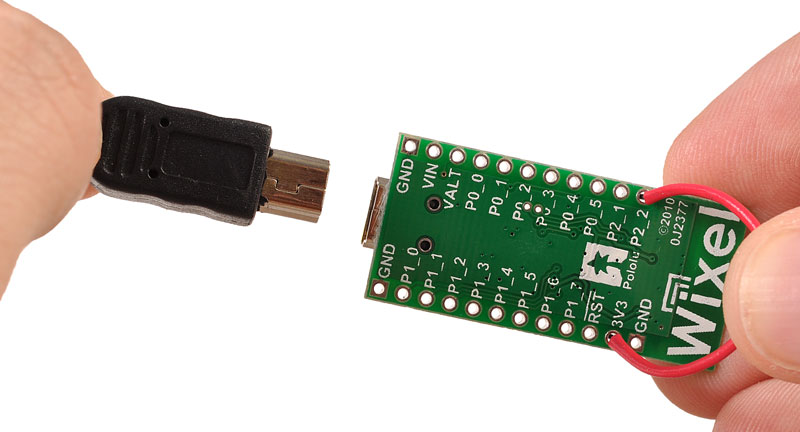 |
Using a wire to put the Wixel into bootloader mode. |
|---|
Another way to is to wire a bootloader button and a reset button to the Wixel and follow the procedure shown in the picture below:
 |
Using pushbuttons to put the Wixel into bootloader mode. |
|---|
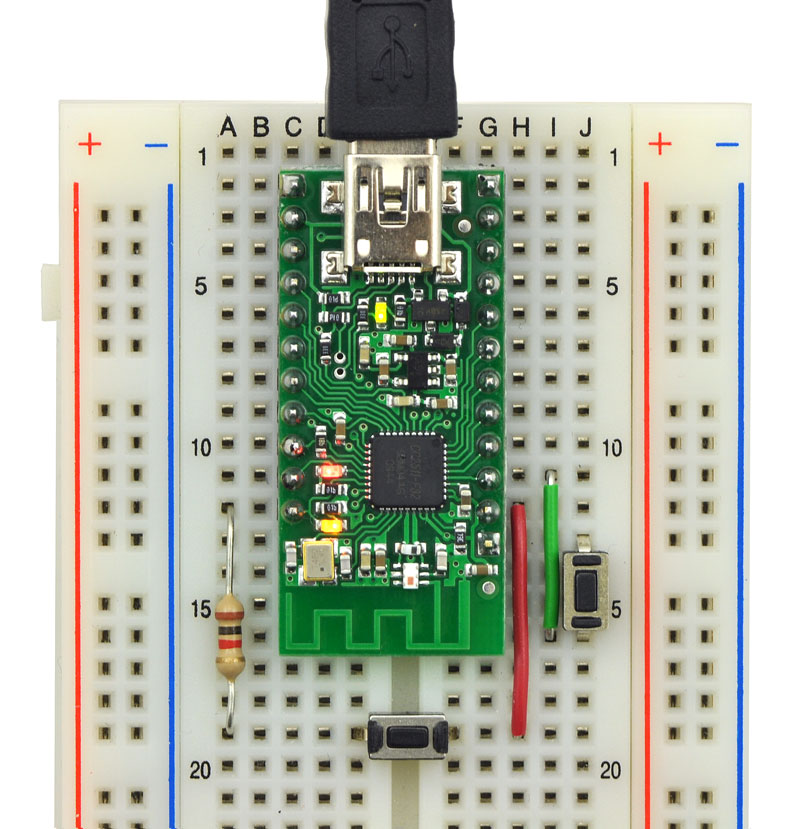 |
Wixel on breadboard with a bootloader button and reset button connected. |
|---|


Home | Forum | Blog | Support | Ordering Information | Wish Lists | Distributors | BIG Order Form | About | Contact
© 2001–2024 Pololu Corporation



