Support » Pololu Jrk USB Motor Controller User’s Guide » 3. Configuring the Motor Controller »
3.a. Installing Windows Drivers and the Configuration Utility
If you use Windows XP, you will need to have Service Pack 3 installed before installing the drivers for the jrk. See below for details.
Before you connect your Pololu jrk USB motor controller to a computer running Microsoft Windows, you must install its drivers:
- Download the jrk drivers and configuration software (5MB zip)
- Open the ZIP archive and run setup.exe. If the installer fails, you may have to extract all the files to a temporary directory, right click setup.exe, and select “Run as administrator”. The installer will guide you through the steps required to install the Pololu Jrk Configuration Utility, the jrk command-line utility (JrkCmd), and the jrk drivers on your computer.
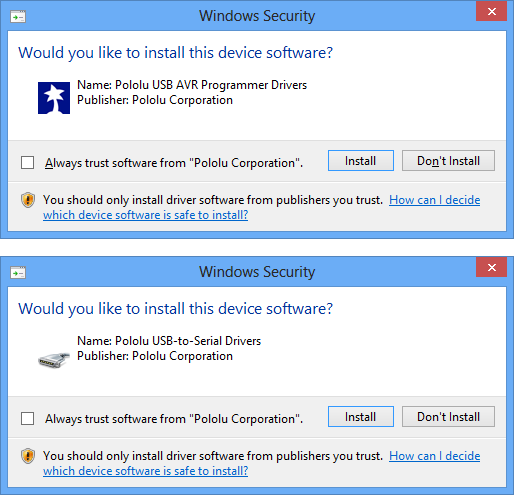
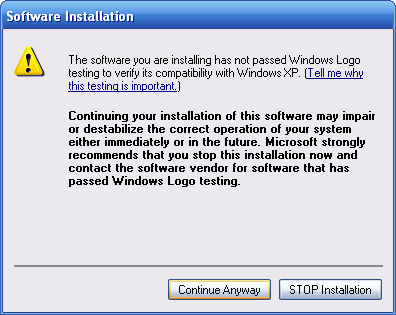
- During the installation, Windows will ask you if you want to install the drivers. Click “Install” (Windows 10, 8, 7, and Vista) or “Continue Anyway” (Windows XP).
|
|
- After the installation is finished, your start menu will have a shortcut to the Jrk Configuration Utility (in the Pololu folder). This is a Windows application that allows you to change all of the settings of your motor controller, as well as see real-time information about its state.
Windows 8, Windows 7, and Windows Vista users: Your computer should now automatically install the necessary drivers when you connect a jrk. No further action from you is required.
Windows XP users: Follow steps 5-9 for each new jrk you connect to your computer.
- Connect the device to your computer’s USB port. The jrk shows up as three devices in one so your XP computer will detect all three of those new devices and display the “Found New Hardware Wizard” three times. Each time the “Found New Hardware Wizard” pops up, follow steps 6-9.
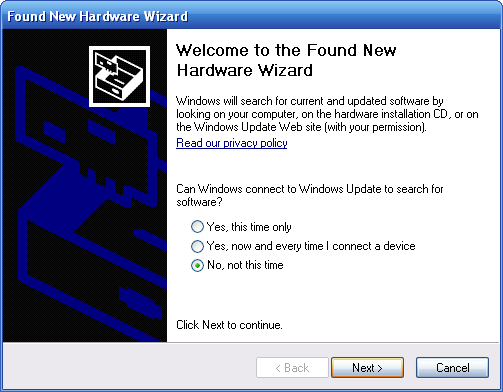
- When the “Found New Hardware Wizard” is displayed, select “No, not this time” and click “Next”.
 |
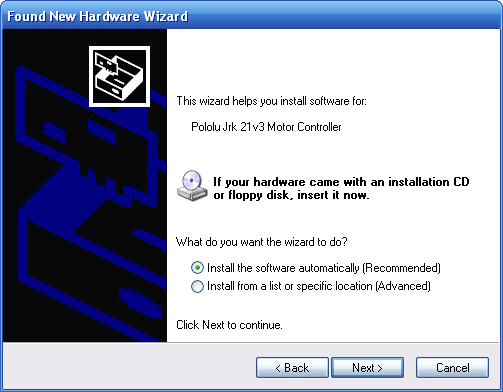
- On the second screen of the “Found New Hardware Wizard”, select “Install the software automatically” and click “Next”.
 |
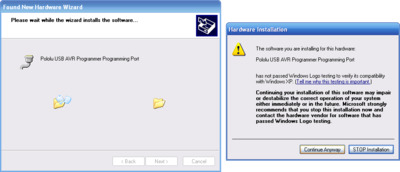
- Windows XP will warn you again that the driver has not been tested by Microsoft and recommend that you stop the installation. Click “Continue Anyway”.
 |
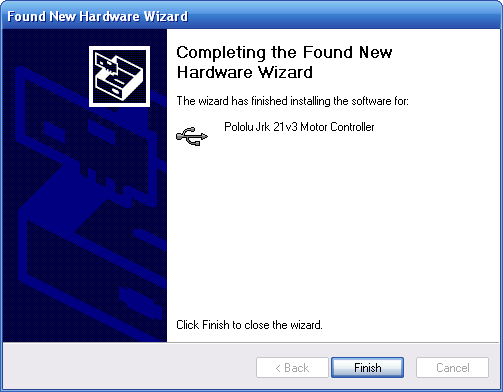
- When you have finished the “Found New Hardware Wizard”, click “Finish”. After that, another wizard will pop up. You will see a total of three wizards when plugging in the jrk. Follow steps 6-9 for each wizard.
 |
After installing the drivers and plugging the jrk in via USB, if you go to your computer’s Device Manager, you should see three entries for the jrk that look like what is shown below:
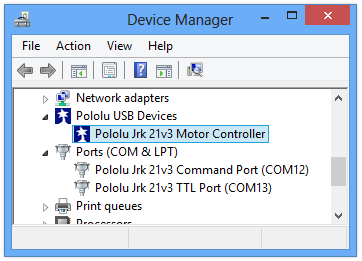 |
Windows 8 device manager showing the Pololu Jrk 21v3 Motor Controller |
|---|
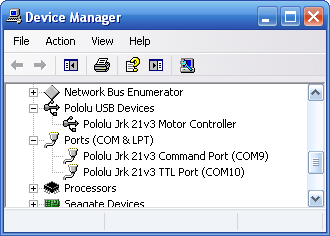 |
Windows XP device manager showing the Pololu Jrk 21v3 Motor Controller |
|---|
COM ports
After installing the drivers, if you go to your computer’s Device Manager and expand the “Ports (COM & LPT)” list, you should see two COM ports for the jrk: the Command Port and the TTL Port. In parentheses after these names, you will see the name of the port (e.g. “COM5” or “COM6”).
You might see that the COM ports are named “USB Serial Device” in the Device Manager instead of having descriptive names. This can happen if you are using Windows 10 or later and you plugged the jrk into your computer before installing our drivers for it. In that case, Windows will set up your jrk using the default Windows serial driver (usbser.inf), and it will display “USB Serial Device” as the name for each port. The ports will be usable, but it will be hard to distinguish the ports from each other because of the generic name shown in the Device Manager. We recommend fixing the names in the Device Manager by right-clicking on each “USB Serial Device” entry, selecting “Update Driver Software…”, and then selecting “Search automatically for updated driver software”. Windows should find the jrk drivers you already installed, which contain the correct name for the port.
If you want to change the COM port number assigned to your USB device, you can do so using the Device Manager. Bring up the properties dialog for the COM port and click the “Advanced…” button in the “Port Settings” tab. From this dialog you can change the COM port assigned to your device.
If you use Windows XP and experience problems installing or using the serial port drivers, the cause of your problems might be a bug in older versions of Microsoft’s usb-to-serial driver usbser.sys. Versions of this driver prior to version 5.1.2600.2930 will not work with the jrk. You can check what version of this driver you have by looking in the “Details” tab of the “Properties” window for usbser.sys in C:\Windows\System32\drivers_. To get the fixed version of the driver, you will need to install Service Pack 33. If you do not want Service Pack 3, you can try installing Hotfix KB918365 instead, but some users have had problems with the hotfix that were resolved by upgrading to Service Pack 3. The configuration software will work even if the serial port drivers are not installed properly.
Native USB interface
There should be an entry for the jrk in the “Pololu USB Devices” category of the Device Manager. This represents the jrk’s native USB interface, and it is used by our configuration software.


Home | Forum | Blog | Support | Ordering Information | Wish Lists | Distributors | BIG Order Form | About | Contact
© 2001–2024 Pololu Corporation



